Set Up and Manage “Buy X, Get Y” Gift Card Promotions
Last updated: Mar 25, 2026, 1:47 PM
Run limited-time “Buy X, Get Y” gift card promotions in Toast to boost sales, issue bonus vouchers, and manage campaigns across multiple locations.
| This feature is currently in Early Access with certain limitations. Please review the article below before setting up your promotion. |
- Overview
- Set Up a Gift Card "Buy X, Get Y" Promotion
- Issuing Bonus Vouchers
- Troubleshoot Voucher Printing
- Redeeming Bonus Vouchers
- Manage the Campaign and Offer
- Frequently Asked Questions
- Known Early Access Limitations
- Coming Soon
Overview
Gift card "Buy X, Get Y" promotions help boost sales by giving guests a bonus voucher when they spend a certain amount on gift cards. Bonus vouchers are not gift cards. They are discounts linked to a single-use promo code.
When campaigns are live, bonus vouchers are triggered automatically in the following ways:
- Printed on a separate receipt for qualifying in-store gift card purchases
- Emailed to the receipt email for online eGift Card purchases.
Gift Card “Buy X, Get Y” Promotions require the following:
- The Toast Gift Card Module (with sell eGift-cards online enabled)
- A Toast terminal connected wirelessly or hardwired to a receipt printer
- A Toast-issued receipt printer with printer paper that is configured to your restaurant
Note: Need help setting up your printer? Visit our Support Center for Printer Setup.
Set Up a Gift Card "Buy X, Get Y" Promotion
To set up a "Buy X, Get Y" promotion:
- Log in to Toast Web and navigate to Marketing > Offers.
- Select the Sell more gift cards tile.
- Next, select Sell more gift cards as your Goal.
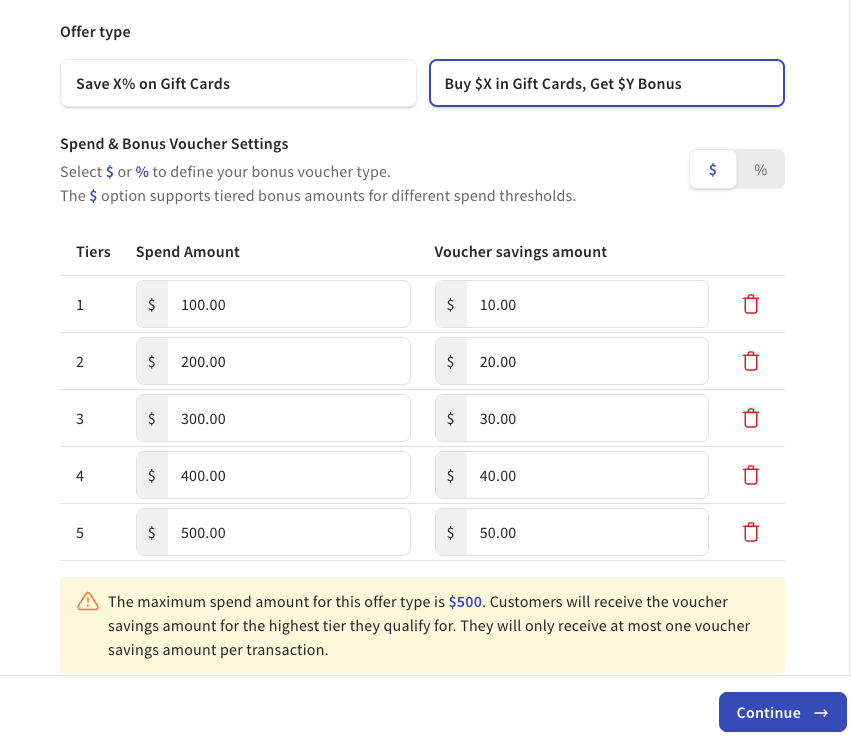
- Select Buy $X in Gift Cards, Get $Y Bonus.
- Configure your offer and select the Continue button to navigate to the next page.
- Minimum spend: The amount a guest must purchase in gift card value to receive the bonus voucher.
- Voucher savings amount: The $ or % discount that will be generated on the bonus voucher.
- Tiers: Customers will always receive the voucher savings amount for the highest tier they qualify for, and they will only receive one voucher savings amount per transaction. Note: The maximum spend tier you can create is $500 which is the maximum amount you can sell a gift card for in our eGift Card shop. This is set by our fraud protection team.
- Once you have configured your tiers, spend amount, and voucher savings amounts to your liking, you can set up availability for your offer by configuring the following settings:
- Offer Unlock Duration: The promotion period which guests can earn a bonus voucher for qualifying gift card purchases.
- Offer Redeem Duration: The dates a guest can redeem their bonus voucher.
- Voucher redeem availability: By default, the voucher is redeemable during open business hours. You can customize this by day and time.
- Select Continue.
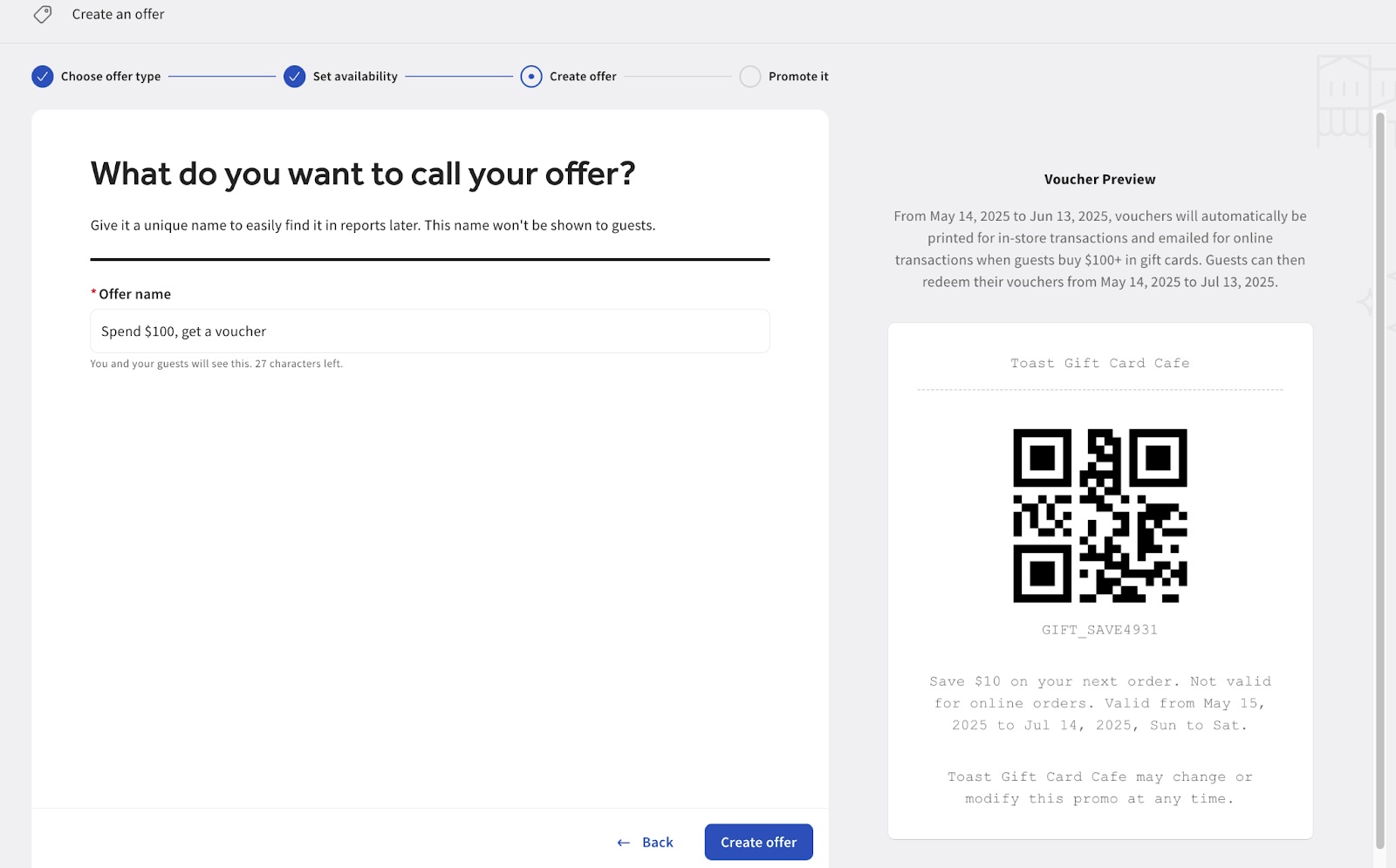
- Next, you can choose a name for your offer and preview what your voucher will look like. On this screen, you can also preview how the bonus voucher will look on the right side of your screen, as seen in the image below.
- Finally, select Create Offer and Publish.
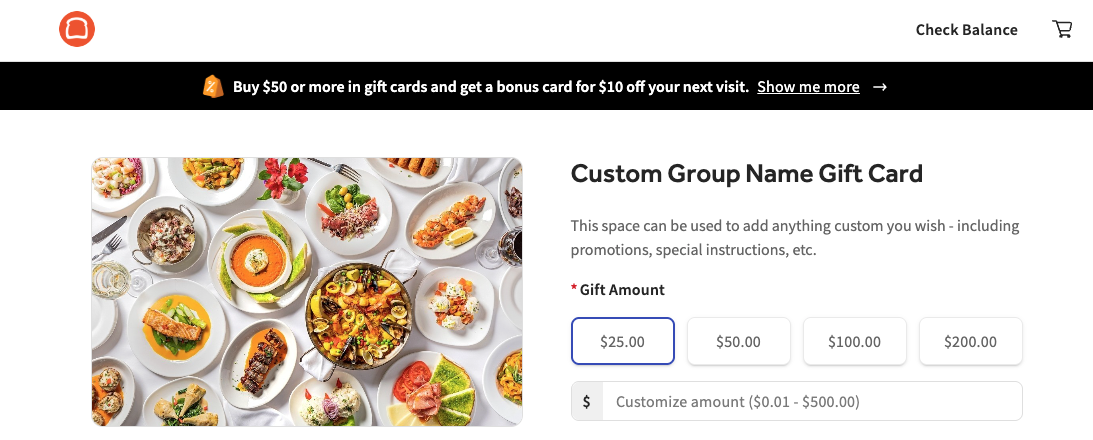
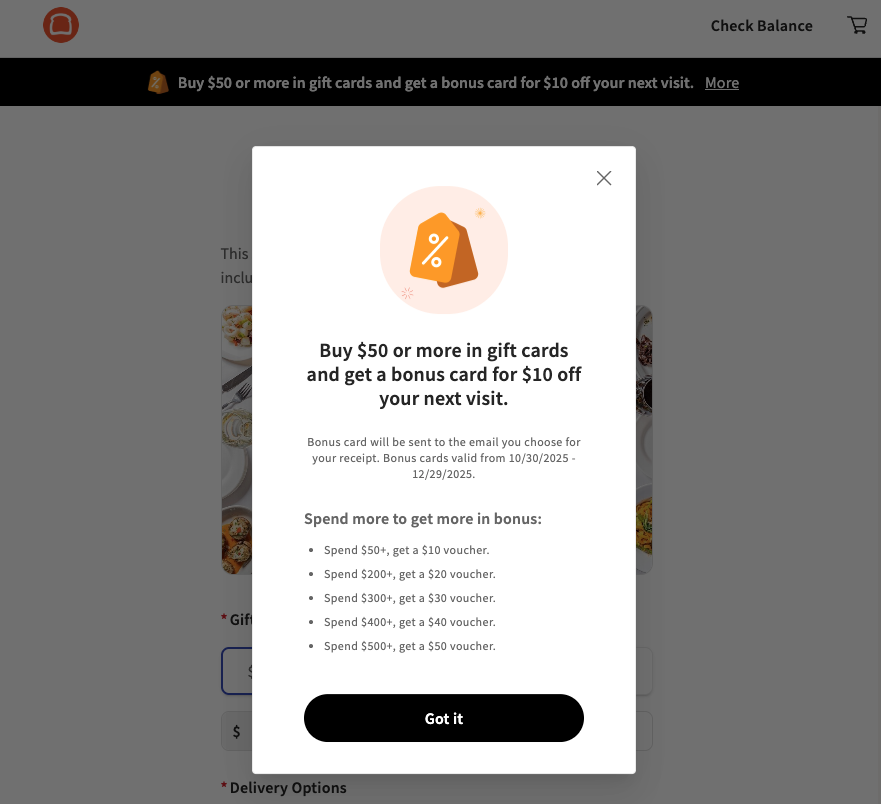
Below are examples of banners and pop-ups that automatically shows up on your eGift Card shop when a Buy X, Get Y campaign is live:
Note: For Multilocation customers, each location will need its own campaign to trigger bonus vouchers. Once triggered, bonus vouchers can be used at any location in your Gift Card/Rewards group. However, each location must first run a full publish before the vouchers are recognized.
Issuing Bonus Offers
Once the offer is live, vouchers for bonus offers that have been purchased in-store will print automatically for each qualifying purchase.
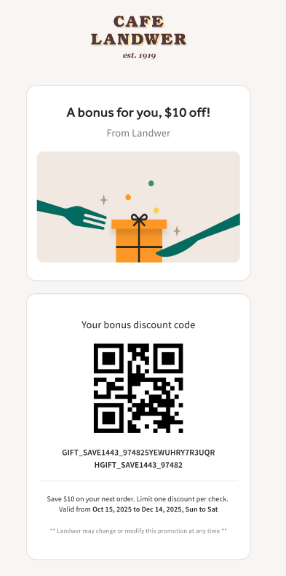
Vouchers for bonus offers that have been purchased online will be emailed automatically to the address used for eGift Card receipts for each qualifying purchase. Emailed vouchers will appear like the image below:
Troubleshoot Voucher Printing for Gift Card "Buy X, Get Y" Promotions
Printed offer vouchers will be printed on the dedicated receipt printer for regular order receipts. If the offer vouchers don’t print as expected, proceed with the steps below.
- Check that the offer is active, and confirm the Buy X, Get Y rules.
- Ensure the printer is properly connected to your terminal and online. See Get Help: My Printer Isn't Working for in-depth steps.
Note: If you’re purchasing a test gift card on the POS, do not apply a discount to check out. Discounted gift cards at the POS won’t trigger a voucher. For testing, just complete the purchase using Cash.
If you continue to experience issues, please reach out to the product team at gift-card-team@toasttab.com.
Redeeming Bonus Vouchers
To redeem a bonus voucher on the Toast POS:
- Navigate to the check on which you would like to redeem the voucher.
- Select the three-dot overflow menu at the top of your check.
- Select Promo code. If you do not see this as a drop-down option, navigate to Toast Admin > UI Options > Enable promo code search at each applicable location.
- Select Scan. Note: You do not need a scanner to use this feature. You can use the camera built into your Toast Flex POS unit. If you do have an attached scanner device, you will not need to select the Scan button.
- You will then be prompted to enter the guest's phone number.
- Select Apply code.
Note: An employee must have the 3.1 Discounts permission in order to redeem/apply bonus vouchers. If an employee without that permission attempts to use a discount, they will need to enter a manager passcode.
To redeem a bonus voucher online, guests can redeem their bonus voucher by selecting Add Promo Code + and entering the full code starting with GIFT_SAVE in the promo code field at checkout.
Manage the Campaign and Offer for Gift Card Promotions
Track the Offer for Gift Card "Buy X, Get Y" Promotions
You can track voucher redemptions by navigating to Offers > Track & manage.
Currently, the track & manage tag will only report on bonus vouchers redeemed, not bonus vouchers triggered when a gift card is sold. To track how many were issued, use the Gift Card Transactions report and filter for sales during your campaign dates and above your campaign threshold. If a bonus voucher’s redemption period starts in the future, the offer shows as Upcoming even though the campaign is live and guests can already earn vouchers by meeting the spend threshold.
Cancel the Offer for Gift Card Promotions
You can manage or cancel the offer by navigating to Offers > Track & manage. Select a campaign to find cancellation options by selecting the drop-down menu (three horizontal dots) in the top right corner.
You will see three options available within the dropdown:
- End offer allows you to cancel the offer and honor existing vouchers through the voucher expiration date.
- Complete allows you to cancel the offer and invalidate issued vouchers.
- Archive allows you to cancel the offer, invalidate issued vouchers, and hide the campaign from the campaign list.
FAQ and Limitations for Gift Card "Buy X, Get Y" Promotions
Can I run this campaign only online or only in-store?
Currently, campaigns must run both online and in-store.
Can I run this campaign on my Toast Website or Branded App?
Campaigns currently only run on your Toast eGift Card Shop, not on embedded shops in Toast Websites or Branded App gift card flows.
Can bonus vouchers be used for Online Orders?
Yes, vouchers can be redeemed on your Toast Online Ordering site if applicable.
Will Gift Card promo vouchers get generated if a “Other Payment” type is used?
No, currently, Gift Card promos will only get triggered if a payment type is Card or Cash.
Can I create one campaign that applies for all of my locations?
No, you need a separate campaign for each location to trigger bonus vouchers there. For online, if you use one eGift Card shop link, you only need one campaign. Note: Bonus vouchers can always be redeemed at any location in your GC/Rewards group.
Can I print new offer vouchers manually?
Currently, a qualifying purchase must be made to print an offer voucher. Guests may want to take a picture of their offer voucher for safekeeping.
Can I customize the text on the on the offer voucher?
Offer vouchers cannot be customized at this time.
How is minimum spend calculated when there are multiple gift cards being sold?
Minimum spend is based on the total gift card value in a single check or cart. For example, two $50 gift cards in one check/cart count as hitting one $100 minimum spend tier, not two $50 minimum spend tiers.
How is minimum spend calculated when a discount is applied to the check?
Bonus vouchers won’t be issued for POS transactions when a check-level discount is applied. Bonus vouchers will be issued for eGift Card Shop transactions, but the minimum spend is calculated on the post-discount subtotal.
My guest lost or never received a bonus voucher. What do I do?
If a guest received their bonus voucher by email, first ask them to check their spam folder. The email comes from no-reply@toasttab.com with the subject line: “A bonus for you to [Restaurant Name]”. If they are still unable to find their bonus voucher:
-
- Verify their purchase with the purchase date, amount, or if the purchase was completed online, you can use the purchaser’s email. In Toast Web, navigate to the Gift Card Transactions report to verify the transaction.
- Once you have confirmed their purchase, you can reissue their voucher by navigating to Toast Web > Marketing > Offers > Manage and Track. Select the active campaign to view the promo code (below the QR code image). Share this code with the guest.
Note: At this time, physical vouchers can’t be reprinted and bonus voucher emails can’t be resent automatically. If needed, you’ll need to create and send your own email to the customer.
My guests are confused about how to use their bonus vouchers.
Guests may not always know when or where bonus vouchers can be used. Vouchers are valid in-store, or online if the restaurant uses Toast online ordering. Each voucher can only be applied to one check, and any unused balance does not carry over. We include the following information on all emailed and printed bonus vouchers:
"Valid from [Restaurant Specific Dates]. Discount must be used in full on a single check; balances won’t carry over. [Restaurant] may change or modify this promo at any time."
It may be helpful to further notate this in marketing materials, within the offer details in your eGift Card Shop, or instruct your staff to explain this with each eligible purchase.
What happens to the bonus voucher if my guest needs a refund?
If a guest needs a refund for the original gift card purchase that triggered the voucher, the voucher is no longer valid. If a guest uses a bonus voucher as payment on a check that is later voided or refunded for another item, their voucher will become available to use again.
My guest bought multiple gift cards that include bonus vouchers with the same phone number. How do I honor the bonus if it's single-use?
If a guest has multiple vouchers from different transactions, Toast may block redemption if the same phone number is used more than once. In this case, use your judgment and honor the voucher if you trust the guest, or your staff can also enter a placeholder phone number to bypass the single-use restriction.
I archived a promotion and I'm now having trouble printing vouchers. How can I print these vouchers?
If the guest has already purchased, you can provide the bonus value on a physical gift card instead of utilizing the bonus voucher. If the guest has not purchased yet, encourage them to buy through the eGift Card shop where vouchers will print correctly.
I removed a gift card from a POS check and now my guest's bonus voucher amount is incorrect or does not work. How do I honor this?
If you are unable to redeem a guest's bonus voucher for any reason, you can instead apply an open discount for the correct amount.
If a bonus voucher was printed with the incorrect amount, you can provide the correct bonus value on a physical or eGift card. Make sure to throw away the printed voucher with the incorrect amount to avoid confusion.
To prevent this issue from occurring in the future if you need to remove a gift card from a POS check, start a new check or create a separate check to complete the gift card transaction. You can also encourage your guests to buy gift cards through the eGift Card shop as the vouchers will calculate and print correctly.
Coming Soon (Future Enhancements) for Gift Card "Buy X, Get Y" Promotions
We are working on these enhancements for the 2025 Holiday season and beyond. Please reach out to the Toast product team (andy.wang@toasttab.com) if you notice any missing features or want us to prioritize one feature over others.
Enhanced campaign configurations:
- Ability to choose where this campaign runs: online only, in-store only, or both
- Ability to choose true "BOGO Gift Cards", vending a second Gift Card instead of a Bonus Voucher
- Ability to set custom fine print and discount exclusions in bonus vouchers
Enhanced redemption experience
- Single-use promo codes without phone number requirement
- Ability to combine bonus voucher with other discounts
Enhanced campaign creation for multi-location brands:
- You can create one campaign and choose the locations it applies to all at once
Enhanced reporting & management capabilities:
- View triggered vouchers, redemptions, and sales, all in one place
- Find, manage, and resend bonus vouchers like regular gift cards
Enhanced guest experience on eGift Card shop:
- Ability for guests to dynamically see their bonus vouchers get added to their cart when you hit the required gift card spend (coming 2026)