Configure Menu Pricing Strategy in the Menu Builder
Last updated: Mar 25, 2026, 1:52 PM
In this article, learn how to use and set advanced pricing strategies for menu items in the menu builder tool.
Menu Builder Overview
At a high level, the menu builder enables you to create, edit, and manage your menu(s) and menu items in Toast. However, there are multiple levels in which you can customize your pricing strategy and operation. The chart below begins to lay out the different ways you can begin pricing.
Note: Not all pricing strategies are supported on all Toast product channels. For example, Toast Online Ordering and Catering Online Ordering do not support open prices.
| Pricing Strategy | Description | Can be used with |
| Base pricing | The base price is specific for each item and will need to be changed manually. Base pricing is only affected by discounts. |
|
| Size pricing | With size pricing, the price of an item changes based on the size chosen for the item. For example, a small pizza costs $6 and a large pizza costs $8. |
|
| Open pricing | With open pricing, you manually specify a price for an item when that menu item is ordered on the POS. For example, you may want to set the price of an item differently depending on the market price for that item on the day it is ordered. |
|
| Menu-specific pricing | With menu-specific pricing, the price of a menu item changes based on the menu it was ordered from. For example, a menu item that costs $5 when it's ordered from the Lunch menu and $7 when it's ordered from the Dinner menu. Note: Menu-specific pricing is edited using the menu manager page. Learn more about this option in this Support Center article: Build Happy Hour Menus With Menu-Specific Pricing. |
|
| Time pricing | With time pricing, you define the price of a menu group or item during specific times of the day. For example, a menu item that costs $10 between noon and 2 p.m. and $12 during the rest of the day. With time pricing, you also specify a base price that functions as a default price for items of the day when time price has not been defined. Note: Time pricing is edited using the menu manager page. Learn more about this option in this Support Center article: Set Your Menu Pricing Strategy. |
|
| Price levels | Price levels allow you to quickly price menu items that all share the same price. You create a price level, and then assign it to the menu items that will use it. For example, all bottled beers are $5 and all draft beers are $6. To change the price of the items that use price level, you only need to change the price level itself. This eliminated the need to edit the price for each individual group or item. Note: Price levels are edited using the menu manager page. Learn more about this option in this Support Center article, Set Price Levels for Items With the Same Price. |
|
Edit Pricing via the Menu Builder
Base Pricing
- In Toast Web, navigate to the menu builder (Menus > Menu management > Menu builder).
- Expand the menu that contains the item you want to set a size price for using the caret (arrow) icon, then select the name of the group that contains the item.
- Select the item you want to edit. The item details page will appear.
- Navigate to the Pricing and taxes section. Then, select the Base price for the Price strategy setting.
- Enter the price for the item in the Base price field.
- Once you're done setting the size prices, save and publish your changes.
Size Pricing
- Navigate to the menu builder (Menus > Menu management > Menu builder).
- Expand the menu that contains the item you want to set a size price for using the caret (arrow) icon, then select the group that contains the item.
- Select the item you want to edit. The item details page will appear.
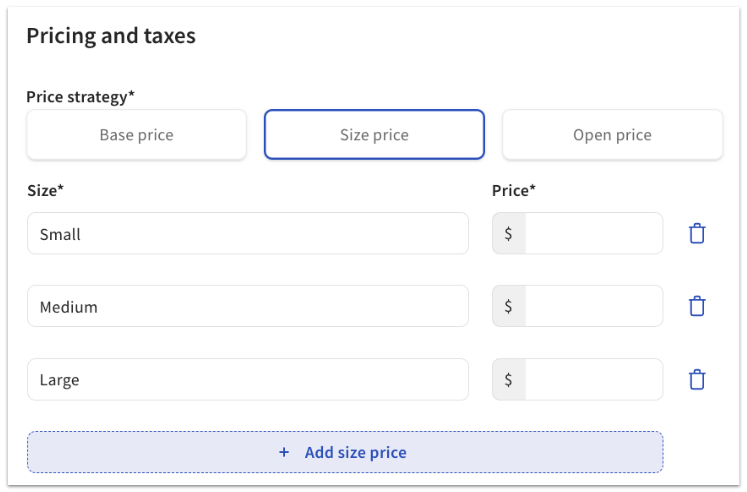
- Navigate to the Pricing and taxes section. Then, select the Size price for the Price strategy setting.
- You should now see a set of rows for defining the size prices for this item. By default, the rows are added for small, medium, and large sizes, but that can be changed. Add the sizes and pricing for each size. To delete a size, select the trash icon next to the size.
- Once you're done setting the size prices, save and publish your changes.
Open Pricing
- Navigate to the menu builder (Menus > Menu management > Menu builder).
- Expand the menu that contains the item you want to set a size price for using the caret (arrow) icon, then select the group that contains the item.
- Select the item you want to edit. The item details page will appear.
- Navigate to the Pricing and taxes section. Then, select the Open price for the Price strategy setting. Since pricing for this strategy is set directly on the POS, a field to set the price in Toast Web will not appear.
- Select save and publish when you're done.
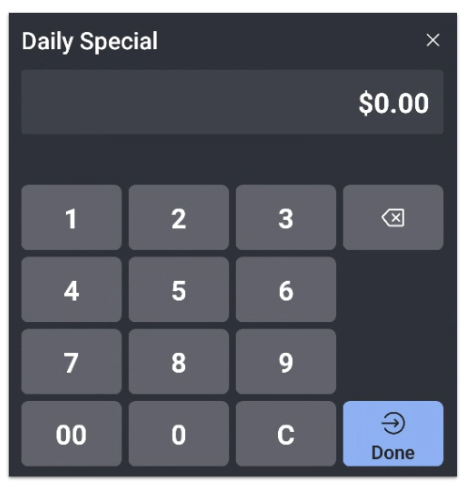
Once an open-priced item is selected on the POS, the following screen will appear for the server to enter the price. In the example below, we created a menu item called Daily Special: