Set Your Menu Pricing Strategy
Last updated: Sep 30, 2026, 2:27 PM
- Choose a pricing strategy
- Group pricing
- Item-level (base) pricing
- Time-specific pricing
- Size pricing
- Menu-specific pricing
- Frequently asked questions
- Related articles
Toast offers several pricing strategies that give you flexibility over how items and groups are priced. This article explains the pricing strategies you can configure from the menu manager page — group pricing, item-level (base) pricing, time-specific pricing, and size pricing — and helps you choose the right one for your menu. To edit prices in bulk, see Use the Price Editor Tool.
Choose a Pricing Strategy
Each pricing strategy answers a different need. Use the summary below to decide which one fits the item or group you're pricing, then follow the matching section.
Group pricing applies one price to a whole group of items that share the same price, such as a set of appetizers or drinks.
Item-level (base) pricing sets a single price specific to one item. This is the most common strategy and the one most menu items use.
Time-specific pricing changes an item or group's price automatically based on the time of day or day of the week, which is useful for Happy Hour.
Size pricing sets different prices for different sizes of the same item or group, such as a 6-piece versus a 12-piece order of wings.
Menu-specific pricing changes an item's price based on which menu it is ordered from, such as a lower Happy Hour or Lunch price.
Note: Not all pricing strategies are supported on every Toast ordering channel. For example, Toast Online Ordering and Catering Online Ordering do not support open prices, and size pricing has limited support on Online Ordering.
To begin with the strategies in this article, log in to Toast Web and navigate to Menus > Menu management > Menu manager.
Group Pricing
Group pricing applies one set price to a whole group of items. Use it when items in a group — such as appetizers or drinks — all share the same price.
To set group pricing:
- In Menu manager, select the name of the menu group you want to price.
- In the settings panel on the right side of the screen, select More Settings next to the menu group name.
- Scroll to the Pricing section and select Yes for Menu group provides pricing?.
- Enter the price in the Base price field.
- Save and publish your changes.
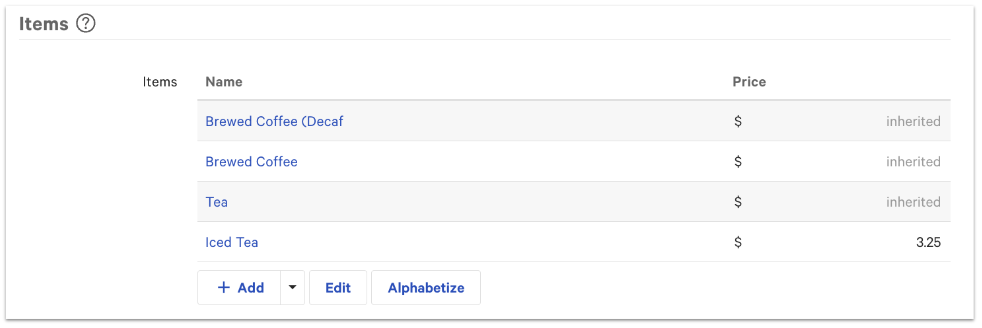
Any new item added to this group inherits the group price. You can still override the group price for an individual item by entering a different price for that item — individual pricing takes priority over group pricing.
Item-Level (Base) Pricing
Item-level pricing, also called base pricing, sets a single price specific to one item. Most menu items use base pricing. A base price only changes when a discount is applied.
You can set a base price in any of these ways: on the item details page through the menu manager, with the price editor (see Use the Price Editor Tool).
To set a base price from the Menu manager page:
- Use the arrow icons to the left of the menu names to open your menu groups and subgroups until you see the item, then select the name of the item.
- In the settings panel on the right side of the screen, scroll to the Pricing section.
- For the Pricing strategy setting, select Base price.
- Enter a value in the Base price field.
- Save and publish all changes.
Time-Specific Pricing
Time-specific pricing automatically adjusts an item or group's price based on the time of day or day of the week. It is useful for Happy Hour and weekly specials. You set a base price that applies by default, then define time windows that override it.
To set up time-specific pricing:
- Use the arrow icons to the left of the menu names to open your menu groups and subgroups until you see the item, then select the name of the item.
- In the settings panel on the right side of the screen, scroll to the Pricing section.
- For the Pricing strategy setting, select Time specific price.
- Enter a Base price.
- In the Time prices table, select + Add to create a window of time when the price should change, then choose the Time and Day settings for that window.
- Repeat the previous step for each additional time window. Select the trash can icon to delete a time price rule.
- Save and publish your changes.
Note: Time-specific pricing appears in the Product Mix (PMIX) report as an average of the price across every time the item sold. For example, 100 beers sold at $10 and 50 beers sold at $5 during Happy Hour report as an average price of $8.33. To learn more, see Product Mix (PMIX) Report Overview.
Edit time-specific pricing in bulk
After items or groups are configured for time-specific pricing, you can edit both base and time prices in bulk with the price editor. See Use the Price Editor Tool.
Note: The price editor cannot modify time-specific prices for an item unless that item was already configured to use the time-specific pricing strategy.
Size Pricing
Size pricing sets different prices for different sizes of the same item or group, and can also be applied at the modifier level. Use it for items like wings, where you price by count (6 or 12), or drinks priced by size.
To set up size pricing for a group or item:
- Use the arrow icons to the left of the menu names to open your menu groups and subgroups until you see the item, then select the name of the item.
- In the settings panel on the right side of the screen, scroll to the Pricing section.
- For the Pricing strategy setting, select Size price.
- Enter a value in the Base price field.
- In the size pricing table that appears, select + Add size price to create a size, then enter a name and price for it. Repeat for each size. To delete a size, select the trash can icon.
- Save and publish all changes.
Note: Size pricing does not break out by size in reporting. For the wings example, total wings sold are reported, but not how many of each size sold. To track sizes separately in reporting, create each size as its own menu item — for example, "6 Wings" and "12 Wings."
Note: Size pricing has channel limitations. A size-priced item cannot take a bulk price increase through the price editor the way a base-priced item can, which affects price increases on third-party ordering channels such as Uber Eats, DoorDash, and Grubhub. The pricing strategy (size price versus base price) is set at the item level, so changing it on a copied item can affect the original. For a separate third-party menu, review the copy guidance in Configure a Menu-Specific Pricing Strategy. For detailed size pricing steps, including modifier size pricing, see Configure Size Pricing for Menu Groups and Menu Items.
Menu-Specific Pricing
Menu-specific pricing changes an item's price based on which menu it is ordered from — for example, $5 from the Lunch menu and $7 from the Dinner menu. It is the strategy most often used to build Happy Hour menus and to set different prices for in-store versus third-party ordering. Menu-specific pricing is configured from the menu manager page.
For setup steps, including how to build a Happy Hour menu and convert items to menu-specific pricing, see Configure a Menu-Specific Pricing Strategy.
Note: An item can only be converted to menu-specific pricing in the price editor if it currently uses base pricing. Items using time-specific, size, or open pricing must be changed before they can be converted.
Frequently Asked Questions
Why isn't my price increase applying to a size-priced item?
A price increase may not apply to a size-priced item because the price editor's bulk increase tools are designed for base-priced items. Size-priced items have a price per size rather than a single base price, so a bulk increase — including increases intended for third-party channels like Uber Eats — may not carry through. To raise prices on a separate third-party menu, review the copy and conversion guidance in Configure a Menu-Specific Pricing Strategy, or update each size on the item directly.
Can I change an item to menu-specific pricing in the price editor?
You can change an item to menu-specific pricing in the price editor only if the item currently uses base pricing. Items set to time-specific, size, or open pricing must be switched to base pricing first, or the conversion will not be available.
Does changing the pricing strategy on a copied item affect the original?
Changing the pricing strategy on a copied item can affect the original item, because the pricing strategy is set at the item level. If you make a shallow copy of a menu group for a Happy Hour menu and then change the copy's pricing strategy, the change can carry over to the original item. To price the same item differently across menus, use menu-specific pricing as described in Configure a Menu-Specific Pricing Strategy rather than changing the pricing strategy on a copy. Changes to a deep copied item will not affect the original.
Does time-specific pricing show the actual prices in reporting?
Time-specific pricing does not show each individual price in reporting. The Product Mix (PMIX) report shows an average of the price across every time the item sold. To see the breakdown, review the PMIX report directly. See Product Mix (PMIX) Report Overview.
How do I set up Happy Hour pricing?
You can set up Happy Hour pricing two ways: with time-specific pricing, which automatically changes an item's price during set hours, or with menu-specific pricing, which uses a separate Happy Hour menu. For a single item or group, time-specific pricing is usually simplest. For a full Happy Hour menu, see Configure a Menu-Specific Pricing Strategy.
Related Articles
- Use the Price Editor Tool
- Configure a Menu-Specific Pricing Strategy
- Configure Size Pricing for Menu Groups and Menu Items
- Configure Modifier Pricing Strategy
- Product Mix (PMIX) Report Overview