Descripción general del modo de prueba
Última actualización: 7 jul 2026, 3:12 p.m.
Aprenda a habilitar y deshabilitar el Modo de prueba para fines de incorporación y capacitación.
| Este artículo es para clientes que están en vivo (clientes que ya usan Toast, pero que vuelven al modo de prueba para validar que su restaurante esté configurado correctamente) y pre-en vivo (clientes que aún están en proceso de incorporación con Toast y están en modo de prueba). Si usted es un cliente pre-en vivo, puede usar su terminal en modo de prueba a través de Wi-Fi antes de que se conecte por cable durante su cita de instalación. |
- Descripción general del modo de prueba
- Uso del modo de prueba
- ¿Cómo sé si mi restaurante está en modo de prueba?
Descripción general del modo de prueba
El modo de prueba le permite pasar de tener su restaurante en vivo y en pleno funcionamiento a poder validar que su restaurante esté configurado correctamente antes de comenzar a operar. En el modo de prueba, puede simular flujos de trabajo y pagos sin afectar sus datos de ventas. Puede usar el modo de prueba como una herramienta para validar su configuración y la configuración del menú antes de comenzar a operar con Toast. La configuración como los descuentos activos y los códigos promocionales también estará disponible en el modo de prueba.
Cualquier pedido realizado y pago recibido mientras esté en el modo de prueba se eliminará y anulará al desactivar el modo de prueba. Si está abierto al público y ha salido del modo de prueba, pero decide volver a entrar por cualquier motivo, cualquier pago de prueba aplicado a pedidos reales mientras estaba en el modo de prueba se eliminará cuando regrese al modo real.
Si habilita el modo de prueba desde un dispositivo en su restaurante, pondrá a todo su restaurante en modo de prueba. El modo de prueba no se puede aislar a un solo dispositivo. Desaconsejamos encarecidamente habilitar el modo de prueba durante sus horas de servicio debido al riesgo de perder pedidos y datos de pago en todo su restaurante. Si lo está utilizando para capacitar a los empleados, es fundamental deshabilitar el modo de prueba cuando haya terminado con la capacitación.
Nota:
- El modo de prueba no deshabilita automáticamente los pedidos en línea, lo que significa que es posible que desee desactivar los pedidos en línea temporalmente para evitar que los clientes realicen y paguen pedidos mientras trabaja en el modo de prueba. Para saber cómo desactivar los pedidos en línea temporalmente, consulte este artículo del Centro de ayuda Verificar el estado de los pedidos en línea.
- Si el modo de prueba está habilitado, las funcionalidades de gestión de efectivo, como cerrar un cajón o iniciar uno nuevo, se deshabilitarán, y el inventario y/o el recuento de existencias de artículos no se verán afectados.
Uso del modo de prueba
Habilitar el modo de prueba
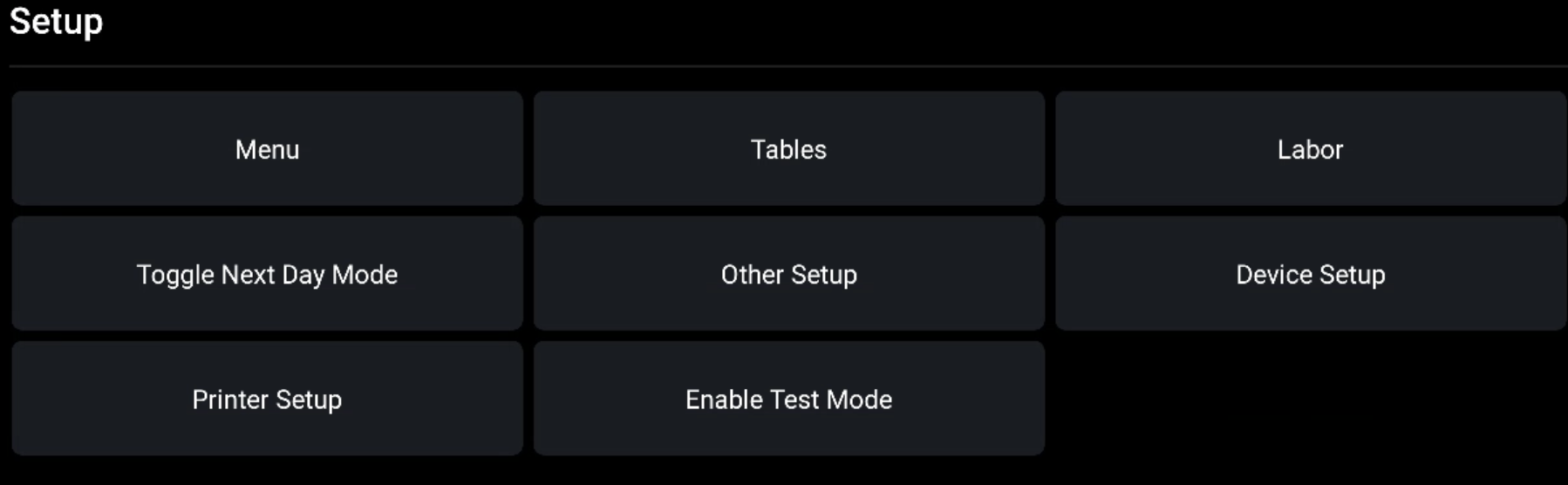
- Puede habilitar el modo de prueba desde el menú principal de su POS navegando a la sección Configuración y seleccionando Habilitar el modo de prueba.
- Una vez seleccionado, se le pedirá que confirme que está habilitando o deshabilitando el modo de prueba. En el siguiente ejemplo, queremos activar el modo de prueba, por lo que seleccionaremos Habilitar el modo de prueba para confirmar el cambio.
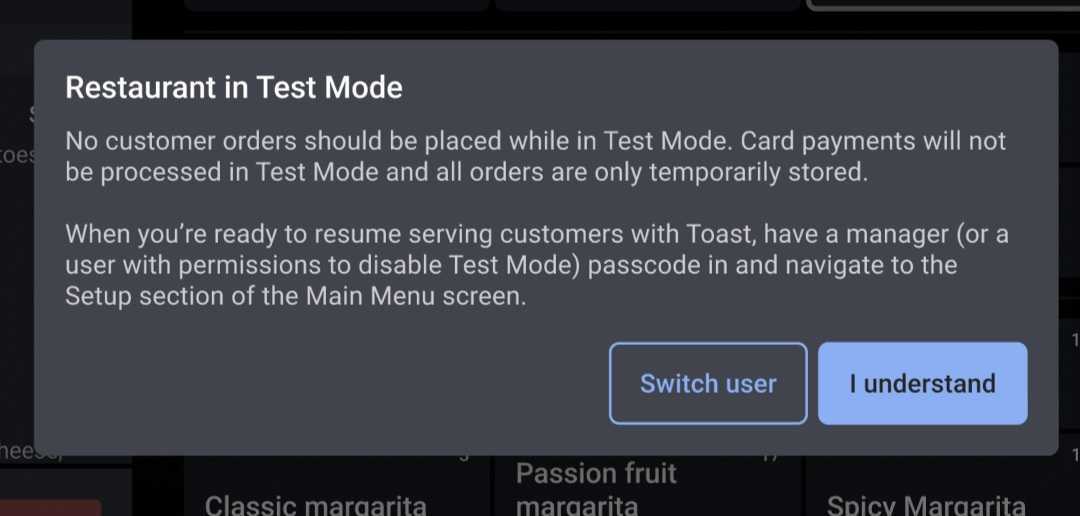
- Después de registrar su entrada con el Modo de prueba, verá una ventana emergente que le informará que cualquier pago realizado en este modo no se procesará (para dejar muy claro que se encuentra en el Modo de prueba). Esto aparecerá tanto en la terminal como en el dispositivo portátil Toast Go®.
- Cuando seleccione Entiendo, el cuadro de diálogo se cerrará. Si selecciona Cambiar usuario, se le llevará a la pantalla de código de acceso.
- Nota:Solo los usuarios con el permiso 7.2 Configuración avanzada de terminal tendrán permiso para salir del Modo de prueba en este momento. Esto es lo que verán los usuarios con estos permisos:
- Nota:Solo los usuarios con el permiso 7.2 Configuración avanzada de terminal tendrán permiso para salir del Modo de prueba en este momento. Esto es lo que verán los usuarios con estos permisos:
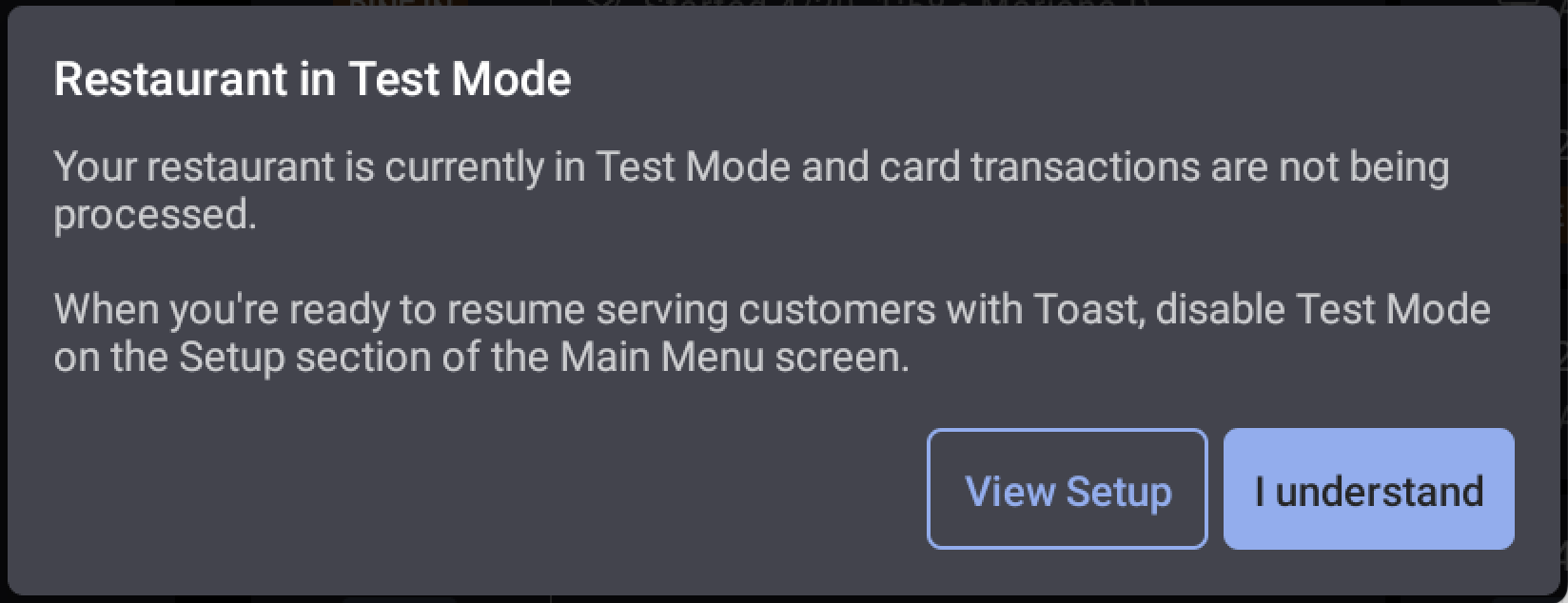
Luego pueden desactivar el Modo de prueba, lo cual se explica en la siguiente sección.
Desactivar Modo de prueba
- Puede desactivar el Modo de prueba desde el menú principal de su POS navegando a la sección Configuración y seleccionando Desactivar Modo de prueba.
- A continuación, se le pedirá que confirme que desea desactivar el Modo de prueba. Seleccione Desactivar Modo de prueba para confirmar el cambio.
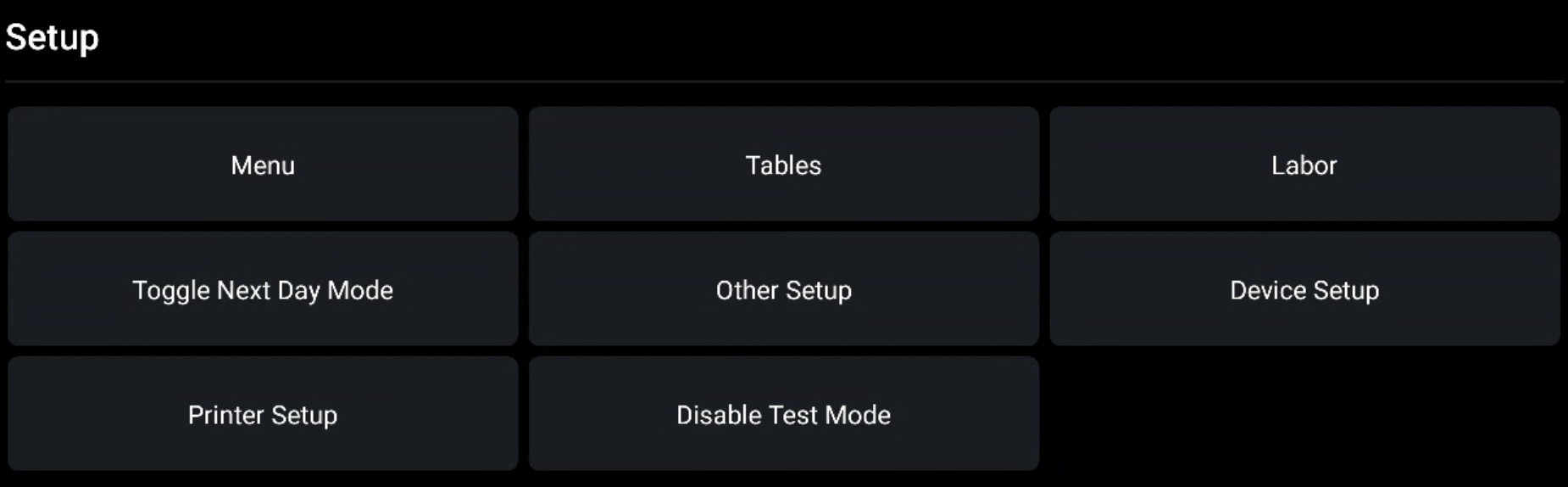
Tenga en cuenta que el modo de prueba NO SE PUEDE desactivar durante una interrupción del servicio o un evento sin conexión.
Si necesita más ayuda para desactivar el Modo de prueba y volver al modo en vivo, inicie un chat con nuestro equipo de Atención al cliente en Toast Web haciendo clic en el botón azul en la esquina inferior derecha de cualquier página o seleccionando el icono de Soporte en la parte inferior de la pantalla en la aplicación Toast Now. ¿Aún no tiene la aplicación? Descárguela hoy en Apple App Store o en Google Play Store.
¿Cómo sé si mi restaurante está en Modo de prueba?
Modo de prueba en Toast POS
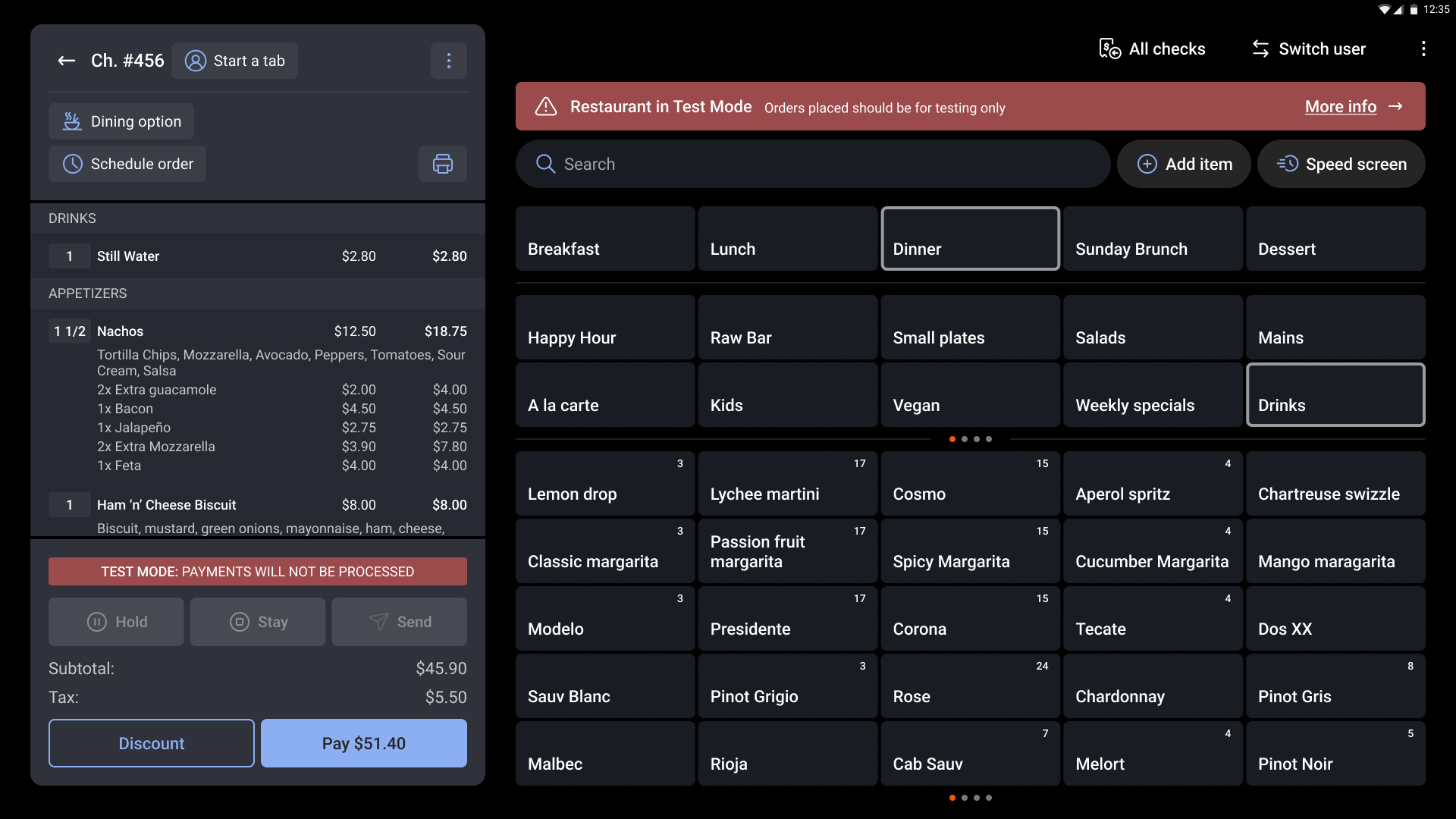
El Modo de prueba se indicará en su POS con las palabras "MODO DE PRUEBA:" LOS PAGOS NO SE PROCESARÁN\" que se muestran en los detalles del cheque. La parte superior de la pantalla también mostrará un banner rojo persistente que dice \"Restaurante en Modo de prueba. Los pedidos realizados deben ser solo para pruebas\". Aparecerá un modal cuando toque el banner rojo del modo de prueba si desea obtener más información.
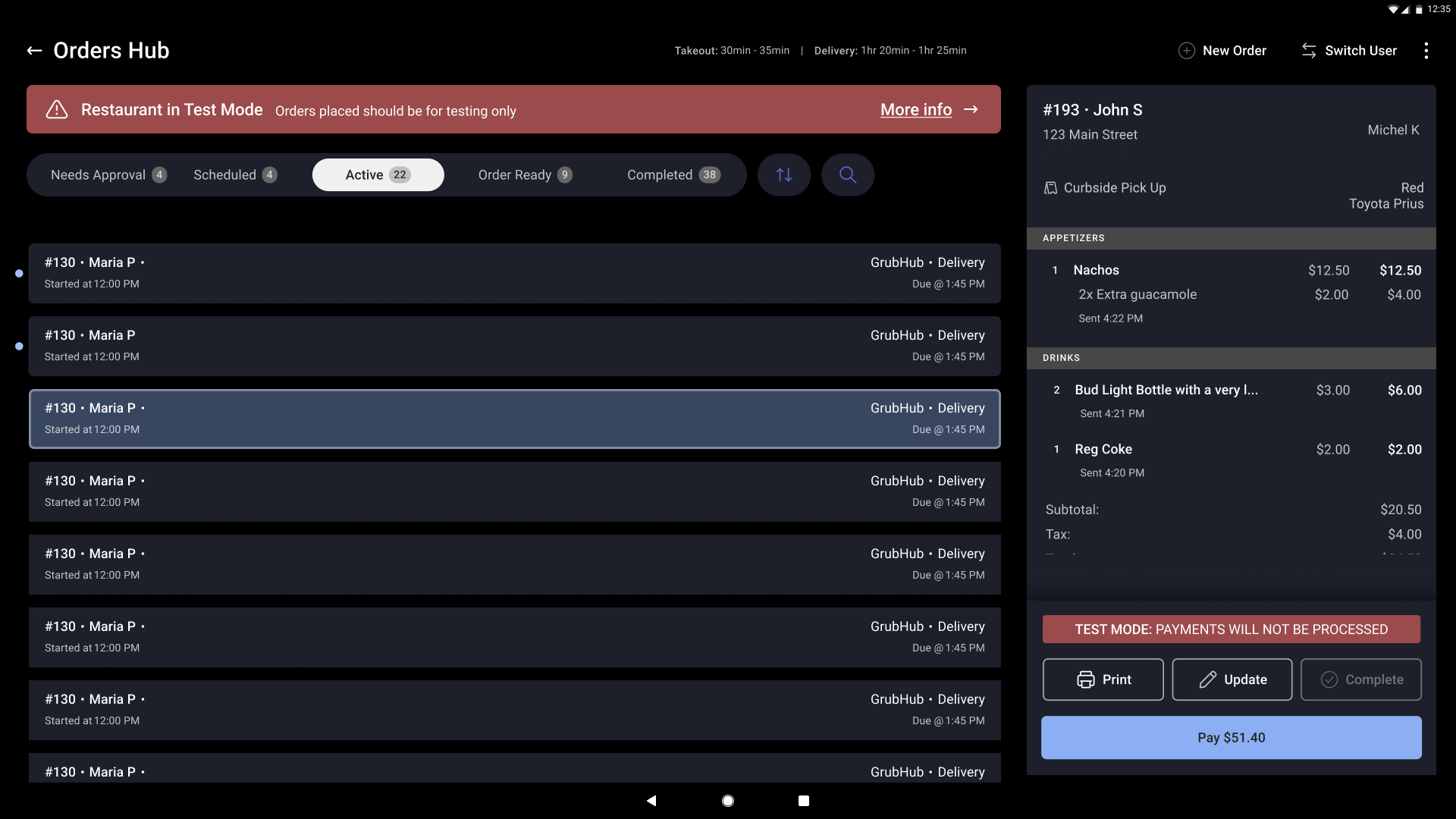
Si utiliza el centro de pedidos, así es como se verá su pantalla de MODO DE PRUEBA:
Los Ticket de cocina impresos también tendrán MODO DE PRUEBA en la parte superior del Ticket.
Modo de prueba en Toast Web
El Modo de prueba se indicará mediante un banner amarillo que se muestra en la parte superior de su página de inicio de Toast Web, similar al banner que se muestra a continuación.
