Toast Inventory: Log Prep Item Production (Canada, Ireland, and UK)
Last updated: Mar 2, 2026, 11:23 AM
Learn how to log prep item batches in Toast Inventory. Automatically update stock levels, track production history, and manage in-house recipes in Toast Web.
- Prep Item Production Overview
- Log Production of a Prep Item Batch
- Production History and Management
- Additional Resources
Prep Item Production Overview
Once your Prep Recipes are set up, they appear as stock items in your Ingredient Library. This is where you record the production of batches to ensure your inventory levels remain accurate. To learn more about Prep Recipes, see Toast Inventory: Get Started With Recipes (Canada, Ireland and UK)
Logging a batch automatically adjusts your inventory by transforming component stock items from raw materials to finished goods:
- Decrements Raw Ingredients: The stock of all raw ingredients used in the recipe is reduced by the appropriate amount.
- Increments Prep item Stock: The stock of the Prep item itself is increased based on the quantity you produced.
Log Production of a Prep Item Batch
When viewing a Prep item in the library, a dedicated Prep Item Production section will be visible. This section includes a link to the original recipe and the current batch size. To log a batch:
- Log in to Toast Web and navigate to Inventory > Ingredient library.
- Locate and select your desired Prep item to make edits, or update information.
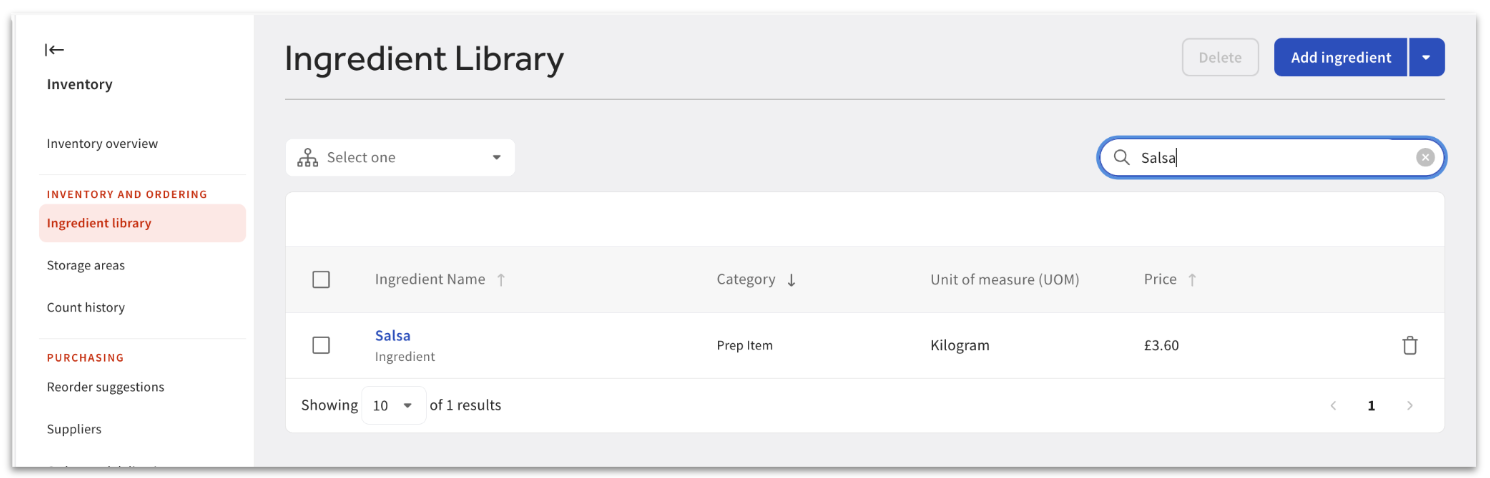
- Within the Prep item, navigate to Inventory
- Select Log Production.
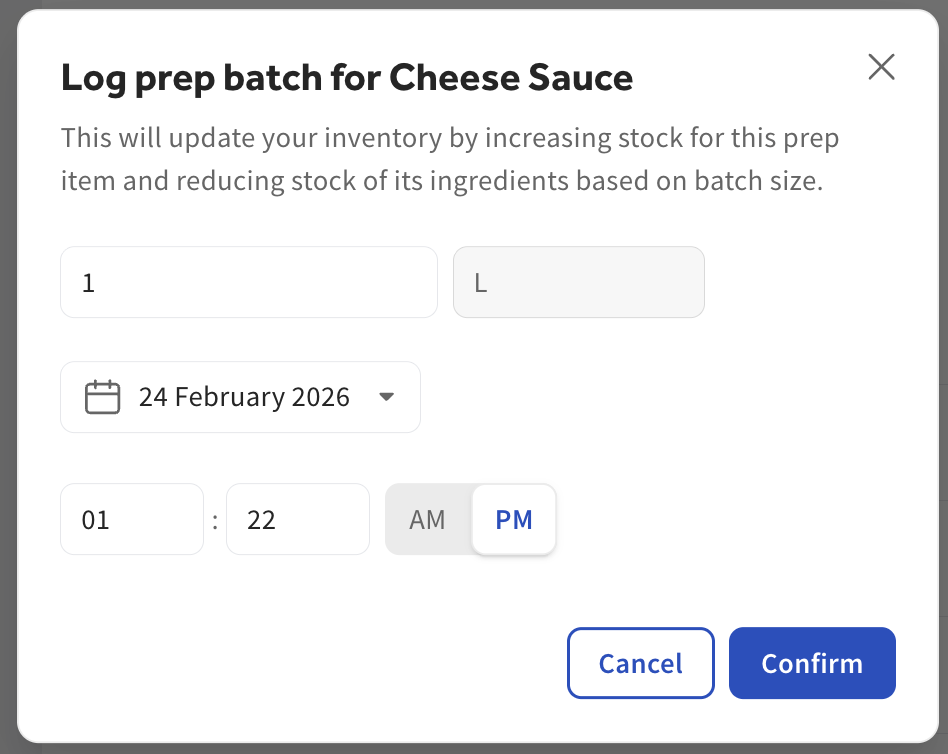
- Enter the Quantity of batches produced.
- Set the Date and Time of production.
- Note: You can log batches made in the past by adjusting these fields.
- Select Confirm to update your inventory and save the entry to your history.
Production History and Management
Once you have logged a batch, a Production History log will be created for that Prep item. This provides a complete record of batches you have logged as being made.
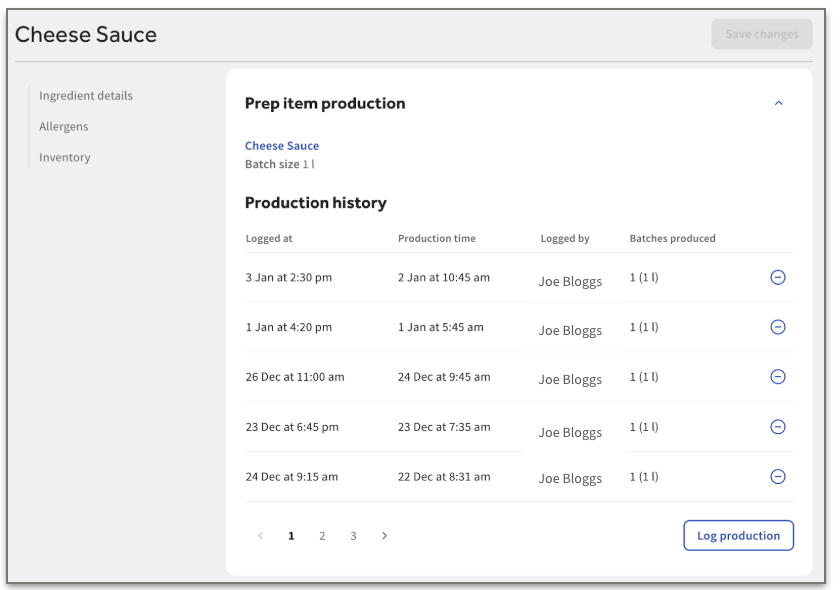
This table displays:
- Logged at: When the entry was created in the system.
- Production time: The actual time the batch was made.
- Logged by: The user who recorded the entry.
- Batches produced: The number of batches and the batch size.
Note: Production entries cannot be edited. If a mistake is made, you must delete the incorrect entry and re-log the production to correct your inventory levels.
Additional Resources
- Get Started With Toast Inventory (Canada, Ireland and UK)
- Get Started With Recipes (Canada, Ireland and UK)
- Toast Inventory: Generate Purchase Orders & Receive Inventory (Canada, Ireland and UK)
- Toast Inventory: Stock Depletion (Canada, Ireland and UK)