Toast Payroll: Give Access to a Non-Employee
Last updated: Apr 8, 2026, 10:15 AM
- Non-Employee Access Notes
- Give Access to a Non-Employee
- Toast Web Access
- Demo Employees and Security Roles FAQ
Toast Payroll: Non-Employee Access Notes
Many companies have bookkeepers, accountants, or other administrative individuals who need access to payroll reporting, team management, and other tools with an HR+ security role. Follow the steps below to grant the necessary access to your system without being listed on the payroll. This setup will ensure these individuals will not:
- Be allowed to receive pay through Toast Payroll.
- Receive a Form W-2 or 1095-C.
- Show up on any reports found in Reports.
- Affect any data in regards to company totals for quarterly tax filings.
- Appear on monthly invoices.
This should only be done for a brand-new profile. If an existing employee is set up this way, it will cause discrepancies in taxable wages which are very difficult to locate due to the employee not showing up on any reports. If you're trying to update an existing profile in this way, contact Customer Care so they can review the profile and make a determination on how to proceed.
Note: We do not allow an individual added to the system in this way to be changed to an Active employee. This is because we skip several vital steps in the process listed below. If this individual should be active in Toast Payroll, we recommend hiring the individual and following each step, including filling out social security numbers and Forms I-9 and W-4, if applicable.
Give Toast Payroll Access to a Non-Employee
These steps are the same basic steps as adding a new hire, but you'll take a different route at the end. For a refresher on the new hire process, visit Toast Payroll: New Hire Employees (Employer Guide). To give non-employee access to Toast Payroll (for example, to an accountant, bookkeeper, or payroll administrator), follow these steps:
- Log into Toast Payroll and navigate to Team.
- Select the + Add employee button in the top-right corner.
- Fill out the Basic info tab with the appropriate information. The Email address should be accurate so the non-employee can receive a "welcome" email and log into the system.
- In the Social Security number section, we know this individual will not be receiving pay or utilizing Toast Payroll's individual tax filing service. So you can either choose No, it will be entered later or, if your company requires Social Security numbers, add a false number.
- On the Jobs & pay step, there are three important fields:
- The Location and Job fields will affect the access this person has to Toast Web. Select the Location they should have access to and the Job that grants the appropriate Toast Web permissions. Remember, Toast Web jobs typically have an assigned set of permissions that control their level of access on Toast Web and Toast POS devices.
- Another important choice on this page is the Payroll security role; you may wish to select HR+ for full access to the system. Learn more about security roles here.
- Depending on the subscription package you have with Toast Payroll, you may or may not see the Benefits step. If you do, make any selections you like since the choices do not affect this non-employee's access.
- Uncheck all onboarding documents on the Documents step since this person will not advance through the typical employee new hire steps.
- On the Review step, verify the individual's Name, Email, Location, Job, and Payroll security role fields. Select Add to team, then choose Return to Team page to continue.
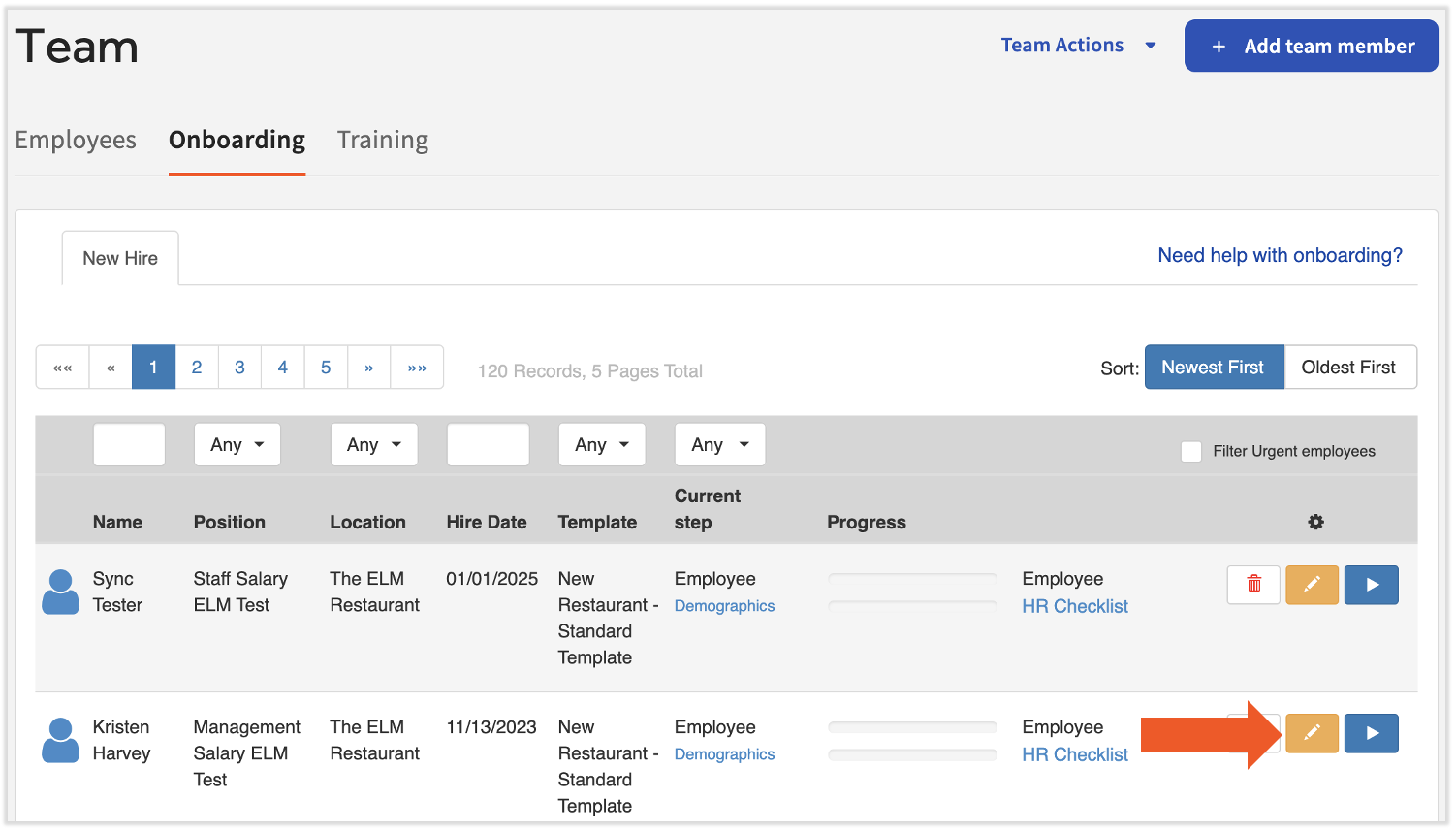
- Now select the Onboarding tab and locate this individual. Select their yellow pencil icon.
- In the pop-up, select Mark this new hire as complete.
- Select Complete on the next pop-up to confirm the action.
- The user profile will no longer appear on the New Hire Dashboard and this person is now in the system, so we only need to configure their Employment Status now. First, use the Search employees bar to locate the person's profile.
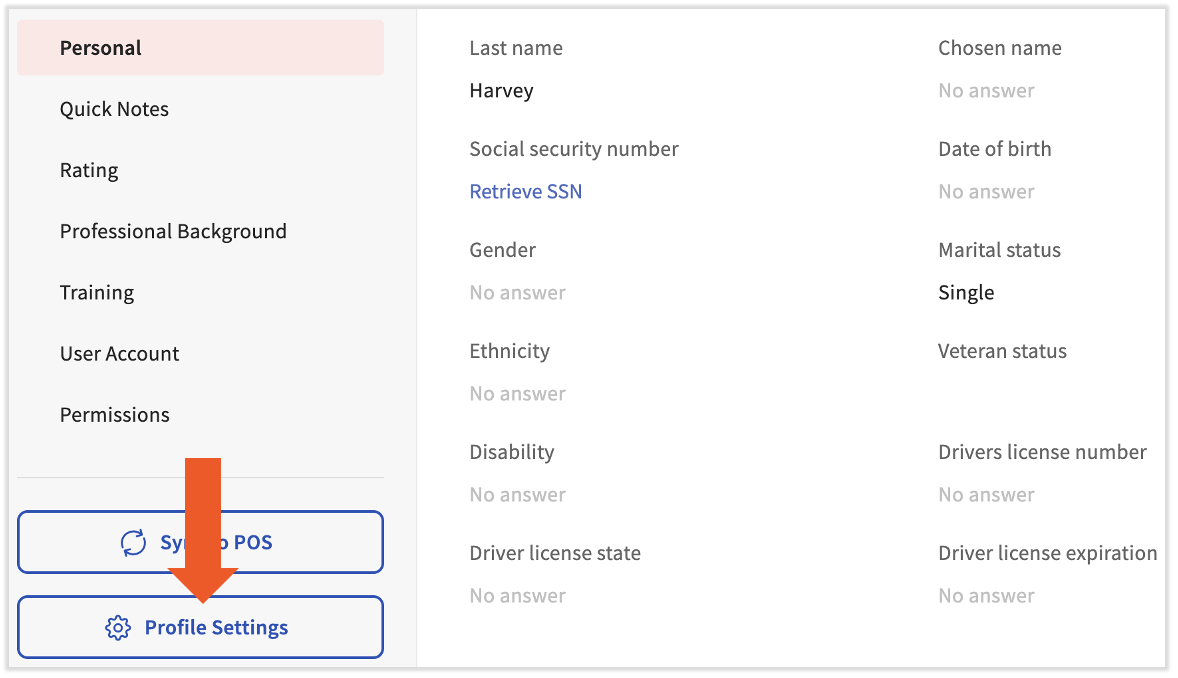
- Scroll down and select Profile Settings.
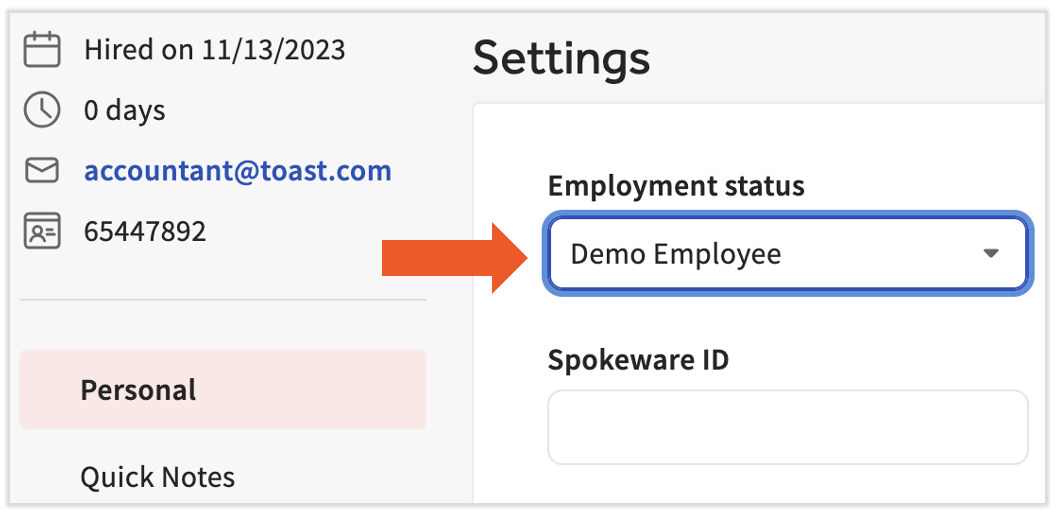
- Set the profile's Employment status to Demo Employee. Select Save Changes to apply this to the user's profile. This step ensures the individual and their profile will not be counted among active employees who Toast Payroll invoices for.
Toast Web Access for Non-Employee Toast Payroll Users
After completing the above steps, you may wish to visit this person's profile in Toast Web to verify or adjust their Toast Web permissions. Many non-employees also require access to labor, sales, or other POS data in addition to payroll data.
- From Toast Payroll, select the overflow menu in the upper-left corner (next to Payroll & Team Management) and select Toast Home.
- Navigate to Employees > Employee management > Employees.
- Using the search bar, locate this employee and select their edit pencil.
- Scroll down to the Permissions section and review the permissions that the job has assigned to them by default. You can add or remove individual permissions by selecting Override and selecting or deselecting the checkbox.
- A non-employee might require some of the reporting permissions in section 4 Restaurant Admin, for instance, but won't need any Toast POS permissions in several other sections.
Demo Employees and Security Roles FAQ
Do demo employees who have HR+ access have the ability to view all HR+ reports?
Demo Employees will have access to Toast Payroll based on their security role. This means they will have access to all people and reports in the system that their security role will have access to.
Can you report to a demo employee?
Employees with a Demo Employee status will not appear in the Reports To Employee option on a career profile. If an employee has direct reports when their status is changed from active to demo, it will keep its direct reports.
This content is for informational purposes and is not intended as legal, tax, HR, or any other professional advice. Please contact an attorney or other professional for advice.