Toast Payroll: Update Positions
Last updated: Apr 14, 2026, 5:38 PM
Position Updates
Watch this video to learn more about updating positions.
Position updates are professional changes to an employee's profile. Any changes should be applied prior to opening a payroll and could include the following:
- Job changes
- Pay changes
- Change from hourly to salary or from salary to hourly
- Updates to work tax location
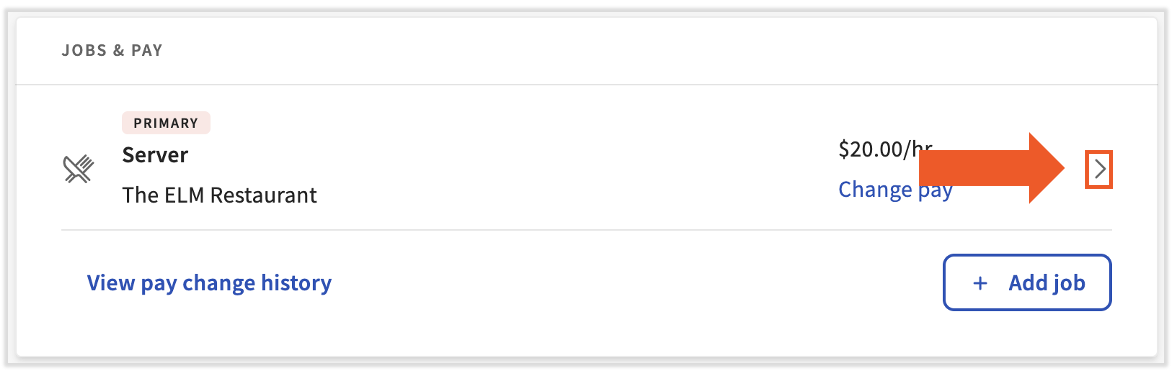
All employees are assigned a position during the new hire process. The Position page can be located within an employee's profile by selecting the > carat icon to the right of the employee's primary job. From this page, select the edit pencil to access the Position Details page. If an employee has a Terminated status, this page can no longer be edited.
Position Reasons
A reason is required for all updates made on the Position Details page. Reasons are required and can possibly trigger additional system alerts and notifications that need to be approved before changes can be applied.
It is important to select the most accurate reason for the action you are taking on the employee's profile. Available reason codes are listed below. The most commonly used reasons have an asterisk next to them:
- *Administrative Update: Used for work tax location, reports to, and security role updates.
- *Salary Raise: Used for hourly wage increases in the system.
- *Annual Salary Raise: Used for salary raises in the system.
- *Position Update: Used for position updates in the system.
- *Inter-Company Transfer: Used only for moving an employee from one FEIN to another. If you do not select this when making an inter-company transfer, you will not be able to move the employee to another FEIN.
- Cost-of-Living Increase: Used for cost of living updates.
- Update: Used for updates that are not related to position or pay. We recommend using the Administrative Update reason code over this.
- Historical Update: Used to import information from a prior position.
- Promotion: Used for promotions only.
- Rehire: This reason is not typically used.
- Demotion: Used only for demotions.
- Minimum Wage Increase: Used only for minimum wage increases.
Position Detail Fields
The following fields can be adjusted when making a change to the Position Details page. The areas of the database that are affected by a specific field are indicated below in red text.
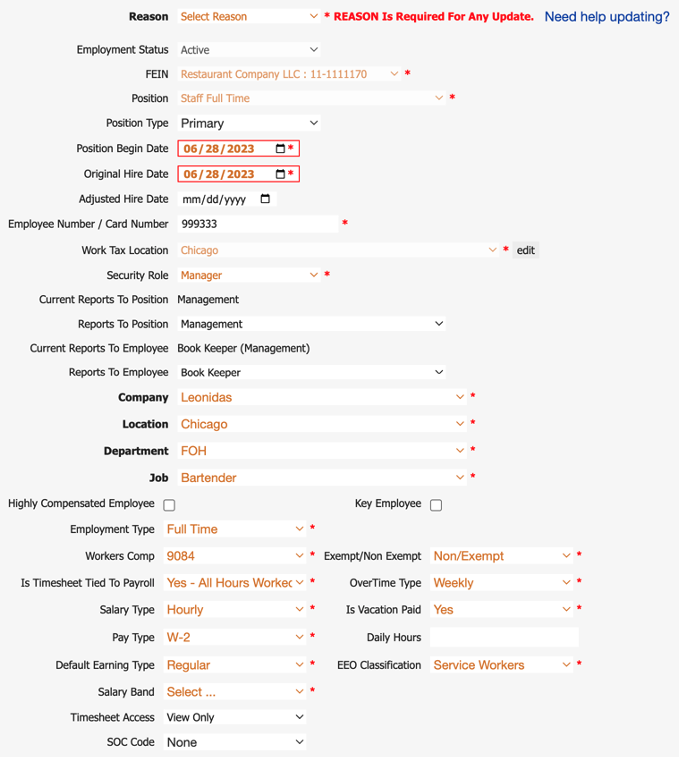
- FEIN: Indicates what FEIN the employee is working in and will be paid in (Payroll & Positions)
- Position: Indicates the position an employee is currently assigned and drives which Pay Group the employee is in (Payroll & Pay Group)
- Position Type: Indicates whether or not the position is primary, secondary, etc. (Reporting Only)
- Position Begin Date: Indicates when the position begins (Reporting Only)
- Original Hire Date: Indicates the employee’s first day of employment (TAFW & Benefits)
- Adjusted Hire Date: This date only populates when an employee has been re-hired (TAFW & Benefits)
- Employee Number: Used by an employee when punching in for timekeeping, also appears on reports (Timekeeping & Reporting)
- Work Tax Location: Identifies where the employee is working (i.e. Chicago Corporate Office) (Taxes/W-4, Work Tax Location,Location Level)
- Security Role: Indicates what the employee has access to see in Toast Payroll (Levels, Reporting & Pay Information)
- Reports To: Indicates who the employee is directly reporting to in Toast Payroll and will automatically update with position update (Reporting, Security Roles)
- Levels: Based off of your organizational structure and are setup during implementation (Timekeeping, Security Roles, Recruitment, Scheduling)
- Employment Type: Identifies the type of employment status the employee has been assigned (i.e. Full Time, Part-Time) (Reporting Only)
- Workers Comp: Indicates the workers' compensation code the employee has been assigned for their position (Reporting)
- Exempt/Non-Exempt: Indicates whether not the employee is offered overtime or not.
- Note: Whether an employee should be classified as exempt or non-exempt is based on a number of factors, including, for example, the employee's responsibilities, duties, and compensation. If you have questions regarding whether an employee should be classified as exempt or non-exempt, please consult a CPA or your legal counsel. (Timekeeping, Reporting)
- Timesheet Tied to Payroll: Determines whether or not employees have timesheet hours pulling through to payroll (Timekeeping, TAFW, Payroll)
- Overtime Type: Determines whether or not an employee is receiving overtime (on their timesheet) and how the overtime is calculating on their timesheet (either Daily or Weekly). (Timekeeping, Payroll)
- Salary Type: Indicates the salary type for the employee (i.e. Hourly, Salary, etc.) (Reporting, Payroll)
- Is Vacation Paid: Identifies whether or not the employee is receiving paid vacation (TAFW, Reporting)
- Pay Type: Indicates what type of pay the employee will be receiving (i.e. 1099 or W-2) (Taxes, Payroll, Earnings)
- Check Frequency: How often an employee gets paid (Payroll, Pay Group, Position, Deductions/Earnings)
- Daily Hours: The amount of hours an employee will be paid on if a Paid Holiday Hours type of company holiday is enabled. If this field is blank, the holiday earning will default to eight hours. (Payroll, Reporting)
- Default Earning Type: Determines what earning type the employee is by default paid out via payroll (Payroll, Earnings)
- EEO Classification: Indicates the employee’s specified EEOC classification (Reporting)
- Salary Band: If you use the salary bands field, that information is selected here (Reporting)
- Timesheet Access: Is used to indicate whether or not the employee has access to submit or edit timesheets (Timekeeping, TAFW, Payroll)
Reports To Fields
Reports To refers to the person or position who is accountable for this individual. In many cases, this is the individual's direct manager or the position that their direct manager holds, but different configurations can be set up as well. This field is important because it controls what employees a person with a Manager security role has access to. When an employee reports to an individual with a Manager security role, the manager has access to the employee's profile (including their wage rate), the employee's information via reports in the Report Library, the employee's timesheets, and more.
On the Positions Detail page of an employee profile, there are four fields regarding Reports To:
- Current Reports To Position
- Reports To Position
- Current Reports To Employee
- Reports To Employee
Both of the Current fields are not editable since they display the present configuration of who or what position the employee reports to. The Reports To Position and Reports to Employee allow you to change the two Current fields. If a Reports to Position is selected, any individual who's assigned to that position is included in the access described above.
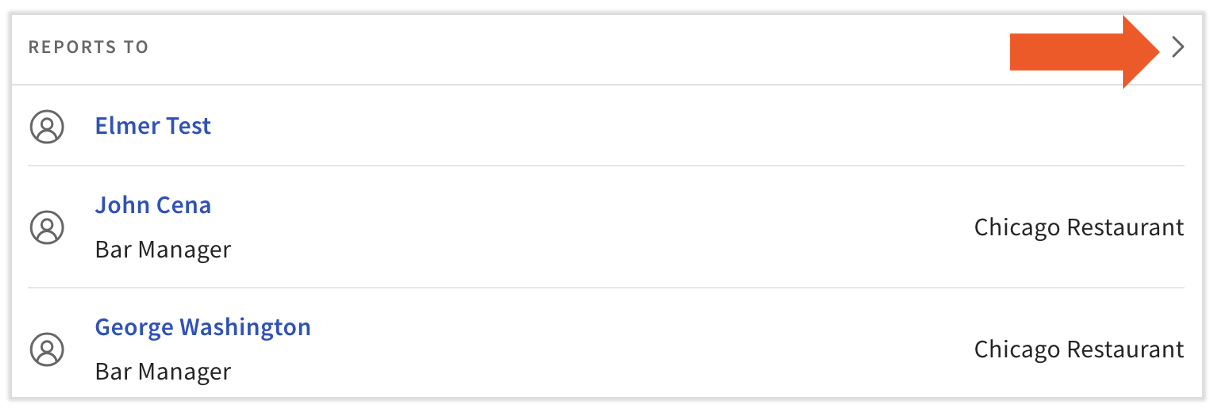
The person or position an employee reports to can also be seen at the bottom of the employee's profile on the Employment Overview page. Select an individual's name to be taken to their profile or select the > caret icon to open the Position Details page where you can edit the Reports To fields.
This content is for informational purposes and is not intended as legal, tax, HR, or any other professional advice. Please contact an attorney or other professional for advice.