Toast Payroll: Hourly to Salary Job Changes
Last updated: Jun 26, 2026, 5:29 PM
Question
How do I change an hourly employee into a salaried employee in Toast Payroll?
Answer
- Select the Team page or use the Search employees bar on the dashboard to locate an employee.
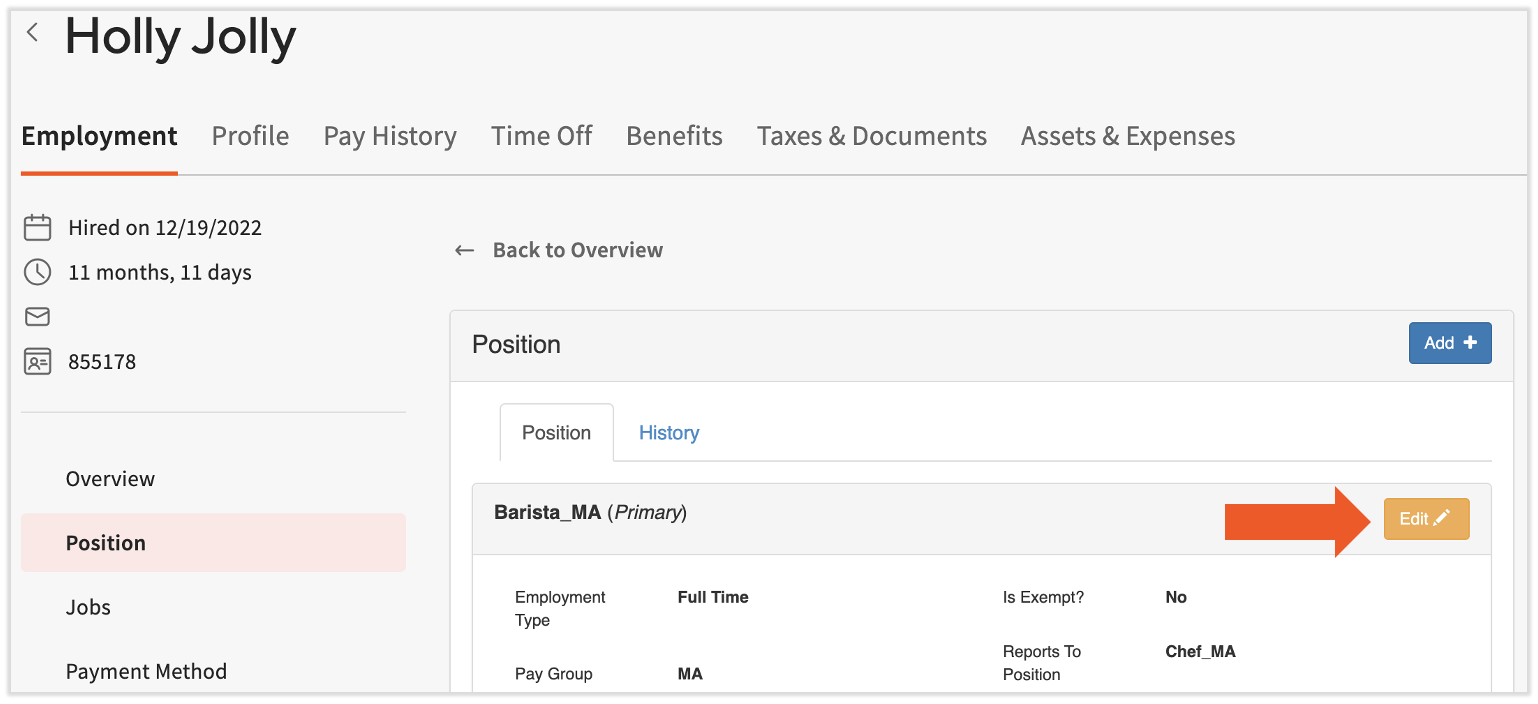
- Choose the Position tab. Then select the yellow Edit button.
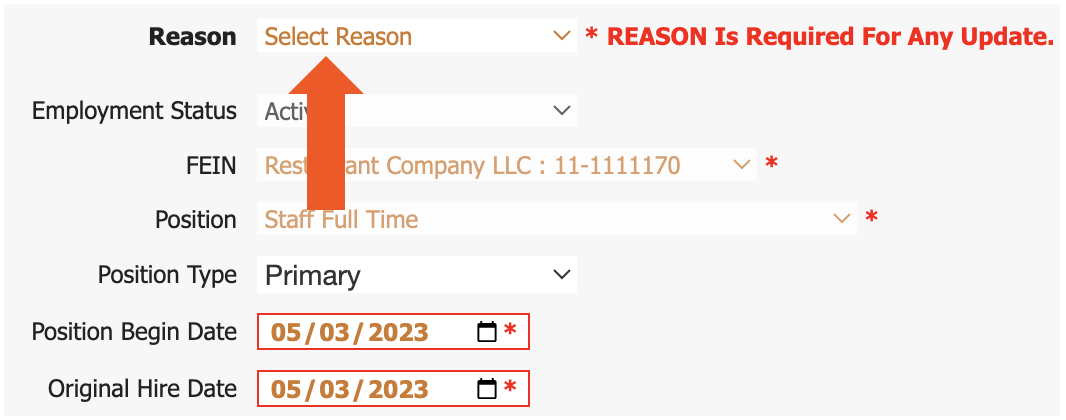
- First, select a Reason from the top of the Position Detail page. The Position update reason allows you to make the following changes to this employee. For more information on the Position Detail page and reason codes, see Toast Payroll: Update Positions.
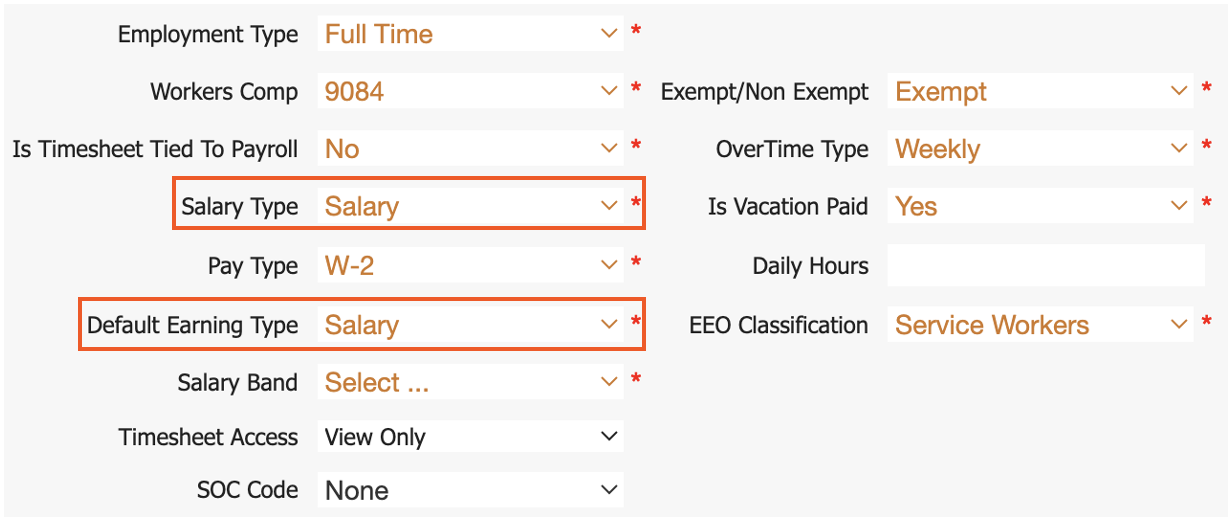
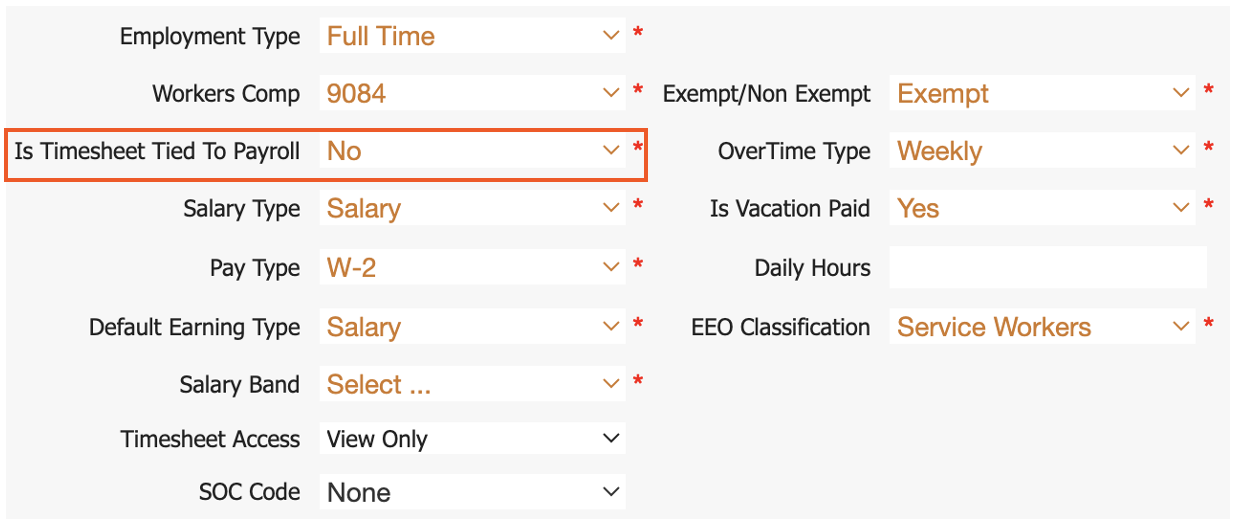
- Scroll down to Salary Type and select Salary.
- Next, update the Default Earning Type to Salary.
- The Salary Type and Default Earning Type on this page must match.
- The Salary Type and Default Earning Type on this page must match.
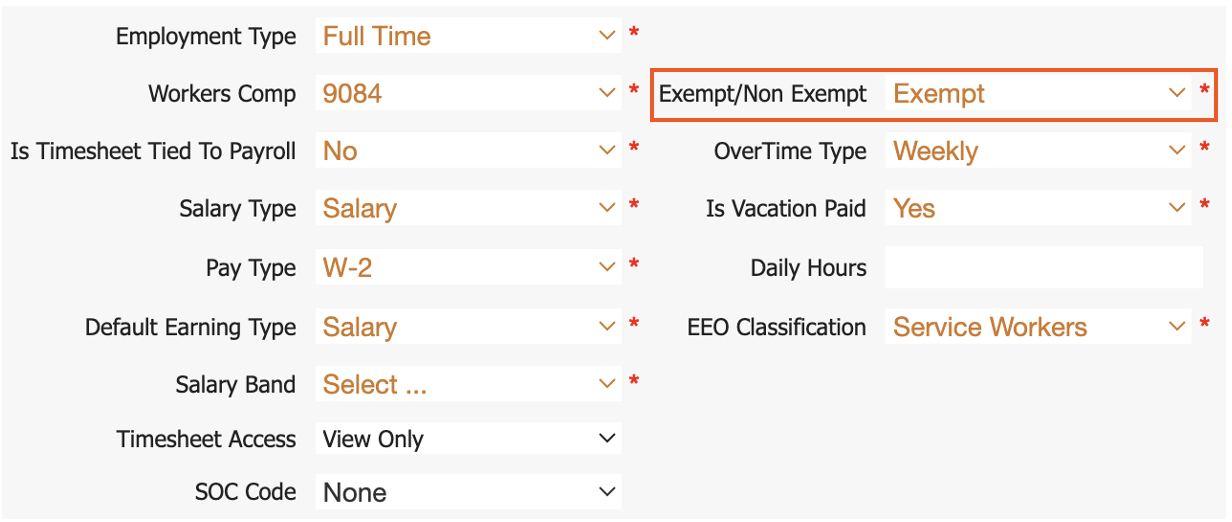
- Now adjust the Exempt/Non-Exempt field accordingly. Per the Department of Labor, exempt employees are not entitled to overtime pay, whereas non-exempt employees are paid overtime wages when applicable.
- Make one more change to this section. Is Time Sheet Tied To Payroll should be changed to No since salaried employees are not paid according to their hours worked.
- Select Submit at the bottom of the page to save this change.
- Select the Employment tab at the top of the page.
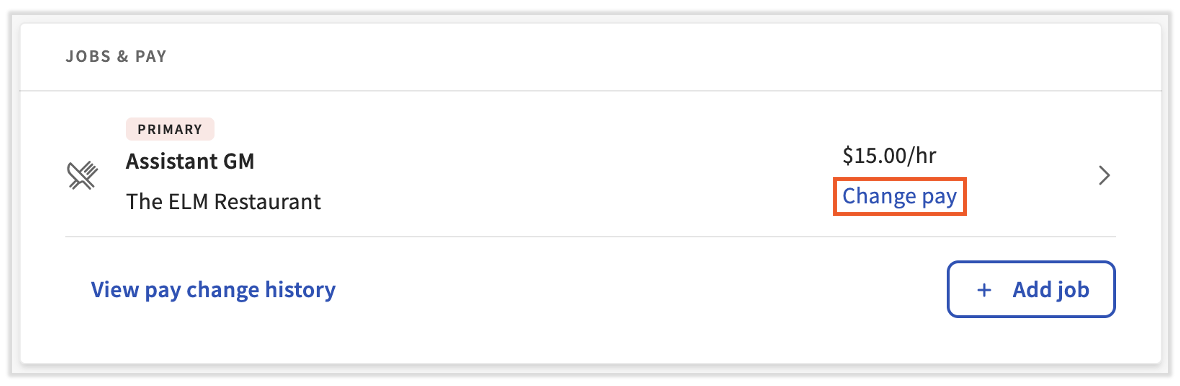
- Scroll down and select Change pay next to the individual's job. Proceed through the pay change wizard to finish these steps.
- This individual is now a salaried employee.
Notes:
- When the Salary Type and Default Earning Type fields are changed on an employee's profile, the updates will automatically take effect on the employee's Employment > Recurring page. Changing the Salary Type field from hourly to salary will automatically end the old earning codes (i.e. REGULAR) and create a new earning code (i.e. SALARY) on the employee's pay information page.
- If you need to send this employee any documents related to the hourly-to-salary change, such as a PTO policy, we recommend using Employee To-Dos. An employee's to-do can include your document and notify employees to check this document.
- Updating pay information directly from the Position Detail page may cause discrepancies since future Position page updates will override any pay information added on the Position Detail page. In other words, use the Pay Change feature rather than the Pay section of the Position Detail page.
- A pay change will automatically add the new rate to the new default earning code.
This content is for informational purposes and is not intended as legal, tax, HR, or any other professional advice. Please contact an attorney or other professional for advice.