Toast Payroll: Salary to Hourly Job Changes
Last updated: Apr 14, 2026, 5:17 PM
Question
What steps do I need to take in Toast Payroll when an employee moves from a salaried role to an hourly role?
Answer
- Locate an employee's profile using the Team page or the Search employees search bar.
- From the Employment tab, select the > carat icon to the right of the employee's primary job.
- Select the Edit button.
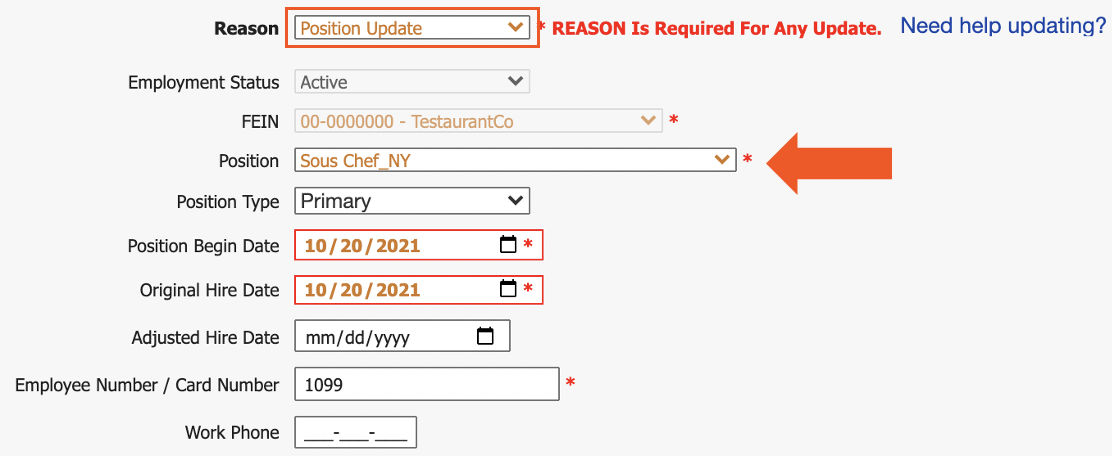
- First, assign a Reason to this page. Position Update is an acceptable reason for this edit.
- Change the Position Type to an hourly position title.
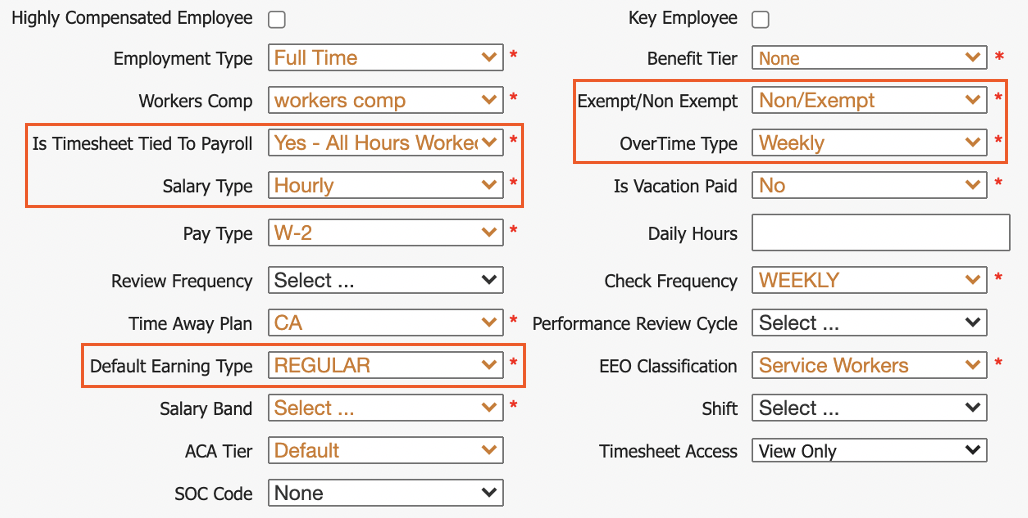
- Next, verify or change these options. They may have already taken place due to the defaults that come with the position you selected a step ago, but they should read as follows:
- Is Timesheet Tied to Payroll: Yes - All Hours Worked
- Salary Type: Hourly
- Default Earning Type: Regular
- Exempt/Non Exempt: Non/Exempt
- OverTime Type: Weekly
- Select Submit to finalize this change.
- Select the Employment tab at the top of the page.
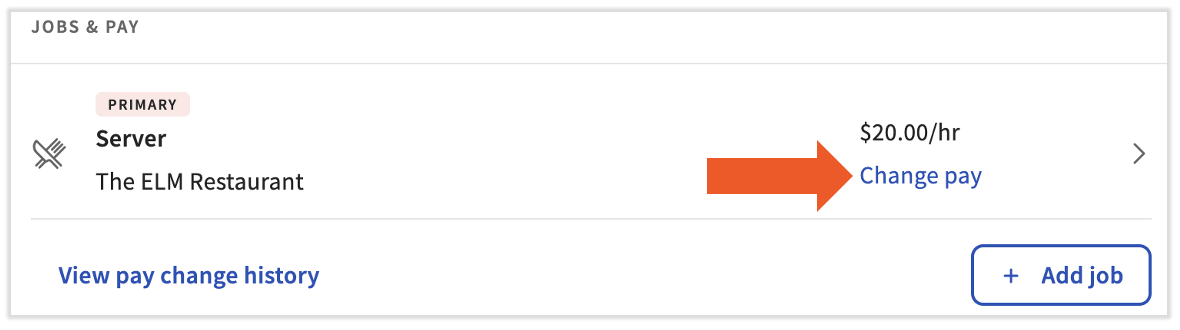
- To make the appropriate pay change, select Change pay from the Jobs & Pay tile to enter the new salary rate. Check out Toast Payroll: Make a Pay Change for more information.
Note:
- When the Salary Type and Default Earnings are changed on an employee's profile, the updates will automatically take effect on the employee's Recurring tab of the Employment page. Changing the salary type from hourly to salary will automatically end the old earning code(s) and create new earning code(s).
- Updating the Position Detail page directly can cause pay discrepancies, as future position page updates will override the information added manually on the position page.
- A pay change will automatically add the new rate to the defaulted earning code.
This content is for informational purposes and is not intended as legal, tax, HR, or any other professional advice. Please contact an attorney or other professional for advice.