Toast Payroll: Open Enrollment Guide for the Classic Benefits Module
Dernière mise à jour : 8 avr. 2026, 10 h 14
Employees should follow the steps in this article to make elections during open enrollment or to process a qualifying life event (QLE).
| This article only applies to employees whose company uses the Toast Payroll Classic Benefits module (legacy customers only). If an employee is eligible for benefits through the Toast Payroll Classic Benefits module, they may be able to enroll through Toast Payroll. |
Open Enrollment
Open enrollment refers to the period of time a benefit-eligible employee has to make their elections. Once this period has closed, an employee can only make updates to their elections by processing a Qualifying Life Event.
This video walks through the total pay period cost versus the monthly cost, the coverage options requiring dependents, and the View Plan Documents section.
- Log into Toast Payroll and navigate to My Profile > Benefits > Benefit Open Enrollment.
- Select Enroll in Benefits. If you don't see this option, you may not be eligible to enroll in benefits at this time. Reach out to your manager or HR department for more information.
- Review or edit address information.
- Review or edit beneficiary information.
- You cannot edit or remove existing dependent information through the open enrollment wizard. The Dependent and Beneficiaries section details how to edit or remove existing dependents.
- Select if you will be opting into or out of each benefit offering and also which coverage level you choose. The total monthly premium is listed as well as the per pay period cost that you will see deducted on each paycheck.
- Initial beside each benefit to confirm each choice.
- Lastly, select Submit to send the electronic signature.
- Once complete, you will see your benefit elections recorded on your profile under the Benefits page and it will also be recorded on the Open Enrollment page for employers.
Dependents and Beneficiaries
- Dependent: A person who is eligible to be covered by an employee under a benefit plan offered to them.
- Beneficiary: A person or a legal entity who is designated by an employee to receive a benefit such as life insurance.
If you need to add or make changes to your dependents or beneficiaries outside of open enrollment, you can do so by navigating to My profile > Benefits > Dependents and Beneficiaries page. You'll be able to add or edit dependents and beneficiaries by selecting Add+ and filling out their demographic information. Employees will need a manager or HR+ user to remove an existing entity (simply select the trash can icon on this page of an employee's profile).
Back to top
Qualifying Life Events
Qualifying Life Event (QLE): When an employee has an event such as the birth of a child or getting married that permits them to make benefit changes outside their period of open enrollment.
If you need to process a qualifying life event outside of open enrollment, navigate to My profile > Benefits and select Process Qualifying Event.
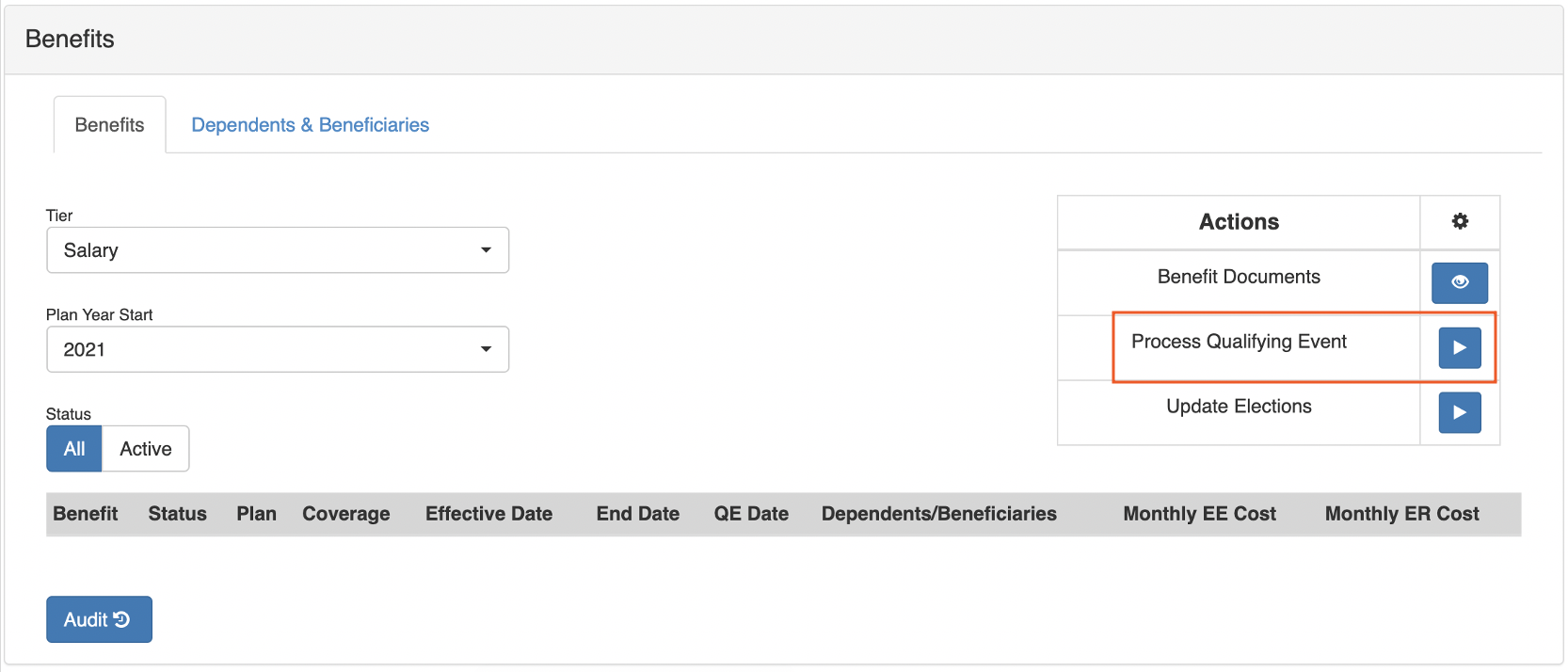
Enter both the certified event/reason for processing a qualifying life event and the legal date of the change. Then upload any supporting documentation for your employer to review. All three items must be present to process this change.
Choose Modify for the benefit offering you would like to update and select Start. You'll be brought to the open enrollment wizard to make a change (as shown in the video above).
Once completed, notify your manager of the change in benefits to ensure the enrollment is processed with your carrier.
This content is for informational purposes and is not intended as legal, tax, HR, or any other professional advice. Please contact an attorney or other professional for advice.