Toast Payroll: Make a Pay Change
Last updated: Apr 8, 2026, 10:02 AM
Employee pay changes must be completed before opening a payroll. Use this article to learn how to make pay changes for employees, including minimum wage updates.
Make Pay Change Overview Steps
Products this applies to: Toast Payroll. | Access Needed: HR+ or Manager Security Role (if a single employee is a direct report)
- Determine how many employees need a pay change
- Complete the pay change in Toast Payroll
- Review the pay change
- Verify accuracy during payroll
- Make a bulk pay change
- Update employee secondary rates (if applicable)
- Update employee hourly rates on timesheets (if applicable)
Make a Pay Change Process
Discover how to make a pay change using the Pay Change Drawer.
- Determine how many employees need a pay change?
- If one employee needs the pay change, go to step 2
- If multiple employees need the pay change, go to step 5
- Complete the pay change in Toast Payroll
- Changes to an employee's pay must be completed before opening a payroll (selecting Preview) if they are to take effect on that payroll. If a payroll has already been opened, it will need to be reset in order to see this change applied.
- Navigate to the employee's profile > Change pay (found in the Jobs & Pay tile).
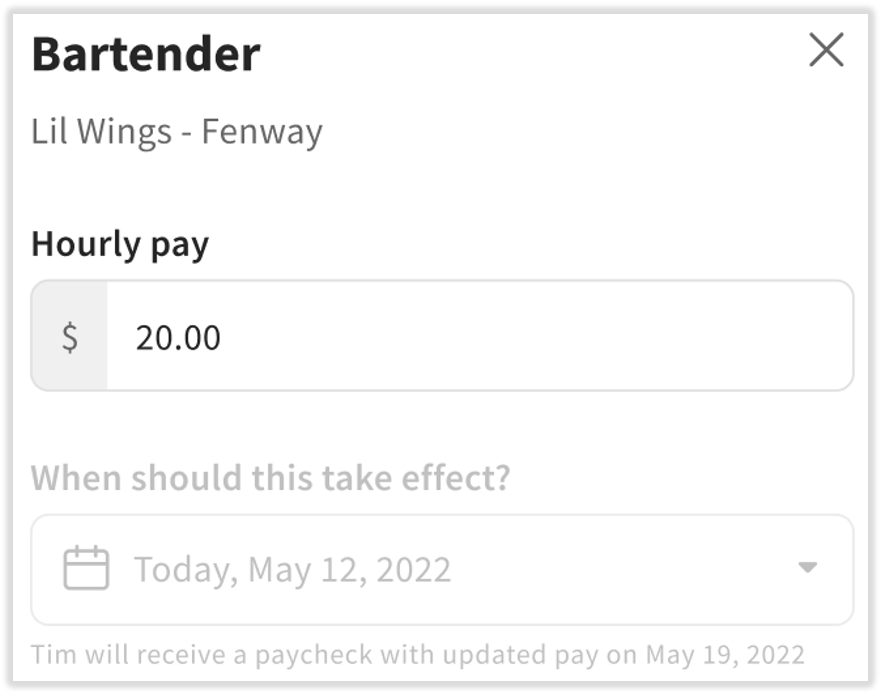
- The Pay Change Drawer will open on the right side of your screen. The first field will be pre-populated with the employee's current salary or hourly rate. Make the pay change in this field.
- If you already have a future pay change scheduled, you will not be able to make another pay change until the previous one has been applied or is deleted. Select the trashcan icon here to delete a future pay change.
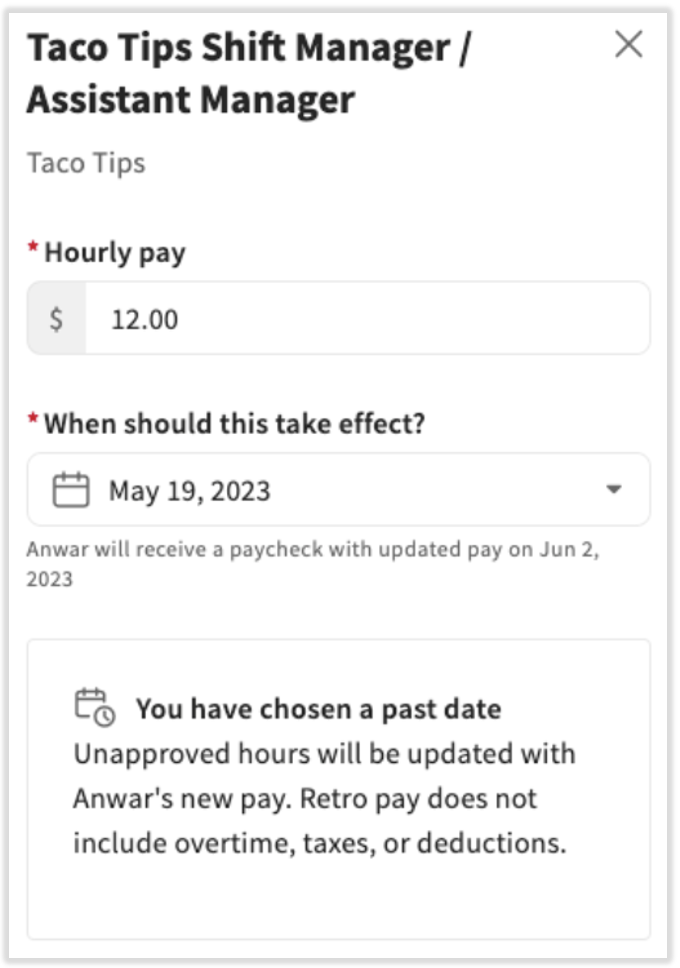
- Now select the When should this take effect date. This date can be in the past. For convenience, Toast Payroll has provided your pay dates in solid blue circles and your pay period start dates in dotted blue circles.
- If the date you selected is during a timesheet that has not been approved, the employee's pay will be automatically adjusted for all recorded hours back to the When should this take effect date. Timesheets will reflect this change once approved into the payroll run (if applicable).
- If the past date you selected is during a timesheet that has already been approved:
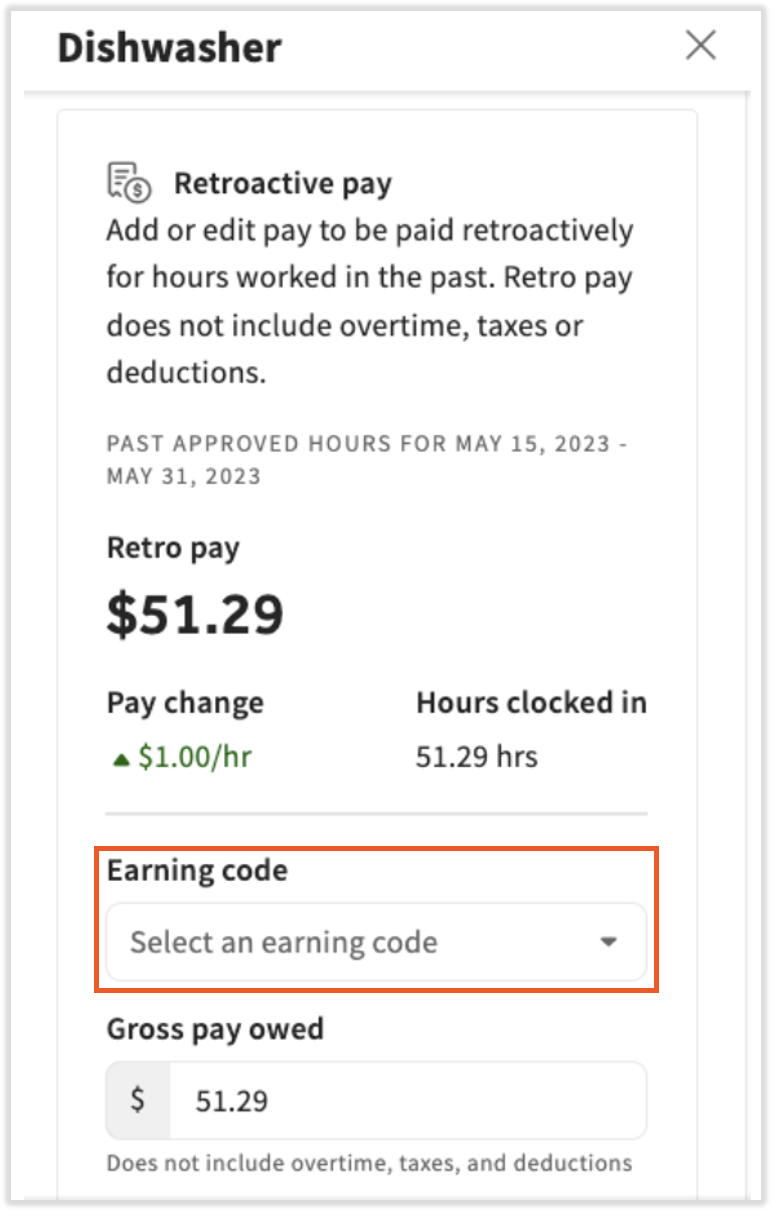
- The Retroactive pay calculator will appear. Use this to add retroactive pay as a one-time, lump sum payment for the hours the employee worked since that date until the current pay period.
- Choose the earning code you'd like the retro pay recorded with (e.g. Retro Pay). The Retroactive pay calculator does not account for blended overtime pay or deductions occurring during those dates. The employee will be taxed once the earnings are calculated on a payroll in accordance with the earning code that you selected.
- Select Save to finalize the pay change. The pay change is complete and the new rate will sync with Toast Web.
- Review the pay change
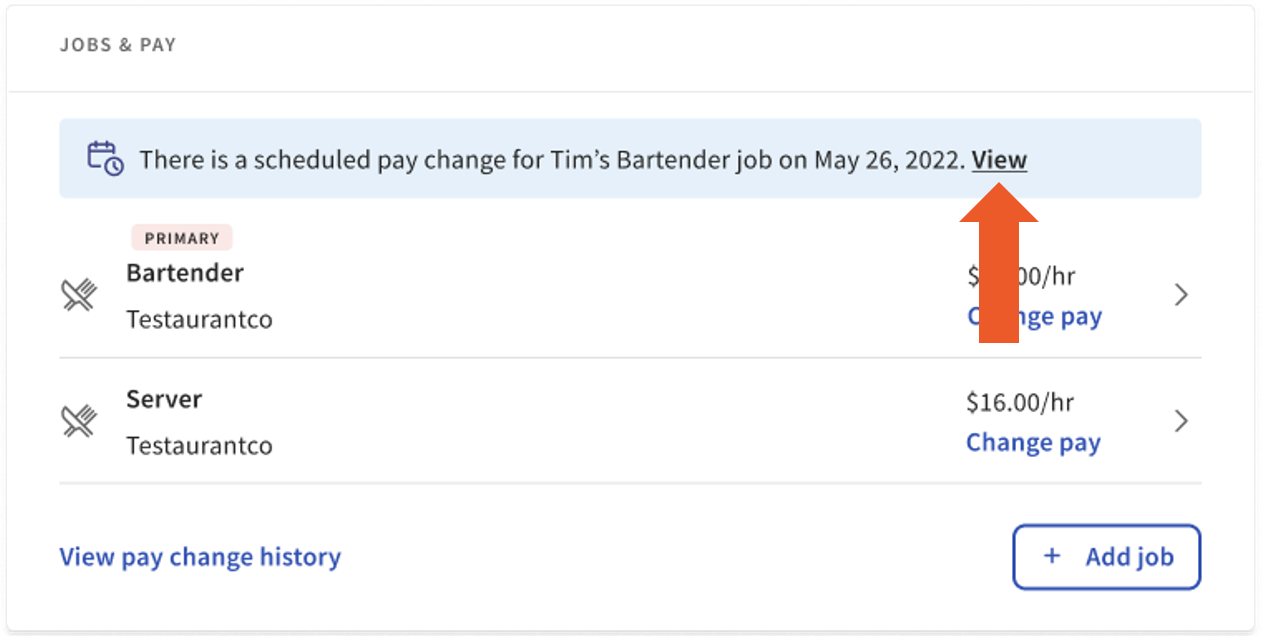
- If this is a current pay change, the Jobs & Pay tile will reflect the new rate immediately.
- If this is a future pay change, check the blue box in the Jobs & Pay tile. Select View if you need to to revisit the pay change.
- Verify accuracy during payroll
- During the Employee Earnings step of payroll, double-check the pay change details. If the employee is hourly, verify that the correct wage is applying to the correct amount of hours.
- If you'd like a reminder to do this on the day you process payroll, use a Payroll To Do.
- You are done with a single employee pay change.
- Make a bulk pay change
- Changes to an employee's pay must be completed before opening a payroll (selecting Preview) if they are to take effect on that payroll.
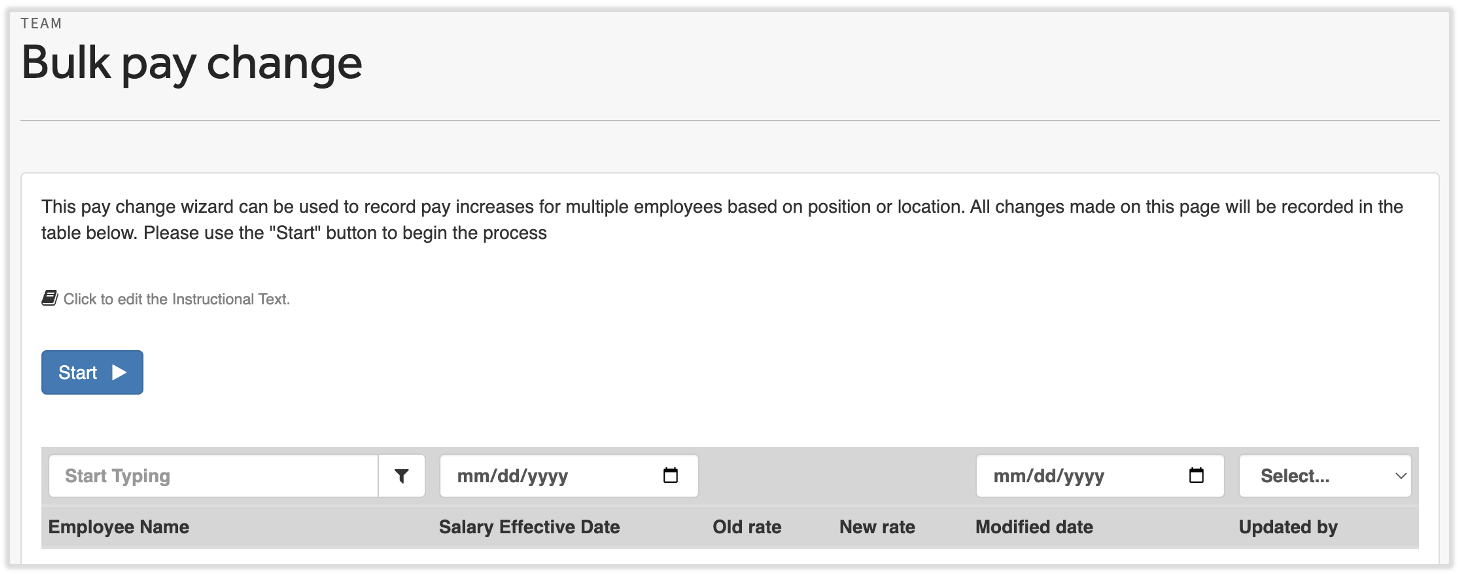
- Navigate to Team > Team Actions > Bulk pay change.
- Select Start to begin the pay change process.
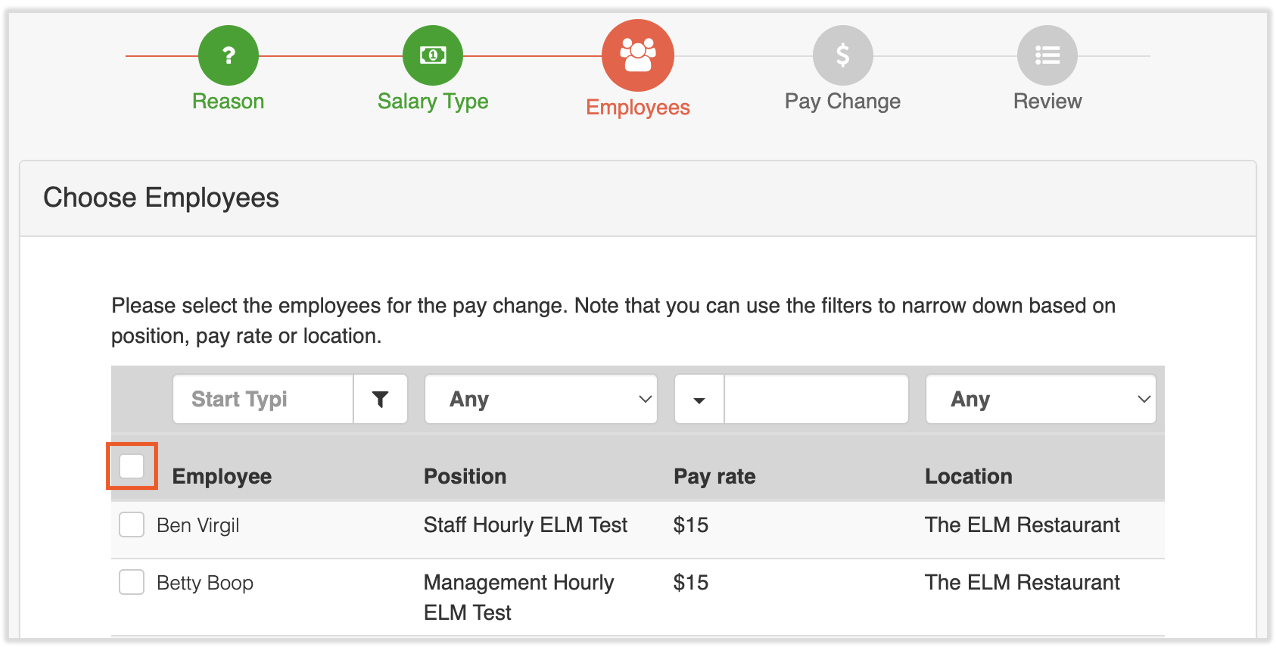
- Reason Step: Select a reason code from the drop-down menu. Minimum Wage Increase is commonly selected here.
- Salary Type Step: Select Hourly or Salary. You can only update one set of employees at once.
- Employees Step: Select the employees whose rate you wish to modify. To make wage updates for everyone, select your entire list of employees using the checkbox to the left of the Employee column.
- Pay Change Step: Select either Full Amount (entering the new rate) or Differential (the amount you would like to change the rate by) and enter the rate change effective date. Additionally, select whether or not you'd like to apply this change to secondary rates (jobs).
- If you select Yes, the rate update will be identical across all primary and secondary jobs for each employee.
- If you select No here, you may wish to follow the steps in the section below.
- Review Step: Verify your selections. Select Finish to submit.
- Update employee secondary rates (if applicable)
- Navigate to Settings > Payroll > Jobs.
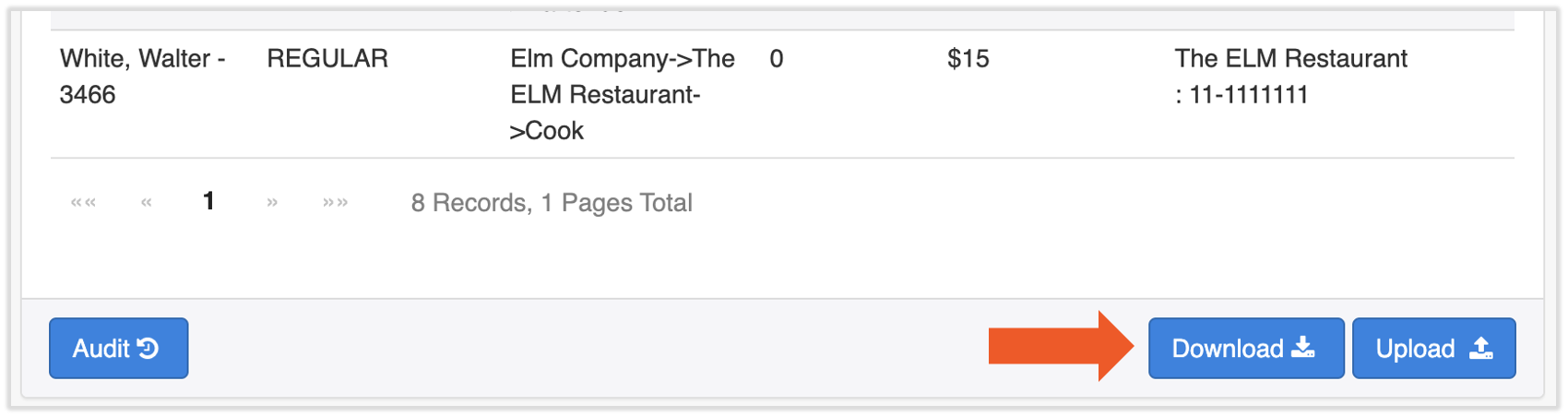
- Scroll to the bottom of the page and select Download.
- Open the downloaded spreadsheet file.
- Toast recommends making a copy of the download to save for your records of the rates per employee before the update and a second report to use for updates.
- Update the Hourly Rates column only. Be mindful to audit for duplicate jobs roles with different rates, which can cause discrepancy.
- If you are apprehensive about the import process, we recommend trying it with only one employee on an updated .csv file. Once you’ve completed the steps, navigate to that employee’s profile and view the import results in the Jobs & Pay tile. Once you’ve successfully imported an employee's pay, repeat these steps to import multiple employees’ hourly rates for different jobs worked.
- Save your updated file on your computer as a .csv file format (not .xls or .xlsx).
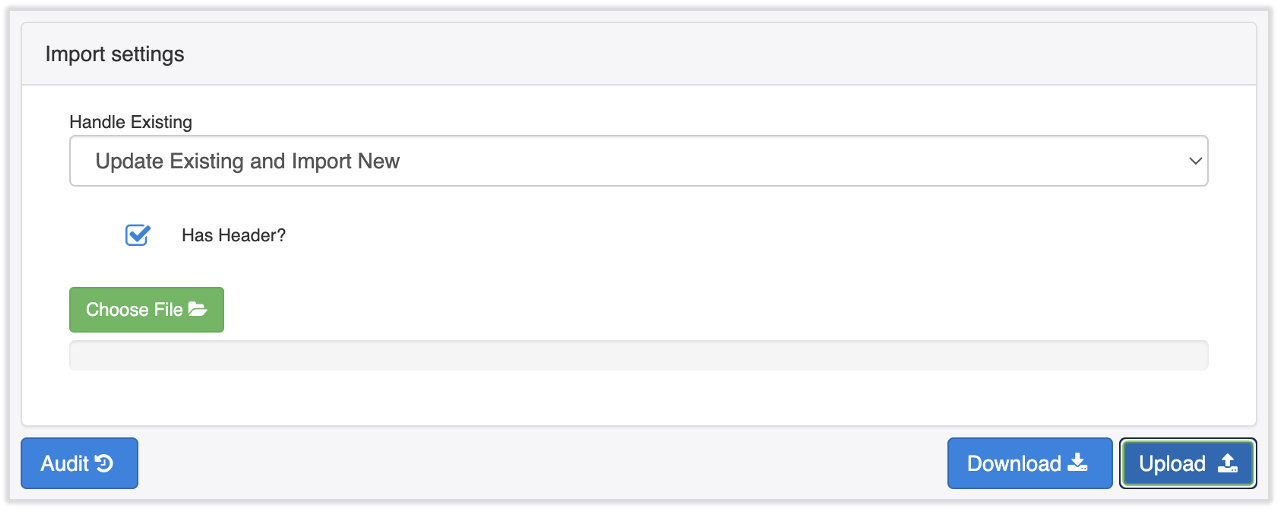
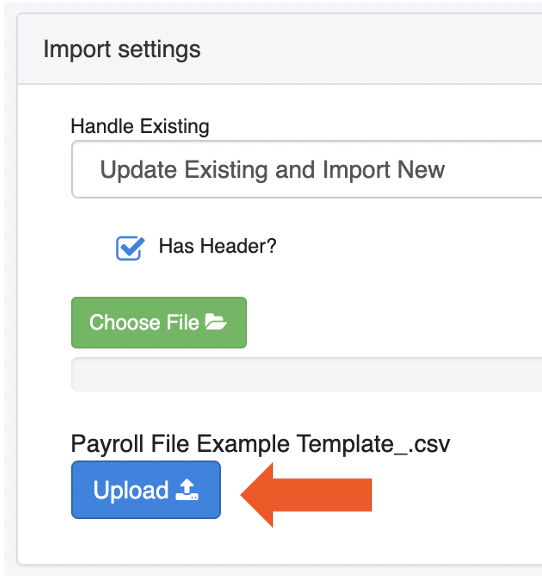
- Next, return to the Jobs page and select the Upload button.
- Scroll down and select Update Existing and Import New.
- Next, select Choose file and select the saved .csv file from your computer that you just updated.
- Select the Upload button beneath the file you just imported. This completes the secondary rate updates.
- Update employee hourly rates on timesheets (if applicable)
- If employees have open timesheet entries with the old rate of pay, the timesheets need manual updates to apply your pay change.
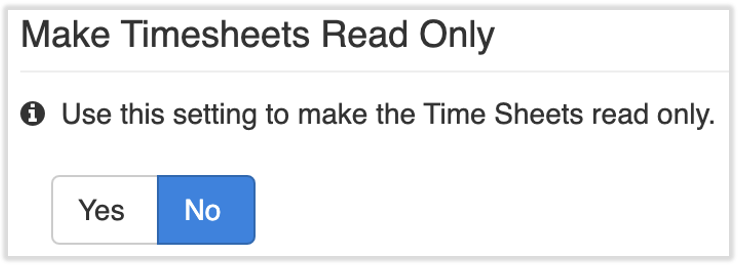
- Navigate to Settings > Timekeeping > Settings.
- Make sure the Make Timesheets Read Only setting is flagged to No. This will allow you to edit the timesheets within Toast Payroll.
- Next, navigate to Time.
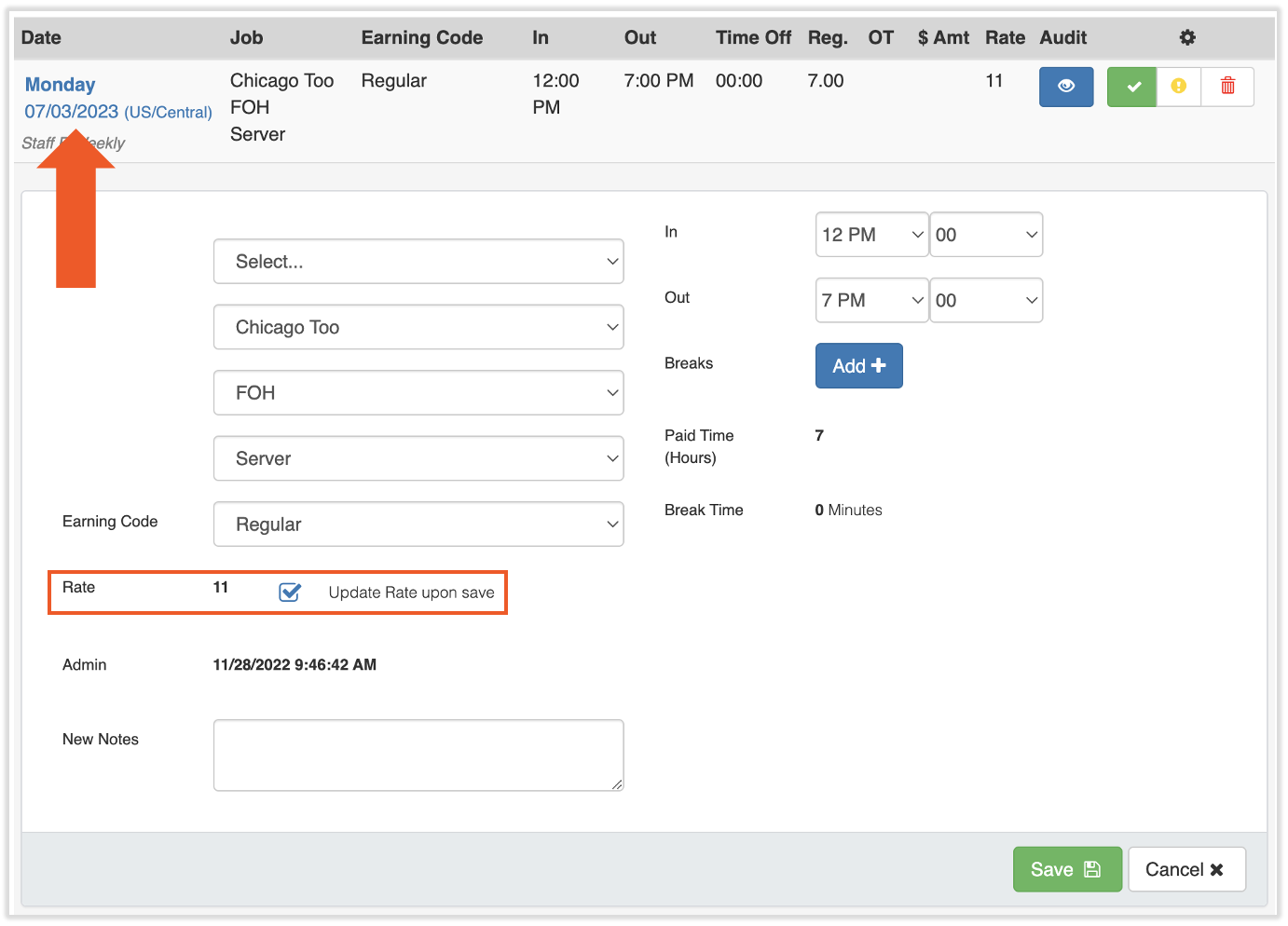
- Each time entry with the old rate will need to be updated, so select an applicable employee's Timesheet hyperlink.
- Select a Date hyperlink on the timesheet to load more data.
- Select the Update Rate Upon Save box. This action will "resave" the employee punch with the updated rate.
- Select Save to finalize.
- Repeat this action as necessary because it is required per clock in/out, per employee in order to update all timesheet entries.
- You are done doing a bulk pay change.
This content is for informational purposes and is not intended as legal, tax, HR, or any other professional advice. Please contact an attorney or other professional for advice.