Uber Eats Third Party Ordering Configuration Page
Last updated: Feb 4, 2026, 9:57 AM
| Please note that the Uber Eats configuration page is currently in limited release with select customers. If you don't see this feature yet, stay tuned for a future update. |
- Access Configuration Pages
- Configuration
- Add Menus to Available Menu Selection List
- FAQ
- Additional Resources
Access the Uber Eats Configuration Page
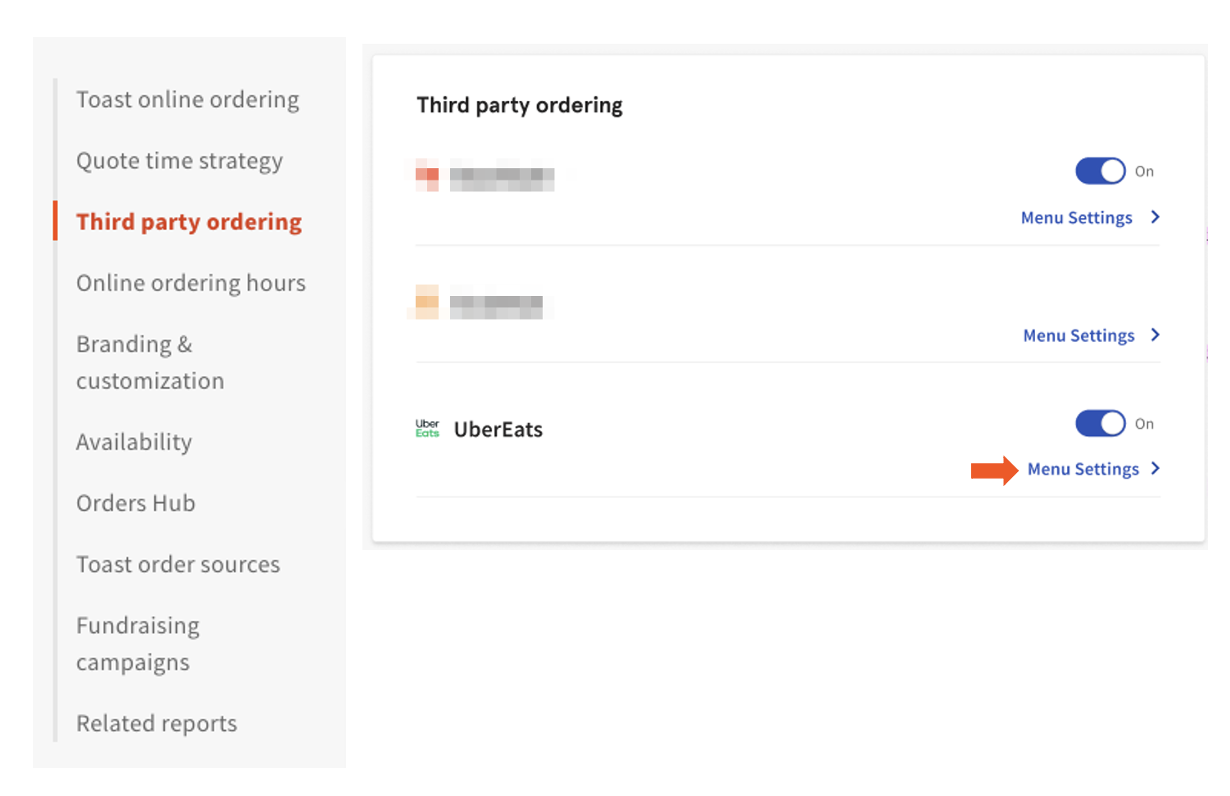
- Log in to Toast Web and navigate to Takeout & delivery > Third party ordering.
- Next, select Menu Settings.
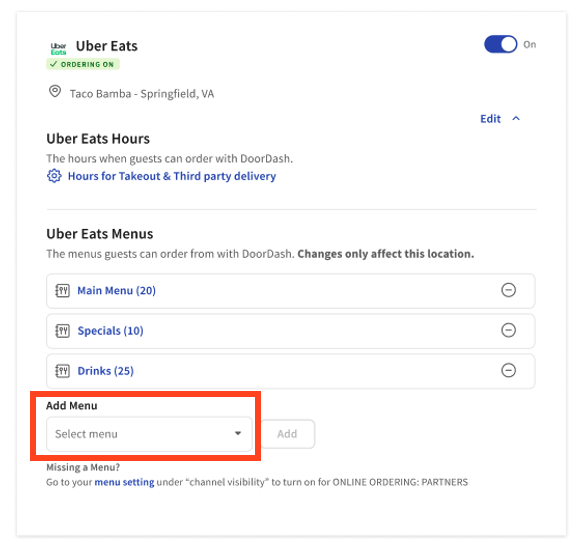
- Once selected, you will see the 3PO configuration page for the chosen partner. This includes the Name and location of the restaurant location being accessed.
Note: Here, you will see the On/Off toggle for Uber Eats, which allows you to turn the direct integration on or off, making the integration available or unavailable. If you turn it off, your guests will be unable to place orders through Uber Eats. For more information, please see .
Configuration
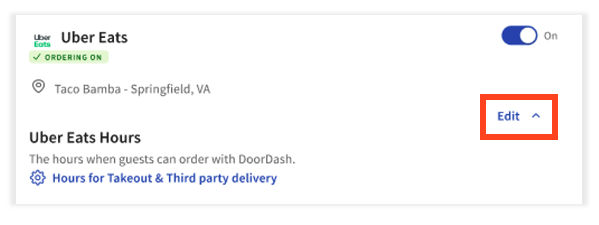
- To configure Uber Eats for the selected location, select Edit.
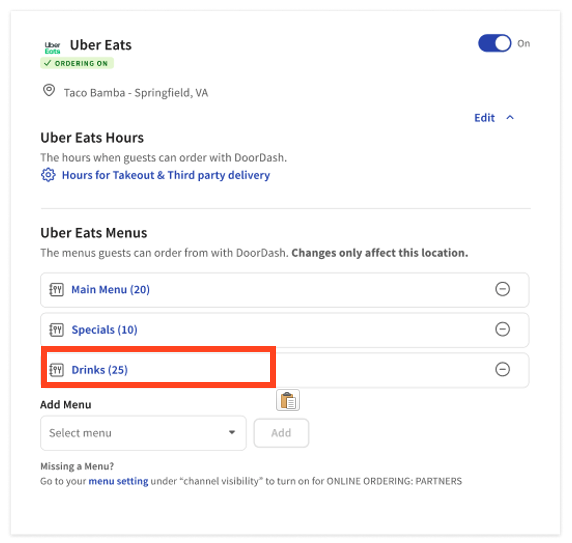
- Once selected, the section will expand with the following:
- Name and Location of the restaurant being accessed.
- Hours - guests can order via the 3PO platform from this restaurant location during the hours set in Takeout & Third party delivery. For more information on setting Online Ordering hours, see this .
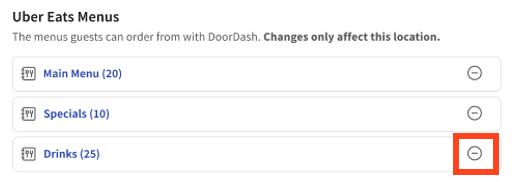
- Menus - the list of currently selected menus that guests can see and order from on the Uber Eats platform. You can now easily have different menus shown on each partner by selecting them on each partner’s individual configuration page.
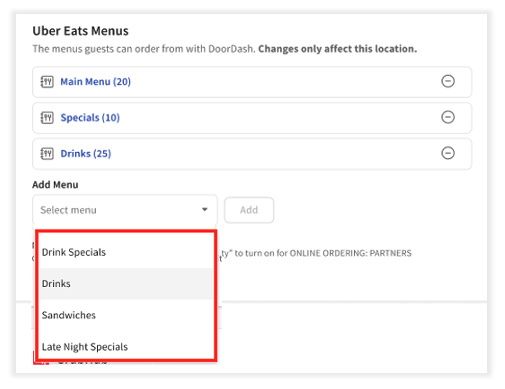
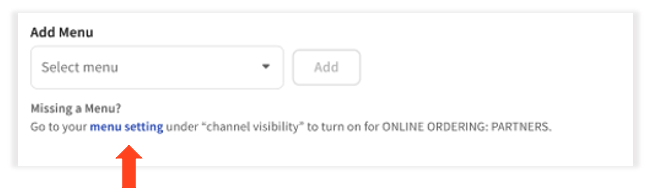
- Add Menu - a dropdown list where you can add/select additional menus to surface to guests on the 3PO partner.
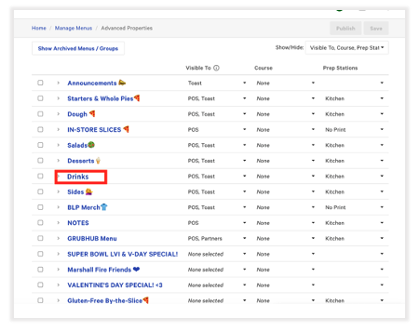
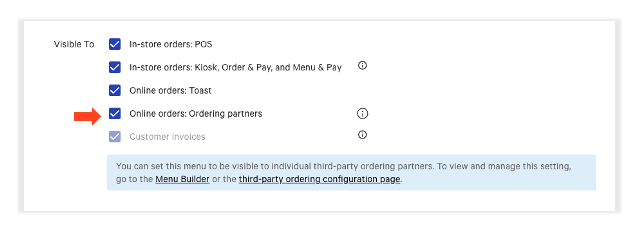
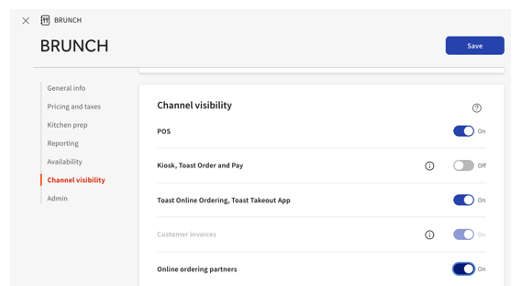
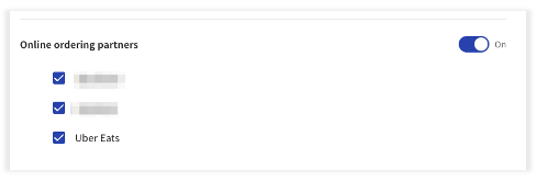
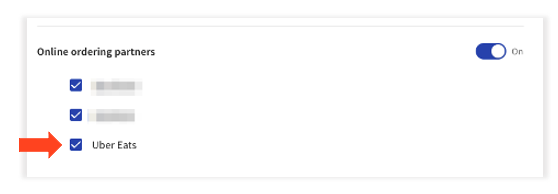
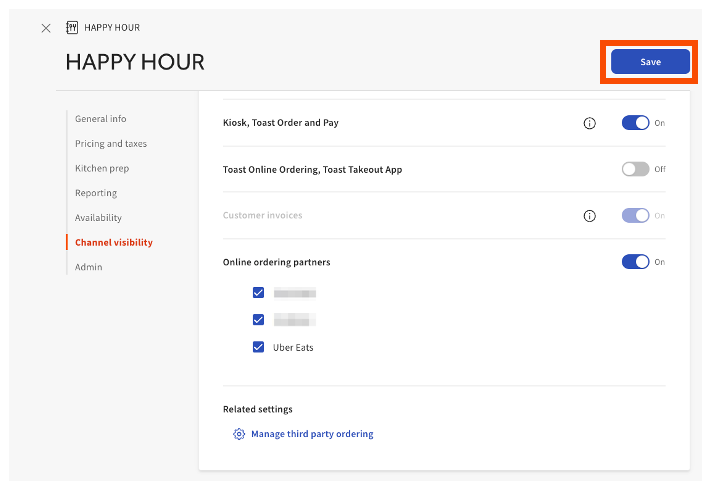
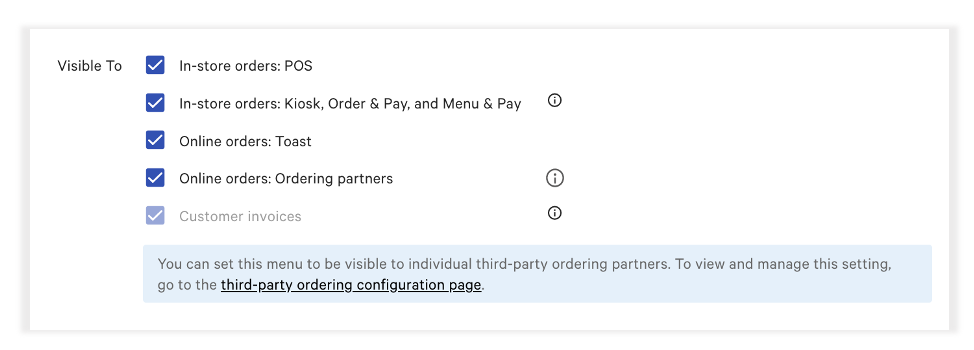
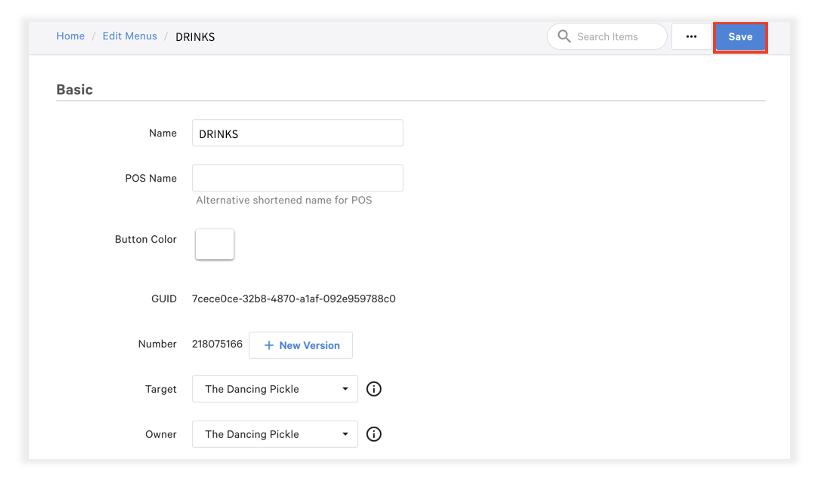
Note: Only menus with visibility set to Online ordering partners will be selectable in this dropdown. Customers can set their menu visibility via advanced menu properties or Menu Builder (non-MLM users only).
Name and Location of Restaurant
If you would like to access the 3PO configuration page settings for Uber Eats for a different location, select the correct location and re-access the 3PO configuration page with the same steps as above.
Hours
The hours shown here are when guests can order takeout and delivery from the 3PO partner guest platform. These hours are set via the Takeout & delivery > Online Ordering Hours menu.
To set or modify these hours, select Hours for Takeout and Third Party delivery for Uber Eats. This will send you to the Takeout & Third Party delivery hours menu.
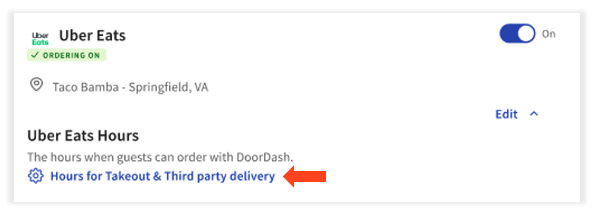
| The hours set will apply to all 3PO partners and Toast Online Ordering. There is no way to set individual hours for each of these ordering streams at this time. To learn more about setting hours, see this video . |
Menus
The menus section of the 3PO configuration page is where you will see the list of menus selected for each of the individual 3PO partners. These menus can now be dynamically chosen, allowing you to have different menus available on each individual 3PO direct integration and to change and modify those easily.
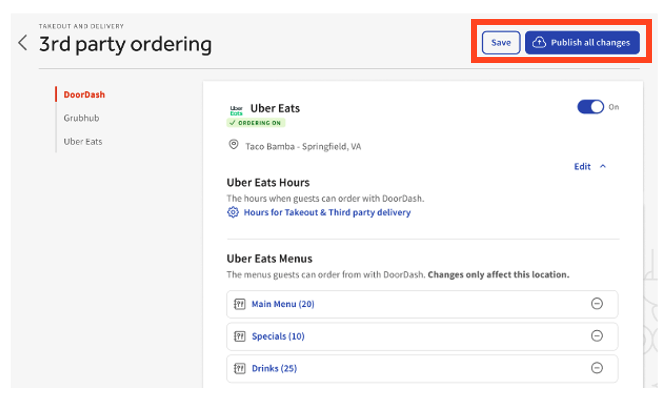
Note: For all steps below, you must select Save and Publish All Changes at the top right of the 3PO configuration page to be sure all changes are saved and applied.
Add Menu
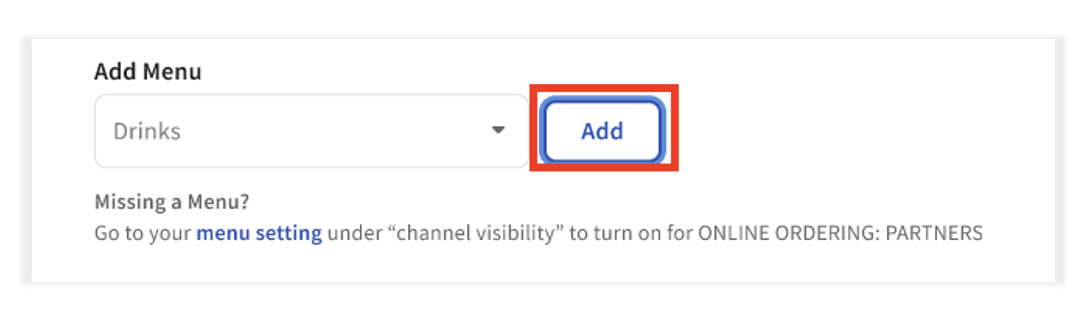
To add another menu for guest ordering, follow the steps below:
- Select the dropdown in the selected partner configuration page.