Manage Third-Party Availability With Snooze and On/Off Functions
Last updated: Jun 23, 2026, 11:46 AM
Learn how the third-party ordering can be temporarily snoozed on Toast Web.
Toast integrates with third-party online ordering channels such as DoorDash, Grubhub, and Uber Eats. From Toast Web, you can turn these channels on, turn them off, or snooze (temporarily pause) them for 20 minutes, 40 minutes, or until the start of your online ordering hours the next day. You can snooze or turn off one channel, several channels, or all channels at once. You can also check the current status of your third-party channels in the Toast Now app.
This article covers how to snooze third-party online ordering, how to use the on/off function, and how to check the current status.
Note: Changes you make from the third-party ordering dropdown are saved and published automatically. After a snooze period ends, the channel returns to its normal function on its own. If you snooze for 20 minutes, ordering resumes after 20 minutes. If you snooze until tomorrow, ordering resumes at the start of your online ordering hours the next business day.
- Snooze third-party online ordering from Toast Web
- Turn third-party online ordering on or off from Toast Web
- Check third-party ordering status in the Toast Now app
- If orders keep coming in after you snooze or turn off a channel
- Frequently asked questions
- Related articles
Snooze third-party online ordering from Toast Web
Snoozing temporarily pauses incoming orders from a third-party channel and then resumes ordering automatically when the snooze period ends.
Note: DoorDash and Grubhub can be snoozed only from Toast Web, though their status is also reflected in the Toast Now app. Uber Eats can be snoozed from both Toast Web and the Toast POS. For more information, see Get Started With the Uber Eats Integration.
To snooze all third-party channels at once:
- Log in to Toast Web.
- Navigate to Takeout & delivery > Third-party ordering.
- At the top of the Third-party ordering section, open the first dropdown menu, which applies to all third-party partners.
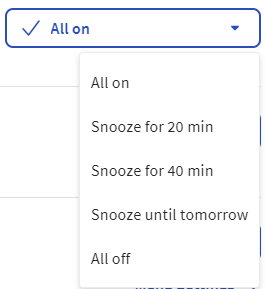
- Select a snooze option:
- Snooze for 20 min pauses third-party online ordering for 20 minutes.
- Snooze for 40 min pauses third-party online ordering for 40 minutes.
- Snooze until tomorrow pauses third-party online ordering until the start of your online ordering hours the next day.
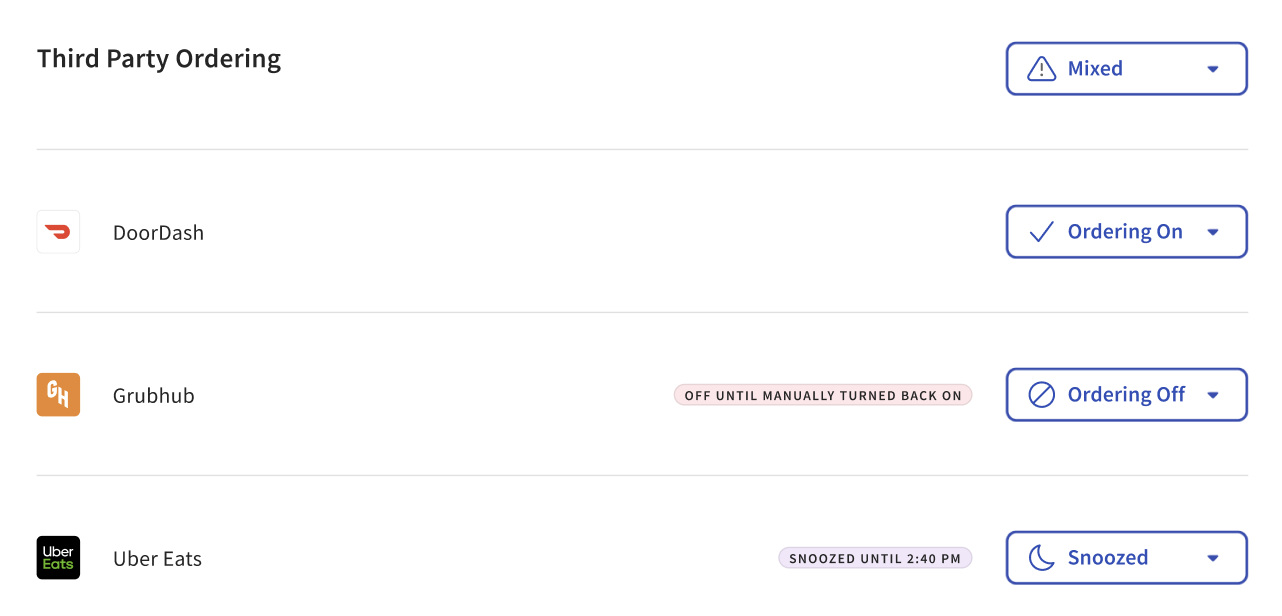
When you snooze every channel, the Third-party ordering heading changes to All snoozed and each channel's dropdown heading changes to Snoozed. A colored SNOOZED UNTIL [TOMORROW / TIME] label appears next to each channel to confirm ordering is paused.
To snooze only some channels, use each channel's own dropdown instead of the top dropdown. When at least one channel is snoozed but others are not, the Third-party ordering heading changes to Mixed to show that channels have different statuses.
To snooze a single channel:
- Find the channel you want to pause and open the dropdown menu next to its icon.
- Select Snooze for 20 min, Snooze for 40 min, or Snooze until tomorrow.
Turn third-party online ordering on or off from Toast Web
Turning a channel off stops orders from that channel until you manually turn it back on. Unlike snooze, the off state does not end on its own.
To turn all third-party channels on or off at once:
- Log in to Toast Web.
- Navigate to Takeout & delivery > Third-party ordering.
- At the top of the Third-party ordering section, open the first dropdown menu, which applies to all third-party partners.
- Select an option:
- All on turns on every channel so guests can place orders.
- All off turns off every channel so guests cannot place orders.
When you turn on every channel, the Third-party ordering heading changes to All on and each channel's dropdown heading changes to Ordering on. When you turn off every channel, the heading changes to All off, each channel's dropdown heading changes to Ordering off, and a colored OFF UNTIL MANUALLY TURNED BACK ON label appears next to each channel.
To turn a single channel on or off:
- Find the channel you want to change and open the dropdown menu next to its icon.
- Select Ordering on to turn on orders for that channel, or Ordering off to turn them off until you turn the channel back on.
Note: Turning off your third-party channels does not turn off Toast Online Ordering, and turning off Toast Online Ordering does not turn off your third-party channels. The two are managed separately. To check or change your Toast Online Ordering status, see Check Online Ordering Status.
Check third-party ordering status in the Toast Now app
You can confirm the current status of your third-party channels from the Toast Now app without opening Toast Web.
- Open the Toast Now app on your phone.
- Navigate to the Support tab.
- Scroll to the Takeout & delivery section.
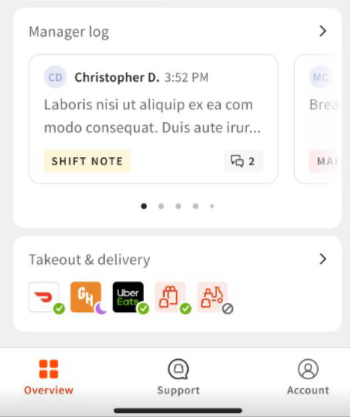
- Look at the icon next to each third-party ordering channel:
- A purple moon icon means the channel is currently snoozed.
- A no-symbol icon means the channel is currently turned off.
- No status icon means the channel is on and accepting orders.
If orders keep coming in after you snooze or turn off a channel
If you snoozed or turned off a third-party channel but orders are still arriving, work through the checks below before contacting Toast Customer Care.
- In Toast Web, navigate to Takeout & delivery > Third-party ordering and confirm the status of each channel. If you intended to pause every channel, check that the heading reads All snoozed or All off rather than Mixed, which means at least one channel is still active.
- Identify which channel the orders are coming from so you can confirm that specific channel shows Snoozed or Ordering off. Set that channel individually using its own dropdown if needed.
- Wait a few minutes and check again, because the change can take a short time to reach the third-party partner.
Note: If orders continue arriving from a channel that Toast Web shows as snoozed or off, contact Toast Customer Care.
Frequently asked questions
What is the difference between snooze and off?
The difference between snooze and off is how the channel resumes. Snooze pauses a third-party channel for a set time — 20 minutes, 40 minutes, or until the start of your online ordering hours the next day — and then resumes ordering automatically. Off stops a channel until you manually turn it back on; it does not resume on its own.
Can I snooze or turn off just one third-party channel?
Yes, you can snooze or turn off just one third-party channel. Use the dropdown menu next to that channel's icon instead of the dropdown at the top of the Third-party ordering section. The top dropdown applies to all channels at once, while each channel's own dropdown affects only that channel. When channels have different statuses, the Third-party ordering heading shows Mixed.
Why are third-party orders still coming in after I snoozed?
Third-party orders can still come in after you snooze when at least one channel was not included in the snooze, or when the change has not yet reached the partner. In Toast Web, navigate to Takeout & delivery > Third-party ordering and confirm each channel shows Snoozed; a Mixed heading means one or more channels are still active. If a channel that Toast Web shows as snoozed keeps sending orders, contact Toast Customer Care. See If Orders Keep Coming In After You Snooze or Turn Off a Channel above.
Can I snooze third-party ordering from the Toast POS?
You can snooze Uber Eats from both Toast Web and the Toast POS. DoorDash and Grubhub can be snoozed only from Toast Web, although their current status is reflected in the Toast Now app.
Does turning off Toast Online Ordering also turn off DoorDash, Uber Eats, or Grubhub?
No, turning off Toast Online Ordering does not turn off DoorDash, Uber Eats, or Grubhub. Toast Online Ordering and third-party ordering are managed separately. To pause or turn off third-party channels, navigate to Takeout & delivery > Third-party ordering in Toast Web. For Toast Online Ordering status, see Check Online Ordering Status.
Related articles
- Check Online Ordering Status
- Manage Online Order Volume (Delaying/Snoozing Orders)
- Outages and Disruptions: Third-Party Ordering
- Get Started With the DoorDash Integration
- Get Started With the Grubhub Integration
- Get Started With the Uber Eats Integration