Closed Drawer Report
Last updated: Sep 17, 2026, 5:15 PM
| This article covers legacy Cash Drawer functionality. An updated version of Cash Drawer functionality is currently in limited release with select customers. If the Cash Drawer experience on your Toast POS differs from what is described here, please refer to the Additional Resources for details on the new functionality. |
- Closed Drawer Report Introduction
- Configure the Closed Drawer Report
- Print the Closed Drawer Report
- Additional Resources
Closed Drawer Report Introduction
After closing a terminal's cash drawer, a Closed Drawer report can be printed to monitor cash drawer transactions. This is useful for keeping physical records of cash drawer closeouts and for tracking unusual cash drawer activity.
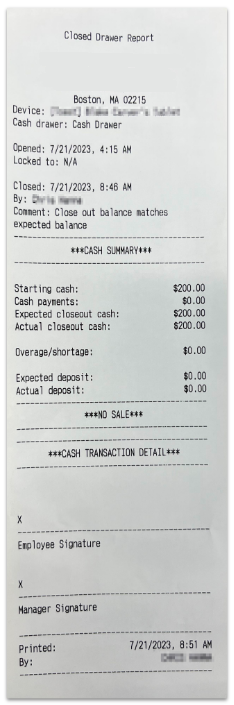
By default, the Closed Drawer report will include:
- Name of the device (configured in device setup - see this Support Center article, Device Setup Overview, to learn more)
- Time that the cash drawer was opened and closed
- Name of the employee that the cash drawer was locked to (if applicable)
- Name of the employee who closed the cash drawer
- Name of the employee who printed the closed drawer report
Additional sections can be configured to show on the report, as described in the next section of this article.
Configure the Closed Drawer Report
The following information can be optionally added to your Closed Drawer report:
- Cash Summary
- Includes starting cash amount, cash payments, expected closeout cash, and actual closeout cash
- No Sale Audit
- Includes the time, name of the employee, and reason for the "no sale"
- Cash Transaction Detail
- Includes the time, name of the employee, and amount for each cash transaction
- Employee and Manager signatures
Note: If the employee who closes a cash drawer has the 3.17 Cash Drawers (Blind) permission, they won't see additional cash drawer details on the Closed Drawer report. The employee will have no insight as to cash payments that were taken in the cash drawer, expected closing amounts, expected deposits, or any cash drawer overages/shortages.
The Closed Drawer report can be configured to print automatically when a cash drawer is closed, or it can be printed on demand.
To edit your report configurations, follow these steps:
- In Toast Web, navigate to Finance > Related > Settings > Cash overview > POS report configurations > Cash Drawer report.
- In the Closed Drawer Report page, select your preferred print method ("Automatically print report after closing the drawer" or "Only print the closed drawer report on demand")
- Then, select the checkboxes to include any section you'd like to see on your report printout. You can reorder the sections by clicking and dragging on the six-dot icon to the left.
- At the bottom of the page, select Publish all changes.
- On the pop-up confirmation window, select Publish.
Print the Closed Drawer Report
To print the report from a terminal, follow these steps:
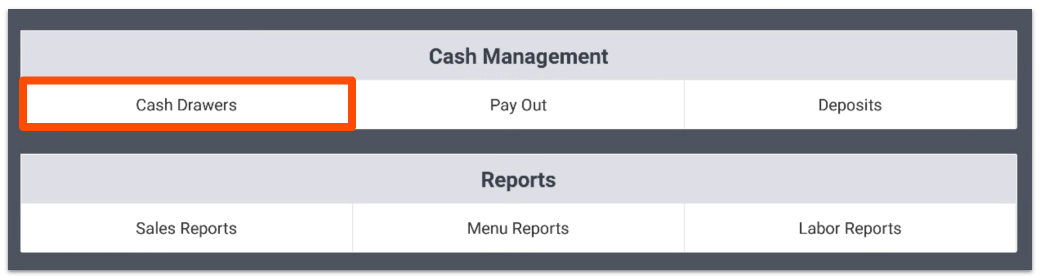
- Open the Cash Drawers section under Cash Management on your Toast Device.
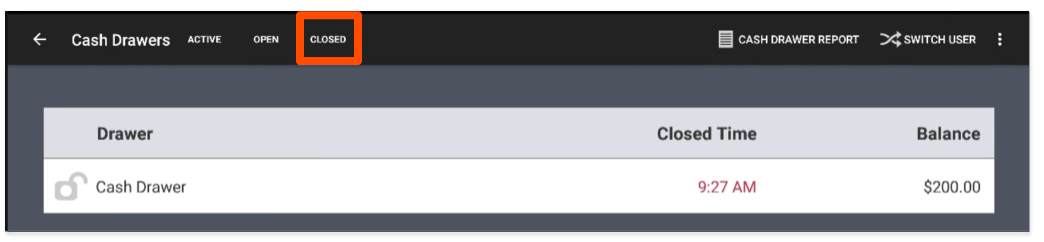
- Select the Closed Drawers tab, and then select the cash drawer for which you'd like to print a report.
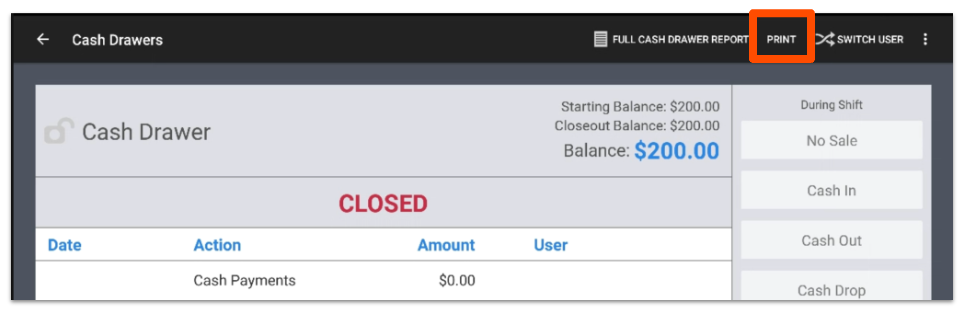
- Select Print. The report will print out the Closed Drawer report on the receipt printer assigned to the terminal being used.
- The Closed Drawer report will appear as shown below:
- The Closed Drawer report will appear as shown below:
Note: The Closed Drawers tab shows cash drawers from the current business day. To review a drawer from an earlier business day, use the Drawer History report in Toast Web at Reports > Cash and loss management > Drawer history, which covers the most recent 24 months of cash drawer activity. For more information, see Cash Drawer Reports Overview.
Additional Resources
- Use Cash Drawers
- Cash Drawer Reports Overview
- Get Help With Cash Drawers
- Set Up Cash Drawers
- Adjust a Cash Drawer After It Has Been Closed