Access and Download Prep Tools for Catering & Events Orders
Last updated: Sep 16, 2026, 12:38 PM
Question
How can I download Banquet Event Orders (BEOs), invoices, prep lists, and/or pack sheets for specific catering orders?
Answer
Download Catering & Events Prep Tools Overview Steps
Products this applies to: Catering & Events | Access needed: Toast Web
- Navigate to Prep tools in Toast Web
- Choose custom or standard printing
- Select which prep tools to include in the download
- Set optional filters for the prep tools
- Adjust the display of the prep list
- Download the PDF for the selected timeframe
Download Catering & Events Prep Tools Process
Access and download prep tools for Catering & Events orders into a single download for Banquet Event Orders (BEOs), invoices, prep lists, and pack sheets.
- Navigate to Prep tools in Toast Web
- Log in to Toast Web and navigate to Catering & Events > Prep tools.
- Log in to Toast Web and navigate to Catering & Events > Prep tools.
- Choose custom or standard printing
- Select either Custom or Standard printing.
- Select either Custom or Standard printing.
- Select which prep tools to include in the download
- Select from the options to compile into a single download:
- BEOs: Customer info, all fields, internal notes, menu items, and modifiers
- Invoices: Customer info, menu items, prices, and modifiers
- Prep list: Items and modifiers with quantities
- Pack sheet: Items and modifiers by customer and prep station
- Kitchen sheet: Customer name, selected fields, internal notes, menu items, and modifiers
- Pickup summary: Pickup orders by time, status, tip amount, and form fields
- Delivery summary: Delivery orders by time, status, tip amount, and form fields
- CSV Export: Order, item, and modifier data in a .csv format
- Order summary: Orders by date and time with customer info, quantities, and modifiers
- Labels: 2" x 4" labels (10 per sheet) for orders, items, and modifiers
- Select from the options to compile into a single download:
- Set optional filters for the prep tools
- Set up Filters to create your Prep lists:
- Prep stations
- Dining options
- Invoice status
- Catering order status
- Menu items
- Note: This section is optional. You have the option to set up filters, but it is not required to run a prep tool.
- Set up Filters to create your Prep lists:
- Adjust the display of the prep list
- You can change the Display of your prep list.
- You can change the Display of your prep list.
- Download the PDF for the selected timeframe
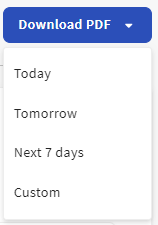
- Select Download PDF and choose the timeframe for the download.
- Note: Want all the BEOs for a single customer for last week? Filter by customer name and the order date range, select those orders, and download.
- Select Download PDF and choose the timeframe for the download.