Get Help With Elo V2/V3
Last updated: May 11, 2026, 12:02 PM
Learn how to troubleshoot Elo V2/V3.
If your Elo V2 or Elo V3 terminal has a black screen, frozen screen, unresponsive touchscreen, dim display, unresponsive power or home button, or a browser that won't load, this article walks you through the most common fixes. Most issues are resolved by a power cycle or firmware update. Reference codes (#540, #541, #544) are noted where relevant—share these with Customer Care if escalation is needed.
Note: This article applies to Elo V2 and Elo V3 terminals only. If you have an Elo V4 (round power and home buttons positioned slightly offset from the center of the back of the device, just below the indent for the stand), see Identify Your Toast Hardware to confirm your model, then look for the matching V4 troubleshooting article. Steps for V2/V3 do not always apply to V4. If you're not sure which Elo you have, check the back of the device: Elo V2/V3 has round power and home buttons in the corner of the device.
- Before You Begin
- Quick Fix
- If Your Screen Is Black or Won't Turn On
- If Your Touchscreen Isn't Responding
- If Your Screen Is Dim
- If Your Elo Is Freezing or Lagging
- If the Power or Home Button Is Unresponsive
- If the Built-In Browser Isn't Working
- If Your Device Is Stuck in Fast Boot Mode or Safe Boot Mode
- Frequently Asked Questions
- Before You Contact Customer Care
- Related Articles
Before You Begin
Applies to: Elo V2 terminal, Elo V3 terminal | Permissions needed: Device access (no Toast Web permission required for most steps; firmware updates require login to the Toast POS app)
What you'll accomplish: Diagnose and resolve the most common Elo V2/V3 hardware and display issues without losing payment data.
Note: Before resyncing data, factory resetting, or clearing app data on any Elo terminal, check the device for unsettled credit card payments. Unsynced payments can be permanently lost. See Check Unsettled Credit Card Payments on Device.
Quick Fix
| Symptom | Most common cause | Quick fix | Self-service? |
|---|---|---|---|
| Screen is black, device won't turn on, or you see no display | Power cord, outlet, or device-side power issue | Check power cord for damage, then reseat the cord and try a different outlet. See If Your Screen Is Black or Won't Turn On. | Yes |
| Touchscreen doesn't respond, taps the wrong area, or has phantom button presses | Touch calibration off, or firmware out of date | Power cycle, then check firmware version. See If Your Touchscreen Isn't Responding. | Yes |
| Screen is dim or hard to read | LCD malfunction (some Elo V2 units shipped this way) or display settings | Power cycle, then verify Display Settings. See If Your Screen Is Dim. | Yes |
| Device freezes or lags only in the Toast POS app | Toast POS app cache/data | Force stop the Toast POS app and clear data. See If Your Elo Is Freezing or Lagging. | Yes |
| Device freezes or lags across all apps | Device-level fault; firmware may need updating | Power cycle and unplug for 5–10 minutes; if unresolved, contact Customer Care for firmware help. | Partial |
| Power or Home button doesn't respond | Device hard reset needed | Unplug power for 5–10 minutes; if unresolved, contact Customer Care. | Partial |
| Browser won't load pages, allow downloads, or use the back button (Elo V2 only) | Outdated firmware on early Elo V2 units | Check firmware version; update if below 4.50.54+a. See If the Built-In Browser Isn't Working. | Yes |
| Device is stuck in Fast Boot Mode or Safe Boot Mode | Device entered an alternative boot mode | Power cycle by fully unplugging the terminal and plugging it back in. | Yes |
If Your Screen Is Black or Won't Turn On
A black screen and unresponsive Elo V2 are typically caused by a power surge, power outage, or a problem with the power cord or outlet. Work through the questions below to narrow down the cause.
Does the issue happen during a specific action?
If the screen goes black or the device shuts off only when you flip the device for a signature, move the terminal, or tap the cords or device, the Power Cord is the most likely cause.
- Check the Power Cord for any loose or damaged connections. Inspect the cord, the outlet, and the power port on the Elo to make sure each connection is firmly in place.
- If your power cord shows any signs of damage (such as fraying, cuts, exposed wires, or bent prongs), stop using the device immediately to prevent potential safety hazards. You will need a replacement power cord. Contact Customer Care right away for assistance with obtaining one.
- If the Power Cord does not show any damage but the connection is loose, reseat the end of the Power Cord so it is firmly seated, then attempt to power on the device.
- Hold the Power Button down for approximately five to eight seconds to turn the device back on.
- If reseating the Power Cord does not resolve the problem, power down the device and move it to another outlet.
- If moving the terminal to another outlet does not resolve the problem, try a different Power Cord on the device.
Expected outcome: The device powers on and the display returns to the Toast passcode screen.
If the Power Cord is in working order but the device still does not power on, contact Customer Care to discuss other solutions on the Elo V2/V3. If the Power Cord is the problem, contact Customer Care to arrange a replacement.
What color is the light next to the power button?
The light next to the Power Button tells you the device's power state.
- Orange light - The device is powered off. Hold the Power Button down for approximately five to eight seconds to turn it back on. If the device will not power on, follow the power cord and outlet checks under Does the issue happen during a specific action?.
- White light, solid - The device is on and should be functioning. If the screen is still black with a solid white light, follow the power cycle steps under What is the light doing?.
- White light, blinking - The device is in Standby Mode. Press the Power Button once to wake it.
What is the light doing?
If the light is solid white but the screen is still black, or if the device did not respond when you tapped the Power Button to exit Standby Mode, try the following.
- Power cycle the device:
- On the bottom right-hand side of the terminal, locate the Power Button.
- Hold the Power Button down for approximately 10 to 15 seconds.
- Select Power Off.
- Select Ok.
- If the device does not function after a power cycle, unplug the power to the tablet for five to 10 minutes. This hard-resets the tablet and allows for a fresh restart. No data is lost during this process.
- Plug the device back in and turn it on.
Expected outcome: The device powers up and the display returns to the Toast passcode screen.
If the above steps do not result in the device working correctly, contact Customer Care.
If Your Touchscreen Isn't Responding
If your Elo V2/V3 touchscreen isn't responding to touch, taps register on the wrong sections of the screen, or you see phantom button presses, the touchscreen calibration may be off or the firmware may need updating.
- Power cycle the device:
- On the bottom right-hand side of the terminal, locate the Power Button.
- Hold the Power Button down for approximately 10 to 15 seconds.
- Select Power Off.
- Select Ok.
- If the device does not function after a power cycle, unplug the power to the tablet for five to 10 minutes. This hard-resets the tablet without losing data.
- Turn your device back on. Next, check that your Elo V2/V3 is on the latest firmware.
- Exit the Toast app by selecting the circle button at the bottom of your screen.
- Navigate to Android Settings > System > About tablet.
- On the About tablet screen, the Build Number at the bottom of the list is the firmware version. For Elo V2 devices, make sure it's 3.46.302 or higher. For Elo V3 devices, the version should be 4.50.54+a. If your firmware is below the threshold, see Manually Update Firmware on Elo V2/V3 or Locate the Elo V2 Build Number for the version-check process.
- If the firmware is current and the touchscreen is still unresponsive, reboot the device from recovery mode.
- Unplug the power from the device, either at the wall outlet or on the device itself.
- While the device is unplugged, press and hold the Home Button.
- While still holding the Home Button, plug the Power Cord back into the device.
- Continue to hold the Home Button until the Android recovery screen appears on the device.
- Press the Home Button to cycle through the options on the screen.
- Select Reboot system now.
- Press the Power Button to confirm the selection. The system should now reboot.
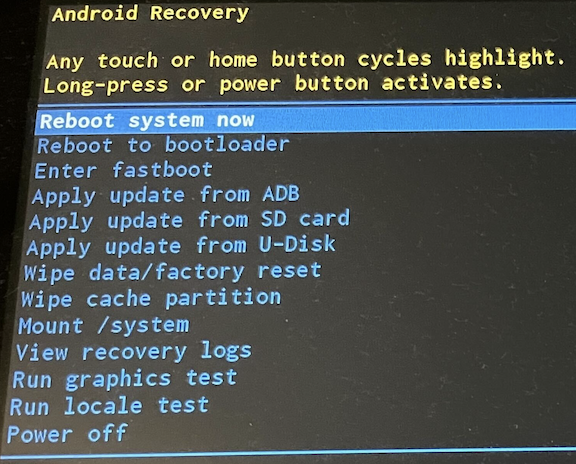
Expected outcome: The device reboots and the touchscreen responds to taps accurately.
If your device is on the correct firmware and you continue to have issues with an unresponsive touchscreen, contact Customer Care and reference code #544.
If Your Screen Is Dim
Some Elo V2 devices were shipped with malfunctioning LCD screens. If your display is dim or hard to read, work through the steps below.
- Power cycle the device:
- On the bottom right-hand side of the terminal, locate the Power Button.
- Hold the Power Button down for approximately 10 to 15 seconds.
- Select Power Off.
- Select Ok.
- If the device does not function after a power cycle, unplug the power to the tablet for five to 10 minutes. This hard-resets the tablet without losing data.
- Confirm Display Settings are set correctly. Select the circle button at the bottom of the screen, then swipe up from the bottom bar to access the settings panel. Select Settings, then Display.
The Display settings should be configured as follows:
- Automatic Idle Mode: Enabled
- Brightness Level: Set to user preference
- Adaptive Brightness: Disabled
- Wallpaper: Left blank
- Backlight Off: Set to Never
- Screen Saver: Left blank
- Ambient Display: Enabled
- Font Size: Default
- Display Size: Default
- When Device is Rotated: Set to Rotate the contents of the screen
- HDMI Screen Orientation: Default
- Screen Orientation: Default
- Cast: No selection
Expected outcome: The display brightness is restored and the screen is readable.
If all the Display Settings are configured correctly and the steps above do not resolve the issue, contact Customer Care for further assistance and reference code #541.
If Your Elo Is Freezing or Lagging
Elo terminals can sometimes freeze or lag, making the device difficult to use. Before attempting a fix, identify whether the freezing happens only in the Toast POS app or across the whole device.
If the freezing happens only in the Toast POS app
Before clearing data, double-check that any recent credit card payments on the device have synced to Toast Web. Clearing data can permanently delete unsynced payments.
- Log into your device with your email and password.
- Open the Settings app and select Apps.
- Find and select the Toast POS app.
- Select Force Stop and select OK when prompted.
- On the same page, select Storage.
- Select Clear Data and select OK when prompted.
Note: On some terminals, Clear Data may be on the same page as Force Stop.
Expected outcome: The Toast POS app reopens to the passcode screen and is responsive.
If the freezing happens across all apps or on the device itself
- Power cycle the device:
- On the bottom right-hand side of the terminal, locate the Power Button.
- Hold the Power Button down for approximately 10 to 15 seconds.
- Select Power Off.
- Select Ok.
- If the device does not function after a power cycle, unplug the power to the tablet for five to 10 minutes. This hard-resets the tablet without losing data.
Expected outcome: The device reboots and runs normally across all apps.
If the above steps do not result in the device working correctly, contact Customer Care, and the team can assist with upgrading the firmware of your device.
If the Power or Home Button Is Unresponsive
The Elo V2/V3 has two buttons on the bottom right-hand side of the terminal: a Home button and a Power button. If either becomes unresponsive, try a hard reset.
- Unplug the power to the tablet for five to 10 minutes. This hard-resets the tablet without losing data.
- Plug the device back in and try the buttons again.
Expected outcome: The buttons respond normally after the hard reset.
If the buttons remain unresponsive, contact Customer Care to arrange a return or discuss other solutions.
If the Built-In Browser Isn't Working
A small number of early Elo V2 units shipped with a browser that doesn't work correctly. Common symptoms:
- The browser does not allow downloads.
- Websites or pages don't load fully.
- The back button on the browser doesn't work.
To resolve this, perform a firmware update on the Elo V2.
- Exit the Toast app by selecting the circle button at the bottom of your screen.
- Navigate to Android Settings > System > About tablet.
- On the About tablet screen, the Build Number at the bottom of the list is the firmware version of the device.
- If your firmware version is not 3.46.302 or higher, see Manually Update Firmware on Elo V2/V3 for update steps.
Expected outcome: After the firmware update, the browser loads pages, allows downloads, and the back button works.
If your device is on 3.46.302 or higher and your browser is still unresponsive, contact Customer Care for further assistance and reference code #540.
If Your Device Is Stuck in Fast Boot Mode or Safe Boot Mode
Occasionally, Elo terminals enter Fast Boot Mode (an alternative recovery mode) or Safe Boot Mode (a diagnostic mode of the operating system). In Fast Boot Mode, you can't exit using the Home or Power buttons.
To exit either mode, fully unplug the terminal from power, wait a moment, and plug it back in.
Expected outcome: The device reboots into the standard Elo home screen.
Frequently Asked Questions
How do I find the IP address on my Elo V2/V3?
To locate the IP Address on the Elo V2/V3, you will need to get this info from the Settings Panel of the Elo V2/V3.
-
- Select the Circle button.
- Swipe up from the bottom of the screen or select the Up Arrow.
- Select Settings.
- Select Network.
- On the next screen, you will see the IP Address that is assigned to the Elo V2/V3.
How do I check the firmware version on my Elo V2/V3?
To check the firmware version on an Elo V2/V3, navigate to Android Settings > System > About tablet. The Build Number at the bottom of the list is the firmware version. For Elo V2, the version is in the 3.XX.XXX range; for Elo V3, the version is in the 4.XX.XXX range. See Locate the Elo V2 Build Number for the full lookup process.
What's the difference between Elo V2 and Elo V3?
Elo V2 and Elo V3 devices share the same physical hardware. The difference is in the operating system and firmware versions. Elo V2 devices run Android 7.1 and use firmware versions in the 3.XX.XXX range. Elo V3 devices run Android 8.1 and use firmware versions in the 4.XX.XXX range.
Can I use the steps in this article on an Elo V4?
The Elo V4 is a different device with a different operating system and a different button layout. Some general steps (power cycling, unplug-and-replug) work across both, but firmware version numbers, recovery mode behavior, and reference codes in this article apply only to Elo V2 and Elo V3. To confirm which Elo you have, see Identify Your Toast Hardware.
Why isn't my new Elo card reader (MSR) reading swipes?
A magnetic stripe reader that isn't reading cards is covered in a separate article. See Get Help With Elo MSR: Not Reading Card Swipes.
Before You Contact Customer Care
If the steps above didn't resolve the issue, gather the following before reaching out so Customer Care can assist faster:
- Device info: The device's serial number and confirmation that you have an Elo V2 or Elo V3 (not Elo V4 or Toast Flex)
- Firmware version: The current Build Number from Android Settings > System > About tablet
- Reference code: If your symptom matches a section above, include the relevant reference code (#540 browser, #541 dim screen, #544 touchscreen)
- Symptom description: What's happening, when it started, and what was happening on the device when the issue began
- Steps tried: Which steps from this article you've already attempted
- Pending payments: Whether the device has any pending credit card payments—see Get Help With the Toast App on the POS for how to check
- Scope: Whether the issue affects this one device or multiple devices at the location
- Power cord condition: If the issue is power-related, note whether you've checked the cord for damage or tested another cord
Related Articles
- Identify Your Toast Hardware
- Manually Update Firmware on Elo V2/V3
- Factory Reset an Elo V2/V3 Terminal
- Locate the Elo V2 Build Number
- Get Help With the Toast App on the POS