Get Help: Troubleshoot Printer Error Messages
Last updated: Sep 16, 2026, 5:07 PM
Learn how to troubleshoot printer error messages that appear on your Toast POS.
- Before You Begin
- Overview Steps
- Quick Fix
- Troubleshoot Connectivity Error Messages
- Troubleshoot Hardware Error Messages
- Troubleshoot Additional Printer Error Messages
- Frequently Asked Questions
- Before You Contact Customer Care
- Related Articles
Before You Begin
Applies to: Toast POS, Toast Web
Permissions needed:
- Access to the Toast POS device
- Physical access to the printer's power and Ethernet cables
What you'll accomplish: Identify the printer error message you are seeing and apply the matching fix, or gather the information Customer Care needs if the error cannot be resolved on the floor.
Overview Steps
Most printer errors fall into one of three groups: connectivity errors, hardware errors, or printer-specific errors that have their own short fix. Work through these in order:
- Confirm your Toast POS device and printer are powered on, plugged in, and on the same network.
- Try the Quick Fix reset below. This resolves a high share of printer errors.
- If the error continues, find your specific error message in the decision tree and follow the matching branch.
- If you do not see a specific error message and the printer still is not working, see Get Help: My Printer Isn't Working.
For cloud printing errors on a Toast Go 3 handheld, see Get Help With Toast Go 3. For wireless M30 printer issues, see Set Up Your M30 Wireless Printer (Toast-Managed Network) or Set Up Your New M30 Printer on a Self-Managed Network.
Note: Printers in your business are typically wired into a network router using an Ethernet cable. That network may also have a Wi-Fi signal for handheld devices use. For receipts and kitchen tickets to print, the device sending the print job must be on the same network as the printer. A device on a different network is the single most common cause of printer error messages.
Quick Fix
Try this first. It resolves a large share of printer errors before you need to identify the specific error message.
| Symptom | Most Common Cause | Quick Fix | Self-Service? |
| Any printer error message on the POS, or printer not printing | Power state stuck, or device and printer on different networks | Unplug both the power cable and the Ethernet cable from the printer. Wait 30 seconds. Plug both back in and power the printer on. Retry printing. If the error screen on the POS lists networks to try, use the network settings button on that screen to connect to the correct network. | Yes |
| Printer is on but printing nothing (kitchen printer with beeping or a flashing light) | Toast Kitchen Printer in a specific error state (HP error, cutter error, paper near end, or print head overheated) | Identify the beep pattern and light pattern. See Get Help With Your Toast Kitchen Printer for the matching fix. | Yes |
| Printer prints some things but not others (for example, drink tickets but no customer receipts) | Printer routing or prep station configuration on the terminal | This is a configuration issue, not an error message. See the Frequently Asked Questions below. | Sometimes — may require Customer Care |
| Printer will not turn on at all (no lights) | Power supply, outlet, or power cable | Try a different outlet. If the printer is a Toast Kitchen Printer, follow the power-supply steps in Get Help With Your Toast Kitchen Printer. If a power cable swap does not bring the printer up, see Before You Contact Customer Care. | Sometimes — hardware replacement may be needed |
Expected outcome: The error clears and the printer prints normally, OR you can match the printer's behavior to a row above and continue to the matching section below.
Note: When a print job fails, the Toast printing error screen offers a list of networks to try and a button that opens network settings. Use that button to confirm the device is on the same network as the printer.
If the Quick Fix does not resolve the error, identify your specific error message and follow the matching section below.
Troubleshoot Connectivity Error Messages
Over half of all printer errors are caused by connectivity issues. Customers commonly describe these as the printer being "not connecting," "disconnected," or "offline."
These error messages indicate a connectivity issue:
- We couldn't connect to the printer.
- Please reboot printer.
- Printer is offline.
- Unrecoverable error occurred in printer.
- Something went wrong while printing.
- Printer is busy.
- Unable to resolve IP address.
- Printer is unable to establish connection to cash drawer.
Try These Steps First
- Unplug both the power cable and the Ethernet cable from your printer. Wait 30 seconds.
- Plug both cables back in and power the printer on.
- Retry printing.
- Check the Toast System Status page to verify there is no Toast outage. If there is an outage, see Outages and Disruptions: Use Toast During a Local Network Outage.
Expected outcome: The connectivity error clears and the printer prints normally. If it does not, continue to the next steps.
If the Error Persists
- Reconnect your cable. Reconnect the Ethernet cable at your network source — your switch, router, or wall port, depending on your setup.
- Replace your cable. If reconnecting does not fix it, swap in a known-working Ethernet cable. If you have two printers in the kitchen and one is working, plug the printer you are troubleshooting into the cables used by the working printer to confirm whether the cable is faulty.
- Printing from a terminal? Make sure Wi-Fi is disabled. Terminals typically print over Ethernet.
- Printing from a handheld device? Make sure the handheld is on the correct Wi-Fi network. To learn more, see Set Up Your Toast Network.
- Printer connected but printing blank slips? Confirm you are using the correct paper type and that paper is installed properly. See Printer Paper Rolls and Ink Ribbons.
Expected outcome: The error clears, the device shows the printer as online in Printer Setup, and a test print succeeds. If the error persists after these steps, see Before You Contact Customer Care.
Troubleshoot Hardware Error Messages
These error messages indicate a hardware issue:
- An error occurred on printer's receipt cutter.
- Something went wrong while printing. Please check for paper jams, misfeeds, and cutter malfunctions.
- Printer has no paper / no paper in printer.
Steps to Resolve
- Check the printer for paper jams, misfeeds, and cutter malfunctions.
- Confirm you are using the correct paper type and size, and that it is installed properly. To learn more, see Printer Paper Rolls and Ink Ribbons.
- Power cycle the printer using the Quick Fix reset above.
Expected outcome: The paper jam, misfeed, or cutter issue is cleared and printing resumes. The error clears from the POS screen.
If you have verified there is no paper jam, misfeed, or cutter malfunction and the error persists, follow the steps in Troubleshoot Connectivity Error Messages above—some hardware-styled errors are network-induced.
If those steps still do not resolve the error, see Before You Contact Customer Care.
Troubleshoot Additional Printer Error Messages
Printer Cover Is Open
Full error message: Printer cover is open. Please close cover on printer.
Confirm the printer cover is securely closed.
Expected outcome: The error clears and the printer prints normally. If the cover is closed and you are still receiving this error, the printer may need to be replaced—see Before You Contact Customer Care.
Printer Was Deleted
Full error message: Printer was deleted. Please confirm the correct printer is selected in Device Setup or send to an alternate printer.
- Navigate to Device Setup on your Toast POS.
- Confirm the correct printer is selected under the Receipt Printer header.
Expected outcome: The correct printer is selected in Device Setup and the next print job succeeds.
If the printer you need is not listed, see Printer Setup Overview or contact Customer Care.
Printer Isn't Connected — Set Up New Printer?
Full error message: [PRINTER NAME] isn't connected. Set up new printer?
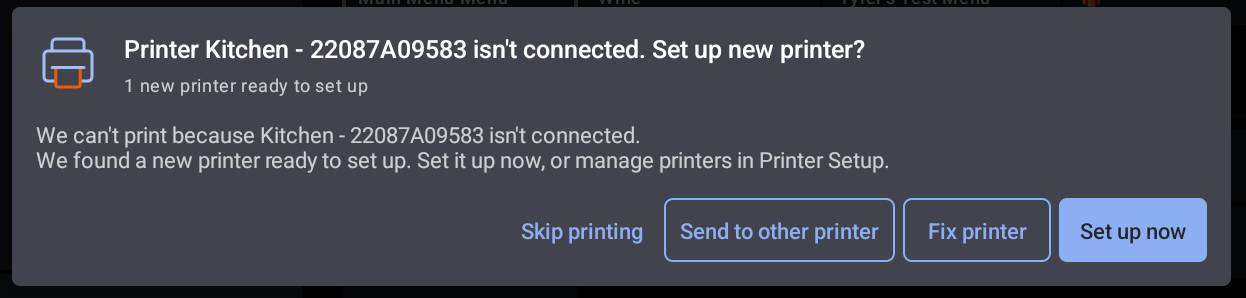
This error appears when a print job is sent to a printer that is no longer connected and Toast has detected a new, unconfigured printer on the network. It commonly occurs when an existing printer is unplugged, a new printer is plugged into the network in its place, and then an order is fired to the printer that was unplugged. The dialog confirms the print job failed and offers a new printer you can set up.
Choose the on-screen option that matches what you intended to do:
- Set up now. Opens the new-printer setup workflow so you can configure the newly detected printer. Use this if you meant to replace the disconnected printer with the new one.
- Fix printer. Use this if the original printer was disconnected by accident. Reconnect its power and Ethernet cables, then follow the steps in Troubleshoot Connectivity Error Messages above.
- Send to other printer. Routes the current print job to a different working printer so service is not interrupted while you finish setup.
- Skip printing. Cancels the current print job without printing. Use this only if the job does not need to print.
You can also set up or manage the detected printer at any time from Setup > Printer Setup. To learn more, see Printer Setup Overview.
Expected outcome: The new printer is configured (or the original printer is reconnected), and the next print job succeeds.
If the new printer does not appear in the setup workflow, or the error persists after setup, see Before You Contact Customer Care.
Printer Feed Button Is Pressed
Full error message: Printer feed button is pressed. Please make sure the feed button is released.
Confirm no one is pressing the Feed button on the printer.
Expected outcome: With the Feed button released, the error clears and the printer prints normally. If the issue persists after the button is released, see Before You Contact Customer Care.
Printer Error Detected
Full error message: Printer error detected.
This error typically appears when:
- Printers experienced a power outage and now have duplicate IP addresses, or
- There is an unresolved print error in the printer queue.
If the cause is an IP conflict, the POS prompts you to reboot the printer. Follow those prompts, or use the steps in Troubleshoot Connectivity Error Messages above.
If the cause is an unresolved print job, the POS prompts you to review the queued job. You can either delete the queued job or resolve the underlying error before retrying.
Expected outcome: The IP conflict is resolved or the queued job is cleared, and the printer resumes printing. If the error persists, see Before You Contact Customer Care.
There Was an Issue Printing the Closed Cash Drawer Report
Full error message: There was an issue printing the Closed Cash Drawer Report.
- Navigate to Device Setup on your Toast POS.
- Confirm the correct printer is selected under the Receipt Printer header.
- Try printing the report again.
Expected outcome: The Closed Cash Drawer Report prints successfully from the correct receipt printer.
If the printer you need is not listed, see Printer Setup Overview. If the report still does not print, see Before You Contact Customer Care.
We Don't Recognize This Printer
Full error message: We don't recognize this printer. We can't support third party printers.
Confirm you are using a Toast-branded or Toast-compatible printer. To check, see Toast Compatible Printers.
Important: Toast cannot support third-party printers. If your printer is a third-party model, it may also print the characters "ICICICICICIC" on slips. Switch to a Toast-compatible printer to resolve the error.
Expected outcome: A Toast-compatible printer is connected and the error clears.
Printer Error Reference Codes
Some printer errors include a numeric reference code on screen (for example, reference code 410).
If you see a reference code on screen, capture the exact code text and see Before You Contact Customer Care—these codes typically require Customer Care to investigate on the back end.
| Reference code | What it means and what to do |
| 409 | Printer Error detected (Printer IP conflict). If the conflicting printers are DHCP they will need to be restarted in order to obtain new IP addresses. If the conflicting printers are static you will need to manually change the static IP address on your printer or change their configuration to DHCP. After making the necessary changes navigate in the Toast app to printer setup and select the check status button to clear the error banner. printer on. |
| 410 | Unable to contact printer (OpenConnectionFailed or UnknownIP) |
| 511, 514 | Print Failure |
| 512, 513 | Door/Paper Sensor Failure or Auto Cutter Failure |
| 515 | Power Outage & IP Address Troubleshooting |
| 516, 517, 518 | Print Failure, Auto Cutter Failure, Ink Issue |
| 519, 520, 521 | Power Supply Failure, Print Failure, Network Connection Failure |
| 550 | Print Failure |
| 551 | Network Connection Failure. Unplug both the power cable and the Ethernet cable from the printer. Wait 30 seconds. Plug both back in and power the printer on. |
| 560 | Test Slip Print Failure |
Frequently Asked Questions
Why is my printer green-lit but not printing?
A green power light means the printer has electrical power, but it does not confirm the printer is connected to your network or able to receive print jobs. Run through the steps in Troubleshoot Connectivity Error Messages above to confirm the printer is reachable on the network. If the printer is an Epson kitchen printer (TM-M30, TM-T20, or TM-U220B), see Get Help With Epson Kitchen Printers for model-specific guidance. If the printer is a Toast Kitchen Printer, see Get Help With Your Toast Kitchen Printer.
Why is my printer printing blank slips?
Blank slips are usually caused by the wrong paper type or incorrect paper loading.
-
- Confirm you are using the correct paper for your printer model. Thermal printers use thermal paper (shiny coating, marks if scratched with a fingernail). Impact printers use standard paper.
- Confirm the paper roll is loaded correctly and is not jammed. The paper should feed from the bottom of the roll.
- For impact printers (the TM-U220B model that uses a ribbon), confirm the printer ribbon cartridge is firmly seated. Push down gently—you should hear a click as it settles into place. If the ribbon is old or worn, it may need replacement.
To learn more, see Printer Paper Rolls and Ink Ribbons and Get Help With Epson Kitchen Printers.
Why doesn't my POS find the printer during setup?
Your POS detects printers by scanning the network the device is connected to. If the printer is on a different network or a different subnet, your device will not detect it on the setup screen.
-
- Confirm the printer and the POS are on the same network and same subnet.
- Print a test page from the printer and compare its network info to your device's network info. To find your device's network info, on your POS select the three dots in the top right corner of the screen to view the Device Status page.
- If the printer is on a different subnet, it is either plugged into a different network, or an additional router is plugged into your network. Cable trace and correct any issues before retrying.
Expected outcome: The printer appears in the setup screen and can be added to the device.
Why is my printer making a clicking sound and not printing?
A clicking sound usually points to a hardware issue specific to the printer model. Identify the model from the label on the printer and follow the matching guide:
-
- Epson kitchen printers (TM-M30, TM-T20, TM-U220B): see Get Help With Epson Kitchen Printers.
- Toast Kitchen Printer: see Get Help With Your Toast Kitchen Printer.
- Toast Receipt Printer TP200: see Get Help With the Toast Receipt Printer TP200.
If the model-specific guide does not resolve the issue, see Before You Contact Customer Care.
Why is my printer printing the same ticket twice?
Double printing is typically a printer-assignment configuration issue, not a hardware error. To resolve it, see Troubleshoot Double Printing.
Why does my printer print some things but not others?
A printer that prints some output but not others is almost always a printer routing or prep station configuration issue, not a hardware error. The printer itself is working; the terminal is sending only some jobs to it.
-
- On the terminal that is not printing the missing output, navigate to Device Setup.
- Under Receipt Printer, confirm the correct printer is selected.
- Under Non printing prep stations, confirm the printer is not set as a non-printing prep station (this stops receipts from printing on that printer).
- Confirm the printer is assigned to the correct prep station for the job type you want it to print.
Expected outcome: The terminal sends both ticket types and customer receipts to the printer.
If you have confirmed all of the above and the printer still only prints some output, see Before You Contact Customer Care—a Customer Care agent may need to adjust back-end configuration.
Where do I see my printer's status?
On the Toast POS, navigate to Setup > Printer Setup. You will see the overall health of every printer, including any that are showing offline. Select Check status to refresh the page. Select a specific printer to view its settings, print a test ticket, or print a test receipt. To learn more, see Printer Setup Overview.
What if my printer isn't working but I don't see a specific error message?
If you do not see a specific error message on the POS screen, the Quick Fix reset above is the right first step. If that does not resolve it, the right article depends on what the printer is doing:
-
- The printer has no lights at all and will not power on → power supply issue. See Get Help: My Printer Isn't Working or the power-supply troubleshooting in Get Help With Your Toast Kitchen Printer.
- The printer is on (lights are on) but nothing prints, with no error on the POS → start with Troubleshoot Connectivity Error Messages above. Most "printer not connecting" or "printer disconnected" cases land here.
- The printer prints some output but not others → see My printer prints some things but not others FAQ above.
- The printer keeps showing as offline in Printer Setup → see Troubleshoot Connectivity Error Messages above, then Get Help With Printers Going Offline for recurring offline issues.
- The printer is beeping or has a flashing light pattern → this is typically a Toast Kitchen Printer in a specific error state. See Get Help With Your Toast Kitchen Printer for the beep-and-light pattern table.
Before You Contact Customer Care
If the steps above do not resolve the error, gather the following before contacting Customer Care to speed up your interaction:
- The exact error message text shown on your POS screen (a photo or screenshot is best).
- Any reference code shown on screen, captured exactly as written.
- The printer model—for example, TP200, TM-M30, TM-T20, TM-U220B, or T88V. The model is listed on the label on the printer.
- The printer serial number—found on the Printer Setup page on your POS, or on the label at the bottom of the printer.
- Whether the printer is wired (Ethernet) or wireless (Wi-Fi).
- Which Toast device you are printing from—terminal, handheld, or KDS.
- The steps you have already tried.
- Whether other printers in the same location are working normally.
To contact Customer Care, see Contact Customer Support.
Related Articles
- Get Help: My Printer Isn't Working
- Get Help With Your Toast Kitchen Printer
- Get Help With Printers Going Offline
- Printer Setup Overview
- Troubleshoot Double Printing