Get Help With Your Toast Kitchen Printer
Last updated: Oct 20, 2026, 10:51 AM
Troubleshoot your Toast Kitchen Printer (TKP300) when it is not printing, will not connect, or is printing incorrectly. Covers power, network, configuration, and common print quality issues.
- Before You Begin
- Overview Steps
- Quick Fix
- Try the 30-Second Power Cycle First
- Step 1: Confirm the Printer Has Power
- Step 2: Print a Test Slip and Read Network Info
- Step 3: Check Whether DHCP Is Enabled or Disabled
- Step 4: Resolve Network or Configuration Issues
- Step 5: Resolve Print Quality Issues
- Step 6: Check Whether Tickets Are Going to the Wrong Printer
- Toast Kitchen Printer Buttons and Status Lights
- Before You Contact Customer Care
- Frequently Asked Questions
- Related Articles
Before You Begin
Applies to: Toast Kitchen Printer (TKP300) | Permissions needed: Access to Toast Web for printer configuration. Manager-level POS access to use Device Setup and Printer Setup.
What you'll accomplish: Get your Toast Kitchen Printer back to printing tickets, or gather the information Customer Care needs to help you.
Notes:
- Looking for the setup guide for a brand-new printer? See Toast Kitchen Printer Quick Start Guide. This article covers troubleshooting after setup.
- The Toast Kitchen Printer must be on Toast's Enhanced Security Network to print. To confirm, see Verify Your Internet Connection.
Overview Steps
Before you start: Confirm your Toast POS device, your Toast Kitchen Printer, and your router are powered on and on the same network. You will need physical access to the printer's power and Ethernet cables.
The quickest fix resolves most kitchen printer issues:
- Unplug both the power cable and the Ethernet cable from the printer
- Wait 30 seconds
- Plug both cables back in and power the printer on
- Retry printing
If that does not resolve the issue, use the Quick Fix table below to identify the specific symptom, then follow the matching step.
Quick Fix
| Symptom | Most common cause | Quick fix | Self-service? |
|---|---|---|---|
| Printer will not turn on | Loose power cable, bad outlet, or faulty power adapter | To fix a printer that will not turn on: reseat the power cable, try a different outlet, or test with a known-working power cable. Full steps: see Step 1: Check Power Connections below. | Yes |
| Printer is on but will not print | Network connectivity or configuration issue | If the printer is powered on but will not print due to network connectivity or configuration issues, print a test slip to read the IP address, then resolve the network setup. Full steps: see Step 2: Verify Network Configuration below. | Yes |
| Tickets are blank or print abnormally | Wrong paper, paper jam, or ink ribbon installed incorrectly | To resolve blank or abnormal ticket printing caused by a paper jam, wrong paper, or an incorrect ink ribbon setup: reload the paper, check the ink ribbon, and confirm you are using 1-ply or 2-ply paper. Full steps: see Step 5: Check Paper and Ribbon below. | Yes |
| Tickets print to the wrong printer or to every printer | Prep station assignment is missing or incorrect | If tickets print to the wrong printer or to every printer because the prep station assignment is missing or incorrect, log in to your dashboard to confirm and update your prep station assignments. Full steps: see Step 6: Configure Prep Station Assignments below. | Yes |
| Printer is making a popping or grinding noise | Hardware fault | If the printer is making a popping or grinding noise due to an internal hardware fault, immediately power off the printer. Preparation steps before reaching out: see Before You Contact Customer Care below. | No |
| Print is faded, missing lines, or splits letters | Print head wear or ink ribbon issue | To fix faded print, missing lines, or split letters caused by print head wear or an ink ribbon issue: reseat the ink ribbon and carefully clean the print head. Full steps: see Step 5: Check Paper and Ribbon below. | Sometimes |
| Ink ribbon breaks each time you install it | Hardware fault | If the ink ribbon breaks every time it is installed due to a persistent hardware fault, please review the contact requirements before reaching out to support. Preparation steps: see Before You Contact Customer Care below. | No |
Try the 30-Second Power Cycle First
Most kitchen printer issues are resolved by power cycling the printer.
- Unplug both the power cable and the Ethernet cable from the printer.
- Wait 30 seconds.
- Plug both cables back in and power the printer on.
- Retry printing.
Expected outcome: The printer prints the queued tickets. If it still does not print, continue to Step 1.

If you are printing from a terminal: confirm how the terminal is connected to the network. If it is connected via Ethernet, make sure that Wi-Fi is disabled. If it is connected via Wi-Fi, make sure that it is correct to the correct Wi-Fi Network. (For the best stability, it is recommended that terminals are connected to the network via an Ethernet cable.)
If you are printing from a handheld device: confirm the handheld is on the correct Wi-Fi network. See Forget a Network on Your Toast Device.
If receipts are printing blank: confirm you are using the correct paper and that paper is installed properly. See Printer Paper Rolls and Ink Ribbons.
Step 1: Confirm the Printer Has Power
If the power light does not turn on when you press the power switch, follow these steps.
- Confirm the cable is fully plugged into the outlet and tightly connected to the back of the printer.
- Confirm the power block cable is fully inserted into the printer. Note that you'll need to remove the cover to access this part of the printer.
- Power block
- Cover
- Power block cable
- Flip the power switch to turn the printer on.
- If the printer still does not turn on, try connecting it to a different outlet at your restaurant.
- If it still does not turn on, try a different power cable. The Toast Kitchen Printer uses a standard power cable; you can pull one from an office printer to test.
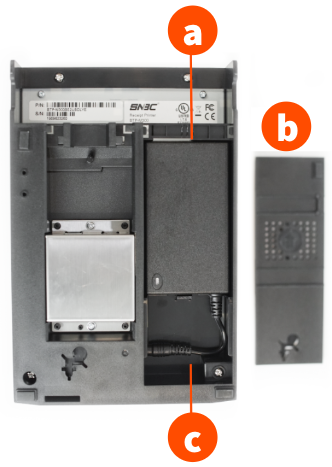
Expected outcome: The power light turns on. The printer is ready to print.
If the printer still does not turn on, see Before You Contact Customer Care.
Step 2: Print a Test Slip and Read Network Info
A test slip confirms the printer is powered on, paper is loaded correctly, and the printer can physically print. It also prints the printer's network information (DHCP status and IP address), which you need for Steps 3 and 4.
- Turn the printer off using the power switch.
- Press and hold the Feed button while flipping the power switch to turn the printer back on.
- A test slip will print showing the printer's IP Address and DHCP status.
Note: If the IP address is 0.0.0.0, the printer is not connected to your network. Stop here and skip to Step 4 (Network Issues) to resolve hardware and cabling connections before making any software changes.
Expected outcome: A test slip prints, showing an IP address and DHCP status.
If nothing prints, see Before You Contact Customer Care.
If a test slip prints, continue to Step 3.
Step 3: Check Whether DHCP Is Enabled or Disabled
Only proceed here if your printer has a valid IP address such as 192.168.x.x Read the DHCP status from the test slip you printed in Step 2.
If DHCP is enabled
(the printer is set up for a dynamic IP address — the default for all printers shipped from Toast since June 2021):
- In Toast Web, navigate to Toast Web > Finance > Related > Settings > Printers & cash drawers.
- Open the configuration for your Toast Kitchen Printer by clicking on the name.
- Confirm the Serial Number field is populated with the printer's serial number.
- Confirm the IP Address field is empty.
- If both fields are filled in, delete the IP address. Save and publish your changes.
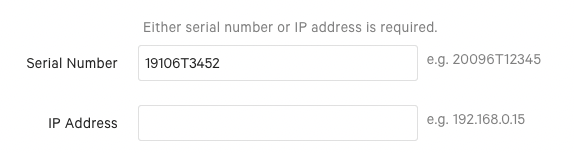
If DHCP is disabled
(the printer is set up for a static IP address):
- In Toast Web, navigate to Toast Web > Finance > Related > Settings > Printers & cash drawers.
- Open the configuration for your Toast Kitchen Printer by clicking on the name of the printer.
- Confirm the Serial Number field is empty.
- Confirm the IP Address field is populated with the IP address from your test slip.
- If both fields are filled in, delete the serial number. Save and publish your changes.
- To change the printer's static IP address, see Change Your Toast Printer's Static IP Address.
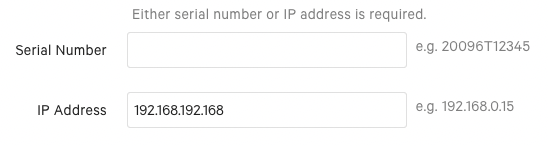
Expected outcome: The Toast Web printer configuration matches the DHCP status from your test slip.
Step 4: Resolve Network or Configuration Issues
Read the IP address from the test slip you printed in Step 2.
If the IP Address Is a Series of Zeros (Network Issue)
An IP address of "0.0.0.0" means the printer is not connected to the network. Do not attempt terminal test prints until physical connectivity is restored.
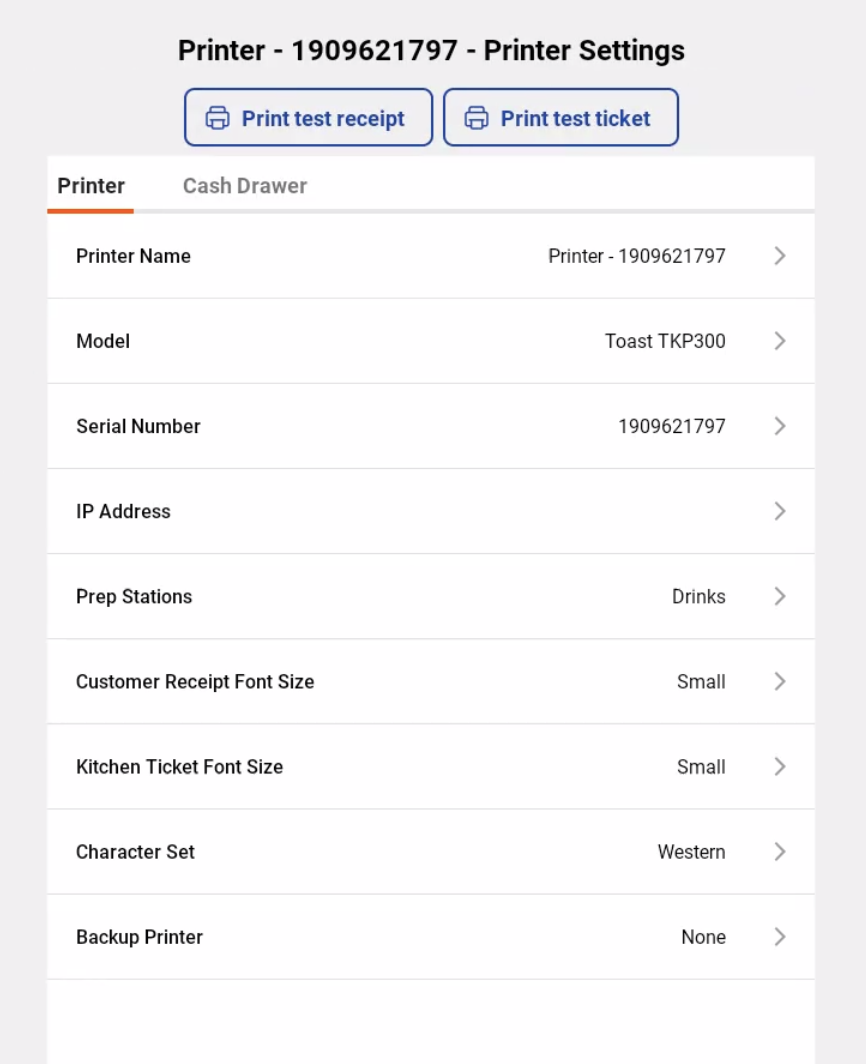
- On your terminal, navigate to Device Setup > Printer Setup.
- Confirm the Toast Kitchen Printer shows up in the My Printers list. It will most likely show as Offline.
- Select the printer and select Print Test Receipt. If you use this printer in the kitchen, select Print Test Ticket instead.
- If a receipt or ticket prints, follow the configuration steps in the next section.
- If nothing prints, confirm the printer, terminals, and handhelds are on the same network. See Forget a Network on Your Toast Device.
- If you are printing from a Toast Go® handheld, connect the device to the Toast-secured Wi-Fi network. If you are printing from a terminal, confirm WLAN is enabled and the correct printer is selected via Device Setup.
- Try the test print again.
- If nothing prints, reset the Ethernet switch on the printer. Open the printer door and press the Feed button five times. The printer light flashes to indicate the reset is complete. Unplug and replug the Ethernet cable on both ends, then turn the printer off for two minutes and turn it back on.
- Check the green light on the printer's Ethernet port. If it is not flashing, reset your router to refresh the network connection.
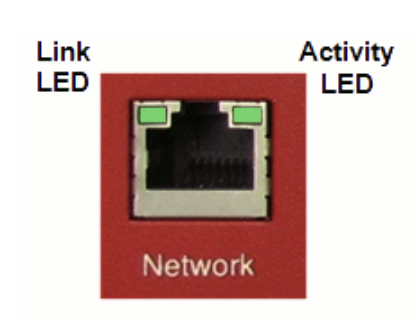
Expected outcome: The printer's Ethernet port green light flashes, and a test ticket prints from the terminal.
If you still cannot get a test print, see Before You Contact Customer Care.
If the IP Address Has Real Numbers (Configuration Issue)
If the IP address on the test slip has a series of numbers (like 192.168.1.X), the printer is on the network but is not configured correctly in Toast.
- On your terminal, in Device Setup, confirm the Toast Kitchen Printer is set as the receipt printer for that terminal or device.
- If the printer is used for a prep station, confirm the printer is assigned to a prep station. See Configure and Assign Prep Stations.
- If your restaurant uses non-printing prep stations (such as for a bar terminal), tickets will not print as a result. Navigate to Device Setup on the terminal and confirm. If you want tickets to print for this prep station, select None under non-printing prep stations.
- Confirm you do not have more than one auto-fire device at your restaurant. To check, navigate to Device Setup on each device and confirm only one device has order auto-firing enabled. See Set Up Order Autofiring.
- Print a test receipt or ticket from your printer to confirm the fix.
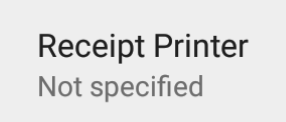

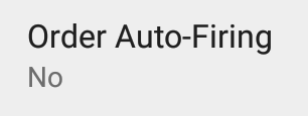
Expected outcome: Test tickets print from the correct printer.
Step 5: Resolve Print Quality Issues
Use this section if your printer is printing blank tickets, faded tickets, or tickets with skipped lines or split letters.
- Confirm you are using 1-ply bond or 2-ply carbon-less 3-inch-wide receipt printer paper. Do not use thermal paper. Do not use 3-ply paper—it can void the warranty. See Printer Paper Rolls and Ink Ribbons.
- Open the printer cover and check for paper jams.
- Confirm the ink ribbon (ERC-38 cartridge) is fully installed. Press down evenly on both sides until you hear a click.
- Turn the dial on the ink cartridge one or two complete rotations clockwise to wind fresh ribbon into the machine.
- Confirm the ink ribbon is compatible with the Toast Kitchen Printer. See Printer Paper Rolls and Ink Ribbons.
- If the ink ribbon is empty, replace it.
Expected outcome: Tickets print cleanly with menu items in black and modifiers in red.
If tickets still print blank, faded, or with skipped lines after replacing the ink ribbon and confirming paper, the print head may be worn. See Before You Contact Customer Care.
Step 6: Check Whether Tickets Are Going to the Wrong Printer
If the printer is powered on, has paper, and prints test slips, but kitchen tickets do not appear at the expected printer, the issue is most likely ticket routing—not a printer hardware problem.
Common signs of a routing issue:
- Kitchen tickets are printing at the front-of-house printer instead
- One menu item prints at the kitchen, but another does not
- Tickets print on every printer at the restaurant
- Drinks print on a kitchen printer even though they should not
To fix routing issues, see:
- Why Are My Kitchen Tickets Not Printing?
- Tickets Printing to Every Printer
- Configure and Assign Prep Stations
Expected outcome: Tickets route to the correct printer for each item.
Toast Kitchen Printer Buttons and Status Lights
Use this reference to identify the buttons and lights on your Toast Kitchen Printer.
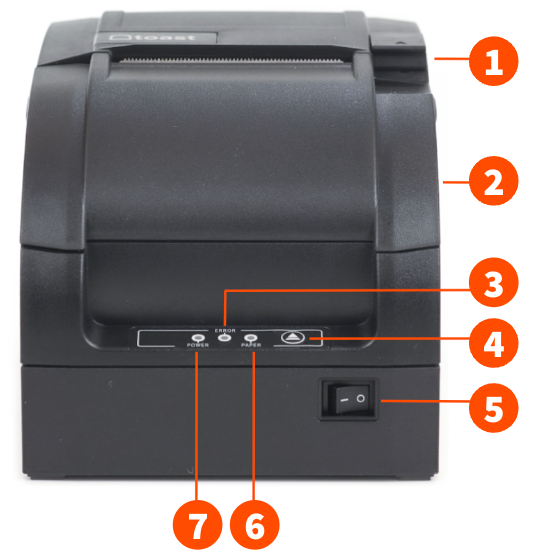
Toast Kitchen Printer components:
- Open latch (to add paper and change out ink ribbon)
- Front cover
- Error indicator light
- Feed button
- Power switch
- Paper error indicator light
- Power indicator light
The Toast Kitchen Printer uses lights and a buzzer to alert you to errors.
| Light | Function |
| Error | Under error conditions, the Error light flashes |
| Paper | Under paper near-end conditions, the Paper light turns on and remains on |
| Power | When the printer is on, the LED light remains on |
| Error | Buzzer | Light |
| HP error | Interval beep | Error light interval flash—to clear, press and hold the Feed button for 60 seconds |
| Print head overheated | Six beeps | Error light flashes six times |
| Cutter error | Four beeps | Error light flashes four times |
| Paper near end | Two beeps | Paper LED light turns on AND Error LED light flashes once |
Before You Contact Customer Care
Some Toast Kitchen Printer issues require Customer Care to verify the device or arrange a replacement. Contact Customer Care if any of the following apply after you have completed Steps 1 through 5:
- The printer does not turn on after reseating cables and testing a different outlet and cable
- The printer is on but produces no test slip
- You cannot get a test print after resetting the Ethernet switch and router.
- The printer makes a popping, grinding, or other unusual noise and will not print
- The ink ribbon breaks every time you install it
- Print is faded or has skipped lines even with a new ink ribbon and clean print head
- You see a question about modifier color, pre-modifier behavior, or Toast Web settings that this article does not answer
Before you contact Customer Care, gather:
- The printer's serial number (on the bottom of the printer)
- The reference code, if any, from the steps above
- The exact symptom (what you see, hear, or do not see)
- Which Toast device you are printing from (terminal, Toast Go® handheld, or KDS)
- Whether other printers in the restaurant are working
To contact Customer Care, see How to Contact Customer Support.
Frequently Asked Questions
What type of paper does the Toast Kitchen Printer use?
The Toast Kitchen Printer uses 1-ply bond or 2-ply carbon-less 3-inch wide receipt printer paper. It does not use thermal paper.
Note: Do not use 3-ply paper in the Toast Kitchen Printer. 3-ply paper can void the warranty.
For purchasing details, see Printer Paper Rolls and Ink Ribbons.
What type of ink ribbon does the Toast Kitchen Printer use?
The Toast Kitchen Printer uses a standard ERC-38 ink cartridge (also called an ink ribbon). It can be purchased from various online sources.
For purchasing details, see Printer Paper Rolls and Ink Ribbons.
Can the Toast Kitchen Printer print modifiers in a different color?
The Toast Kitchen Printer prints menu items in black and modifiers in red by default. This is controlled by the ink ribbon, which has both black and red ink.
If a ticket prints in a mix of colors, the ink ribbon may not be installed correctly. Open the printer and reseat the ribbon—press down evenly on both sides until you hear a click. See Toast Kitchen Printer Quick Start Guide for ribbon installation details.
Note: Pre-modifier behavior (whether pre-modifiers like "On-Side" or "No" print in red) is controlled by Toast Web settings, not by the printer. Navigate to Toast Web > Kitchen > Printers, tickets, & KDS devices > Kitchen and ticket setup > scroll down to Printed tickets > Print Default Modifiers Black. There is no current setting that forces pre-modifiers to print in red—that is product behavior, not a printer issue.
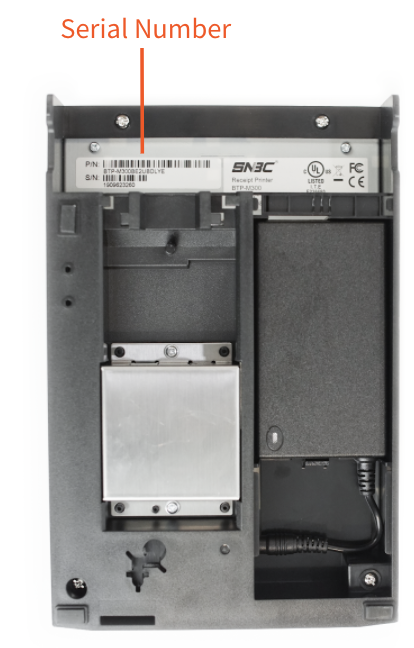
Where do I find the serial number on my Toast Kitchen Printer?
The serial number is on the bottom of the printer, close to the top edge.
Why does my Toast Kitchen Printer print blank or print abnormally?
Blank or abnormal printing is caused by one of three things: the wrong paper type, an installation issue with the paper or ribbon, or a worn ink ribbon. See Step 5: Resolve Print Quality Issues for the full troubleshooting flow.
My tickets are displaying the wrong currency. How can I fix that?
To change the currency on tickets, configure the language pack settings in printer setup. See Configure Your Printers to Display Euro.
Why is my kitchen printer showing as unplugged when it is plugged in?
If the printer registers as unplugged but the cables look secure, the cable may not be fully seated. Reseat the power cable at both ends—the printer side and the outlet side. Confirm the green light on the power adapter is on. If the printer still shows as unplugged, follow Step 1: Confirm the Printer Has Power.
Why are my tickets printing on the yellow paper but not the white paper?
This is a 2-ply paper issue. With 2-ply carbon-less paper, the top sheet is white and the carbon copy below is yellow. If you only see print on the yellow sheet, the paper roll may be loaded upside down or the ink ribbon may not be making contact with the white sheet. Reinstall the paper roll and reseat the ink ribbon. See Step 5: Resolve Print Quality Issues.
Related Articles
- Toast Kitchen Printer Quick Start Guide
- Get Help: My Printer Isn't Working
- Get Help: Troubleshoot Printer Error Messages
- Printer Paper Rolls and Ink Ribbons
- Get Help With the Epson Kitchen Printer TM-U220B
- BTP-M300 User's Manual