Manage Scheduling and Publishing in the Insight Engage Platform
Last updated: Jul 2, 2026, 2:17 PM
Manage scheduling and publishing content in the Insight Engage Platform.
This article covers how to schedule and publish content in the Insight Engage Platform. For an overview on how to get started with the Insight Engage Platform, see Get Started With the Insight Engage Platform.
If you have further questions or require technical support, please contact Delphi directly from Mondays to Fridays, 6:00 a.m. - 3:00 p.m. PT at +1 (800) 456-0060, option 1.
- Scheduling Grid
- Adjust Your Scheduling Grid View
- Schedule a Playlist
- Edit a Day
- Duplicate a Playlist on the Scheduling Grid
- Remove a Playlist on the Scheduling Grid
- Schedule Day Part Menus
- Publish a Playlist From the Scheduling Grid or Monitoring Tab
- Preview Your Playlist
Toast support recommends that you read how to upload content and how to create a playlist in the Insight Engage Platform before reading this Support Center article.
Scheduling Grid
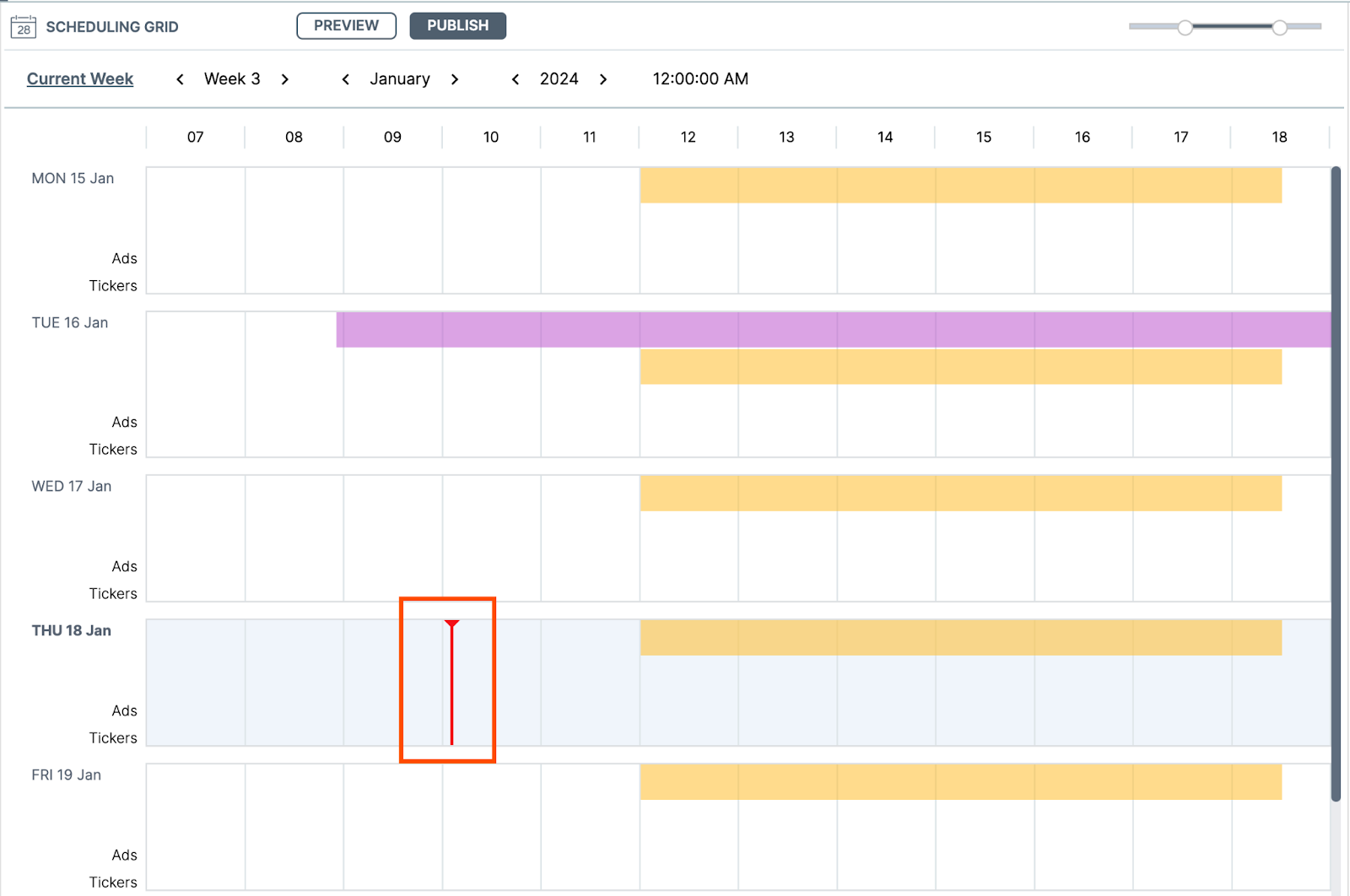
The Scheduling Grid in the Insight Engage Platform is a real-time scheduler that allows you to determine and schedule how long a playlist is shown on your screen. The red line on the Scheduling Grid shows you in real-time where you are in time and day.
Adjust Your Scheduling Grid View
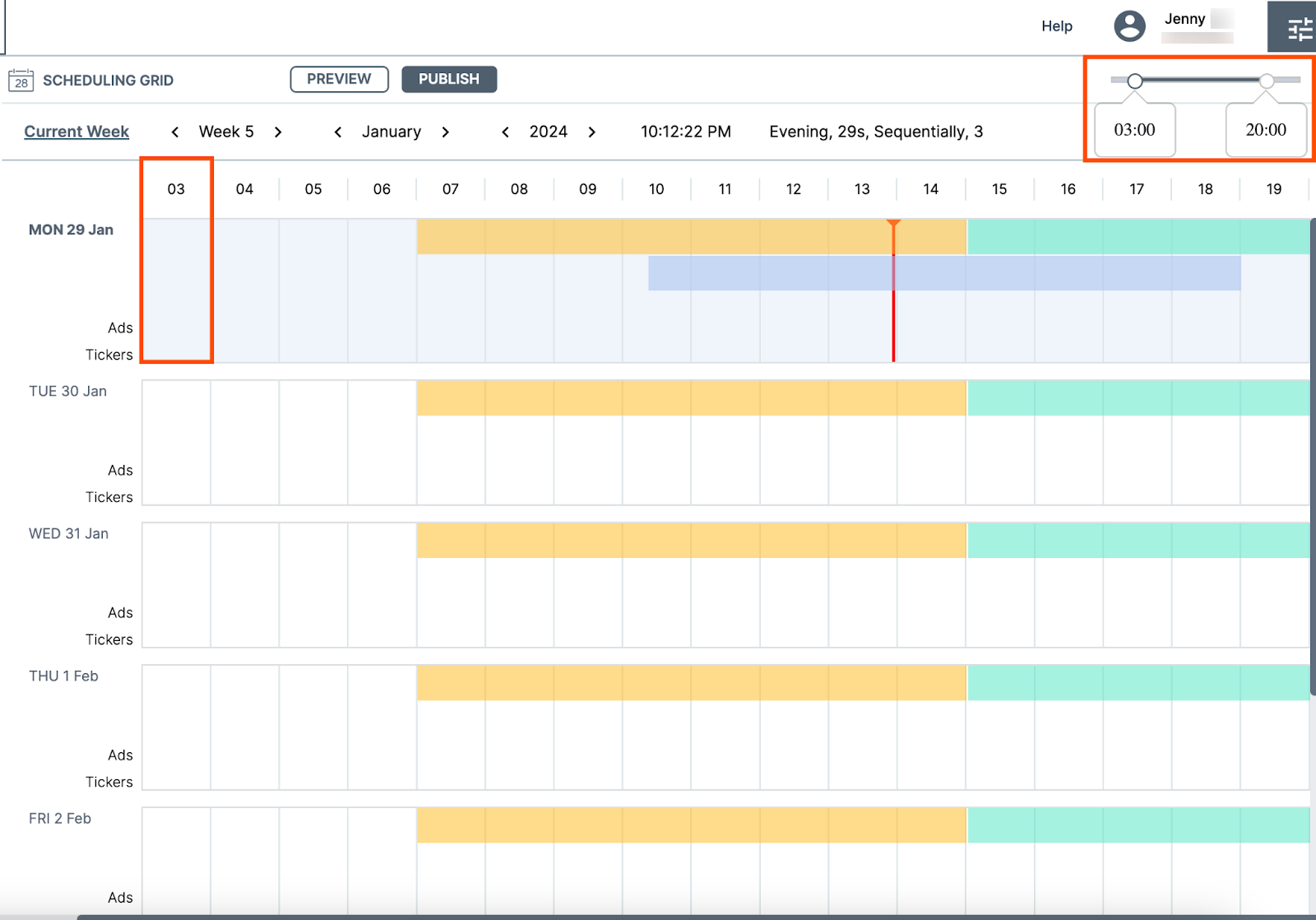
You can adjust when your Scheduling Grid starts and ends by adjusting the time range slider at the top right of the Scheduling Grid. As you use the slider, it displays the new start or end time. The changes are also reflected in the Scheduling Grid.
Note: The image below does not show the updated end time of 20:00PM.
Schedule a Playlist
To display content on your screen, you need to add your content to a playlist and then schedule the playlist to play on your screen.
- From the Playlists window, drag and drop your playlist into the Scheduling Grid.
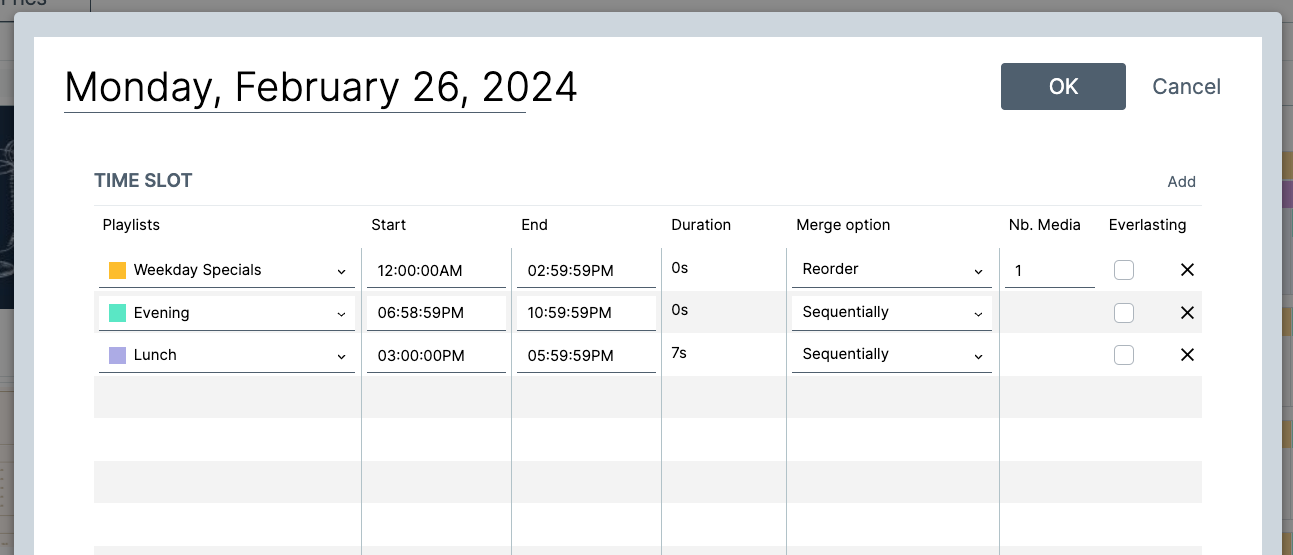
- Once you drop and drag your playlist into the Scheduling Grid, this opens the Time slot dialog box. The Time slot dialog box displays the following information:
- Playlist date. To select a new date, click the date field to open the calendar
- Playlist start time and end time
- Duration
- Merge option
- Sequentially.
- Reorder. This option is for playlists that contain multiple assets. You can reorder assets to play in a specific order. For example, if you have five assets, but only want to play three, you can reorder them so that only the first three assets play. You can overlap playlists using the Reorder function.
- Select the Ok button to add the playlist to the selected day. To add another playlist, select the Add button. This creates another row in the Time slot dialog box. Edit the playlist information. Repeat this process for the playlists you want to schedule for the day. Note that the playlist’s start and end times should not overlap but end within a second of starting the next playlist. For example, if you have a dinner menu scheduled from 06:00:00 PM to 10:00:00 PM, and want to add a happy hour menu, the happy hour menu should start at 04:00:00 PM and end at 05:59:59 PM.
Edit a Day
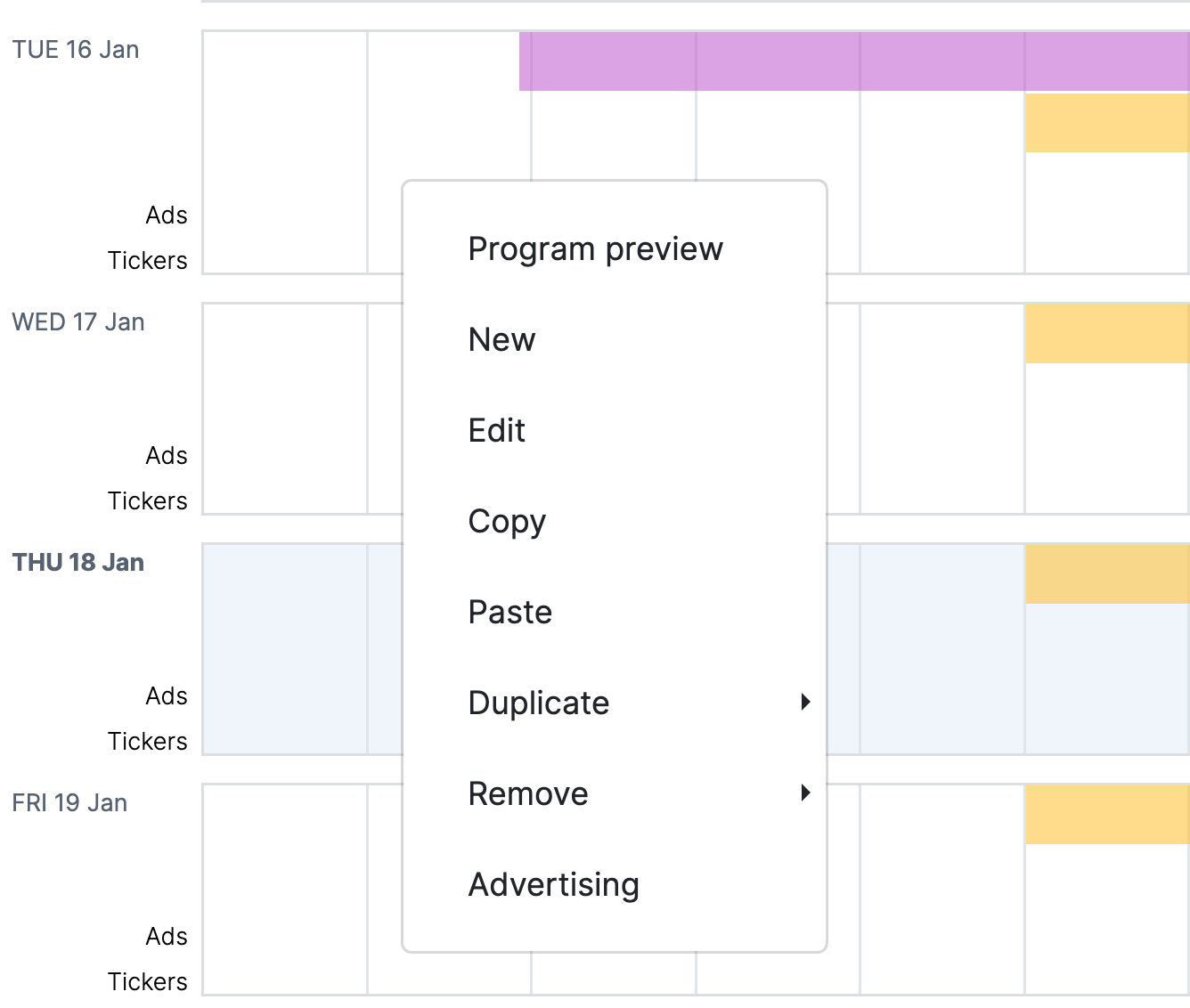
You can edit a day by right clicking on the day in the Scheduling Grid. This opens the content menu. From the content menu, you can complete the following actions:
- Preview program
- Create new playlist
- Edit playlist
- Copy playlist
- Paste playlist to another day
- Duplicate playlist to another day
- Remove playlist (current day, current week, or period)
- Advertising. This screen is dedicated to managing your retail tools and settings. To schedule or publish content, please head over to the Insight Engage Platform.
Note: You can edit the duration of a playlist by holding and dragging the playlist and extending the time to your desired time period.
Back to top
Duplicate a Playlist on the Scheduling Grid
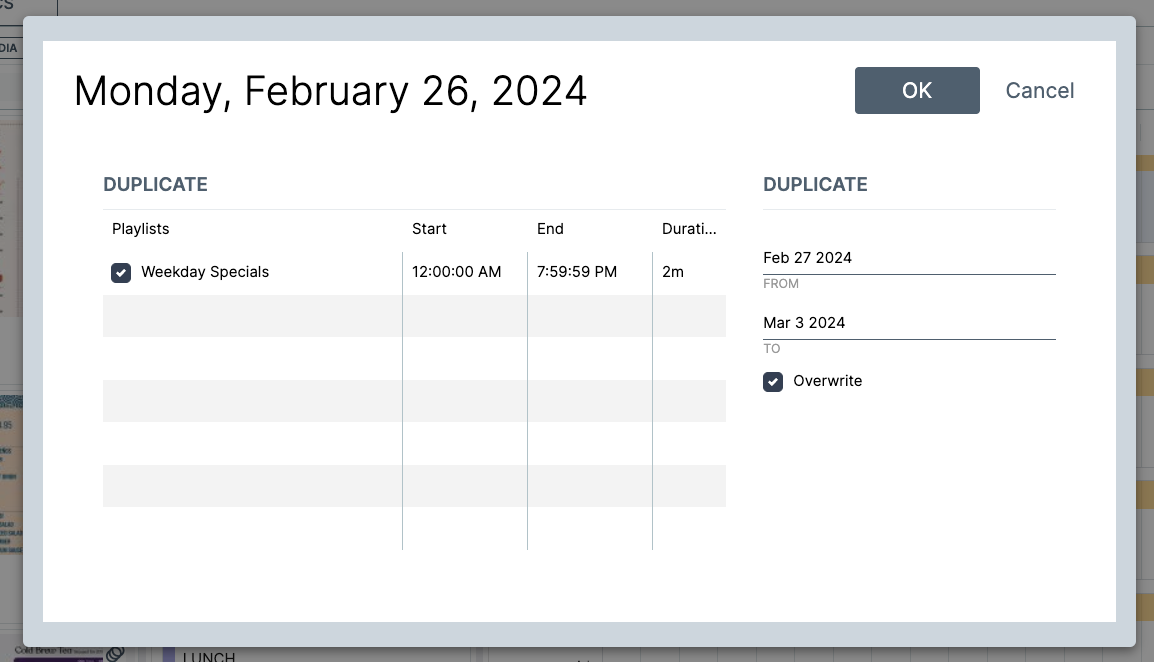
You can duplicate a playlist so that it repeats every day, week, or for a specified period of time. To duplicate a playlist:
- On the Scheduling Grid, right click on the day. This opens the content menu.
- Select the Duplicate button. Select what time period you want to duplicate. This opens the Duplicate dialog box.
- In the Duplicate dialog box, edit the From and To fields to set your schedule.
- Select the OK button to save your changes. Your changes are reflected on the Scheduling Grid.
Remove a Playlist on the Scheduling Grid
You can also remove a playlist from the Scheduling Grid by right-clicking on the day to open the content menu. Select the Remove button and then select which playlist to remove. You can remove the following:
- Current day
- Current week
- Specific time period
Scheduling Day Part Menus
You can schedule day and evening menus (day parts) by dragging and dropping playlists into the Scheduling Grid. This opens the Time slot dialog box, where you can adjust the time slots for each playlist. For example, to have the menus switch from day to evening, adjust the start and end times so that they are sequential.
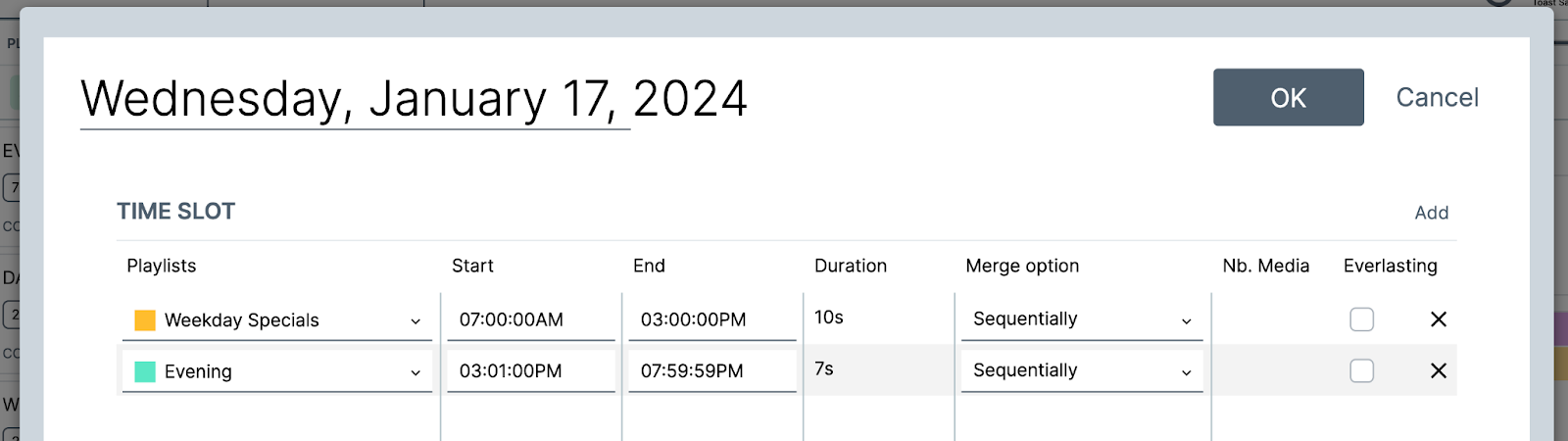
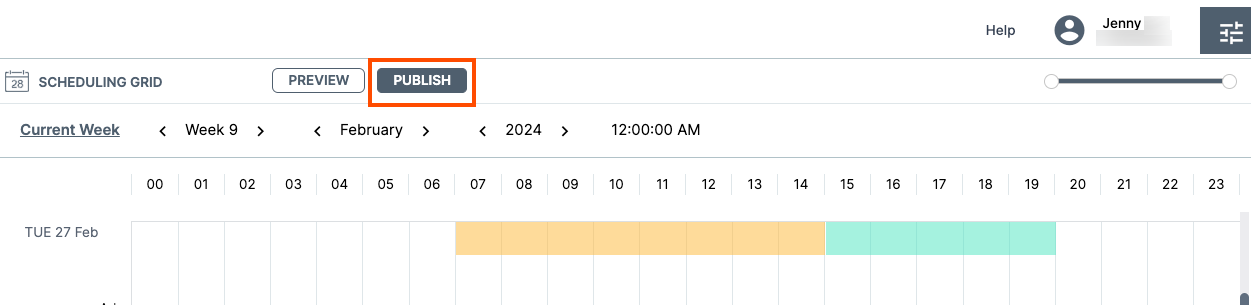
The sequential scheduling is reflected on the Scheduling Grid.

Publish a Playlist From the Scheduling Grid or Monitoring Tab
Note: Delphi Support recommends that prior to publishing your content, you unselect all the media players on the Players window and then re-select the media player(s) you want to publish the content to.
You can publish a playlist from the Scheduling Grid or from the Monitoring tab.
To publish a playlist from the Scheduling Grid:
Note: If you choose to publish from the Scheduling Grid, no confirmation message or status update appears confirming the successful publication of the content.
From the Scheduling Grid, select the Publish button. This triggers the playlist to be published to your media player(s). Your screen may go black before displaying the content.
To publish a playlist from the Monitoring tab:
Note: Your media player must display a green or yellow colored connection status, otherwise you will be unable to publish content.
- From the top navigation bar, select the Monitoring tab.
- This opens the Monitored Players screen. On this screen, select the Publish button to publish the playlist to the selected media players. This triggers a progress bar to appear under the Status column.
If the update is successful, the publication date appears under the Date column.
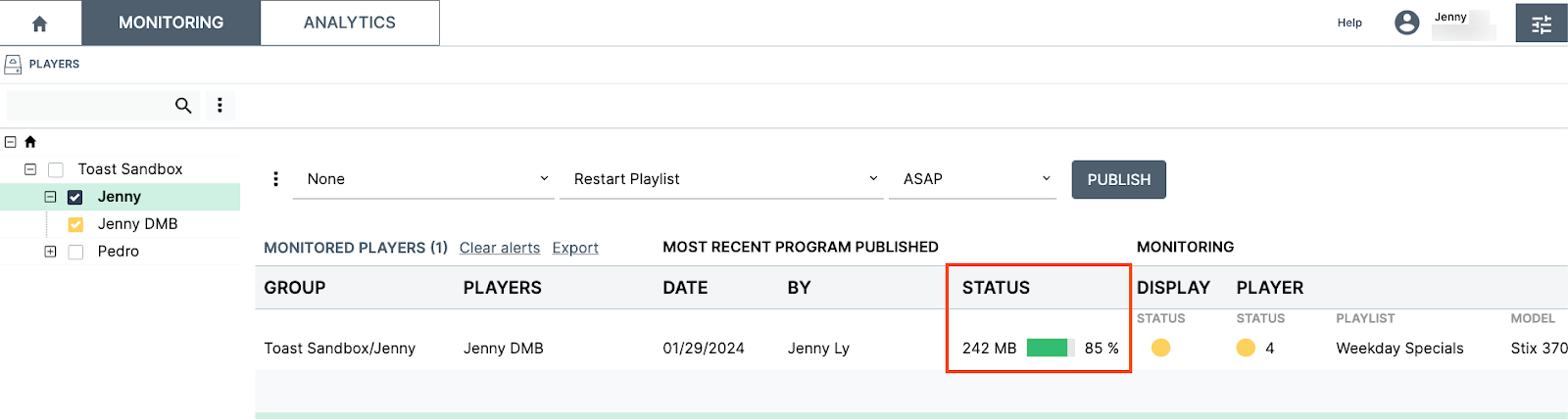
You can defer publication to another day or time by selecting the Deferred option under the ASAP dropdown menu. When you select the Deferred option, this opens a date and time picker. Select your new publication date and time and then the Publish button. The deferred date and time will be in effect unless another user publishes changes to the same media player.
Preview Your Playlist
Note: You cannot preview your playlist before publishing.
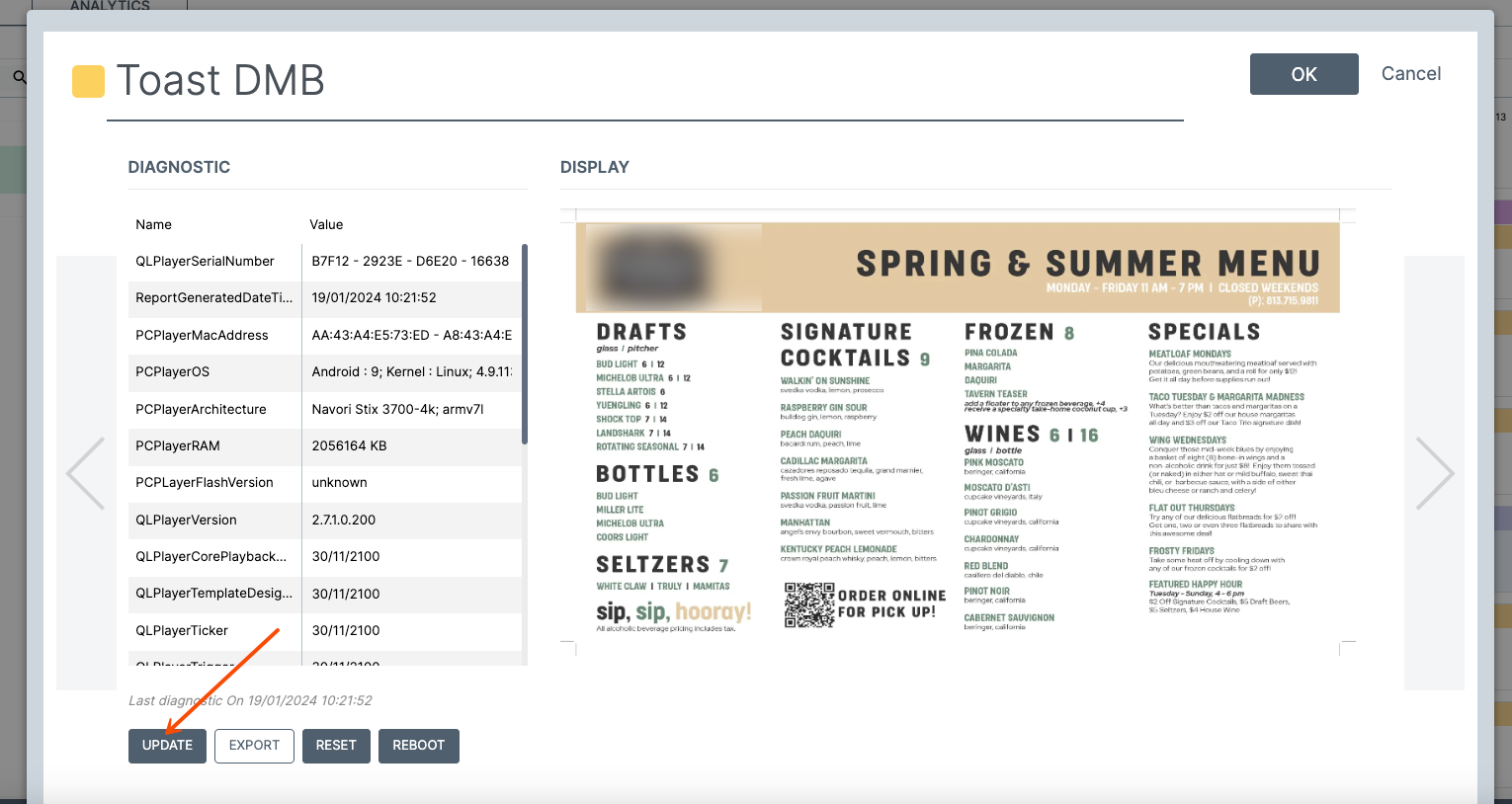
If you want to preview your playlist after you publish, you can preview it in the Media Player dialog box.
- On the Home screen, select your media player.
- Select the Edit button. This opens the Media Player dialog box.
- Scroll to the Diagnostic screen. The Diagnostic screen displays information about your media player and allows you to preview your playlist.
- Select the Update button to display what will be shown by your media player on your screen.
The last day and time the asset was updated is shown at the bottom of the screen.
Best Practices
- When publishing content, always unselect all media players on the left pane, and then select the media players you want to publish to. This reduces the likelihood that you unintentionally publish content across multiple media players.
- Delphi Support suggests publishing from the Monitoring tab so that you can see what media players the content is being published to.