Get Help With Toast Card Reader Connection Issue
Last updated: Jul 21, 2026, 11:32 AM
How to fix connection issues on a Toast card reader.
Troubleshoot a Toast card reader that won't connect—including the "Searching for BBPOS Chipper 2x" or "Searching for BBPOS MSR" message—so you can take payments again.
- Before You Begin
- Quick Fix
- If You See "Searching for BBPOS Chipper 2x" or "Searching for BBPOS MSR"
- If Tap-to-Pay Stops Working When a Swipe Reader Is Connected
- If the Card Reader Test Shows a Failure
- Before You Contact Toast Customer Care
- Frequently Asked Questions
- Related Articles
Before You Begin
Applies to: Toast POS, Toast Flex terminal, Toast Tap, magnetic stripe reader (MSR) | Permissions needed: Access to the Toast POS app on the affected device
What you'll accomplish: Restore the connection between your terminal and your card reader so it can process payments, or confirm that the reader needs to be replaced.
Quick Fix
| Symptom | Most Common Cause | Quick Fix |
| "Searching for BBPOS Chipper 2x" or "Searching for BBPOS MSR" appears and cards won't process | The terminal has lost the USB connection to the card reader | Reseat the reader's USB cable, then restart the terminal. If the message stays, move the reader to a different USB port. |
| The card reader drops offline during service and you have to unplug it or restart to take payments | An intermittent USB connection | Reseat the cable, restart the terminal, then run the Card Reader Test app. |
| The Card Reader Test shows FAIL_TO_START_USB in bootloader mode, or "try again" followed by "fail" | The reader hardware has failed | Contact Toast Customer Care for a replacement. In the meantime, use your Toast Tap®. |
If You See "Searching for BBPOS Chipper 2x" or "Searching for BBPOS MSR"
This message means your terminal is trying to reach your card reader but can't detect it right now. "Searching for BBPOS Chipper 2x" refers to your Toast Tap® reader, and "Searching for BBPOS MSR" refers to your magnetic stripe (swipe) reader. In most cases the USB connection has dropped.
To restore the connection:
- Confirm the card reader's USB cable is firmly and securely seated in the terminal's USB port.
- Restart the terminal by holding the power button until it turns off, waiting 30 seconds, and then powering it back on.
- If the message remains, move the reader to a different USB port on the terminal. You may need to remove a small cover plate to reach another port.
- Reopen the Toast POS app and run a test payment.
If the message remains, reset the USB detection on the terminal using the following steps:
- Navigate to Settings > About Device > USB Detection.
- Select Reset All.
- Restart the terminal
After the terminal restarts, test the card reader functionality with a real credit card payment.
Expected outcome: The "Searching for BBPOS" message clears and your reader processes a payment.
If the issue persists, contact Toast Customer Care to arrange next steps
If Tap-to-Pay Stops Working When a Swipe Reader Is Connected
If your Toast Tap® stops working when a magnetic stripe (swipe) reader is also connected, unplug the swipe reader and troubleshoot the Toast Tap® connection.
To restore tap-to-pay:
- Unscrew and unplug the magnetic stripe (swipe) reader from the terminal, leaving only the Toast Tap® connected.
- Confirm the Toast Tap®'s USB cable is firmly and securely seated in the terminal's USB port.
- Restart the terminal by holding the power button until it turns off, waiting 30 seconds, and then powering it back on.
- Reopen the Toast POS app and run a test payment.
- If tap-to-pay still isn't working, move the Toast Tap® to a different USB port on the terminal. You may need to remove a small cover plate to reach another port.
- Reopen the Toast POS app and run a test payment.
If tap-to-pay still isn't working, reset the USB detection on the terminal using the following steps:
- Navigate to Settings > About Device > USB Detection.
- Select Reset All.
- Restart the terminal.
After the terminal restarts, test the Toast Tap® with a real credit card payment.
Expected outcome: Tap-to-pay works again.
If tap-to-pay is now working, reattach the magnetic stripe (swipe) reader.
If tap-to-pay is still not working, continue to the If the Card Reader Test Shows a Failure section.
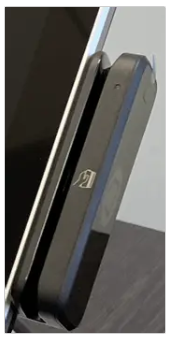
If the Card Reader Test Shows a Failure
If your reader still won't connect, use the Card Reader Test app to check whether the reader itself has failed.
- Unplug all card readers from your Toast terminal.
- Close the Toast app completely.
- Open the Card Reader Test app on your terminal.
- Plug in only the swipe card reader.
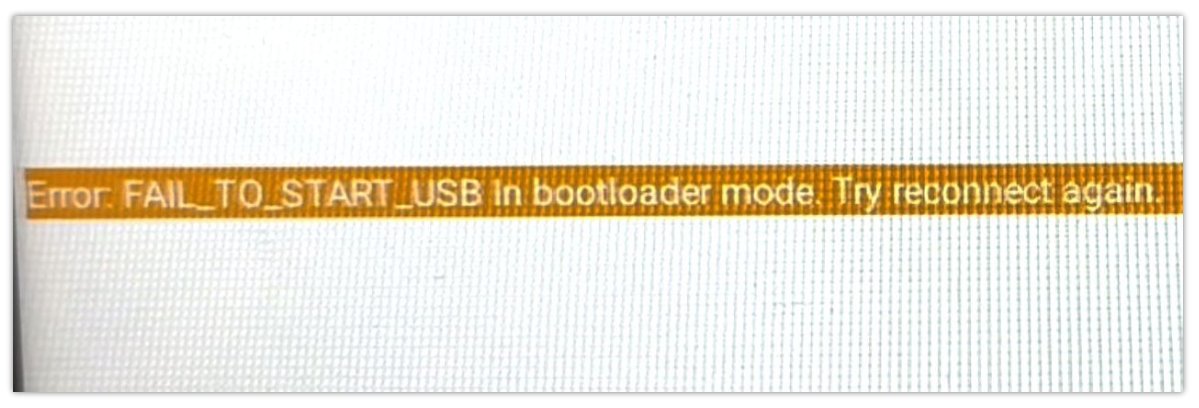
If you see the error FAIL_TO_START_USB in bootloader mode—or the test shows "try again" and then "fail"—the reader hardware needs to be replaced. You can unplug the faulty reader and have it replaced, or purchase a new one, depending on warranty start date. If you are using a dual card reader, the functioning card reader can be used solo while the replacement card reader is on its way
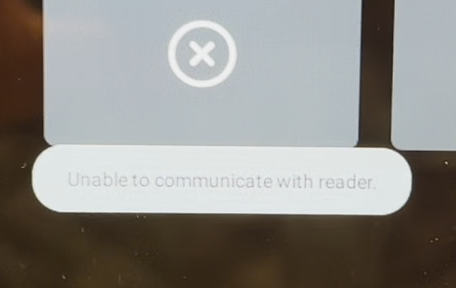
Note: A message that reads "Unable to communicate with reader" points to the same connection problem. Work through the steps above before assuming the reader has failed.
Before You Contact Toast Customer Care
If the Card Reader Test confirms a hardware failure, or the reader still won't connect after every step above, Toast Customer Care can provide additional troubleshooting (if applicable), and help arrange a replacement. Have this information ready so the conversation moves quickly:
- The result you saw in the Card Reader Test app
- Which reader is affected (Toast Tap® or the swipe reader)
- The steps you have already tried
Contact Toast Customer Care to arrange next steps.
Frequently Asked Questions
What does "searching for bbpos chipper 2x" mean?
"Searching for BBPOS Chipper 2x" means your terminal is trying to connect to your Toast Tap® card reader but can't detect it right now. It is usually a dropped USB connection rather than a broken reader. Reseat the reader's USB cable, restart the terminal, and try a different USB port, then run a test payment.
Also asked as:
- What does searching for BBPOS chipper mean?
- Why does my POS say searching for BBPOS?
- What is BBPOS on my card reader?
Why does my card reader keep going offline during service?
A card reader that keeps going offline during service—forcing you to unplug it or restart the terminal to take payments—usually has an intermittent USB connection. Reseat the reader's USB cable, restart the terminal, and run the Card Reader Test app to confirm the reader is healthy. If the test fails, contact Toast Customer Care about a replacement.
Also asked as:
- Why does my card reader keep disconnecting?
- My tap reader goes down and I have to unplug it, is that normal?
- Why does my reader power cycle on its own?
Can I use my Toast Tap® while I wait for a replacement swipe reader?
Yes, you can use your Toast Tap® by itself while you wait for a replacement swipe reader. Unplug the faulty swipe reader and reconnect your Toast Tap, and it should keep processing payments until the replacement arrives.
Also asked as:
- Can I still take payments while my swipe reader is broken?
- What do I do in the meantime if my reader failed?
Related Articles
- Get Help With Toast Card Reader
- Get Help With Your Magnetic Stripe Card Reader
- Get Help with Card Reader Error: Unable to Read Card
- Identify Your Card Reader Type
- Get Help: Troubleshoot Toast Go Error Messages