Get Help With Your Toast Go® 3 Handheld
Last updated: Apr 17, 2026, 10:32 AM
Get help troubleshooting your Toast Go® 3 handheld device.
This article is intended for Toast Go® 3 devices. Not sure which Toast Go® device you have? Check out this Support Center article: Identify Your Toast Hardware. Looking for troubleshooting for the Toast Go® 2 handheld? See: Get Help With Your Toast Go® 2 Handheld.
- Toast Go® 3 Troubleshooting Video
- Common Troubleshooting for Your Toast Go® 3
- Toast Go® 3 Not Responding/Won't Turn On
- Toast Go® 3 Keeps Disconnecting From the Network
- Toast Go® 3's Screen is Not Functioning Properly
- Toast Go® 3 Showing "No Command" Screen
- Power Cycle a Toast Go® 3
- Hard Reboot a Toast Go® 3 Device
- Toast Go® 3 is Offline (Can’t connect to Wi-Fi)
- Toast Go® 3 Displays a Tampered Status
- Toast Go® 3 Cellular is Not Working
- Check Toast Go®3 System Firmware Status
- Uninstall and Reinstall the Toast POS App on My Toast Go® 3
- Can’t Log in to the Toast Go® 3 With My Manager Swipe Card
- Delay a Reboot on a Toast Go® 3
- Change Reboot Time on a Toast Go® 3
- Charging Cable and Charging Dock Compatibility
- Toast Go® 3 Printing Troubleshooting
- Cloud Print Service Failure Error Dialog Troubleshooting for Toast Go® 3
- Toast Go® 3 Printing Over Cellular During an Outage
- Toast Go® 3 Handheld Can’t Print Over Cellular
- Confirm Card Reader Settings (Australia, Canada, Ireland, and UK)
- Use your Toast Go® 3 Handheld in Another Location (Australia, Canada, Ireland, and UK)
- Frequently Asked Questions
| Always try these four steps FIRST to troubleshoot your Toast Go® 3:
|
Toast Go® 3 Troubleshooting Video
Toast Go® 3 troubleshooting overview video.
Common Troubleshooting for Your Toast Go® 3
Toast Go® 3 Not Responding/Won't Turn On
If your Toast Go® 3 is not responding or won't turn on, follow these steps:
- Plug the handheld into a known working outlet using a Toast-approved charging base or USB cable.
- If using a charging deck, the LED should display orange or green when charging.
- When plugged into a charger, your Toast Go® 3 can display a blinking red light. This flashing red light indicates it's starting to charge. Once the the device reaches a 5% charge, the light will turn to solid red and a message will display, "Less than 5% charging".
- Allow the device to charge for at least 30 minutes.
- Check for charging indicators
- If a LED light appears, proceed to Step 3.
- If no LED light appears, try a different outlet.
- If it works: Issue was with the original outlet, we recommend contacting an electrician for the outlet.
- If there is no LED light: Try a different Toast charger (if available).
- If it works: The original charger should be replaced.
- If not: Attempt USB charging as a workaround. If that fails, the Toast Go® 3 device will likely need to be replaced. Contact Customer Care to start the process.
- Attempt to power on by pressing and holding the orange power button for 2–3 seconds.
- Force Reboot (if needed) by pressing and holding volume up + power simultaneously for 8 seconds. Release both buttons when the Toast logo appears.
- If the device powers on: Let it charge fully before use.
- If the device still does not respond after all the steps above: The Toast Go® 3 device should be replaced. Contact Customer Care.
Toast Go® 3 Keeps Disconnecting From the Network
If your Toast Go® 3 keeps disconnecting from the network, make sure you fully disconnect (forget) non-Toast networks so that your Toast Go® 3 remains connected to your Toast-managed network. Check out this Support Center article, Forget a Network on a Toast Device, for instructions.
Toast Go® 3's Screen is Not Functioning Properly
- Make sure your device is charged. Turn on the Toast Go® 3 by holding the power button until the Toast logo appears. If you still have a screen issue, continue to the next step.
- Check the device for liquid damage. You'll need to inspect for residue in all openings of the device. If you have liquid damage, this is unfortunately not covered under warranty. Visit the Toast Shop to purchase a new unit. If liquid residue is not present, continue to the next step.
- Check for a firmware update, as your Toast Go® 3 may need to be upgraded. Navigate to Settings > System > Advanced > System Updates > Check for Update.
- If an update is available, follow the prompts to download the latest firmware version. If the screen functions properly, you've resolved the issue.
- If there is no update available, or if the issue persists after updating, contact Toast Customer Care for additional support.
Toast Go® 3 Showing "No Command" Screen
If your Toast Go® 3 shows the "No command" screen, press and hold the power button for 15 seconds to force reboot the device.
Power Cycle a Toast Go® 3
To power cycle a Toast ® 3 device:
- Press and hold the power button.
- Select Power Off.
Hard Reboot a Toast Go® 3 Device
Hold down the volume up button and the power button for 8 seconds. If your device powers on after this charge and reboots, your device is functioning correctly.
Toast Go® 3 is Offline (Can’t connect to Wi-Fi)
Follow the steps in Handheld Not Connecting to Toast Secure Network if your Toast Go® 3 handheld is offline.
Toast Go® 3 Displays a Tampered Status
See Payment processing hardware lost, stolen, or tampered with.
Toast Go® 3 Cellular is Not Working (Instances Where Device Does Not Automatically Switch to Cellular Connection)
If cellular is not working (i.e., the device does not automatically switch to cellular when Wi-Fi is weak or unavailable):
- Try temporarily turning Wi-Fi OFF to test the cellular connection. Swipe down from the top of the handheld screen, navigate to the Internet, and toggle Wi-Fi to Off.
- Toggle cellular off and back on. Swipe down from the top of the screen, navigate to Internet, select the gear icon, and toggle Mobile data Off and On.
- If cellular still does not connect, restart the device and reset mobile network. Swipe up from the bottom of the handheld screen and select the circle icon. Then navigate to Settings and tools > Device systems > System > Reset Options > Reset Mobile Network settings > Reset settings > Confirm reset.
Check Toast Go®3 System Firmware Status
To check Toast Go® 3 firmware status, swipe up from the bottom of the handheld screen and select the circle icon and navigate to Settings and Tools > Device Settings > System > System Update > Check for update.
Uninstall and Reinstall the Toast POS App on My Toast Go® 3
Follow the steps below to uninstall and reinstall the Toast POS app on your Toast Go® 3
- Select the circle at the bottom of the screen and navigate to Settings and tools > Device Settings > Apps > Toast POS > Uninstall.
- To reinstall the Toast App, Select the circle at the bottom of the screen and navigate to Settings and Tools > View All > Toast Guardian > Install Toast App.
Can’t Log in to the Toast Go® 3 With My Manager Swipe Card
Toast manager card setup on Toast Go® 2 will not work on Toast Go® 3 and vice versa. You need to update to the new Toast Access Card, it will work across all Toast readers. For more information, see Manage Employee/Manager Swipe Cards.
Delay a Reboot on a Toast Go® 3
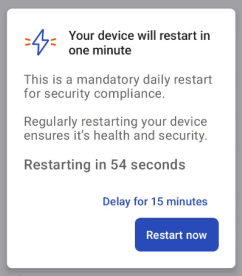
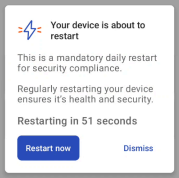
When the reboot countdown reaches 60 seconds, users can tap Delay for 15 minutes.
- This delay can only be used once per reboot cycle.
- After the 15-minute delay, the device will proceed with a reboot and cannot be delayed again.
Change Reboot Time on a Toast Go® 3
To maintain security compliance and device health, the Toast Go® 3 automatically performs a daily reboot approximately 24 hours after powering the device.
Default Behavior
- The default reboot hour is 3:00 am, and the minute is based on the original device boot time. For example:
- If the device boots at 9:30 am, it will reboot the next day at 3:30 am.
- If the device boots at 2:15 pm, it will reboot at 3:15 am the next day.
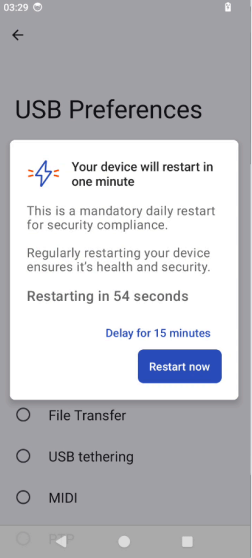
- When the scheduled time is reached, a reboot alert will appear on the screen. The countdown begins with a 60-second timer.
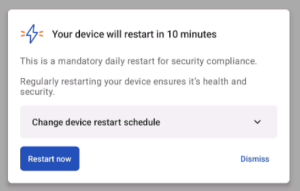
- When the device is 10 minutes away from a scheduled reboot, a prompt allows users to:
- Change the reboot hour via a drop-down menu (the minute stays tied to the boot time).
- Restart immediately or dismiss the dialog.
- For example, changing the reboot hour to 10:00 p.m. and keeping the original boot time at 2:15 p.m. would set the next reboot to 10:15 p.m.
Charging Cable and Charging Dock Compatibility
The Toast Go® 2 charging cable and dock will not work for Toast Go® 3 and vice versa.
Toast Go® 3 Printing Troubleshooting
Cloud printing is a new feature for the Toast Go® 3 toggled ON by default that allows you to print over the handheld’s cellular connection. This feature has the added benefit of enabling printing on any internet connected Wi-Fi network - meaning no more print failures because the handheld switched to a wrong Wi-Fi network!
What this means:
- Print over cellular when you walk out of range of Wi-Fi
- Print over whichever Wi-Fi network your handheld happens to be on
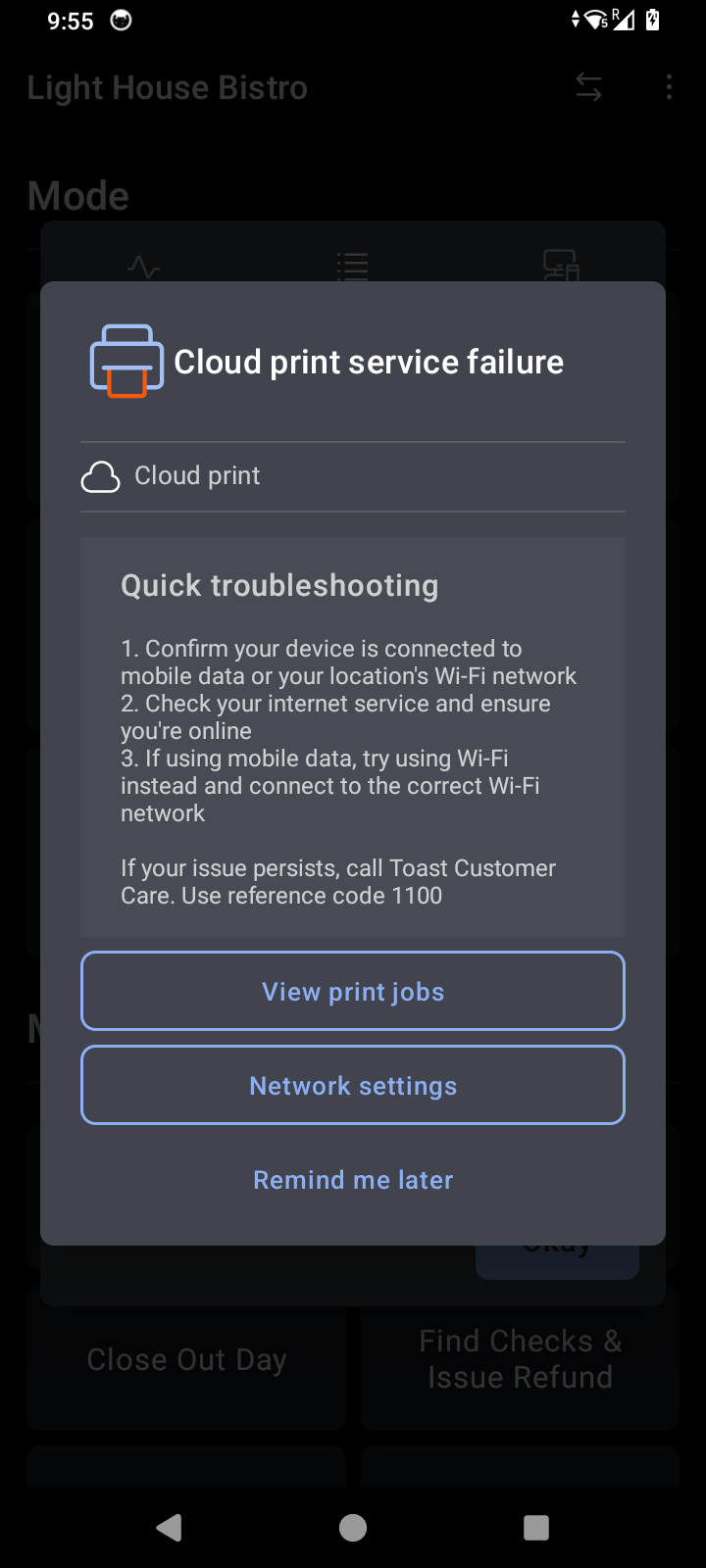
Cloud Print Service Failure Error Dialog Troubleshooting for Toast Go® 3
Follow the steps below for Cloud Printing Service Failure error message REF code 1100:
- Do you have BOTH Wi-Fi and cellular toggled On?
- Yes: Continue to Step 2.
- No: Turn on cellular and Wi-Fi.
- Do you have at least one terminal that is currently online and connected to the internet?
- Yes: Continue to Step 3.
- No: If all terminals show an Offline Banner, you are likely experiencing an internet service provider (ISP) or router issue. Cloud printing is not available when your network is offline. Connect your handheld to your Toast wireless connection to resume printing over the local network.
- Attempt to connect the Toast Go® 3 device to the location’s Wi-Fi network?
- Yes: Printing should resume over the Wi-Fi path.
- No: Check your Toast Go® 3 cellular coverage - ensure the device is connected over cellular by looking at the cellular icon at the top right of the screen.
Note:
- If you are experiencing an ISP outage, cloud printing over the cellular path will not work. The handheld will only be able to print over the Wi-Fi path until the ISP outage is resolved. It’s recommended that the handheld always have both Wi-Fi and cellular toggled On. In an ISP outage, ensure that the handheld is connected to the location's Wi-Fi network.
- Cloud printing on a handheld requires a terminal online and on the same network as printers. If you see this error, this suggests the handheld isn’t online, there’s an ISP outage, or the location’s terminals are offline.
Toast Go® 3 Printing Over Cellular During an Outage
Printing over Cellular with Cloud Printing does NOT work during an ISP outage or in general if a location is experiencing any network outage. Cloud printing requires that the handheld and other devices at the location have an internet connection in order to work. In the event of an outage, Toast Go® 3 handheld will continue to print over the local network (Wi-Fi) just as all other Toast devices can; however, the device will not be able to print over cellular. Note: Ensure Toast Go® 3 handheld is on the right Wi-Fi network for printing to be successful.
Toast Go® 3 Handheld Can’t Print Over Cellular
Printing over cellular with cloud printing requires that a user have at least one terminal device online at the location. If you do not have a terminal available for this location, then cloud printing will not be attempted.
Confirm Card Reader Settings (Australia, Canada, Ireland, and UK)
If your handheld is having payment issues, follow these steps to check your card reader settings.
- Select Go to POS to open the Toast POS app.
- Enter your Username and Passcode.
- Navigate to Device Setup.
- Scroll down to Card Readers.
- You should see Adyen Castles (Network).
- Select this reader.
- The Card Reader Status should show as Connected.
- If the status shows as Not Connected, or the specified Card Reader is not appearing, there may be an issue with your card reader configuration.
- Please restart your device. In most cases you should see the card reader as connected. If it is not connected, please contact our Customer Care team.
International Customers: Call Toast Customer Care at the following numbers:
- Canada: +1 343 451 6295
- Ireland: +353 1 913 1083
- U.K.: +44 2045 713302
- Australia: +61 879 478 066
- You can also access this team via Support Center > Customer Care.
Use your Toast Go® 3 Handheld in Another Location (Australia, Canada, Ireland, and UK)
If you use a Toast Go® 3 Handheld to take a payment in a different Toast location to the original Toast location it was registered to, you may see the following errors:
- 'The card reader isn’t set up for this location. Pair it correctly or contact Toast'
- ‘Device registered to another location’
If you wish to use this Toast Go® 3 Handheld in another of your Toast locations, please contact Customer Care who can connect the card reader to another Toast location.
International Customers: Call Toast Customer Care at the following numbers:
- Canada: +1 343 451 6295
- Ireland: +353 1 913 1083
- U.K.: +44 2045 713302
- Australia: +61 879 478 066
- You can also access this team via Support Center > Customer Care.
Toast Go® 3 Frequently Asked Questions
- Is there anything to consider when Wi-Fi is disconnected, but cellular is connected?
- How do I clean my Toast Go® 3 handheld?
- Will manager swipe cards work with my Toast Go® 3 handheld?
- What is the repair and return process for a Toast Go® 3?
- My Toast Go® 3 with protective case will not fit in the 5-in-1 charging dock
- What do the status indicator lights mean on my Toast Go® 3?
Is there anything to consider when Wi-Fi is disconnected, but cellular is connected?
The cellular device will operate independently, if the rest of the restaurant is online it will work normally, if the rest of the restaurant is offline, the order and printing won’t work.
How do I clean my Toast Go® 3 handheld?
For daily Toast Go® 3 cleaning, follow these steps:
-
- Power off the device.
- Dampen a clean cloth with water or screen cleaner and gently wipe down the device.
- Let the device air dry for a few minutes before turning it back on.
For a more thorough Toast Go® 3 cleaning:
-
- Power off the device.
- Spray 70% IPA (isopropyl alcohol) onto a clean cloth and gently wipe down the device.
- Let the device air dry for a few minutes before turning it back on.
- If needed, use a microfiber cloth to gently wipe the screen.
Note: Never spray cleaning products directly onto the device. Always use a clean cloth. This will prevent liquid from entering open ports or other areas like the card reader.
Will manager swipe cards work with my Toast Go® 3 handheld?
Toast Access Cards will soon replace Manager Swipe Cards. Like Manager Swipe Cards, Toast Access Cards enable secure logins and manager approvals via swipe.
What is the repair and return process for a Toast Go® 3?
See Replace Faulty Hardware (RMA) for more information on returning your Toast Go® 3 device.
My Toast Go® 3 with protective case will not fit in the 5-in-1 charging dock
Please remove the plastic tray from your charging dock if you are using the Toast Go® 3 with the protective case.
What do the status indicator lights mean on my Toast Go® 3?
Review the table below to learn what the indicator lights mean on your Toast Go® device. To troubleshoot the error messages below:
| Toast Go® 3 Indicator Light | State |
| No lighting | Battery above 5%, not charging |
| Static red | Battery below 5%. not charging |
| Static amber | Battery below 100%, charging |
| Static green | Battery fully charged, power connected |