Get Help With Toast Websites
Last updated: Aug 31, 2026, 12:11 PM
Find answers to the most common questions about Toast Websites — editing menus, hours, navigation, branding, publishing changes, and search engine visibility. Use this article when something on your site isn't working the way you expect.
- Quick Fix Table
- Frequently Asked Questions
- What's the Difference Between Toast Websites and Online Ordering Pro?
- Why Can't I Access the Branding & Customization Page for Online Ordering?
- My Website Isn't Displaying the Changes I Published — What Should I Do?
- I'm Getting "Something Went Wrong" When I Try to Save Site Changes — How Do I Fix This?
- Where Do I Edit Menu Items on My Website?
- How Do I Update the Hours Listed on My Website?
- How Do I Add a Link to a Button on My Website?
- How Do I Update or Create a Navigation Menu Link?
- I Can't Edit, Delete, or Hide My Navigation Items — How Do I Fix This?
- Can I Separate Menus Into Different Pages?
- Why Isn't My Website Showing Higher in Search Engine Results?
- Why Is My Site Not Showing Up in Search, or Why Is the Title or Description Wrong in Google?
- How Do I Add a New Location to My Existing Brand?
- Before You Contact Customer Care
- Related Articles
Quick Fix Table
If you're not sure where to start, use this table to match the issue you're seeing to the right answer below. Each row links to the FAQ that covers the fix.
| Symptom | Most Common Cause | Quick Fix | Self-Service? |
|---|---|---|---|
| Changes I published aren't showing on the live site | Browser cache, or change didn't fully publish | Refresh, clear cache, make a small edit and re-publish — see My Website Isn't Displaying the Changes I Published | Yes |
| "Something went wrong" or "There was an issue saving site changes" | Browser cache or missing permission | Log out and back in, clear cache, confirm the 6.9 Websites Setup permission — see I'm Getting "Something Went Wrong" | Yes — if the steps fail, contact Customer Care |
| Hours on my website are wrong | Editing hours from the wrong page | Open a non-Menu, non-Online Ordering page first — see How Do I Update the Hours Listed on My Website? | Yes |
| No Branding & Customization section under Takeout & delivery | Restaurant uses Toast Websites, not Online Ordering Pro | Edit branding in the website editor — see Why Can't I Access the Branding & Customization Page | Yes |
| Can't edit, delete, or hide navigation items | Missing 6.9 Websites Setup permission or browser cache | Clear cache, verify permission — see I Can't Edit, Delete, or Hide My Navigation Items | Yes |
| Website not showing in Google search results | Domain not connected, or Google hasn't recrawled yet. Verify Google Management has GBP Linked. | Google Management under Takeout/Delivery is linked to Toast Websites. If GBP is not connected here, it will not link to GBP. Connect a domain; request a recrawl from Google — see Why Is My Site Not Showing Up in Search | Yes |
| Adding a new location to an existing brand | Multi-location configuration step | Use Manage Your Locations in the website dashboard — see How Do I Add a New Location to My Existing Brand? | Yes |
| Page reloads itself when guests visit / editor returns 404 / "Please assign a location to this brand" error persists after permissions and cache checks | Backend or account-level issue | Before You Contact Customer Care | No — contact Customer Care |
| Section has unexpected gaps or spacing issues on mobile, but looks fine in the editor and on desktop | Backend or account-level issue | See Before You Contact Customer Care | No — contact Customer Care |
Frequently Asked Questions
What's the Difference Between Toast Websites and Online Ordering Pro?
Also asked as: "Why don't I have a Branding & Customization section?", "Do I have Toast Websites or Online Ordering Pro?"
Toast Websites and Toast Online Ordering Pro are two different products, and that affects where you edit your branding settings.
Toast Websites is a complete, mobile-friendly website that's professionally designed with customizable branding elements. A website is a set of related web pages located under a single domain name. One of those pages can be Online Ordering, but Online Ordering is not included in a Toast Website.
Toast Online Ordering or Online Ordering Pro allows guests to place food orders through the internet — via a website, mobile app, or other digital platforms.
If you have Toast Websites, all online ordering branding is controlled through the website editor (in Toast Web > Websites > Editor). The features are the same as Online Ordering Pro — only the editing location differs.
Why Can't I Access the Branding & Customization Page for Online Ordering?
Also asked as: "Under Takeout delivery, there is no Branding Customization section", "Where is the Branding & Customization page?"
If you can't find Branding & Customization under Takeout & delivery, your restaurant is on Toast Websites — not Online Ordering Pro. With Toast Websites, all the online ordering branding settings are controlled through the website editor instead.
To change your banner image, choose a different menu layout for your online ordering page, or customize color, font, and other styling:
- Log in to Toast Web and navigate to Toast Web > Websites > Editor.
- Use the drop-down menu at the top of the page to select the page of your website you'd like to customize.
- Edit the branding elements you want to change.
- Select Save and then Publish to push your changes live.
Expected outcome: Your branding changes appear on the selected page in the editor preview, and on the live site after you publish.
My Website Isn't Displaying the Changes I Published — What Should I Do?
Also asked as: "Changes aren't showing on my live site", "I published but nothing changed", "Site not updating"
If your changes show in the editor but not on the live website or preview link, work through these checks in order.
- Refresh the page to load the latest published version.
- Clear your browser cache and cookies, then refresh again. Cached data is the most common cause of stale-looking pages.
- Make a small change and re-publish. For example, add a space after a word, then select Publish again. Sometimes a previous publish didn't fully push through.
- Check the publish confirmation. After you publish, you should see a confirmation message in a green box at the bottom of the editor window. If you see that and the changes still aren't showing — or if you see a red error message — something else is wrong.
Expected outcome: Your latest changes appear on your live website and preview link.
If you've completed all four steps and changes still aren't displaying, see Before You Contact Customer Care.
I'm Getting "Something Went Wrong" When I Try to Save Site Changes — How Do I Fix This?
Also asked as: "I am having issues saving a change in Toast Websites", "There was an issue saving site changes", "Save button is grayed out"
A save error in Toast Websites is usually caused by either a browser issue or a missing permission. Work through these steps in order.
- Log out of Toast Web completely and log back in.
- Clear your browser cache and cookies.
- Try an Incognito or Private browsing window, or a different supported browser (Chrome, Firefox, or Edge).
- Confirm you have the 6.9 Websites Setup access permission. Without this permission, save and publish actions can fail silently. See Permissions Reference Guide for instructions on checking your permissions.
- Try the save again after each step.
Expected outcome: Your edits save successfully and the save error no longer appears.
If you've completed all five steps and you're still seeing "Something went wrong" or "There was an issue saving site changes," see Before You Contact Customer Care.
Where Do I Edit Menu Items on My Website?
Also asked as: "Where do I change menu prices?", "How do I edit menu pricing on my site?", "How do I update menu items?"
Your Toast Website pulls menu data directly from your online ordering menu. That means you edit menu items, categories, images, pricing, and descriptions in one place — the menu editor — and the changes flow through to your website.
To edit menu items:
- In Toast Web, navigate to Toast Web > Menus using the left-hand navigation.
- Make your changes to items, categories, images, pricing, or descriptions.
- Save and publish your menu changes.
To style how the menu appears on your website (banner image, menu layout, color, font):
- Navigate to Toast Web > Websites > Editor.
- Use the drop-down menu to select the page of your website you'd like to customize.
- Make your styling changes, then select Publish.
Expected outcome: Your menu items appear on the site with the latest pricing and descriptions you set in the menu editor. On desktop, guests see your menu grouped by section (for example, Drinks or Food) for easier browsing. On mobile, they see all your individual categories right away with no drop-down.
How Do I Update the Hours Listed on My Website?
Also asked as: "Hours on my website are wrong", "My website hours aren't showing correctly", "I just went live and my hours are incorrect"
The hours editing sidebar does not appear on the Online Ordering or Menu pages of your website. If you've been trying to update hours from one of those pages and can't find the option, switch to a different page first.
- In Toast Web, navigate to Toast Web > Websites > Edit Site.
- From the page drop-down at the top, switch to a different page — for example, your About Us page.
- Scroll down to the footer section of the page.
- Select All hours from the footer.
- To match your website hours to your restaurant's set hours, select use location hours. Or, enter custom hours specific to your website (your website hours can be different from your restaurant's set hours).
- Select Save and Publish.
Expected outcome: The hours displayed in your website footer match the hours you set.
To remove hours from your website footer completely: open the website editor, select the footer, and use the toggles in the settings window on the right side of the screen to hide hours.
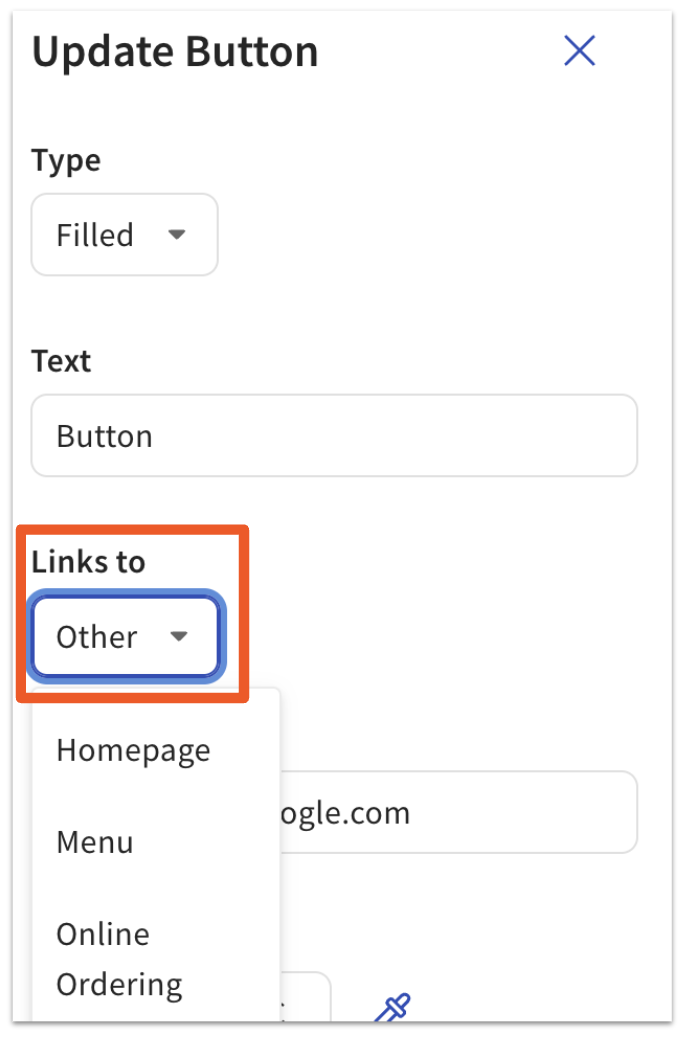
How Do I Add a Link to a Button on My Website?
Also asked as: "Make a button link to my menu", "How do I link buttons on Toast Websites?"
To add or change the link on a button:
- Open the Websites editor and select the button you want to edit.
- Use the Links to drop-down menu to choose your destination — for example, your menu, your online ordering page, another page on your website, or an external URL.
- Select Save and Publish.
Expected outcome: When a guest selects the button on your live site, it takes them to the destination you set.
How Do I Update or Create a Navigation Menu Link?
Also asked as: "Change a menu link in the navigation bar", "Add a new item to my site navigation"
To update an existing navigation menu link or create a new one:
- In Toast Web, navigate to the Websites Editor page, then select Edit Site.
- From the left-hand side navigation bar, select Configure site-wide modules.
- Under Global Elements, select Navigation.
- Scroll down to Nav List.
- Under Nav List, you'll see your navigation menu list. To update or add a link:
- Update a Navigation Menu Link: Select the 3 dots next to your menu name, then select Edit. A pop-up window will appear showing where your selected menu is currently linked. Enter your new link in the Link field and select Submit.
- Create a New Navigation Menu: Scroll down and select the + Add link button. Choose a link from your existing link list, or select Add my own link to enter your own navigation menu name and link. Select Add link when you're done.
- Select Save and Publish.
Expected outcome: Your updated or new navigation link appears in the site navigation on your live website after you publish.
I Can't Edit, Delete, or Hide My Navigation Items — How Do I Fix This?
Also asked as: "Navigation items won't let me edit them", "Can't delete navigation bar items", "My navigation is locked"
If you can't edit, delete, or hide your website navigation items, the issue is usually browser cache or a missing permission.
- Clear your browser cache and cookies, then refresh the editor. See Get Help With Browser Issues in Toast Web.
- Confirm you have the 6.9 Websites Setup access permission. Without this permission, navigation edits can fail. See Permissions Reference Guide.
- Try the navigation edit again.
Expected outcome: You can edit, delete, and hide navigation items as expected.
Can I Separate Menus Into Different Pages?
Also asked as: "Put each menu on its own page", "Multiple menu pages on my website"
Yes. You can separate menus into different pages and control how items appear on each page. To create a new page for a menu item or group:
Note: This is only available for select customers at this time.
- In Toast Web, navigate to the Websites Editor page, and select Edit Site.
- From the Editor page, select the page drop-down menu at the top of the page, then select + Add new page.
- Select your preferred page template from the list, then select Submit.
- If you select a template that does not contain menu components (such as Menu Item or Menu Group), you can manually add these components later. To add menu components to your page, select the Add to page icon (the + sign) on the left-hand side of the page, then scroll down to Menu Components. Select Menu Item or Menu Group, and drag and drop your selection to the editing area.
- Enter your page name, then select Submit.
- Repeat the steps above for each additional menu page you want to create.
- Organize the items and groups you want on each page.
- Select Publish to push your changes live.
Expected outcome: Each menu appears on its own page on your live website, in the order and layout you chose.
Why Isn't My Website Showing Higher in Search Engine Results?
Also asked as: "How do I improve my Toast Website's SEO?", "Why is my site not ranking on Google?"
Several factors affect how Google ranks pages, and the time it takes for a given website to rank and rise in search results can vary. Toast Websites come equipped with the back-end technical best practices in place, but some of the most important factors are directly within your control:
- Optimize the content of your site. Make sure the content of your website is unique, valuable, and engaging, so that visitors find what they're looking for when they arrive there from search.
- Optimize the title and description tags. Tools for customizing these are available on your Website Dashboard page.
- Make sure your page is discoverable. Link to your website from your social media profiles and any existing web properties you own.
Why Is My Site Not Showing Up in Search, or Why Is the Title or Description Wrong in Google?
Also asked as: "My site isn't in Google", "Wrong title showing in search results"
You must connect your domain to your Toast Website for it to show up in Google. Until you do, you'll see a temporary URL that is not indexed by Google (and therefore won't appear in search results).
Once a website is live on a domain, it takes Google a little while to reindex. Once Google has recrawled the website, this issue will be corrected automatically. Crawling can take anywhere from a few days to a few weeks. You can request that your site be indexed (or recrawled) sooner — see Google's instructions at Ask Google to recrawl your URLs (external link). This is not something Toast can do on your behalf.
For domain setup, see Domains for Toast Websites and Online Ordering Pro.
How Do I Add a New Location to My Existing Brand?
Also asked as: "Add a second location to my Toast Website", "Add a new location under my existing brand"
Multi-location setup happens in the Manage Your Locations section of your website dashboard.
- In Toast Web, navigate to Toast Web > Websites.
- Scroll down to the Manage Your Locations section.
- Find your brand, then select the location drop-down for that brand.
- Select the new location(s) you want to associate with this brand.
- Save your changes.
Expected outcome: The new location appears under your existing brand and shares the brand's customized settings (including domain).
Note: Locations within a brand share all customized settings, including domain and advanced settings. Changes you make to one brand will not reflect at locations in other brands. If your new location should be its own brand, see Locations and Brands for Toast Websites and Online Ordering Pro.
Before You Contact Customer Care
Some Toast Websites issues require Customer Care to investigate at the account or backend level — for example:
- Save errors that persist after browser troubleshooting and permission checks
- Editor returning a 404 or "Please assign a location to this brand" message that doesn't resolve after assigning a location
- Page reloading repeatedly on the guest view across browsers and devices
- Path redirects that don't save across multiple locations
- Domain still in "verifying" or "failed" state more than 48 hours after setup (in this case, email websites@toasttab.com)
- Gaps or unexpected spacing in a section that only appear on mobile, not in the editor or on desktop
Before contacting Customer Care, gather the following information to speed up resolution:
- A screenshot of the error message (including any banner messages like "You still need to bring your online ordering site live")
- What page or action you were taking when the error occurred (for example, editing the footer of your About Us page)
- The exact URL of the page you were editing or viewing
- Your brand name and location name (for multi-location accounts, specify which location is affected)
- Browser and device (for example, Chrome on Windows, Safari on iPhone)
- Steps you've already tried (cache clear, Incognito mode, log out and back in, permission check)
When you reach out to Customer Care, mention that you need help with Toast Tables & Websites. This ensures your ticket goes straight to the dedicated team for those products.
Related Articles
- Get Started With Toast Websites
- Optimize Toast Websites
- Domains for Toast Websites and Online Ordering Pro
- Locations and Brands for Toast Websites and Online Ordering Pro
- Get Help With Browser Issues in Toast Web