Domains for Toast Websites and Online Ordering Pro
Last updated: Sep 30, 2026, 3:25 PM
Your domain is the web address for your restaurant (or brand) page.
- For Toast Websites users, connecting a domain will allow you to publish your website and all the related pages you’ve created.
- For Toast Online Ordering Pro users, connecting a domain (e.g. myrestaurant.com) or subdomain (order.myrestaurant.com) will provide you with a pre-configured URL where your guests will go to place orders. If you have multiple locations under one brand, this URL (Uniform Resource Locator) will first bring guests to the Location Picker.
For both Toast Websites and Online Ordering Pro, you can connect to a domain you already own. For Toast Websites, you can purchase a domain directly from the configuration page in Toast Web. The article addresses both of those options.
If you're upgrading to a Toast Website from Online Ordering Pro and have previously linked a custom subdomain to your Online Ordering Pro account, that subdomain will be disconnected as part of your transition. Until you've activated your Website, you should direct your Online Ordering customers to your public Online Ordering link, which you can find on your Restaurant Info page in Toast. We recommend updating channels such as Google My Business or social media profiles with this link to ensure your customers can continue placing orders.
Interested in adding a subscription to Toast Websites or Online Ordering Pro for your restaurant?
US Customers can navigate to Toast Shop.
For customers outside of the US, please reach out to your Onboarding Consultant (OC) or Customer Success Manager (CSM) to add Toast Websites and Online Ordering Pro.
- Domain Overview
- Online Ordering Pro Required Records
- Toast Websites Required Records
- Connect a Domain That You Own
- Purchase a Domain (Toast Websites)
- Activate a Generic URL
- Manage Domain Settings
- Troubleshooting Domain Setup
- Frequently Asked Questions
- Additional Resources
Overview for bringing Toast Websites live.
Domain Overview
The Domain section of Online Ordering Pro allows users to set up their custom domain rather than use the pre-created URL provided by Toast.
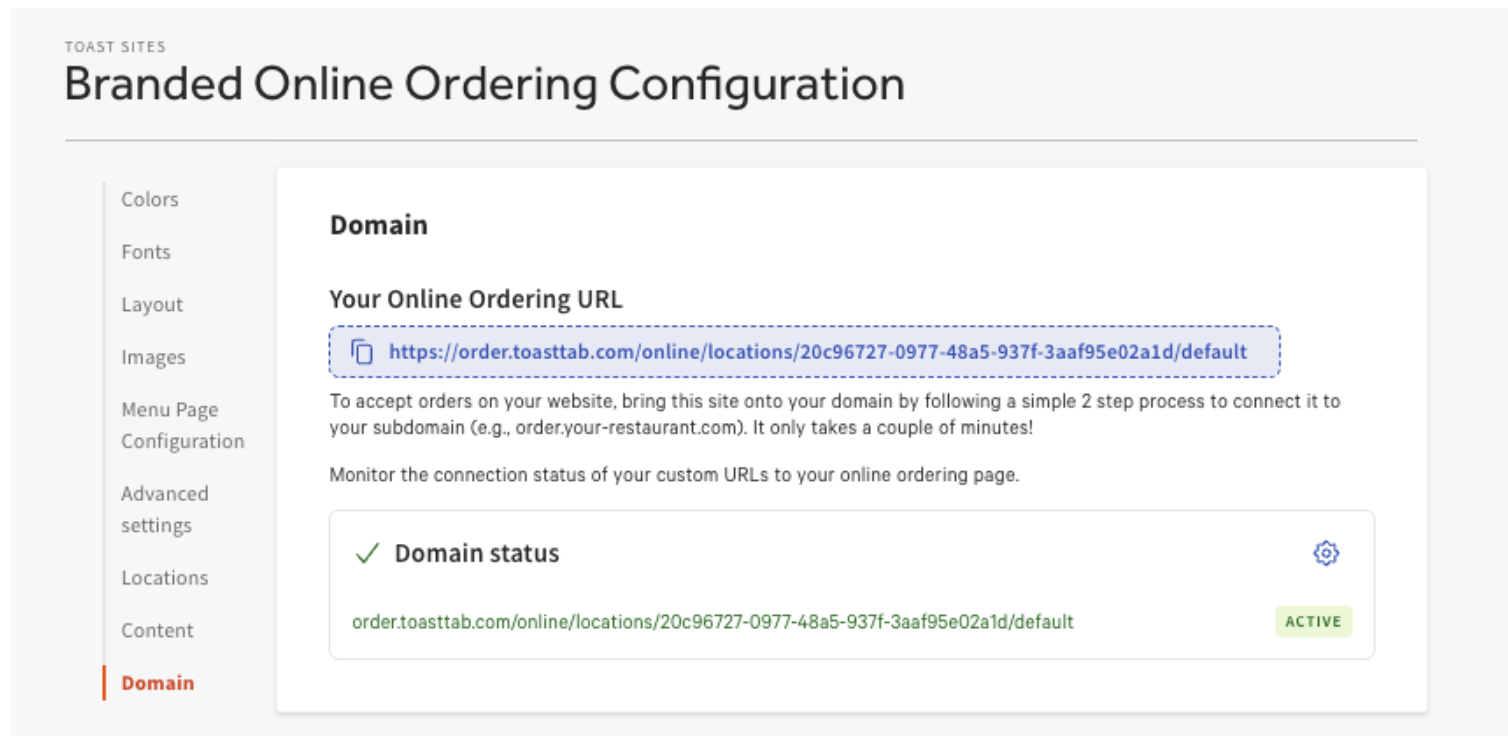
The settings window will show the user different statuses for the domain itself:
- Active - Domain is ready for use
- Error - Toast could not connect to the domain
- Not Connected - A domain has not been configured
- Verifying - Displays after a user adds a subdomain until the domain is verified.
- If the domain is verified within 24 hours, the status will switch to Active
- If the domain is not verified within 24 hours, the status will switch to Error
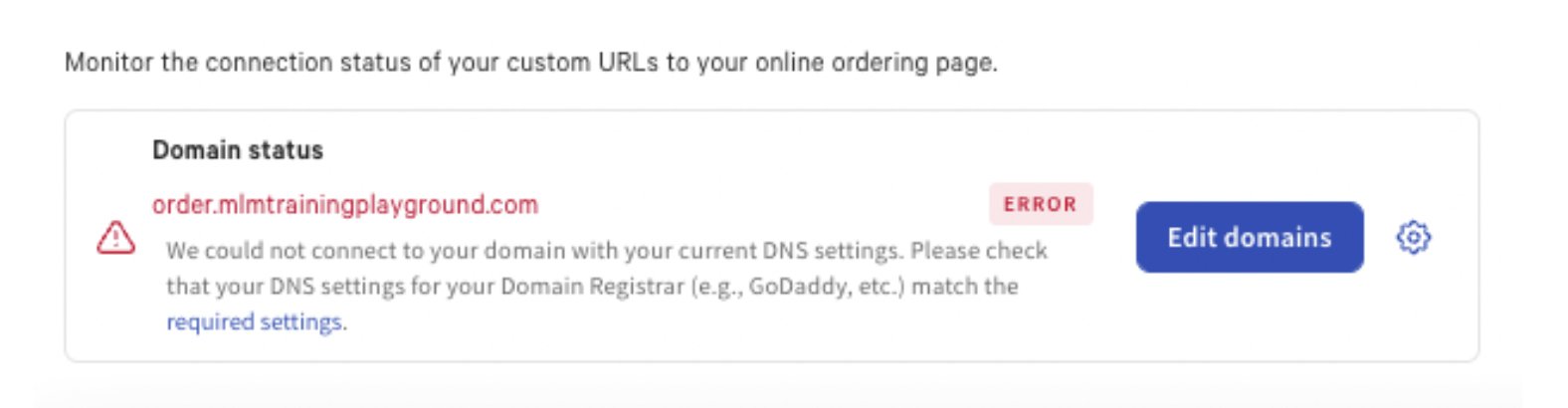
Online Ordering Pro Required Records
| Record | Host | Required Value |
| CNAME | YOUR SUBDOMAIN’S TAG (so for instance, if your subdomain is “order.myrestaurant.com”, then this value should be “order”) | sites.toasttab.com |
| CNAME | _acme-challenge.YOURSUBDOMAIN’STAG | YOURSUBDOMAINTAG.YOURDOMAIN.com.cec5188867cef154.dcv.cloudflare.com (so for instance, “order.myerstaurant.com.cec5188867cef154.dcv.cloudflare.com”) |
Toast Websites Required Records
| Record | Host | Required Value |
| A | myrestaurant.com or @ | 162.120.94.90 |
| CNAME | www | sites.toasttab.com |
| CNAME | _acme-challenge.www | www.yourdomain.com.cec5188867cef154.dcv.cloudflare.com |
| CNAME | _acme-challenge | yourdomain.com.cec5188867cef154.dcv.cloudflare.com |
Connect a Domain That You Own
To connect to a domain that you already own, follow the steps below:
- Navigate to the Website Dashboard section:|
For Toast Websites
For Toast Online Ordering Pro
Using the left-hand navigation in Toast Web, select Websites.
On your Website Dashboard, navigate to the Manage Your Domain section.
Using the left-hand navigation in Toast Web, select Takeout & delivery > Branding & customization > Branding & customization configuration.
Select Settings on the Branding & Customization Configuration left-hand menu.
- Select + Connect your domain in the Manage Your Domain section, or select Connect Now if you see a red banner at the top of your page – both buttons will do the same thing.
- On the pop-up message, select Continue.
- Enter the name of your domain, and then select Continue again.
- Note: For Toast Online Ordering Pro, it’s recommended to use a subdomain of your website here (e.g., order.yourrestaurant.com).
- Follow the steps to connect to your DNS (Domain Name System) provider. Entri, the system Toast uses to configure your domain, will search for your provider and allow you to sign in and connect seamlessly. You’ll have the option to set up your domain manually if necessary.
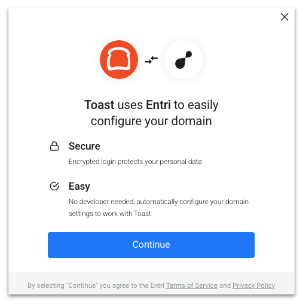
Once the process is complete, you’ll see that your Domain status has changed to “Verifying”. Changes typically take less than a few hours to process, but may take up to 48 hours in some cases. Once your domain is connected, the status will change to “Active.”
If you completed domain setup 48 hours ago and the domain is still not active, please contact websites@toasttab.com.
Note: For Toast Websites, if you need to add another domain for another brand, you can do so by selecting + Connect another domain and following steps 3-5 described above.
Purchase a Domain (Toast Websites)
For Toast Websites, if you’d like to purchase a new domain for your restaurant or brand, you can do so directly within Toast.
- Navigate to the Website Dashboard section:
- In the Manage Your Domain section, select Purchase a domain.
- In the pop-up window, type in the name of the domain you’d like to purchase
- A new window will open with the results of your domain search.
- If the domain name is available, you’ll have the ability to purchase it.
- If the domain name is taken, you’ll see a few alternative domain options. You can select one of those or try searching for a different domain name.
- Complete the guided steps to make your purchase and automatically connect your domain to Toast.
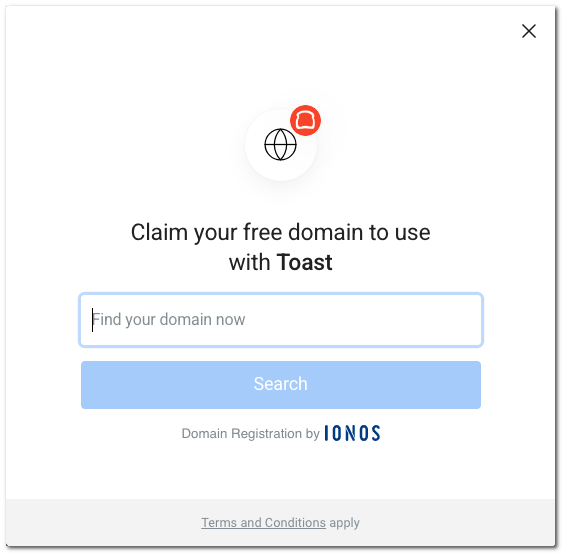
Once the process is complete, you’ll see that your Domain status has changed to “verifying.”
Changes typically take less than a few hours to process, but may take up to 48 hours in some cases. Once your domain is connected, the status will change to “active.”
If you completed the domain setup 48 hours ago and the domain is still not active, please contact websites@toasttab.com.
Activate a Generic URL
To get started with your website quickly, you can activate a generic URL that's visible to the public and ready to use immediately.
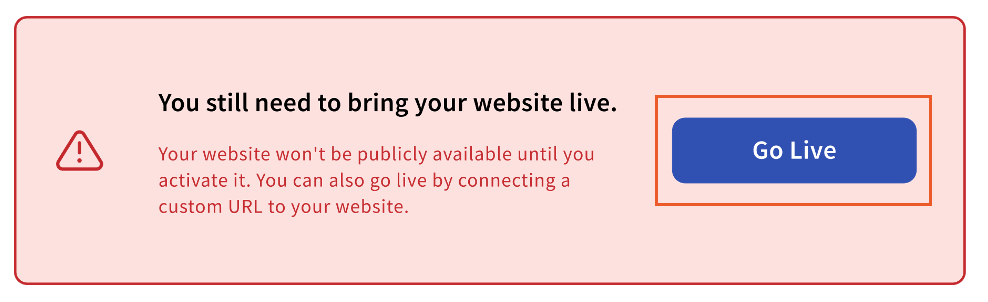
- On the top of the Website Dashboard, select Go Live.
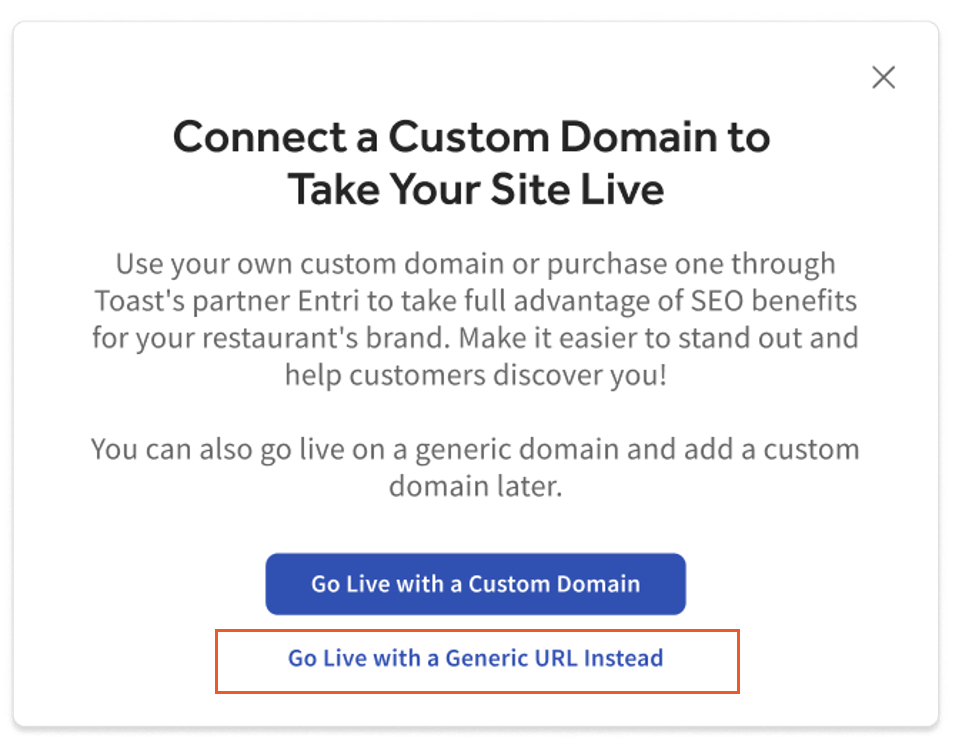
- In the next pop-up window, select Go Live with a Generic URL Instead.
- Confirm that you are ready to go live with your website by selecting Yes, Take My Site Live. You will then see a pop-up with your website loading.
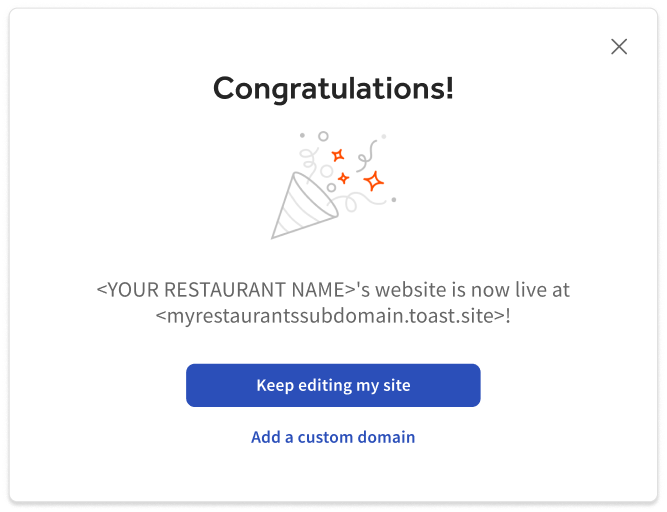
- Once complete, your generic URL and site will be live.
Note: If you add a custom URL later, you can do so by navigating to the Website Dashboard and following the steps in this article for Connect a Domain That You Own or Purchase a Domain (Toast Websites).
Back to top
Manage Your Domain Settings
When you connect your domain to your Toast Website, you will be able to see the DNS (Domain Name Settings) that Toast is receiving from the domain provider, which will help you identify any errors.
- Log in to Toast Web and navigate to Websites > Manage Your Domains.
- Select the gear icon next to Domain Status.
- If all settings are listed as Correct, your domain status will be Active.
- If there are any errors with your domain status, you can identify the errors and select the copy icon to capture the correct information for your domain provider. Example below:
Note: All necessary domain corrections must be made inside your domain provider, not in Toast Web.
Troubleshooting Domain Setup
To resolve the "Connection not private" error, check your DNS settings with your domain provider.
If you've completed the steps of domain setup but your page isn't showing on your custom domain (or you're experiencing a DNS resolution error), try the following troubleshooting steps:
- Use a DNS lookup tool like this one (external link) to confirm that your A record has been properly created.
- Make sure you have pop-ups enabled on your internet browser.
- Check your domain registrar's records to ensure that they match the required values below.
- Delete records that may cause interference (see table).
Online Ordering Pro Required Records
| Record | Host | Required Value |
| CNAME | Your subdomain's tag | sites.toasttab.com |
| CNAME | _acme-challenge.YOURSUBDOMAIN’STAG | YOURSUBDOMAINTAG.YOURDOMAIN.com |
Toast Websites Required Records
| Record | Host | Required Value |
| A | myrestaurant.com or @ | 162.120.94.90 |
| CNAME | www | sites.toasttab.com |
| CNAME | _acme-challenge | yourdomain.com.cec5188867cef154.dcv.cloudflare.com |
Interfering Records: This table shows the types of records that must be removed from your DNS settings for your domain to connect:
| Record | Host | Value |
| A | www or @ | Non-Toast IP or parked |
| CNAME | www or @ | Non-Toast IP or parked |
This process may take up to a few hours to reflect changes. After confirming your settings, the domain will show as "verifying" for up to 12 hours. If it shows as "failed" or is still verifying after 12 hours, please contact Customer Care.
Domain Provider Support Documentation
If you are unable to connect your domain to Toast using the automatic domain connection or the instructions above, consult your domain provider's documentation and support channels for more accurate guidance. Search the list below for a link to your provider's support documentation on DNS connection.
| Provider | Documentation |
| GoDaddy | Manage DNS records — add, edit, or delete A, CNAME, MX, TXT records |
| SquareSpace | Adding custom DNS records to your Squarespace-managed domain |
| Wix | Managing DNS records in your Wix account |
| Cloudflare | Create, edit, and delete DNS records via the Cloudflare dashboard |
| IONOS | DNS settings guide for A, AAAA, CNAME, MX, TXT, SRV, and CAA records |
| Namecheap | How to set up host records for a domain |
| Network Solutions / Register.com | How to manage DNS and advanced DNS records in Network Solutions |
| Amazon Route 53 | Working with records in Route 53 hosted zones |
| Bluehost | DNS management — add, edit, or delete DNS entries in cPanel |
| Hostinger | |
| Porkbun | How to edit DNS records in your Porkbun dashboard |
| SiteGround | |
| WordPress.com | Custom DNS records for WordPress.com-registered domains |
| eNom | Managing DNS host records in eNom |
| HostGator | Manage DNS records through HostGator's Customer Portal |
If your provider is not listed above, or you're having trouble updating your DNS records, contact your domain name provider for assistance. Most providers offer live chat or phone support for DNS-related questions.
Frequently Asked Questions
What do I do if a third-party company owns/manages/hosts my domain?
If a website builder or other company owns the domain to your website, you'll need to see if the domain can be transferred to you. To transfer your domain from your current website service, you may need to create an account at a domain registrar (e.g., GoDaddy) and then have the domain transferred to that account. Once you do that, you can easily connect your domain from within Toast Web using the steps described above.
If the domain cannot be transferred, it may be best for you to purchase a new domain.
Note: If you update your domain name and share the same host, you can either set up forwarding with your domain provider or connect both domains to your Toast Website. If you connect both domains, you can follow the same instructions you did when setting up the first one. If you do not want the URL displayed, you will need to set up forwarding, which can be done within the settings of your domain provider.