Toast Online Ordering Pro: Menu Customization
Last updated: Aug 20, 2026, 11:05 AM
Before getting started, access Toast Online Ordering Pro by following these steps:
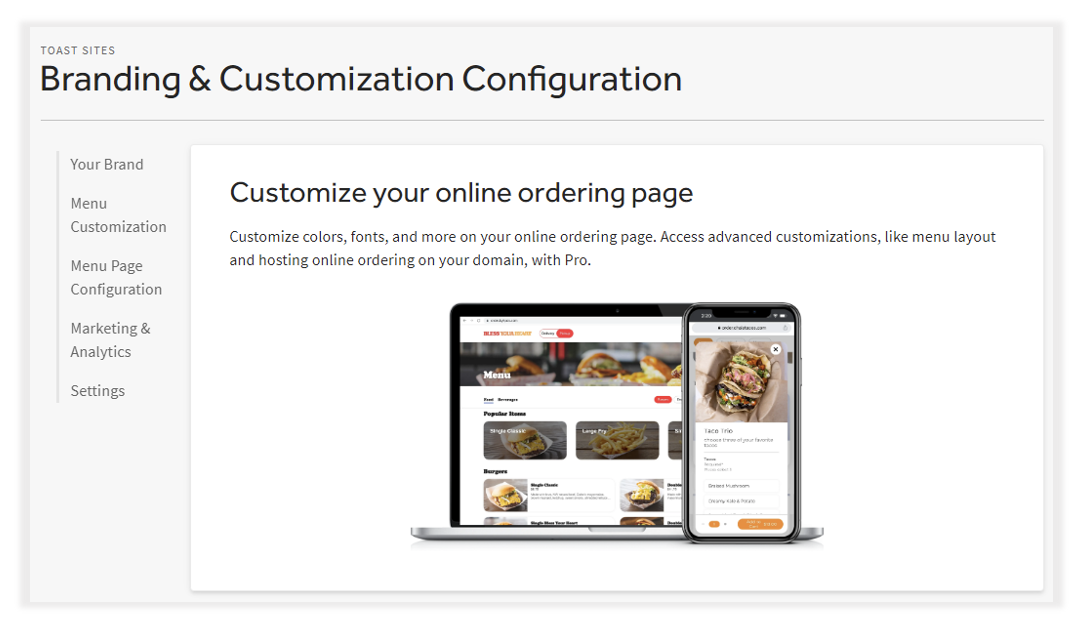
- In Toast Web, navigate to Takeout & Delivery, then select Branding & customization configuration under the Branding & customization subcategory.
- This will bring you to the Toast Online Ordering Pro home page, where you can configure your branded site. The top window provides Toast Online Ordering Pro information and a view of how your branded site could look on a computer and a mobile cell phone:
Online Ordering Pro - Menu Customization Video Overview
Menu Customization
Online Ordering Pro Fonts
One of the benefits of Toast Online Ordering Pro is that you can configure different fonts for your site. The default upon setup for both options will be ‘Effra, sans-serif’.
There are two areas where the font can be changed:
- Heading Text - Menu Names, Item Names, Menu Group headers, and Menu Item names.
- Body - Update Item prices, Item Descriptions, Popular item names (if added), and/or Menu Group buttons.
Fonts are global across the entire page. i.e., Food items containing gluten cannot have one font, while gluten-safe items use another (in either the heading or body).
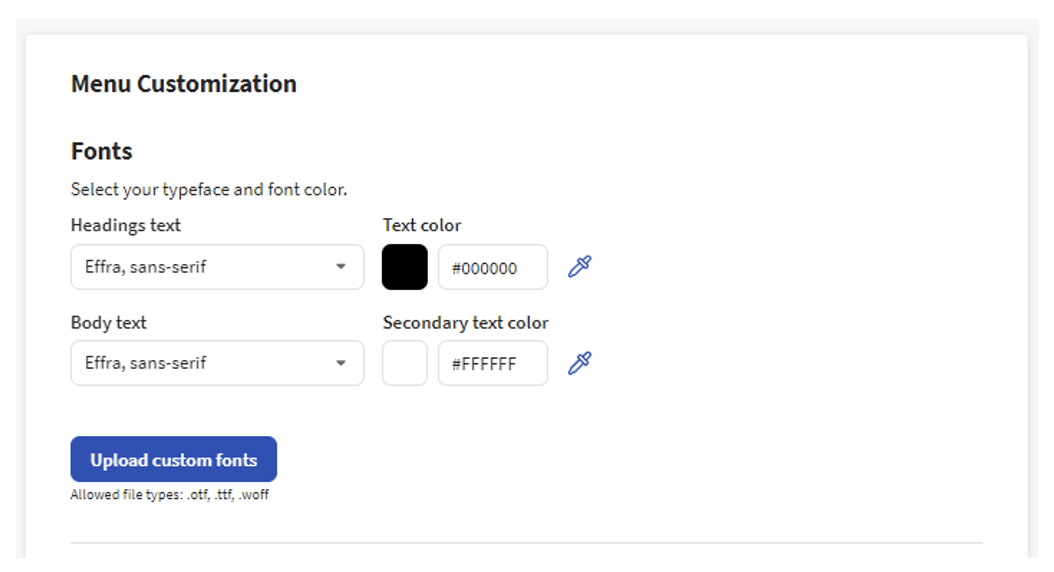
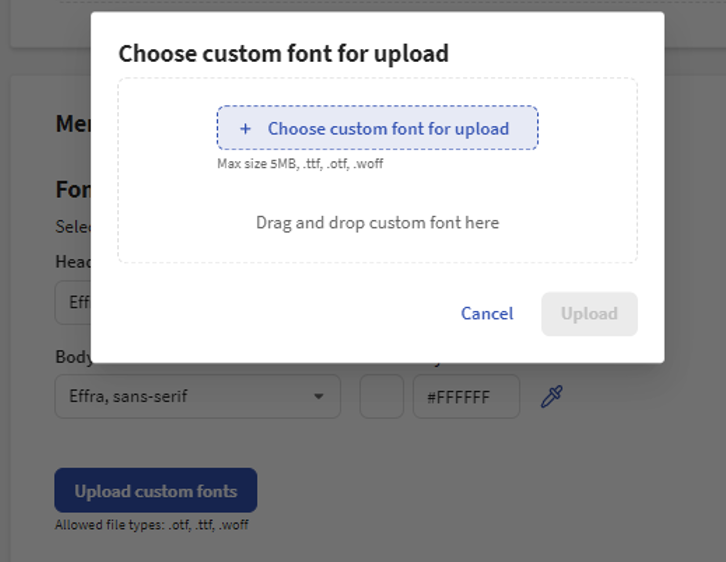
While there are multiple options available for you to choose from, you can also choose to upload your own custom fonts. The fonts can be directly uploaded from your computer. Fonts must be in .otf, .ttf, and .woff to be uploaded.
Creating and uploading a custom font is done outside of Toast (usually with Adobe Illustrator or a similar application). Once created, download the font to your computer and upload it into Toast. Some steps for creating a typeface can be found in this external article, How to Make Your Own Font.
Online Ordering Pro Image Requirements
Toast Online Ordering Pro has menu layout options that optimize for either square or rectangular item images. All images will fill the container within the menu layout selected. Toast Online Ordering Pro menu templates support 1:1 (square), 4:3 (rectangle), and 16:9 (rectangle) aspect ratios. We recommend a minimum height or width of 1000 pixels to ensure high image quality.
Online Ordering Pro Menu Layout
This section allows you to change the layout and look of your menu items on your site.
- 6 layout options - 3 photo-heavy layouts, or 3 simpler, font-focused layouts.
- Card Orientation - Placement of the image on the menu card for the Side Image layout
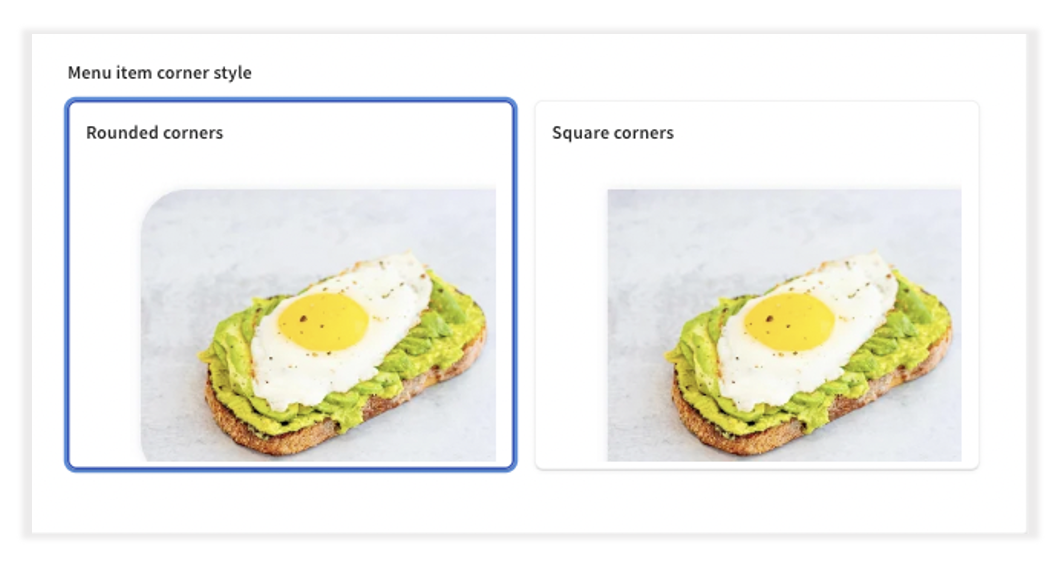
- Menu Corner style - Rounded or Squared
- Menu Group Orientation
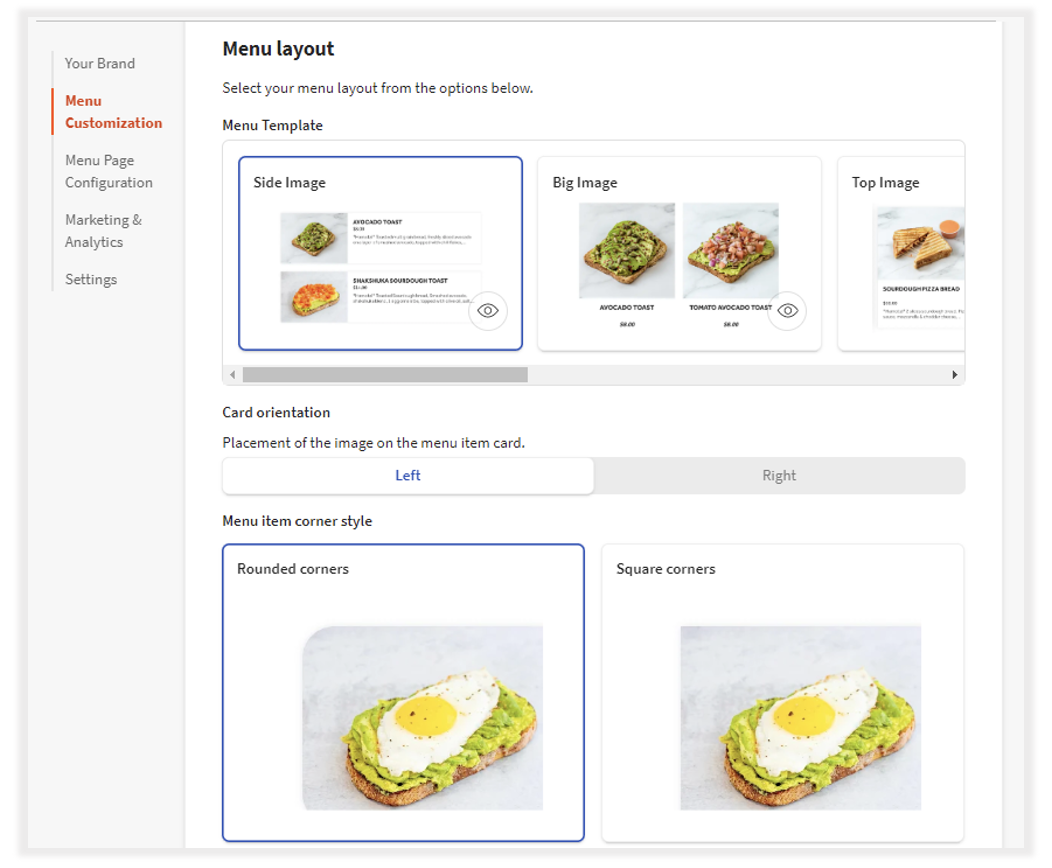
Side Image - this option allows you to choose between a Square or Rectangle image ratio for your menu items.
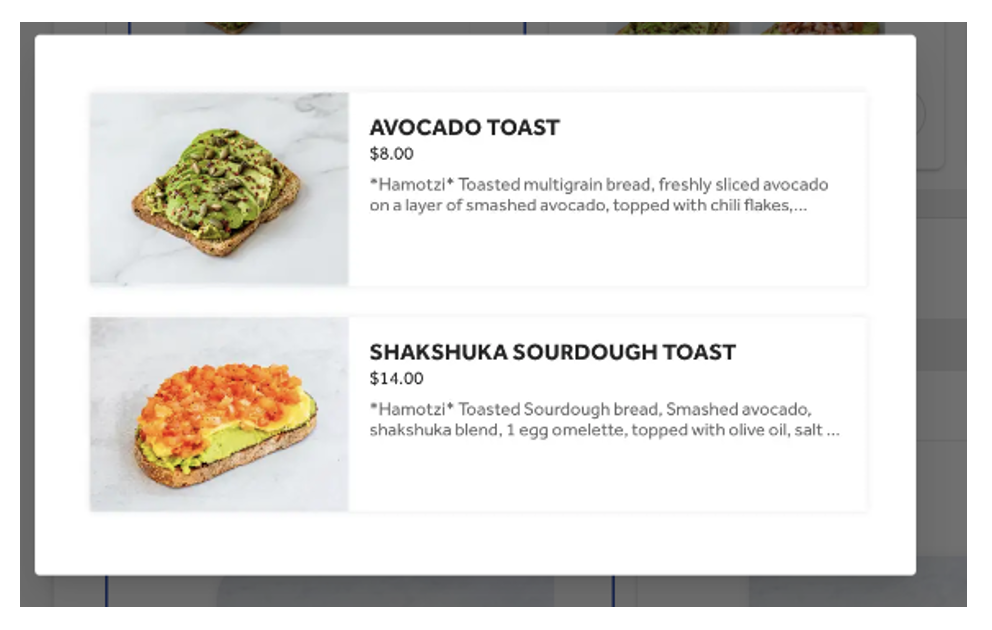
Big Image - this option does not display the item descriptions, but the description will be visible once the item is selected.
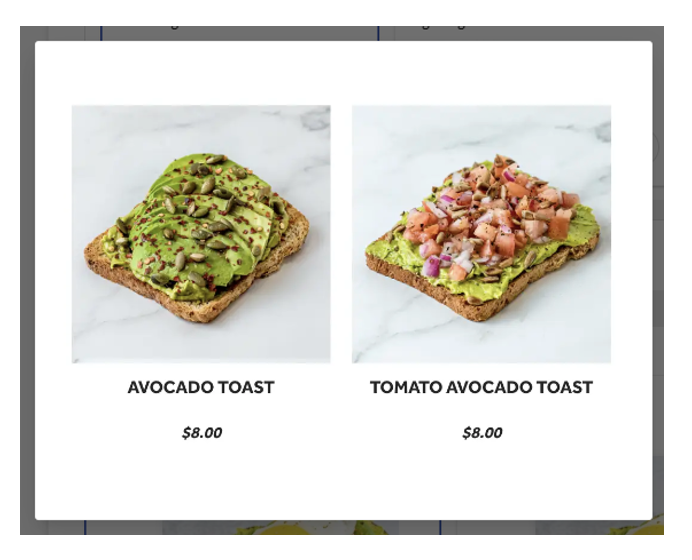
Top Image
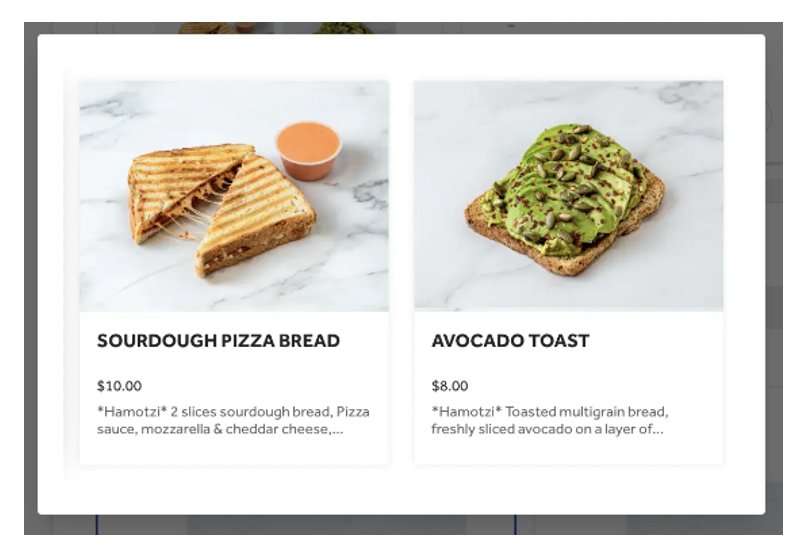
Condensed
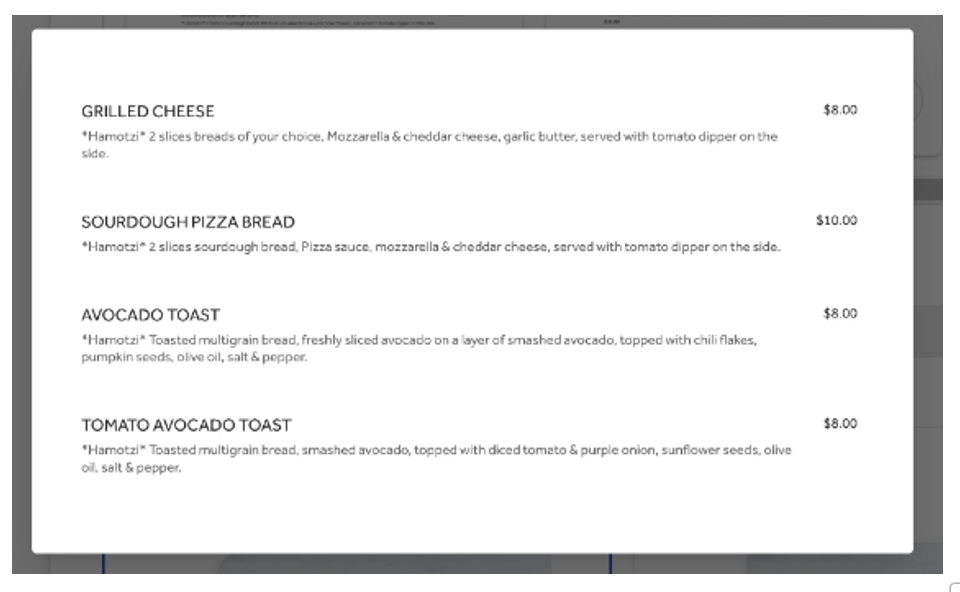
Stacked
Rounded Corners versus Squared Corners
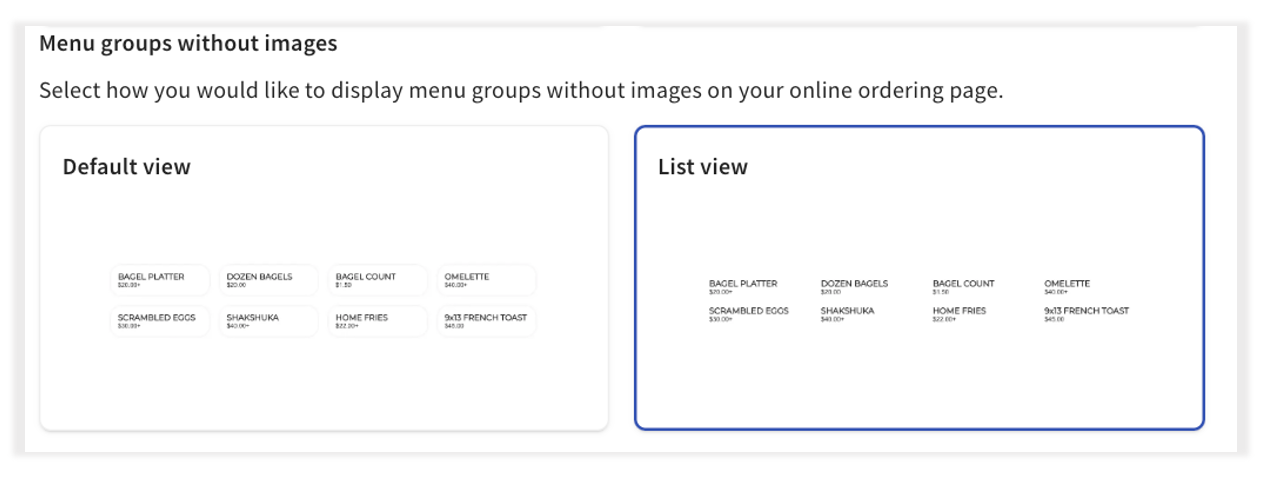
Menu Groups Without Images
Online Ordering Pro Color Customization
Another benefit of Toast Online Ordering Pro is that it allows you to select specific colors to customize your brand page.
Update colors across four different areas in Toast Online Ordering Pro:
- Background Color - the color for the entire background of the page.
- Menu Text Color - the color of the menu item name.
- Menu Secondary Text Color - the color of the menu item description.
- Menu Background Color - the color of the menu item box.
Colors can be changed via a scale/dragging and dropping within the window by selecting the dropper on the right. Users can also change the colors by entering a HEX code in the space next to the preview or by selecting the dropper and changing the HEX code at the bottom:
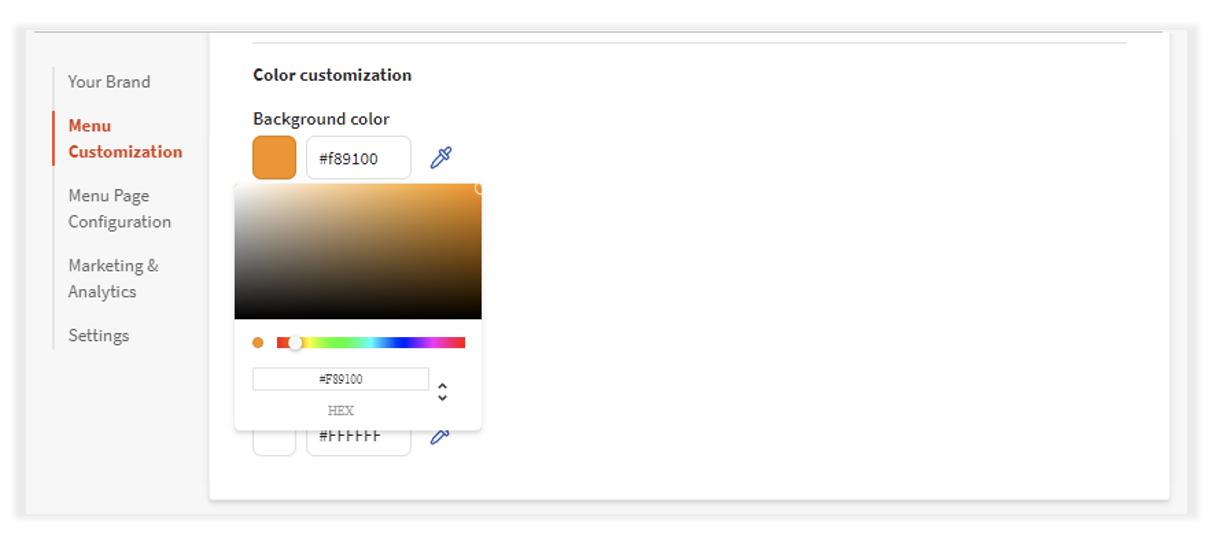
Note: These colors are global across the entire page, i.e., Toast cannot dictate that the font in Menu A should be blue, while the font of Menu B should be red.
Additional Resources
- Get Started with Toast Online Ordering Pro
- Toast Online Ordering Pro: Menu Page Configuration
- Toast Online Ordering Pro: Marketing & Analytics
- Toast Online Ordering Pro: Locations
- Toast Online Ordering Pro: Domains
- Toast Online Ordering Features
- Getting Started with Online Ordering
- Online Ordering FAQ