Marketing & Analytics for Toast Websites and Online Ordering Pro
Last updated: Mar 12, 2026, 6:39 AM
Marketing & Analytics allows you to configure specific site information that changes how your Toast Online Ordering Pro page or restaurant website appears when searching the web. You can also use it to plug in Facebook/Meta and Google Analytics tracking IDs to see how guests get to your site.
To get started, navigate to marketing and analytics settings by following the steps below:
| For Toast Websites | For Toast Online Ordering Pro |
|
|
- Search Engine Optimization (SEO)
- Pixel Tracking for Toast Websites and Online Ordering Pro
- Google Tag Manager for Toast Websites
- Third-Party Accessibility Tools for Toast Websites and Online Ordering Pro
- Video Overview of Toast Websites and Online Ordering Pro
- Additional Resources
Search Engine Optimization (SEO)
In this section of the marketing and analytics settings, you can make changes to the way your branded site appears in search engine results:
- Title - The restaurant name you'd like shown in search engine results. This will be displayed at the top of the search bar and in search results.
- Description - A quick description of the restaurant and its site in the search engine results, if applicable (depending on the search engine, descriptions might not be available).
- Logo Link - The link users will go to when they click on your site's logo image.
- Price - Setting a price range lets your customers know how much they can expect to spend at your restaurant. The price range is sometimes displayed on search result pages.
- Cuisine - For guests looking for a specific type of cuisine.
- Accepted Payments - Prepare guests in advance on what forms of payments are accepted.
Pixel Tracking for Toast Websites and Online Ordering Pro
This section of the marketing and analytics settings allows you to set up pixel tracking IDs from Facebook/Meta and Google Analytics. These allow you to track traffic from these sites to your website or Toast Online Ordering Pro site. It is your responsibility to adhere to all third-party terms related to pixel tracking and applicable laws.
You can find out more about pixel tracking through these eternal links below:
Note: The pixel partner provides Tracking IDs and reporting. Please work directly with the pixel partner to obtain this information.
Google Tag Manager for Toast Websites
| Google Tag Manager for Toast Websites is unavailable for customers in Australia, Canada, Ireland, and the UK. |
Google Tag Manager is a tool that enables you to manage and update website tags, such as tracking codes for analytics, advertising, and marketing tools, through an intuitive web interface, eliminating the need for direct code edits. Before you get started, you must first set up a Google Tag Manager account so you have a container set up for your URL. You can find more information here (external link) on setting up your account.
Once the setup is complete, you can access your Google Tag Manager dashboard. Here, you can access, add tags, set up triggers, and view the performance.
Note: Adding a code block is not necessary when connecting Google Tag Manager to your website.
Connect Google Tag Manager to Your Toast Website
To connect your Google Tag Manager account, follow the steps below:
- In Google Tag Manager, navigate your container and locate the alphanumeric code listed next to your website URL. Note: The code can also be found on the dashboard toolbar.
- Copy the code and navigate to Toast Web > Websites > Settings & Integrations.
- Paste the alphanumeric code in the Google Tag Manager tracking ID field.
- Publish your changes.
Third-Party Accessibility Tools for Toast Websites and Online Ordering Pro
| Custom Widgets for Toast Websites are unavailable for customers in Australia, Canada, Ireland, and the UK. |
To use UserWay on Toast Websites and Online Ordering Pro, subscribe to UserWay’s accessibility widget through their page. This subscription is independent of Toast.
You will then need to provide your widget’s Site Key to Toast through our Websites admin portal and enable the widget's visibility to your guests:
- Log in to your UserWay account.
- Select Embed Code from the left-hand navigation on your dashboard.
- Copy the data-account number (do not copy the entire script).
- Paste the data-account number into the UserWay Site Key in Toast Web
- Toggle Use UserWay? to the On position, then select Publish.
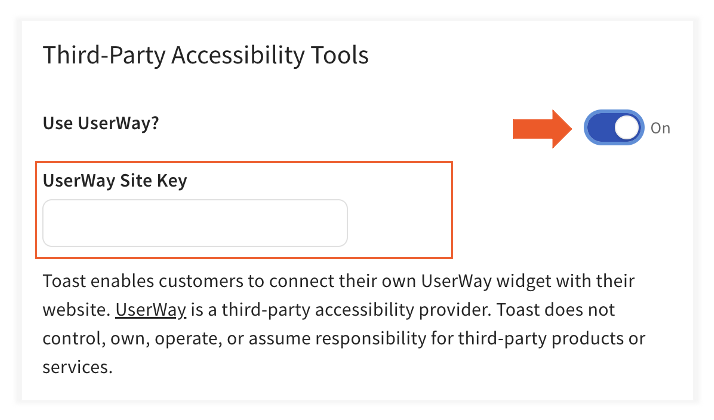
The widget is then added to your website via a script, and appears as an icon on the right side of the screen which allows your end users to make the website more accessible. You can customize your widget further on the UserWay dashboard For more information on UserWay, see this external article here.
Video Overview of Toast Websites and Online Ordering Pro
Note: While Marketing & Analytics settings appear in a different location for Toast Websites users, the video below's content applies similarly for both Toast Websites and Online Ordering Pro.
Video for Marketing and Analytics for Online Ordering Pro and Toast Websites.
Additional Resources
- Locations and Brands for Toast Websites and Online Ordering Pro
- Domains for Toast Websites and Online Ordering Pro
Toast Websites
Toast Online Ordering Pro
- Get Started with Toast Online Ordering Pro
- Toast Online Ordering Pro: Menu Page Configuration
- Toast Online Ordering Pro: Menu Customization
- Toast Online Ordering Features
- Getting Started with Online Ordering
- Online Ordering FAQ