Get Help With Toast Online Ordering
Last updated: Oct 14, 2026, 4:43 PM
- Online ordering menus
- Popular menu items and upsells
- Online ordering settings
- Common online ordering problems and solutions
- Customize and share your online ordering page
Online ordering menus
Do I have to create a separate menu for online ordering?
No, not unless your pricing differs between in-store and online. We recommend using the Visible To setting to control which menus appear on your online ordering page. See Manage Your Menu Visibility Settings for instructions. That article also covers how to control visibility settings for individual third-party online ordering partners.
If you need a separate menu because your pricing is different or you want to hide certain modifier groups from guests, use the deep copy option. Deep copying lets you modify the copy independently without affecting your original menu. See Reuse or copy menu items and modifiers for how to do this.
How do I create a featured items section at the top of my online ordering page?
Create a menu titled "Specials Menu" and add your desired items with images. To ensure it appears at the top, use the menu display order tool in the Menu Manager to arrange that menu above your other menus. Alternatively, create a menu group titled "Specials" within an existing menu, add a description noting the items are discounted or seasonal, and reorder the group to display first.
See Menus, menu groups, and subgroups for details on reordering.
How can I make sure guests don't miss any menu items on my online ordering page?
Menus on your Toast Online Ordering page use an intuitive mobile and desktop navigation layout alongside a high-performance search bar. Guests can use the dedicated search tool to instantly find item names and descriptions. On mobile, guests can also open a quick bottom-sheet menu navigator to view all categories, see item counts, and switch sections instantly without losing their place on the page.
How do I set up catering through online ordering?
To set up catering on your online ordering page:
-
- Create a menu or menu group and title it "Catering."
- Add your catering items and use the item description field to include any ordering instructions.
- Add required selections as modifier groups — for example, "Select your pickup time" or "Include a gift box?"
- Use the order tool to arrange modifier groups in the correct sequence.
For minimum order thresholds or specific pickup time restrictions, use the modifier group structure to prompt guests to choose from defined options.
Note: If you would like to create a separate online ordering page for your catering orders, check out Toast Catering and Events Pro, which can be purchased on the Toast Shop. Check out Getting Started with Catering and Events and Get Started with Catering Online Ordering for more info!
What is the best way to show multi-step ordering instructions for a complex item?
Use an infographic image (maximum height 400 px) for the menu item and include ordering instructions in the item's description. Then create required modifier groups with titles like "Step 1: Choose your bread" to guide guests through the selection process. Use the order tool to arrange modifier groups in the correct sequence.
Can guests order items sold by weight or unit through online ordering?
Yes. Once you configure Prompt for Quantity and a Unit of Measure on an item, guests can order in fractional quantities through online ordering. See Items priced by the pound or unit for configuration steps.
Are menu item images and descriptions required for online ordering?
No, images and descriptions are not required to go live. However, adding detailed item descriptions is highly recommended because Toast's high-performance menu search scans both item names and descriptions to help guests quickly find exactly what they want.
What size should menu item images and my restaurant logo be?
Follow these guidelines:
-
- Restaurant logo — Square, 180 x 180 px minimum
- Banner image — Rectangle, 1920 x 1080 px
- Menu item images — Rectangle, 750 x 450 px
All images must be in .PNG format.
Can I make specific menu items available only at certain times of day?
You cannot restrict individual items to specific times of day, but you can make entire menus available based on time of day and day of the week. For example, a coffee and bagels menu can be set to appear from 7:00 a.m. to 11:00 a.m. Guests who place an order at 8:30 a.m. see the coffee menu; guests ordering at 11:00 a.m. do not.
See Set menu availability for configuration steps.
Note: Make sure the Visible To setting for that menu is set to Online Ordering. See Manage your menu visibility settings for details. Menu availability only applies to menus, not groups or items.
How do time-based discounts work for online orders with scheduled pickups?
No. Both the order time and the scheduled pickup time must fall within the discount window. In the example above, the guest would need to place the order AND schedule pickup between 2:00 p.m. and 4:00 p.m. for the discount to apply.
If an item-level discount applies to multiple items in a cart, do they need identical modifiers?
Yes. The items must be identical, including modifiers. For example, a two-cheese-pizza discount applies only if both pizzas have the same topping selection.
If I adjust a menu item price after a guest has already paid, does the new price apply to their order?
No. Price adjustments only apply to new orders placed after the change is saved. Orders that have already been paid are not affected.
Can I hide out-of-stock items from my online ordering page?
-
- For Toast Retail customers: In Toast Web, navigate to Retail > Settings > Online ordering and enable Hide out of stock items.
- For Digital Storefront Pro subscribers:
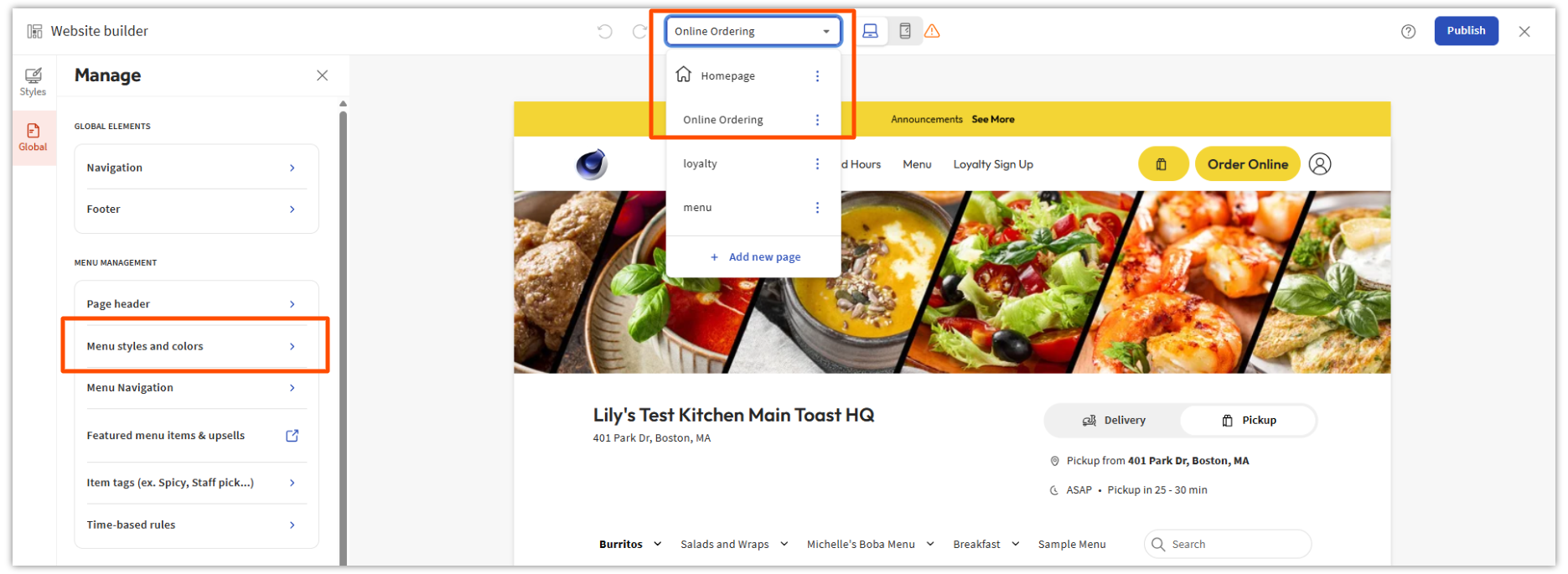
- In Toast Web > Websites > Edit Site (blue button).
- At the top of the page, switch the page selector from Homepage to Online Ordering.
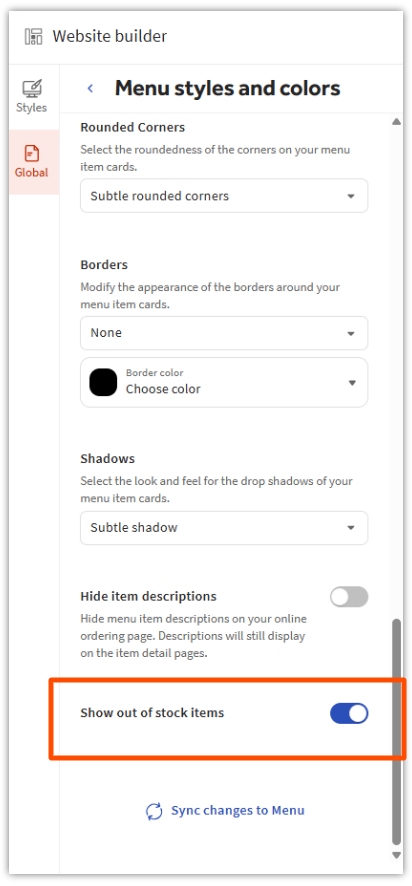
- From the left navigation, select Global > Menu styles and colors, then scroll to the bottom to find Show out of stock items and toggle the setting.
- Select Publish.
You can also manually remove items from the online ordering page by removing visibility on the Advanced Properties page. Please note that visibility will need to be assigned back the next business day manually.
Can guests reorder individual items they have previously purchased?
Yes. Guests who are logged in to their account can add previously ordered items directly from the Order Again carousel on your online ordering page. The carousel displays each item's current image and price. If a previously ordered item had a modifier, that modifier is preselected. Items that are no longer available do not appear in the carousel.
Popular menu items and upsells
How does the Popular Items feature work?
The Popular Items section displays items based on 30-day order activity — the items your guests order most frequently appear automatically. No setup is required.
To disable the feature, in Toast Web navigate to Takeout & delivery > Branding & Customization > Featured Items & Upsells and disable both toggles. Select Save.
How does the Menu Item Upsell feature work?
Toast's Menu Item Upsell feature automatically suggests items to guests during checkout, helping increase average order value.
-
- To set up upsells for online ordering, see Optimize Online Ordering Item Upsell.
- To set up upsells on your POS devices, see Get started with menu upsells on the POS.
For upsells on the guest-facing display, see Manage upsell offers for use on the guest-facing display.
Note: The upsell feature is also available for catering menus. Ensure the relevant menu items are included in your upsell configuration.
Online ordering settings
For frequently asked questions about your online ordering schedule, see Manage your takeout and delivery schedule.
How do I set up an autofire device so that online orders fire directly to the kitchen?
An autofire device receives online orders and sends them to the kitchen automatically. Choose one device to handle all online orders, then enable Order Auto-Firing on that device from the device menu. See Set up order auto-firing for step-by-step instructions.
If my autofire device is logged out, will online orders still fire to the kitchen?
No. If your autofire device is logged out of Toast, online orders are not sent automatically to the kitchen. Orders must be manually approved until the device is logged back in. Your autofire device must be powered on and logged in to Toast at all times for automatic order firing to work.
Can a handheld device serve as the autofire device for online orders?
In most configurations, a fixed Toast terminal (such as a Toast Flex) is recommended as the autofire device to ensure it remains on, logged in, and connected at all times. Handheld devices are more likely to be logged out or moved out of Wi-Fi range, which would interrupt automatic order firing. Confirm with Toast Customer Care whether your specific hardware setup supports a handheld as the designated autofire device.
How do I enable delivery on my online ordering page?
In Toast Web, navigate to Takeout / Delivery and toggle the Delivery option on under the Toast Online Ordering section. See the takeout and delivery setup article for full details.
Can a guest add delivery instructions for the driver?
Yes. When a guest fills out their delivery information, there is an optional field where they can add specific instructions — for example, "Ring the doorbell and leave the food on the porch." The driver receives these instructions when the order is placed. Both Toast Online Ordering and Toast Local include this field automatically when delivery is enabled.
How do I enable curbside pickup for online orders?
Create or update a dining option with the Curbside behavior, then add it to your online ordering settings page under the Dining Options section. See Setting up curbside pickup for online ordering for the full workflow.
How do I disable or remove curbside pickup from my online ordering page?
To remove curbside as an option for online guests, navigate to your online ordering settings in Toast Web and remove the curbside dining option from the Dining Options section. If you want to retain the dining option for in-store use but hide it from online ordering, update the dining option's Visible To setting to exclude online channels.
For the most current steps, see Setting up curbside pickup for online ordering or contact Toast Customer Care for assistance.
Can guests schedule orders for same-day only?
Yes. In your Online Ordering setup page under Online Ordering Scheduling Settings, enable Yes, guests may schedule orders. An additional field, Max Future Scheduled Order Date (days), appears below. Select Custom Date Range and enter 0 to restrict scheduling to same-day orders only.
Can online ordering accept international zip codes or postal codes?
Yes, international zip codes and postal codes are accepted in online ordering.
Can a guest pay for an online order with a Toast Gift Card?
Yes. At checkout, guests select Pay with a Gift Card and enter their 16-digit gift card code. If the gift card balance does not cover the full order, guests can add another payment method for the remaining balance. See Redeem a Toast Gift Card for online ordering for details.
Can online ordering save a guest's credit card information?
Yes. Guests can create an account before or during checkout and save a credit card for future use. At checkout, guests choose between Express checkout with Toast (uses saved information) or Checkout as guest (enter payment details each time).
Guests are adding extras to items without being charged. How do I fix this?
Check the modifier group settings for that item. If Multi-select? is enabled, guests can choose multiple options without an additional charge. To charge for each selection, create a new modifier group with a price assigned to each option. See Create a new modifier group for steps.
Can I set up email notifications for incoming online orders?
Yes. See the Email Notification Setup section of Online Ordering: Advanced settings for instructions.
Note: Notifications via text message or phone call are not available at this time.
At what rate are Apple Pay transactions charged for online orders?
Apple Pay transactions placed online are charged at the Card-Not-Present rate. When Apple Pay is used in-store by tapping at a terminal, it is billed at the Swiped rate.
Note: Apple Pay for online ordering is only supported in Safari.
Is online ordering available in Australia, Canada, Ireland, and the UK?
Yes, Online Ordering is available in Australia, Canada, Ireland, and the UK. See Get started with online ordering for details.
Why does the fire time become negative for online orders?
A negative fire time means the order should have already been sent to the kitchen but was not. This typically indicates a problem with your autofire device settings.
To troubleshoot:
-
- Check your autofire device settings in Toast Web.
- Disable Wi-Fi on the device and confirm it has an Ethernet connection.
- Toggle Auto Fire off and then on again in Device Setup.
- Check your Online Order Approval settings.
For more thorough steps, see Troubleshoot your autofire device.
Common Online Ordering Problems and Solutions
These are the most common issues that occur when online ordering settings in Toast Web are not configured correctly.
Online ordering says "Not available at this time" — how do I fix this?
The three most common causes are:
-
- Online ordering is disabled — Check the Online Ordering Dashboard at the top of your Toast Web page. If ordering is off, enable it and save your changes.
- Schedule conflict — The online ordering schedule may not include your current hours. See Get started with online ordering for schedule configuration.
- Autofire device not configured — Guests cannot place orders if no autofire device is set up. See Set up order auto-firing to enable it.
"Auto approval for Toast Online Ordering is currently paused" — what does this mean?
This message means Toast detected a problem with your autofire device and has temporarily paused automatic order approval to prevent orders from going unacknowledged. Online ordering may be turned off for guests while this message is active.
To resolve this:
-
- Confirm your autofire device is powered on and logged in to Toast.
- Check that the device has a stable network connection (Ethernet is recommended over Wi-Fi).
- Toggle Auto Fire off and on in Device Setup.
If the message persists, see Troubleshoot your autofire device or contact Toast Customer Care.
My online ordering menu isn't showing — what should I check?
Menu visibility settings control where each menu can be accessed. Visibility applies to everything below it in the hierarchy:
-
-
- If a menu is set to POS only, all groups and items inside it are hidden from online ordering regardless of their own settings.
- If a menu is set to both POS and Toast (online ordering), but a menu group is set to POS only, that group and its items are hidden from online ordering.
-
Check visibility settings at every level — menu, group, and item — to identify where the restriction is applied. See Manage your menu visibility settings for how to update them.
NEW! If you have a large or multi-menu setup (including over 1,500+ items), your menu will load and scale seamlessly. Toast Online Ordering uses an optimized e-commerce search foundation so guests can search large menus without experiencing performance lag.
Guests can't add items to their cart — what should I check?
Guests can't add items to their cart when a recent tax change, your location details, or hidden required modifier options block the item. If every item fails, remove and reapply your taxes, then publish. If only some items fail, check that the options in each required modifier group are visible to Toast Online Ordering. See Troubleshoot Toast Online Ordering Error Messages for full steps.
Guests are placing orders but they aren't firing to the kitchen right away — what should I check?
The most common cause is the Order Delay feature. Order Delay adds a wait time before a new order fires, giving the kitchen time to finish current work before receiving the next ticket. Check this setting first — it is accessible from both the POS and the Online Ordering Dashboard in Toast Web.
If Order Delay is not the issue, confirm that your autofire device is online and logged in. See Manage off-premise orders with Orders Hub for additional steps.
Online orders from DoorDash or Uber Eats aren't autofiring — what should I check?
Third-party online orders (DoorDash, Uber Eats, etc.) also rely on your autofire device. Confirm that your autofire device is powered on, logged in, and has a stable network connection. If one integration autofires correctly but another does not, check whether the non-firing integration has any separate order approval settings in its configuration in Toast Web.
For full troubleshooting steps, see Troubleshoot your autofire device. If the issue persists, contact Toast Customer Care.
Why aren't we receiving online orders?
Try these steps in order:
-
- In Toast Web, toggle your online ordering availability off and back on, then Save and Publish.
- Ask guests to close their browser completely and try again — browser issues can cause ordering interruptions.
- Confirm your email notification settings are correct and that notification emails aren't going to spam. Add no-reply@toasttab.com to your contacts.
- If the issue continues, contact Toast Customer Care by selecting the help icon in the bottom right corner of any page in Toast Web.
Guest sees an error message during checkout — what should I do?
If a guest sees an error message during checkout, identify the message and use the guidance below.
-
- Address mismatch error ("The address information provided does not match the billing address on file.") The billing address entered does not match the address their card issuer has on file. Ask the guest to check their billing statement or online banking and reenter their address exactly as it appears. They can also try a different card.
- Unverified card information ("Your card information could not be verified.") The card number, expiration date, CVV, or billing information doesn't match what the bank expects. Ask the guest to double-check for typos, especially in the card number and expiration date. If the issue continues, have them try a different card or contact their bank.
- CCV mismatch ("The card code (CCV) provided does not match the code on file.") The CVV the guest entered doesn't match the code on file. For Visa, Mastercard, and Discover, the CVV is the three-digit number on the back of the card. For American Express, it is the four-digit number on the front. Ask the guest to recheck the digits carefully.
- CCV required ("The card code (CCV) is required.") The guest has not entered the CVV. Direct them to the back of the card (Visa/Mastercard/Discover) or the front (American Express). If their card has no CVV, it may not be eligible for online payments.
- CCV required to update information ("The card code (CCV) is required to update your information.") The guest needs to enter the current CVV to update stored card details. Have them use the physical card to locate the security code.
- Expiration date required ("The card expiration date is required.") The guest needs to provide their card's expiration date, usually printed on the front in MM/YY format.
- Credit card number required ("The credit card number is required.") The guest needs to enter their full card number with no spaces or dashes. Confirm they are using a supported card (Visa, Mastercard, American Express, or Discover).
- Invalid credit card number ("That credit card number is invalid.") The card number entered doesn't match a valid format. Ask the guest to check for typos or missing digits and reenter the number without spaces or dashes.
- Billing zipcode required ("The billing zipcode is required.") The guest needs to enter the five-digit ZIP code associated with their billing address. If they are unsure, have them check a recent bank statement or their online banking profile.
Customize and share your online ordering page
Is there a link to sell gift cards on my online ordering page?
Yes. See Mange Toast Gift Card Sales for details on adding a gift card link to your ordering page. You can also promote eGift card purchases by sharing your eGift card ordering link on your website or social media. See Share Your Online Ordering & eGift Card Links on Social Media for instructions.
How do I get the pickup or delivery prompt to appear when a guest enters my online ordering page?
The prompt appears automatically when a guest first visits your online ordering page. If a guest refreshes the page after starting an order, the prompt does not reappear because the system assumes they already made a selection. They can reopen the prompt at any time by selecting the pickup/delivery button at the top of the page.
How do I know if I'm currently accepting online orders?
After completing setup (see Get started with online ordering), navigate to Takeout & delivery in Toast Web. If the toggle for Toast Online Ordering is set to Ordering on, your page is live and accepting orders.
How do I direct guests to my online ordering page?
Your online ordering link is the Online Ordering Public Link listed on your Restaurant Info page in Toast Web. You can also select Download QR Code on that page to give guests a scannable link.
How do guests create and log in to their account when ordering online?
Guests create and log in to their account at checkout using their mobile number (not an email address). After entering their number, they receive a one-time SMS code to complete the login.
How do I change the logo or main image on my online ordering page?
Upload a new Restaurant Logo and Banner Image on your Restaurant Info page in Toast Web. See image size guidelines for required dimensions.
What file format is required for uploading images?
All images must be in .PNG format.
How do I add a button on my website that links to my online ordering page?
Select the Download button option in Toast Web to get a button image you can add to your website. Attach your online ordering public link to the button so guests are directed to your ordering page when they select it. To find your online ordering link, navigate to your Restaurant Info page and copy the Online Ordering Public Link.
Can I add social media links to my online ordering page?
Yes. In Toast Web, navigate to Takeout & delivery > Restaurant Info and scroll to the social media links section. Add your desired links and select Save and Publish.
Can I embed my online ordering page on my website?
Toast does not currently support embedding the online ordering page directly on a website. However, you can add your online ordering URL as a link on your site.
To find your URL:
-
- In Toast Web, navigate to Takeout & delivery > Toast order sources > Restaurant info.
- Copy the link in the Share Your Public Links section.
- Paste the URL onto your website as a link or button.
You can also add digital ordering buttons to your site. See Adding digital order buttons to your website for how to do this.
Can I see web traffic analytics for my online ordering page?
Web traffic analytics for your Toast Online Ordering page are not currently available. For order-level reporting, use the reporting tools in Toast Web.
My credit card surcharge setting isn't applying to online orders — why?
Confirm your credit card surcharging settings are configured correctly. Toast's surcharging solution has eligibility requirements and limitations that may affect online orders. See Get started with credit card surcharging for eligibility details and setup instructions. Also see Configured surcharge is not applying to all card transactions for troubleshooting.
Can guests who order online be added to my email marketing list?
Yes. Guests can opt in to your email marketing list during checkout using the checkbox on the order confirmation screen. Guests who do not select the checkbox are not added to your list.
Related articles
- Get started with online ordering
- Online Ordering: Advanced settings
- Troubleshoot your autofire device
- Get help with Takeout & Delivery error: currently offline
- Manage your takeout and delivery schedule
- Setting up curbside pickup for online ordering
- Set up and troubleshoot tip options for online orders
- Get started with online ordering for catering