Manage Your Takeout and Delivery Schedule
Last updated: Sep 17, 2026, 1:13 PM
Manage your online ordering schedule in Toast Web: set schedule overrides, adjust order cut-off time, configure minimum lead time, understand quote time and prep time, schedule future orders, and troubleshoot "online ordering unavailable" errors.
Set schedule overrides, adjust cut-off time, configure minimum lead time, and snooze takeout and delivery orders in Toast Web.
Applies to: Toast Online Ordering, managed in Toast Web. Quote time and lead time settings in Toast Web do not affect third-party ordering platforms (DoorDash, Grubhub, Uber Eats) — contact each platform's support for their timing settings.
In this Article:
- What you need to do
- Before you begin
- Add a schedule override
- Set your order quote time
- Adjust order cut-off time
- Understand prep time, quote time, and lead time
- Enable future orders and set the date range
- Set a minimum lead time
- Snooze or delay online orders
- Frequently asked questions
- Related articles
What you need to do
| What you need to do | Go to |
|---|---|
| Temporarily change hours for a specific date or holiday | Add a schedule override |
| Control when guests stop being able to place orders each day | Adjust order cut-off time |
| Understand how prep time, quote time, and lead time relate | Understand prep time, quote time, and lead time |
| Allow guests to schedule orders for a future date | Enable future orders and set the date range |
| Require advance notice for catering or complex orders | Set a minimum lead time |
| Slow down or temporarily stop orders during a rush | Snooze or delay online orders |
| Troubleshoot "Online Ordering Unavailable" or orders coming in outside hours | Frequently asked questions |
Before you begin
Applies to: Toast Online Ordering, managed in Toast Web.
Permissions needed:
- 6.4 Publishing
- 6.6 Restaurant Operations Setup
- 3.29 Throttle Online Orders (required only for snoozing or delaying online orders)
What you'll accomplish: Configure the hours guests can place online orders, set the cut-off and lead times that control order acceptance, and temporarily slow or stop orders during busy periods.
Add a schedule override
A schedule override changes your online ordering hours temporarily for a selected date or date range — for example, closing early on Thanksgiving or extending hours for a special event. Overrides do not change your standard business hours.
To add a schedule override, follow these steps or watch this walkthrough video:
- Log in to Toast Web and navigate to Takeout & delivery > Online ordering hours.
- Select + Add override.
- Choose the date or date range and customize the hours. For example, to close early on Thanksgiving, set the override hours for that date. Times must be set in 15-minute increments.
- Optional: Add a description for reference. This description is guest-facing.
- To set multiple time blocks for one day, select + Add interval. Specify whether the override applies to Takeout & Third-party delivery, First-party delivery, or both. If you do not offer first-party delivery, this option will not appear.
- Once you finish setting up the override, select Add.
- Select Save and Publish all changes.
Expected outcome: The override appears on the list below the Overrides section. To remove the override, select the trash icon. To edit it, select the pencil icon.
Important: Overrides are applied by dining option. An override set for Takeout & Third-party delivery covers pickup (including curbside), Toast Delivery Services, and third-party integrations (Uber Eats, DoorDash, Grubhub) — but it will not automatically apply to First-party Delivery. First-party delivery overrides must be set separately.
Note: Place schedule overrides as far in advance as possible. DoorDash, Grubhub, and Uber Eats only sync to overrides when the partner platform requests a sync — usually well in advance of the override date. If you add an override within the same week as the closure, contact each third-party partner directly to request a sync. For same-day closures, use each partner's snooze or off toggle instead. See Why isn't my schedule update reflected on DoorDash, Grubhub, or Uber Eats? below.
Set your order quote time
Order quote time is the estimated time it takes to prep an order. Toast uses quote time to tell a guest how long their order will take and to control when orders fire to the kitchen.
Toast offers four quote time strategies: Manual, SmartQuote, Kitchen Capacity, and Order Price. Choose the one that fits how your kitchen is paced.
To choose your quote time strategy:
- In Toast Web, navigate to Takeout & delivery > Quote time strategy.
- Select one strategy:
- Manual
- SmartQuote
- Kitchen Capacity
- Order Price
- Select Save and Publish your changes.
Expected outcome: Your selected strategy applies to all online orders. Guests see the expected ready or delivery time on the order confirmation page.
For step-by-step setup of each strategy — including SmartQuote configuration and order price rules — see Manage Your Quote Time Strategy.
Adjust order cut-off time
Order cut-off time controls when guests can no longer place online orders for the day. You can set the cut-off so guests can place orders right up to your closing time, or stop accepting orders earlier so the kitchen has time to fulfill them.
To adjust the order cut-off time:
- In Toast Web, navigate to Takeout & delivery > Online ordering hours.
- Choose one option:
- Allow guests to place orders until your restaurant's closing time minus prep time
- Allow guests to place orders until your restaurant's closing time
- Select Publish all changes at the top of the Takeout & delivery page.
Expected outcome: Guests cannot place orders past the cut-off you selected. Both configurations apply to ASAP orders only — they do not apply to scheduled orders.
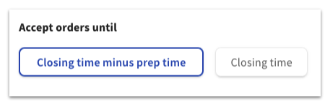
The two configurations work as follows:
| Accept orders until… | Example |
|---|---|
| Closing time minus prep time | Restaurant closes at 10:00 p.m. Quote time is 30 minutes. Guests can place orders until 9:30 p.m. For scheduled orders, the last available time slot is 9:30 p.m. |
| Closing time | Restaurant closes at 10:00 p.m. Quote time is 30 minutes. Guests can place orders until 10:00 p.m. The closing time does not consider any configured lead times. |
Understand prep time, quote time, and lead time
Three values control how long Toast tells guests their order will take and when the order fires to the kitchen:
Prep time = Quote time + Lead time
- Quote time is the estimated time to prep a takeout or delivery order. See Manage Your Quote Time Strategy.
- Lead time is the larger of two values: the delay configured on a Toast device or in Toast Web, and the lead time configured in Toast Web. Lead time is set separately from quote time.
Note: Quote time and lead time configured in Toast Web do not affect orders placed through third-party platforms such as DoorDash, Grubhub, and Uber Eats. Each third-party platform calculates its own expected ready and delivery times. If timing on third-party orders is incorrect, contact the partner directly: DoorDash; Grubhub; Uber Eats.
Enable future orders and set the date range
Toast lets guests schedule orders ahead of time. You can decide how many days in advance guests can schedule, and you can set different limits for different locations.
To enable future orders for online ordering:
- In Toast Web, navigate to Takeout & delivery > Availability > Online Ordering > Online Ordering Scheduling Settings.
- For Enable Scheduling, select Yes, guests may schedule future orders.
- To change the default 14-day range, select Custom Date Range and enter your desired number of days. To allow guests to order ahead only through the end of the day, enter 0 in the Custom Date Range field.
- Select Save when finished.
Expected outcome: Guests see a date and time picker on the online ordering page. Guests who place an order more than 48 hours in advance receive a reminder email 24 hours before the pickup or delivery time.
For full setup options — including POS scheduling, firing future orders early, bulk-printing future checks, and troubleshooting scheduled orders — see Schedule Future Orders.
Set a minimum lead time
Minimum lead time specifies how soon your restaurant will accept an online order. This is intended for restaurants that use Toast's Online Ordering for catering or other formats where every order requires advance notice.
For example, with a Delivery Minimum Lead Time of six hours, a guest who wants delivery at 4:00 p.m. can place the order no later than 10:00 a.m.
To set a minimum lead time:
- Navigate to Takeout & delivery > Availability > Online Ordering and scroll to the Online Ordering Schedule Settings section.
- For Enable Scheduling, select Yes, guests may schedule future orders.
- In the Minimum Lead Time Settings section that appears, enter your desired lead time in the takeout and delivery fields.
- Select Save.
Expected outcome: Guests cannot place orders for a fulfillment time earlier than the lead time you set.
Note: If prep times are set up, they are added on top of the minimum lead time. For example, with a takeout minimum lead time of six hours and an item prep time of 30 minutes, the earliest fulfillment is six hours and 30 minutes from when the order is placed.
Important: Lead times are intended for bakeries, catering, and similar formats that need advance notice. If you set a lead time other than 0 for a standard restaurant, guests will not be able to place ASAP orders.
Snooze or delay online orders
When the kitchen is overwhelmed, you can pause or slow incoming online orders. Use snooze to stop accepting new orders for 20 minutes, 40 minutes, or until the next business day. Use delay to add minutes to the quoted prep time without stopping orders.
To snooze online ordering from Toast Web:
- Navigate to Takeout & delivery > Toast Online Ordering.
- From the Ordering on dropdown menu, select a snooze duration: 20 minutes, 40 minutes, until the next day, or indefinitely.
- Select Save and Publish all changes.
Expected outcome: Your online ordering page displays a snooze message to guests, and new online orders stop coming in until the snooze ends or you turn ordering back on.
For full snooze and delay procedures — including snoozing from a Toast device, snoozing third-party platforms, and adding delays in minutes — see Manage Online Order Volume (Delaying/Snoozing Orders).
Important: Snooze applies only to Toast Online Ordering, Toast Delivery Services, and direct integrations with DoorDash, Grubhub, and Uber Eats. For all other third-party providers, contact the provider for their pause options.
If you snoozed online ordering but orders are still arriving, see I snoozed online ordering but orders are still coming through. Why? below.
Frequently asked questions
Why does my online takeout and delivery availability end too soon?
Online takeout and delivery availability is controlled by your Online Ordering schedule, your prep time (quote time + lead time), and your order cut-off setting. To diagnose, work through these in order:
- Check your order cut-off setting — see Adjust order cut-off time above. If you selected "closing time minus prep time," availability ends earlier than your closing time.
- Check how prep time is calculated and adjust if needed — see Understand prep time, quote time, and lead time above.
- Check and adjust your Online Ordering schedule by referencing the Set Your Online Ordering Hours section of Get Started With Online Ordering.
When I add a schedule override, are the intervals when I'm open or closed?
When you add a schedule override, the intervals you enter are the hours you are open for online ordering on that date. If you want to close all day, enable the Closed all day checkbox. If you want partial hours, enter just the open intervals — anything outside those intervals is treated as closed for that date.
My guests can only schedule future orders. Why can't they order ASAP?
If guests cannot place ASAP orders and are only able to schedule future orders, check your minimum lead time settings. If anything other than 0 is in either the takeout or delivery Minimum Lead Time field, a guest cannot order for the current time.
Note: Lead times are intended for bakeries and catering companies that need advance notice — not for standard restaurants expecting immediate fulfillment. Guests who place a future order scheduled for more than 48 hours out receive a reminder email 24 hours before pickup or delivery time.
Is there a way to make menu items appear at a specific time of day?
It is not possible to make individual items available based on the time of day. However, you can make entire menus available based on time of day and day of the week — for example, a coffee and bagels menu available from 7:00 a.m. to 11:00 a.m. Learn more in the Toast Central article on Set Menu Availability.
Note: Make sure the Visible To setting is set to Online Ordering. Learn more in Manage Your Menu Visibility Settings.
Are menu item prep times factored into the quoted time for online ordering?
Custom prep time entered for a specific menu item does not factor into the quoted time shown to guests when placing an online order. Even if prep times in seconds are entered into the Preparation field on the menu item detail page, the quoted time for online orders shows the time configured as the quote time on the Takeout & delivery page in Toast Web.
For more on item-level prep time, see Item Fire by Prep Time.
When I try to set Online Ordering hours, Takeout and Delivery aren't displayed. What should I do?
If no dining option is assigned to the Takeout Option or Delivery Option on the Online Ordering page (or if either is left as Select), the Toast Online Ordering hours page does not display correctly. To fix this, navigate to Takeout & delivery > Availability > Online Ordering and scroll to the Dining Options section to assign the correct options.
An online order was placed when the restaurant was closed. How do I stop this?
Verify that your restaurant's online ordering hours are correct. Navigate to Takeout & delivery and scroll to the Online ordering hours section. Confirm that the schedule for Takeout & Third-party delivery matches the hours you want online ordering to be open. For more details, view the Set Your Online Ordering Hours section of Get Started With Online Ordering.
Why does my Online Ordering page say "Online Ordering is Currently Unavailable"?
Work through these checks in order:
- Check your online ordering schedule. Navigate to Takeout & delivery > Online ordering hours and confirm the schedule is correct and published.
- Check if online ordering is enabled. Navigate to Takeout & delivery and ensure the dropdown at the top of the Toast Online Ordering section is set to Ordering On.
- Check if online ordering was snoozed. A manager may have snoozed orders during a rush, and the snooze may still be active. See Snooze or delay online orders above to confirm or end the snooze.
- Force a resync. If your hours are correct and published but the page still shows unavailable, make a minor change to your menu (such as adding an asterisk to the name of a menu item), then select Save and Publish all changes. Once confirmed, revert the change and publish again.
I snoozed online ordering but orders are still coming through. Why?
A snooze that was not saved and published does not take effect. To stop online orders manually:
- Navigate to Takeout & delivery > Toast online ordering.
- From the Ordering On dropdown, select Off.
- Select Save and Publish all changes.
If you are still receiving orders after publishing, the orders may have been placed before the snooze took effect — Toast accepts and processes orders that arrived before the snooze. Check the order timestamps against the time you published the snooze.
Why isn't my schedule update reflected on DoorDash, Grubhub, or Uber Eats?
DoorDash, Grubhub, and Uber Eats sync to your Toast schedule overrides only when each partner platform requests a sync — not the moment you publish. To make sure overrides apply on third-party platforms:
- Place schedule overrides as far in advance as possible. Same-week or same-day overrides may not sync before the date.
- For overrides added within the same week as the closure, contact the partner directly to request a sync.
- For same-day closures, use each partner's snooze or off toggle on their own dashboard or app.
Partner contacts:
- DoorDash: (855) 222-8111 or support@doordash.com
- Grubhub: (877) 799-0790 or restaurants@grubhub.com
- Uber Eats: (833) 275-3287 or restaurants@uber.com
Our managers should be able to turn online and third-party orders off, but they cannot. How do I fix this?
Enable Permission 6.6 Restaurant Operations Setup for those employees. To grant this permission to all employees in a specific job, enable it at the Jobs level.
I'm receiving an error syncing my business hours with my third-party platform. What should I do?
Try a resync: in Toast Web, make a minor change to your menu (such as adding an asterisk to the name of an item), select Save and Publish all changes. Once your business hours appear correctly on the third-party platform, return to your menu, revert the small change, and select Save and Publish all changes again. If the error persists, contact the partner directly: DoorDash, Grubhub, Uber Eats.
Related articles
- Get Started With Online Ordering
- Manage Your Quote Time Strategy
- Manage Online Order Volume (Delaying/Snoozing Orders)
- Schedule Future Orders
- Online Ordering: Advanced Settings