Get Started With AI Invoice Scanning
Last updated: Sep 28, 2026, 11:11 AM
Scan, review, and process invoices using AI in Toast Retail by uploading via web or mobile, verifying extracted data, matching items, and updating inventory.
AI Invoice Scanning
| AI invoice scanning is currently available only in Toast Now for iOS devices. If you're using an Android device, you can still scan invoices by accessing Toast through your mobile web browser, such as Chrome or Firefox. |
You can now use AI Invoice Scanning directly within Toast Now, alongside existing features such as Face ID login, improved accessibility, and enhanced discoverability. By bringing AI Invoice Scanning into the Toast Now experience, you can access invoice scanning and view your invoice list in one convenient place without needing to switch to the browser version.
The core invoice workflow remains unchanged. You will continue to capture an image, make any necessary edits, and submit the invoice as you do today. This update simply extends AI Invoice Scanning to Toast Now, making the process faster and more seamless while leveraging the app's existing mobile features.
Permissions Required:
- 4.5 Full Edit Menu
Step 1: Upload an Invoice
Follow the steps below to upload an invoice using AI scanning. You can choose from upload by the following:
- Upload or capture your invoice
- In Toast Web, navigate to Retail > Purchasing & Receiving.
- Select Next to start the scan. Note: Scanning can take up to 2 minutes.
Option 2: Upload from Your Mobile Device in the Toast Now app
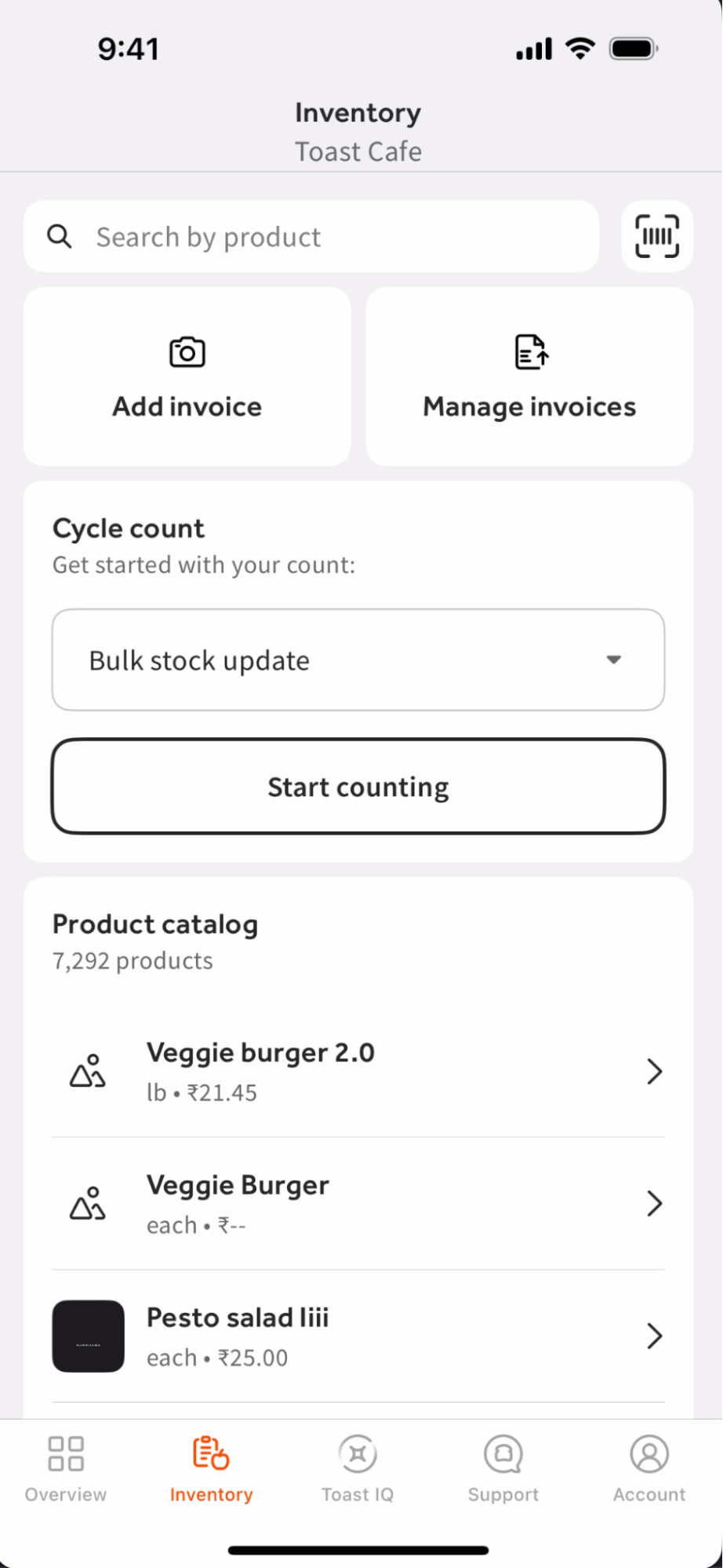
- Open the Inventory tab in the Toast Now app on your iOS mobile device.
- Tap Add Invoice and allow camera access if needed.
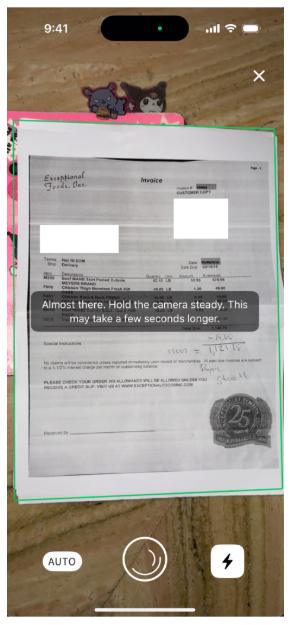
- Align your document with the border shown in the camera view and take a clear photo of your invoice (you can add multiple pages).
- Tap Submit — your invoice will be uploaded and begin scanning.
- Wait for the scan to complete
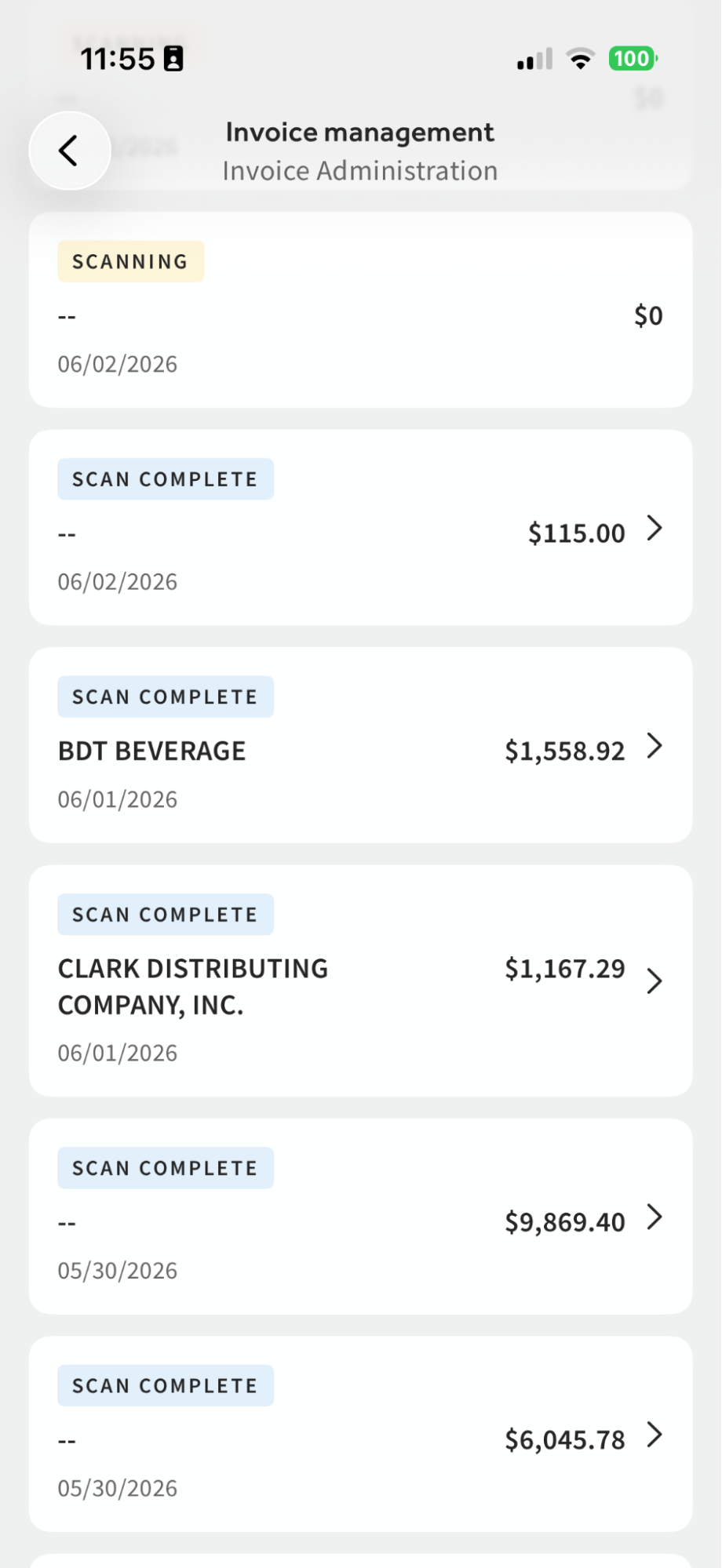
- Once processing is finished, the invoice will display a Scan complete status. You will then see the vendor name, total, and invoice date displayed in the Invoice Management screen.
- Once processing is finished, the invoice will display a Scan complete status. You will then see the vendor name, total, and invoice date displayed in the Invoice Management screen.
Step 2: Review scan
Check the information pulled from your invoice to ensure it is accurate.
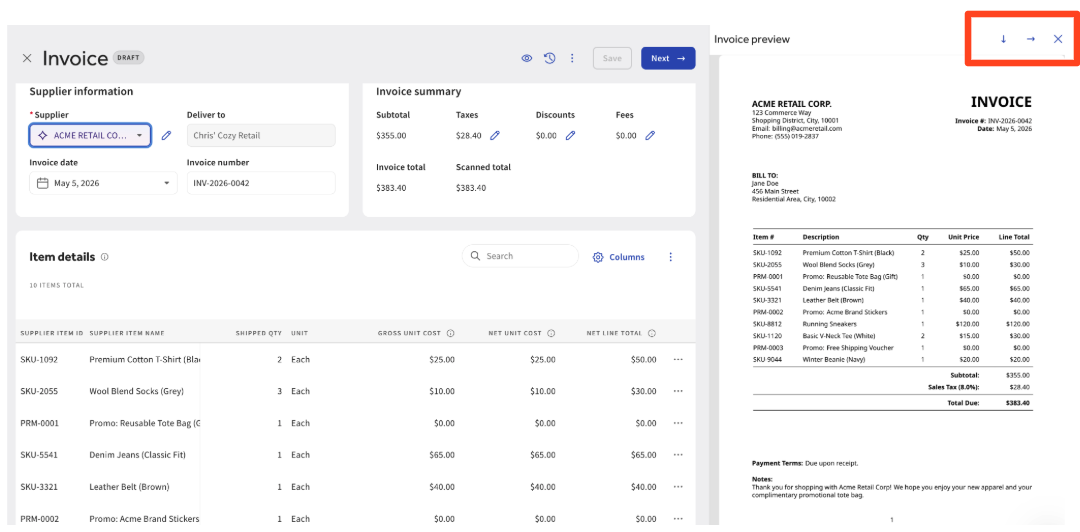
- A digital copy of your original invoice on the right. The extracted line items on the left. If you prefer to see the scan in a different view, select the down or right-facing arrow icons.
- Make any necessary edits
- Hover over each field to highlight where it appears on the invoice. Update any incorrect or missing details. This may be needed if parts of the invoice were unclear, cut off, or obstructed.
- After confirming your scanned details:
- Select Next to move into the familiar invoice creation screen.
- Toast will automatically fill in. Note: If something doesn’t populate automatically, you can manually adjust it here:
- Supplier item ID
- Supplier Item Name
- Shipped Quantity
- Unit
- Gross Unit Cost
- Net Unit Cost
- Net Line Total
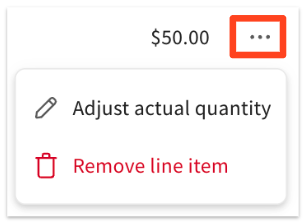
- The three-dot overflow menu can be used to make additional edits to the quantity or to remove the line item.
Step 3: Manage Products
See which products already exist and which need to be added. This section also shows how vendor purchase quantities translate into inventory quantities, so you know exactly how much of each item will be added.
- Select Next to move into the familiar invoice creation screen.
- Toast will automatically fill in:
- Supplier details
- Invoice number
- Item names, quantities, and cost
Note: If something doesn’t populate automatically, you can manually adjust it here.
Step 4: Match or Add Your Items
The system will use AI to recognize and categorize items.
- If an item already exists in your inventory, Toast will suggest a match. Select the Confirm match check mark to confirm.
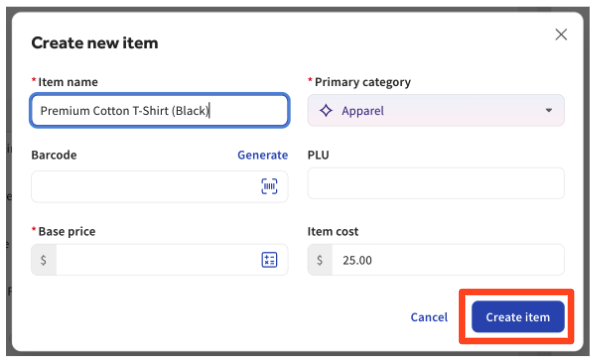
- If an item is new, select the blue Add button. Note: If an item isn't included in the suggested matches, you can still manually match it to the correct item in your inventory.
- Fill in any missing details and select Create item.
Note: Use Add All to create multiple new items at once.
Note: The first few scans may require adding several new items. Over time, Toast “learns” your catalog, and the matching becomes faster.
- Save and link items
- The finalized details are saved as a vendor item, which can be linked to a product in Toast. This helps streamline future receiving by improving speed and accuracy when updating inventory.
Note: If required information is missing, you will see the error message below. Before moving forward, these items must be completed.
- The finalized details are saved as a vendor item, which can be linked to a product in Toast. This helps streamline future receiving by improving speed and accuracy when updating inventory.

Step 5: Update Your Pricing
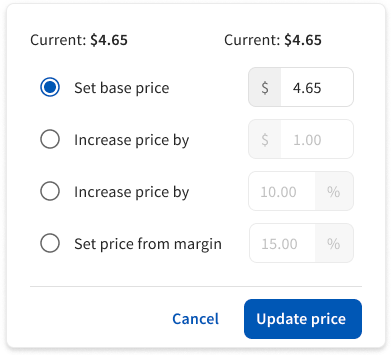
Update pricing breaks down cost changes and compares your previous purchase prices to this one. Use it to decide if you need to update your retail pricing. Monitor cost and margin changes to manage potential price changes. To update pricing, select the dollar amount on the line item under the Current Price column.
Note: This may differ from the price at the time the invoice was received.
Note: Pricing updates must be completed prior to marking an item as received.
Step 6: Receive Your Invoice
Once you have verified all of the upload information and/or have made the necessary changes:
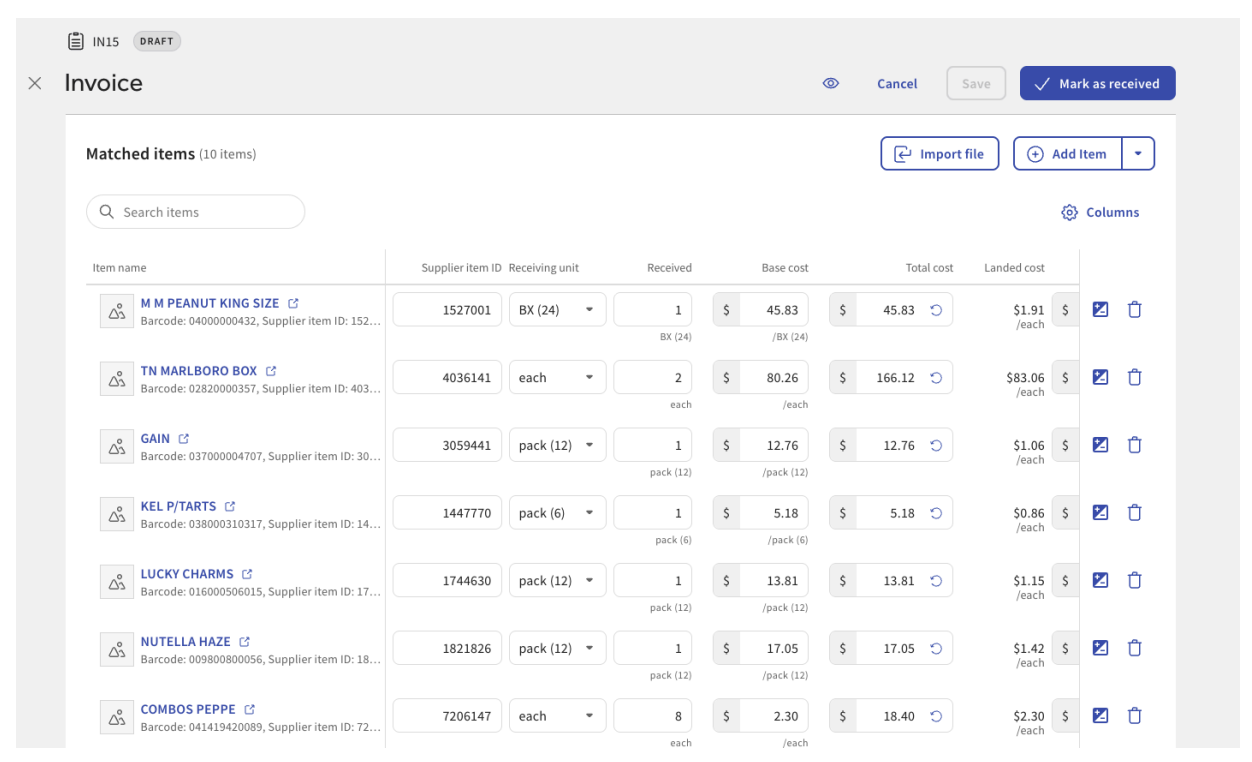
- Review your matched and newly added items. Select Save at the top of the page to save your draft invoice.
- Select Mark as received to move the invoice from Draft or Received state. This will update the inventory on-hand count for items in your item catalog.
AI Invoice Scanning Limitations
- Invoice-only scanning: You can scan invoices, but not apply them to purchase orders (POs) at this time.
- Mobile experience: You can capture invoices on mobile via Toast Web and the Toast Now app Retail and continue receiving, but the review experience is best on desktop due to detailed tables and invoice image viewing.
Related Articles