Get Help With Toast Retail
Last updated: Sep 28, 2026, 4:02 PM
- General Questions
- Is Toast Retail a separate platform/system from the core POS?
- If I update my items in the menu editor, will the changes reflect in the Retail module?
- What user permissions do I need to access the Toast Retail module?
- Can I sell my retail items online?
- Can I scan inventory on the Toast Now app?
- Why is my retail item showing a negative quantity?
- Why does my Sales & COGS report show a negative amount after I adjust an item's quantity count?
- What does the "Days Left" indicator on an inventory item mean?
- Can Toast help me return items to a vendor?
- Setup
- What if my retail items are already added to one of my menus in Toast Web?
- How can I set up a bottle deposit?
- How do I update my retail tax rates for a specific category or category groups?
- How can I stop retail items from printing to my prep stations?
- How can I add new Toast menus to my Retail module after I've gone live?
- What if I have multiple suppliers for an item?
- Why did my Toast Retail categories get split into “-1” and “-2”, when importing?
- Can I use Toast Retail for multiple locations?
- Does Toast Retail support item modifiers?
- Using Retail on the POS
- How can I have my retail items show on only one POS device?
- Do I need to have buttons on the POS for the items I’m scanning?
- Can retail items be added via Quick Edit on the POS?
- Can I turn off tipping on the POS for retail purchases?
- Why are my item variations showing up as separate buttons on the POS?
General Toast Retail Questions
Is Toast Retail a separate platform/system from the core POS?
No, Toast Retail is a module that enables more robust retail functionality within the current POS, and a more comprehensive database of retail items within Toast Web.
If I update my items in the menu editor, will the changes reflect in the Toast Retail module?
Yes! Although Toast Retail uses different names for some parts of the menu (like "category group" instead of "menu"), any changes you save in the menu editor will show up in the Retail module as well after you publish your changes. Changes made and saved within the Retail module are immediately visible in the other Toast Web menu editors, which is why it’s recommended that you use the Retail module for all of your retail item editing needs.
What user permissions do I need to access the Toast Retail module?
To access the Retail page in Toast Web, you'll need to have the 4.5 Edit Full Menu user permission. To make changes to retail inventory, you'll also need the 5.2 Inventory & Quantity user permission. To access Retail reports, you'll need the 4.1 Sales Reports permission.
To learn more about user access permissions, check out the Permissions Reference Guide.
Can I sell my retail items online with Toast Retail?
Yes, the products within the Retail module are the same as regular menu items, and you can set visibility of retail items the same way for Toast Online Ordering. For more information, see this Support Center article: Show or Hide Menu Items for Toast Online Ordering. There is a limit of 1,500 items for Toast Online Ordering.
Note: Toast Online Ordering does not support the shipping of products. You'll have to use a third-party solution for shipping, if desired.
Can I scan inventory on the Toast Now app?
You can scan inventory in the Toast Now app on iOS devices (iPhone and iPad). In the Inventory section of the app, select +Add product to add a new product to your Item Catalog. You can use the Smart Scan feature to scan the barcode or upload an image. Enter the item's details, then select +Add product. For more information, see the Manage Item Catalog in the Toast Now App section of Toast Retail: Manage Your Inventory.
Toast Retail features, including Smart Scan, are not available in the Toast Now app for Android. On an Android device, log in to Toast Web in a mobile browser, such as Chrome, and select Retail to scan barcodes with your phone's camera.
Note: For questions about barcodes, see Get Help With Barcodes and Scanning
Why does my Sales & COGS report show a negative amount after I adjust an item's quantity count?
If you reduce an item's quantity to correct a count (for example, you entered 14 but only had 12 on hand), the Sales & COGS report will show a negative Cost for those 2 units — this is expected behavior, since the report reflects the quantity adjustment itself, not a loss. To see actual sales separately from quantity adjustments, use the Inventory Roll Forward report instead: the Orders column shows real sales, and the Count column shows quantity adjustments and their associated cost.
What does the "Days Left" indicator on an inventory item mean?
"Days Left" is an estimate of how many days of stock remain before the item runs out, based on the item's previous sales.
Why is my retail item showing a negative quantity?
Below are some of the factors that may affect an item's inventory count and may result in showing a negative quantity:
-
- Damaged or Expired items
- Items that are marked Damage and Expire decrease your inventory count. If you are starting at zero or a low number and then you adjust your inventory for damaged/expired goods later on, you could end up with a negative inventory count. You can view the history of adjustments made by following these steps:
- Damaged or Expired items
-
-
-
- In Toast Web, navigate to Retail > Item management > Item catalog and select the item that you wish to view.
- Under the Inventory section, select See all next to Recent inventory history.
-
-
-
- Shopify Integration Setting
- On the item page in Shopify, check if the Continue selling when out of stock setting is enabled. When enabled, it will allow your retail items to be oversold.
- Failure to Update an Item's Inventory Quantity on Toast
- Putting items up on shelves for sale prior to updating an item's inventory count on Toast could also impact and decrease the inventory quantity. For instance, if an item is marked "out of stock", your staff still has the ability to scan the item using a barcode scanner and complete the sale transaction, which can decrease an item's inventory quantity. This can be checked by reviewing the quantity of the item in the Retail item catalog and looking at a Product Mix or Menu Breakdown report to view the total quantity of the sold item.
- Shopify Integration Setting
Can Toast help me return items to a vendor?
No, at this time, Toast does not have any capabilities to facilitate returning purchased products to a vendor. If you do return inventory, manual updates to inventory levels should made by the restaurant.
Toast Retail Setup Questions
What if my retail items are already added to one of my menus in Toast Web?
It’s easy to bring existing menus into the Toast Retail module! You can either add them during your initial setup, or you can add them from the Categories page within Retail (see Get Started With Toast Retail for more information). Bringing in existing menus to your Retail item catalog doesn't cause any disruption to your menus, and can be done during your regular business hours.
Can I edit retail items in the Toast Web menu editor?
While it’s possible to update retail items using the Toast Web menu editor, the changes must be published in order to be visible in Toast Retail. Changes made and saved within the Retail module are immediately visible in the other Toast Web menu editors, which is why it’s recommended that you use the Retail module for all of your retail item editing needs.
How can I set up a bottle deposit with Toast Retail?
If you want to charge a set amount of money as a bottle deposit (e.g. $0.15 per bottle), we recommend setting up a fixed tax rate that can be applied to the appropriate items. Create a tax rate for each package size that requires a bottle deposit (i.e. single bottle, 6-pack, etc.). For easier upkeep, you can organize categories by package size and set the tax rate at the category level so it’s inherited by all of those items. To learn more, check out this Support Center article: Set Up Tax Rates and Adjust Tax Options.
Note that with this method, your bottle deposits will be calculated in the tax sections of your reports.
How do I update my retail tax rates for a specific category or category groups?
The easiest way to configure different tax rates is by grouping items with the same rate into one category group or category so that the tax settings are inherited by all items in that category group/category.
When setting taxes, if your default tax rates don't apply to your retail items, make sure to override those tax rates for those specific items.
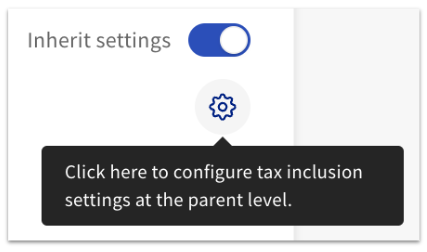
You can update tax rates by navigating to the item details for that specific item within the Retail module and scrolling down to the Taxes section. You can use the toggle to enable or disable inherit tax settings, or select the gear icon below the toggle to configure the tax rates at the category or category group level.
How can I stop retail items from printing to my prep stations?
Within Toast, if you don't want your items to print to a prep station you must select a "no print" prep station, or else those items will print to every prep station. Prep stations can be assigned at the item, category, or category group level by visiting the item details page in the Retail module for a particular item and scrolling down to the Prep station section. Selecting the gear icon under the toggle will allow you to configure prep station settings at the parent level.
How can I add new Toast menus to my Toast Retail module after I've gone live?
To add new Toast menus to Retail, navigate to Item management > Categories. Then, select Manage in the top-right corner and use the checkbox to add any other menus you’d like to be captured in your item catalog.
What if I have multiple suppliers for an item when using Toast Retail?
On the item's item details page, you can set multiple suppliers for a single item. The Primary supplier will be the default supplier populated for an item in Toast Retail workflows, but you'll be able to switch to one of your Additional suppliers when needed. These fields are available to account for suppliers you use less frequently to procure the same item at a different cost.
Why did my Toast Retail categories get split into “-1” and "-2”, when importing?
Retail has a limit of 1,500 items per category and will automatically create new categories when that limit is reached.
Can I use Toast Retail for multiple locations?
Yes! Toast Retail is designed to support customers using Toast Multilocation Management (MLM). You can create a single retail catalog that can be tied to a reference location but promoted and shared across locations. Unlike food menu items that need to be carefully targeted at specific locations or groups of locations, the entire retail item catalog is often targeted at all locations. Each location, depending on the concept and the footprint, then carries a certain subset of items that will be scanned and sold.
Does Toast Retail support item modifiers?
No, Toast Retail does not support item modifiers. There is no correlation between menu modifier groups and retail option sets (as a reminder, an option set is a grouping of item variations within Toast Retail). Any items that are used as modifiers on a menu will appear as regular items if they're added to the Toast Retail module.
Using Toast Retail on the POS
How can I have my retail items show on only one POS device?
You can use hidden menus to show retail items on only one POS device. To learn more, check out this Support Center article: Show Hidden Menus on Select Devices.
Do I need to have buttons on the POS for the retail items I’m scanning?
No, you don't need to have buttons on the POS for your retail items; you just have to make sure that the items (not just the category group) are visible to the POS. Below is a breakdown of which combinations of visibility settings will and will not scan:
| Set to "visible" on the POS? | Will it scan? | ||
| Category group (menu) | Category (group) | Item | |
| ❌ | ✅ | ✅ | Yes |
| ❌ | ❌ | ✅ | Yes |
| ❌ | ❌ | ❌ | No |
| ❌ | ✅ | ❌ | No |
| ✅ | ✅ | ❌ | No |
| ✅ | ❌ | ❌ | No |
Can retail items be added via Quick Edit on the POS?
Yes, retail items can be added via Quick Edit mode as long as the item is added to a menu currently being managed within the Retail module. However, it's important to note that you won't be able to add any of the data specific to retail (ie. cost, brand, supplier) unless you're editing the item in Toast Web.
Can I turn off tipping on the POS for retail purchases?
Yes, you can turn off tipping on an individual device if you don't want your guests to be prompted to tip on an device where you're selling retail products. On the main menu of the Toast app on your terminal, navigate to Device Setup (in the Setup section) and find the Disable tipping on this device setting. If you choose to disable tips, no orders taken on this device will display the tip prompt.
Why are my item variations showing up as separate buttons on the POS?
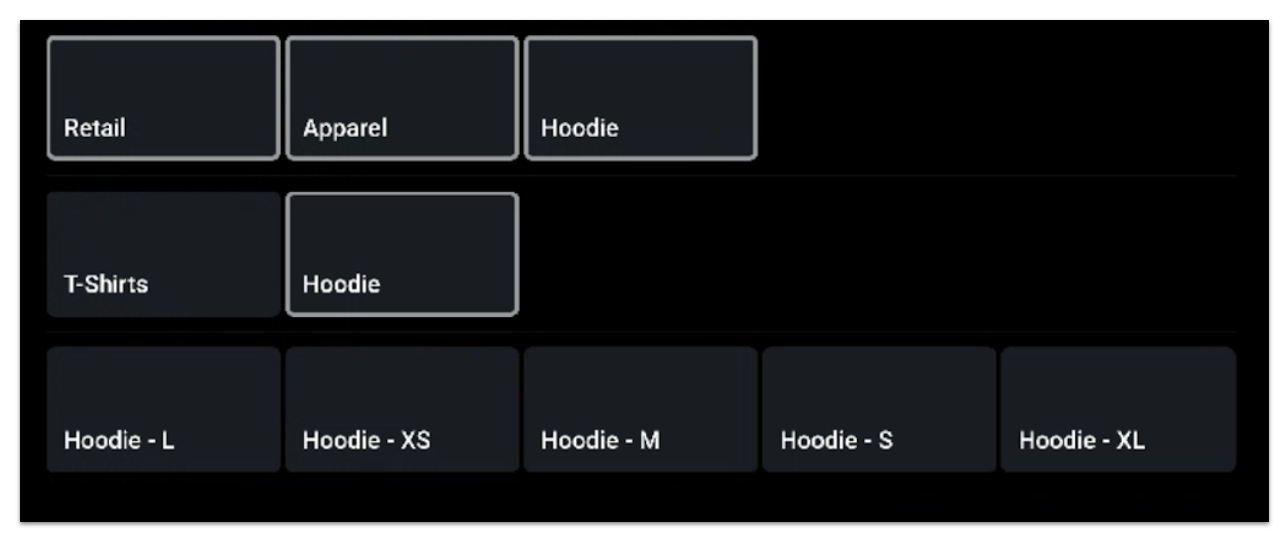
Variations create separate items and therefore separate buttons on the POS. Retail does not support modifiers. To create an order flow similar to modifiers, we recommend creating subcategories specific to each variation group. For example, if you have a Hoodie with different size variants, you can separate these items by creating a separate Hoodie subcategory within the category and category group.