Get Started With Retail POS Mode
Last updated: Sep 17, 2026, 12:24 PM
Retail Mode streamlines Toast POS retail checkout to improve transaction speed, reduce manual entry, and minimize errors.
- Overview
- Configuration
- Use Retail Mode on the Toast POS
- Save an Order and Come Back to It
- Related Articles
Retail Mode Overview
Retail Mode is designed to deliver a faster, more accurate, and more intuitive checkout experience for retail transactions on the POS. By streamlining common checkout workflows, Retail Mode helps cashiers process sales efficiently while reducing manual entry and errors.
This launch introduces three core capabilities that support a modern retail checkout experience:
- Barcode scanning for quick product identification
- Scale-based weighing for items sold by weight
- PLU (Price Look-Up) code lookup for produce and other PLU-enabled products
Together, these features enable retailers to process transactions faster, more accurately, and more easily, improving both cashier productivity and the customer checkout experience.
Retail Mode Configuration
Step 1: Toast Web Configuration
- In Toast Web, navigate to Front of house > Order screen setup > UI options.
- Confirm that the following settings are toggled Off:
- Prompt to tab name (Quick order only)
- Prompt for dining options (Quick order only) Note: If any changes are made in this step, be sure to Save and publish your changes.
- Navigate back to Front of house > Quick order.
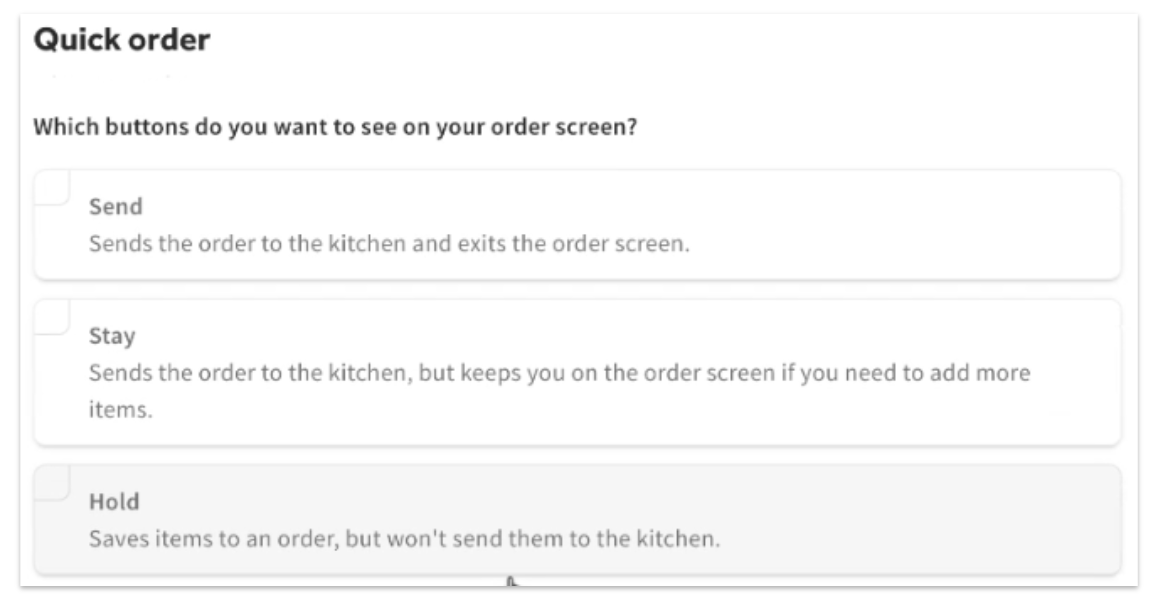
- Confirm that Send and Stay are not enabled.
- Decide whether you want the Save button in Retail Mode. Save lets a cashier set an order aside and start the next guest, and it appears only when the Hold button is enabled here. Enable Hold if you want Save; leave it off if you do not.
- Next, confirm that the following settings are set to Off:
- Require a tab name
- Prompt for dining option
- Seat numbers
- Coursing
- Save and publish any changes.
Step 2: Retail Mode POS Settings
- On the Toast POS, navigate to Device Settings and confirm and/or update the following settings:
- Primary Mode: Retail
- Enable SKUs: Yes
- Default Dining Option: Off
- Order Screen Menu View: Focus View
Note:
- The Mode button (used to switch into Retail Mode) cannot be removed from POS navigation. If you don't use Retail Mode at a given terminal, you don't need to set Primary Mode to Retail — leaving it set to Quick Order or Payment Terminal keeps staff from being dropped into Retail Mode by default. The Mode button will remain visible but unused.
- Once configured, you can confirm these settings remotely across your retail terminals via the Settings tab in Device Hub, without walking up to each device.
- These setup steps (Step 1: Toast Web Configuration and Step 2: Retail Mode POS Settings above) apply to Toast POS terminals, configured in Device Settings on the terminal itself. This article does not cover Toast Go® handhelds. If you want to use these settings on a Toast Go® handheld, contact Toast Customer Care to confirm availability for your device.
Use Retail Mode on the Toast POS
Follow the steps below to use Retail Mode on the Toast POS.
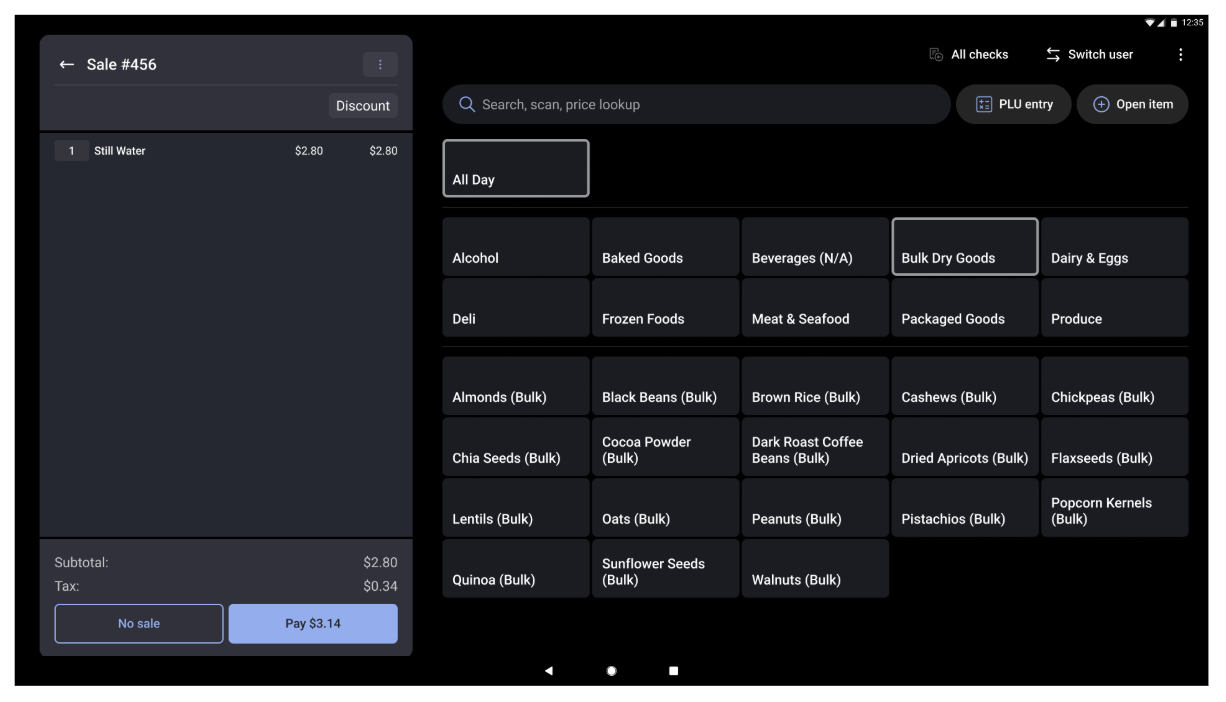
- On the Toast POS, navigate to Mode > Retail Mode.
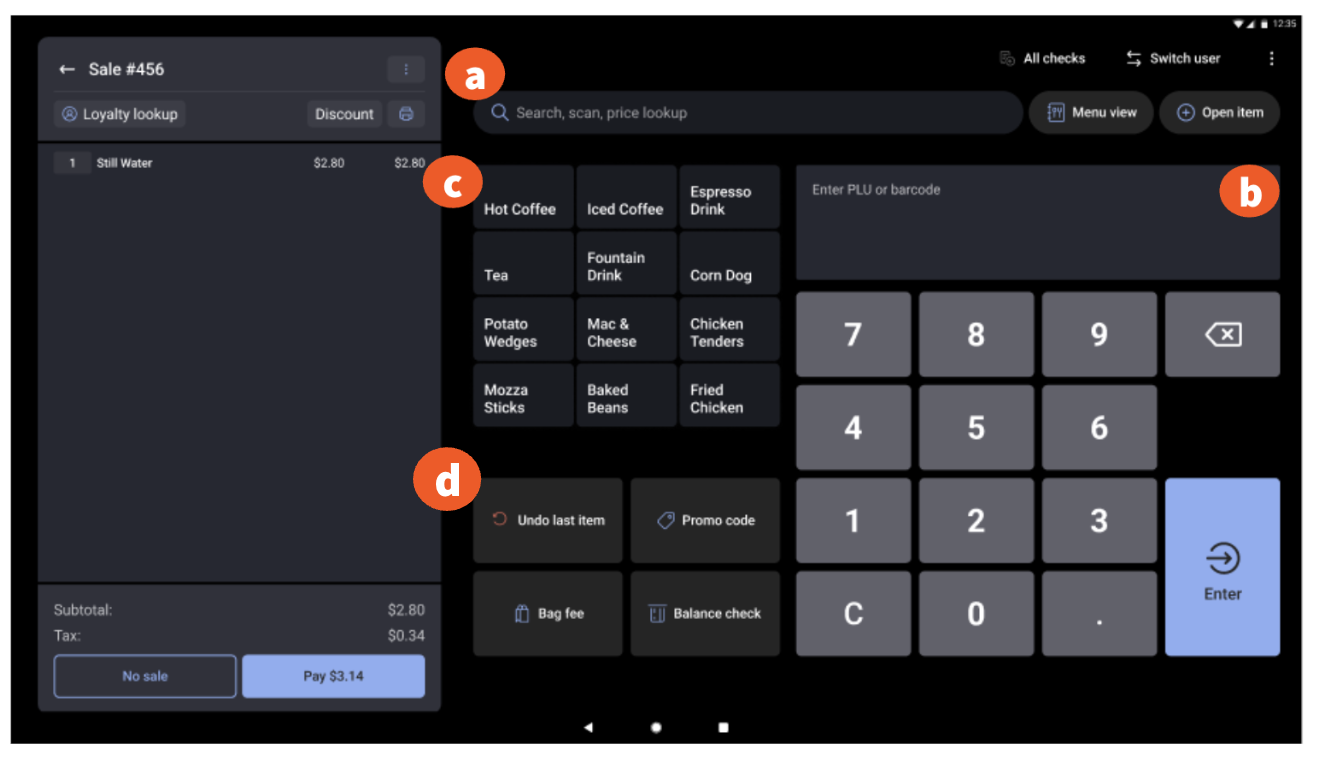
- In Retail Mode, you can add an item by one of the following:
- Use the search bar to enter the item.
- If enabled, scan using an in-counter or handheld scanner, or enter the PLU.
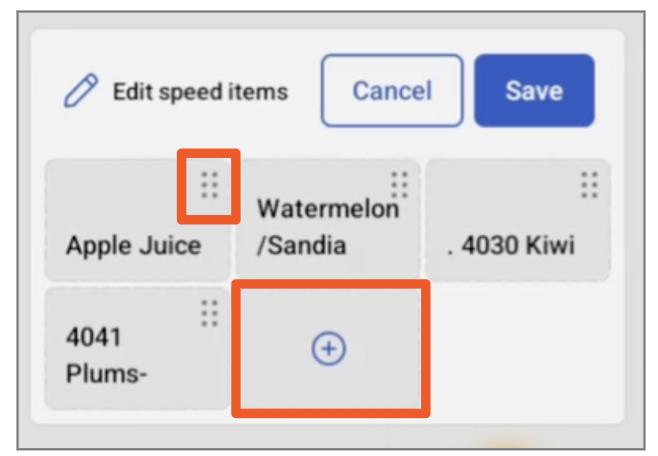
- The Speed menu is a configurable list of items users can quickly add to an order without searching for the item or entering a code.
- Items from the speed menu can be added by selecting the + icon or removed by selecting the overflow menu on the item. Note: Only 12 items can be listed on the speed menu.
- Once edits have been made, select Save.
- Items from the speed menu can be added by selecting the + icon or removed by selecting the overflow menu on the item. Note: Only 12 items can be listed on the speed menu.
- Speed action settings are a configurable set of frequently used action buttons that let cashiers perform routine tasks quickly to keep lines moving.
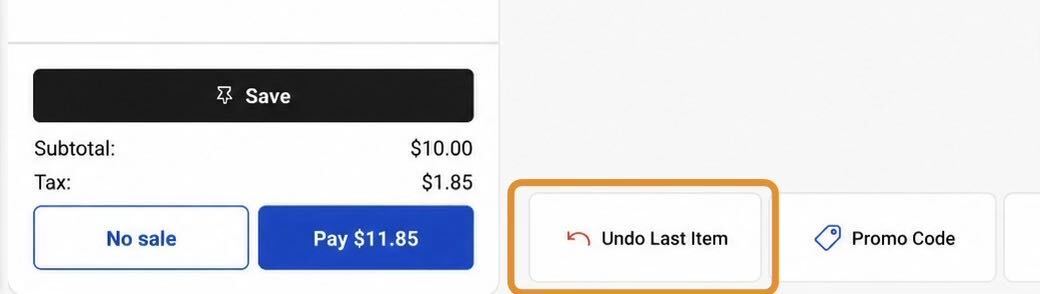
- Undo Last Item is one of the default speed actions. Select it to remove the most recently added item from the order in progress. The subtotal, tax, and total recalculate immediately.
- If your location requires a reason for item removals, a prompt appears first, and the item is removed after you select a reason.
- Note:
- Undo Last Item always removes the most recently added item on the current order. To void an entire order, see Void Items, Payments, and Checks. To return an item from an order that has already been paid for and closed, see Get Started With Returns on the Toast POS.
- Undo Last Item is available on Toast POS 2.111 and later.
- Undo Last Item is unavailable when no items have been added to the order.
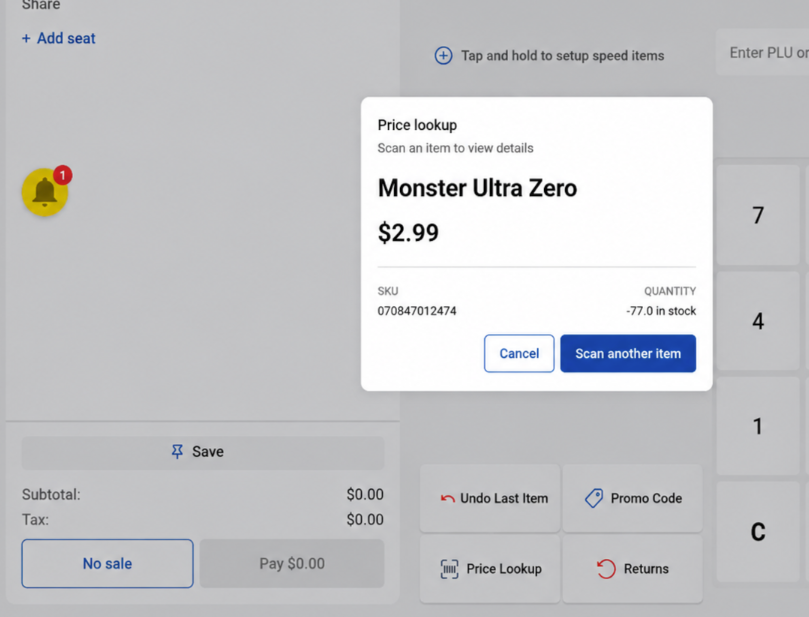
- Price Lookup is one of the default speed actions. Use it to answer a guest's price or stock question without adding anything to the order.
- Select Price Lookup. A window opens showing a scan target and Ready to scan.
- Scan the item's barcode.
- The window shows the item name, price, SKU or PLU, and Quantity — the current on-hand count.
- To check another item, select Scan Another Item. To close the window, select Cancel in the bottom-right corner, or select anywhere outside it. Either way, the order you were working on is exactly as you left it. Price Lookup never adds or removes an item and never changes a total.
- Note:
- If the barcode is not recognized, the window tells you the barcode was not found and lets you scan again. A barcode that repeatedly fails to look up usually means the item is not in your menu or catalog yet.
- A dash in the Quantity field means the item is not being tracked for quantity. It does not mean the count is zero.
- Price Lookup is read-only. Prices and counts are changed in Toast Web.
- Price Lookup is available on Toast POS 2.112 and later. No back-office setup is required.
- Or, you can access the full menu view by selecting Menu view.
- Once all items have been added, select Pay to accept payment and complete the transaction.

Save an Order and Come Back to It
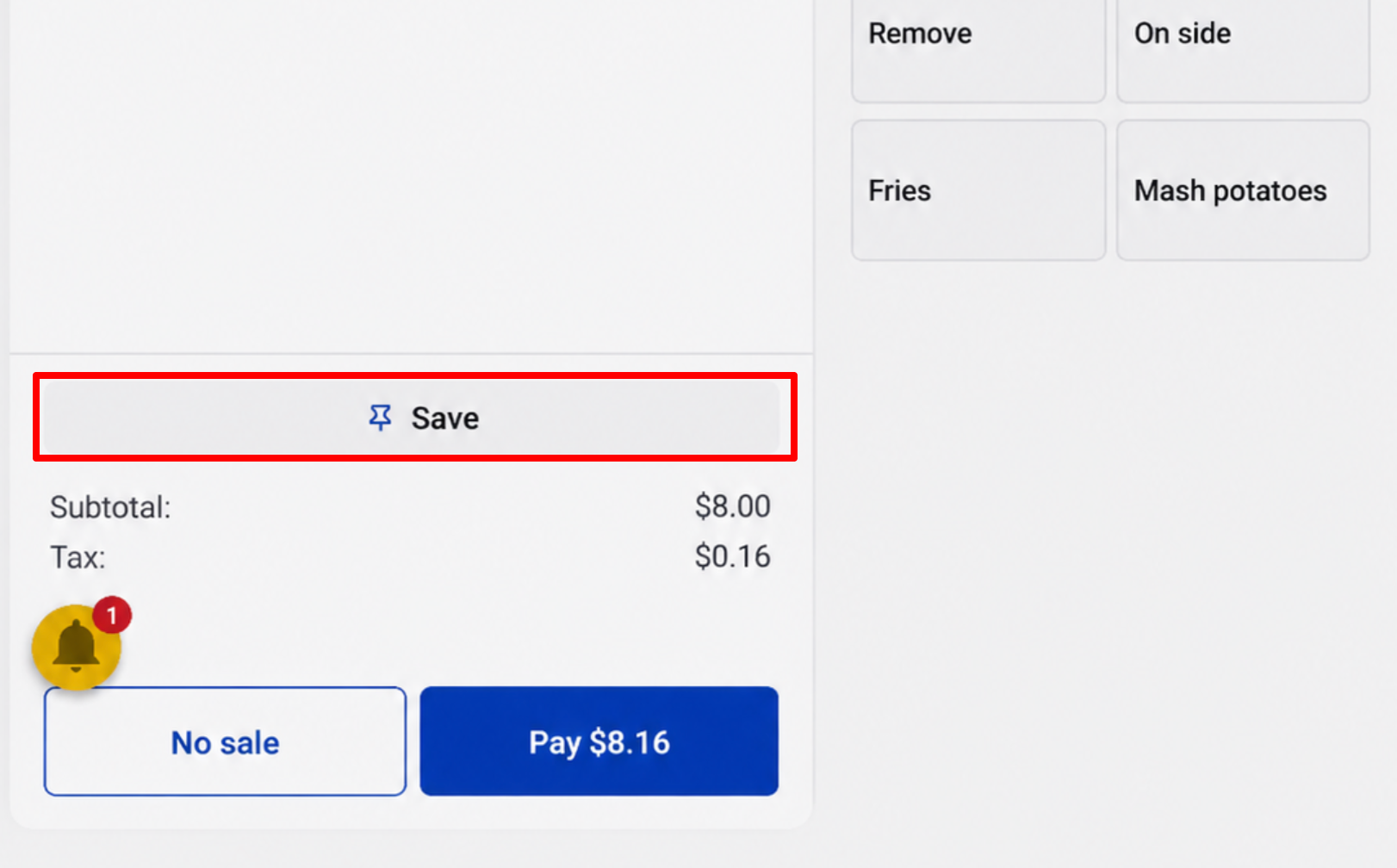
Save sets the order you are ringing aside so you can start the next guest right away. The saved order is sent to your payment terminal as an open check, and you reopen it from there when the guest comes back. This is the same capability as the Hold button in Quick order — Retail Mode calls it Save.
Before you start: Save appears only if the Hold button is enabled for the Quick order screen in your Toast Web Front of house configuration. There is no separate Retail Mode setting. If a cashier does not see a Save button, that setting has not been turned on.
To save an order:
- Ring up items as usual.
- Select Save.
Expected outcome: The order is sent and the screen clears, ready for the next guest.
To finish a saved order, go to your payment terminal, find the order in your open checks, and take payment as normal. You can add items, apply discounts, and complete the transaction exactly as you would with any other check.
Note:
- Saved orders are ordinary open checks. They follow your restaurant's existing open-check behavior, including end-of-day handling, so make sure saved orders are settled before you close out.
- You can save more than one order and reopen them in any order.
- Save is not a void. The order stays open and still has to be paid for or voided.
- Save is available on Toast POS 2.114 or later and the Hold button is enabled.