Get Started With Food Waste Reduction
Last updated: Sep 21, 2026, 4:08 PM
Food Waste Reduction helps you manage your excess food, reduce costs, and identify new savings opportunities by providing an easy-to-use educational hub, waste tracking functionality on your POS (Point of Sale), and food waste reporting.
Note: If you don't see Food Waste Reduction in Toast Web, please contact Customer Support.
- Food Waste Reduction Overview
- Food Waste Tracker
- Food Waste Education Hub
- Food Waste Reporting
- Food Waste Tracker Configuration
- Additional Resources
Food Waste Reduction Overview
Your food waste cost doesn’t have to be a mystery anymore. With the Food Waste Reduction suite, you can track food waste to optimize operations, use real-time data to reduce your food waste, and increase visibility into cost of goods sold. Watch the video below or follow the instructions in this article to set up food waste tracking and use the Food Waste Education hub to turn insights into action with cost-saving strategies.
Watch this video to see how Toast customer, Flour Bakery + Café, successfully utilizes the Food Waste Reduction suite!
Food Waste Tracker
To make use of food waste tracking, you need to identify what food waste reasons you want your staff to start tracking. Some examples include:
- Expired
- Drop
- Misfire
- Burnt
- Donation
- Compost
Once you have a plan, you can add these food waste reasons in Toast Web and then start tracking them on your POS.
Overview of Toast Food Waste Reduction
Set Up Waste Reasons
Any employee with the 6.1 Discounts Setup permission will be able to create and edit discounts in Toast Web. You can set up your food waste reasons by following these steps:
- In Toast Web, navigate to Menus > Food waste management > Food waste tracker.
- Select + Add Discount Reason.
- Add a Name and Description. Target and Owner should be selected for restaurants that are part of a multi-location group.
- Ensure both the Active and Waste columns are toggled to the on position.
- Save and publish your changes.
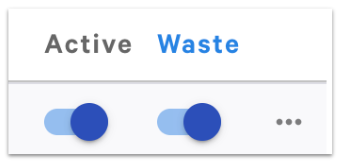
Similar to normal discounts, your waste discount reasons can be applied to more than one location (or all locations) in your group using the Owner drop-down for any given food waste reason.
Track Waste on Your POS
In order to discount an item using waste reasons on the POS, an employee must have the 1.19 Record Excess Food Menu Items permission and waste reasons must be configured in Toast Web as described above.
Note: Any employee account created prior to June 21, 2023, with the 1.2 Quick Order Mode permission was automatically given 1.19 Record Excess Food Menu Items permission. Any new employees after that date will need to have permission added to their job or profile in order to use this feature on the POS. To learn more about permissions, check out the Permissions Reference Guide.
The food waste tracker on the POS works by using the traditional check concept. All items logged in this mode are added to one check per day. Items can be added, edited, or deleted in a similar manner to the usual order taking experience.
- On your POS main menu, select Waste Tracking in the Mode section.
- Select the desired waste reason you’d like to log. These are the reasons that were created in Toast Web.
- Select the item(s) that you’d like to track for that specific waste reason.
- Select Save each time you’re finished logging waste items so that your check is saved for the next time you return to this mode.
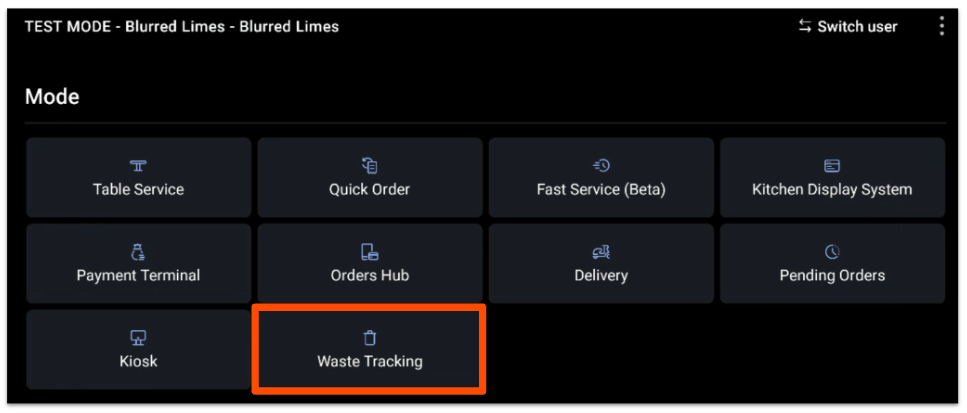
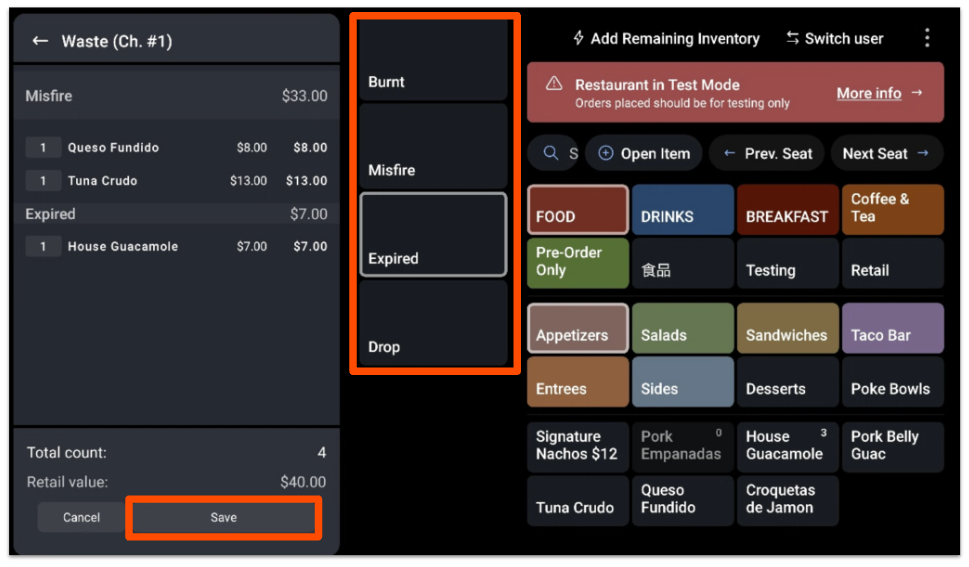
A few tips to keep in mind:
- Items with modifiers must be fully completed before adding them to the waste log.
- Waste tracking mode is compatible with Toast Go's and scanners.
- You cannot change the items on a previous day's food waste check.
- When you add a menu item to waste tracking, the item will be deducted automatically from your restaurant's inventory count. However, in order for that to occur, your restaurant must not be in test mode. To learn how to disable test mode, check out this Support Center article: Test Mode Overview.
Food Waste Reporting
You can access the Food Waste Breakdown report by navigating to Reports > Menus > Food waste breakdown in Toast Web. This report aggregates every action your staff has taken on the POS Waste Tracker for the date range and location(s) you select.
You can use the toggle at the top of the chart to view a breakdown by day, waste reason, or top items.
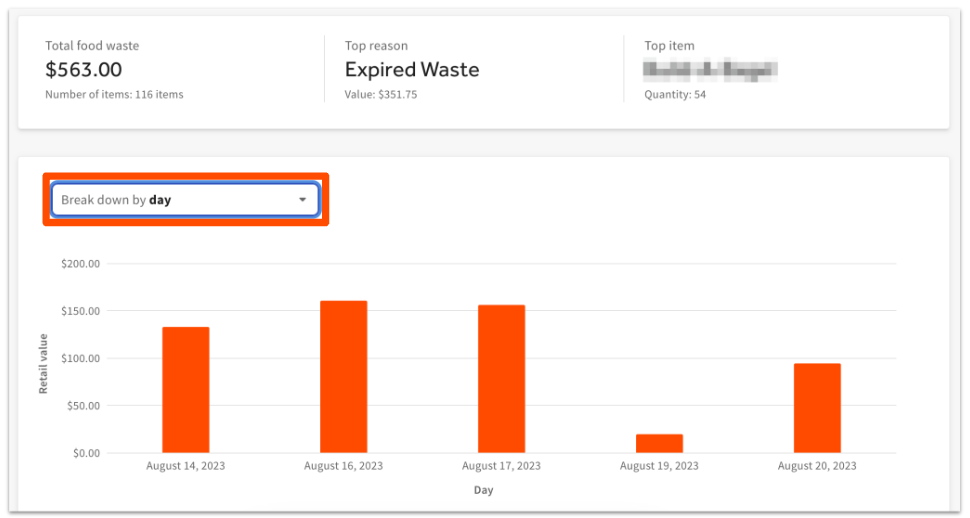
You can select the download (down arrow) or email (envelope) icons at the top of the report to share the data outside of Toast Web.
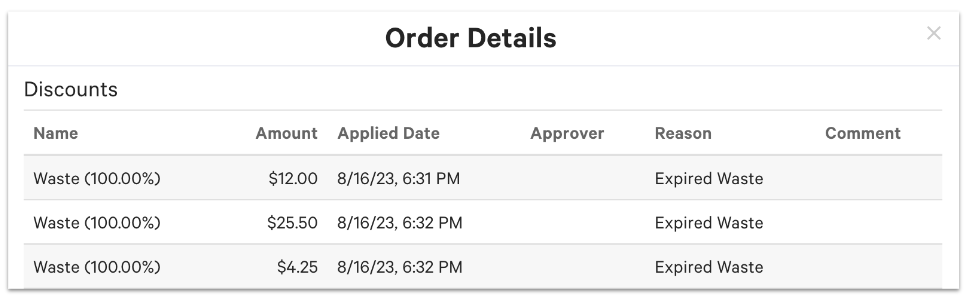
To review check details for waste reasons, you can navigate to Reports > Sales > Orders and select the order number that matches the waste check number on your POS. If you scroll down, you’ll see discount reasons listed under order details:
Note: Your inventory management vendor of choice can access this waste order given it lives within the Toast Orders API. Please consult your inventory management vendor to ensure they are handling this waste data properly when they are consuming the Orders API. For more information, check out the developer guide.
Food Waste Education Hub
Log in to Toast Web and navigate to Menus > Food waste management > Food waste education hub. Use the tabs at the top of the page to find helpful information about excess food management. The Food Waste Education hub can help with:
- Estimating the cost of food waste
- Finding ways to save on ingredients
- Food donation guidelines
- Food waste resources
Be sure to check back periodically for new content to help you on your food waste reduction and cost savings journey. You can use the information on the hub to help determine your strategy for actioning the food you’ve tracked directly on your POS.
Food Waste Tracker Configuration
You can access the Food Waste Tracker Configuration by navigating to Menu > Food waste management > Food waste tracker configuration in Toast Web. You can use the Food Waster Tracker to:- Enable/disable food waste tracking mode on the POS
- Configure your restaurant's food waste reasons when an item is logged
Back to top