Test Mode Overview
Last updated: Sep 17, 2026, 9:15 AM
Learn how to enable and disable Test Mode for onboarding and training purposes.
| This article is for customers who are both live (customers that are already using Toast, but go back into Test Mode to validate that your restaurant is set up properly) and pre-live (customers that are still onboarding with Toast, and are in Test Mode). If you are a pre-live customer, you can use your terminal in test mode on Wi-Fi before it is hardwired during your installation appointment.
If your account is doing Self-Service Onboarding, then you may disable Test Mode whenever you're ready. Please see the Go-Live section of the Self-Service Onboarding Guide to verify that you are good to go.
If your restaurant is in Test Mode and you're ready to go live ahead of your scheduled go-live date, please reach out to your Onboarding Consultant for additional assistance. If you're unsure of who your Onboarding Consultant is, please start a live chat here with our Customer Support team. Chat is available in Toast Web and Payroll Web (blue support button in bottom right of every page) and the Support tab in the Toast Now app.
For more information on how to contact support view "How to Contact Customer Support" or go to support.toasttab.com. |
- Test Mode Overview
- Using Test Mode
- How Do I Know If My Restaurant is in Test Mode?
- Frequently Asked Questions
Test Mode Overview
Permissions needed:
- 7.2 Advanced Terminal Setup — required to enable and disable Test Mode on the POS
Test Mode allows you to take your restaurant from being live and fully operational to being able to validate that your restaurant is set up properly before going live. In Test mode, you can simulate workflows and payments without affecting your sales data. You can use Test Mode as a tool to validate your settings and menu setup before going live with Toast. Settings like active discounts and promo codes will also be available in Test Mode.
Any orders placed and payments taken while in Test Mode will be removed and voided upon disabling Test Mode. If you are open for business and have left test mode, but choose to re-enter for any reason, any test payments applied to live orders while in test mode will be removed when you return to live mode.
If you enable Test Mode from a device in your restaurant, it will put your entire restaurant in Test Mode. Test Mode cannot be isolated to a single device. We strongly discourage enabling Test Mode during your service hours at the risk of losing orders and payment data across your restaurant. If you're using it to train employees, it's critical to disable Test Mode when you are finished with training.
Note:
- Test Mode does not automatically disable Online Ordering, which means you may want to turn off Online Ordering temporarily to prevent guests from placing and paying for orders while you're working in Test Mode. To learn how to turn off Online Ordering temporarily, please see this Support Center article Check Online Ordering Status.
- If Test Mode is enabled, cash management functionalities such as closing a drawer or starting a new drawer will be disabled, and inventory and/or item stock count will not be affected.
Using Test Mode
Enable Test Mode
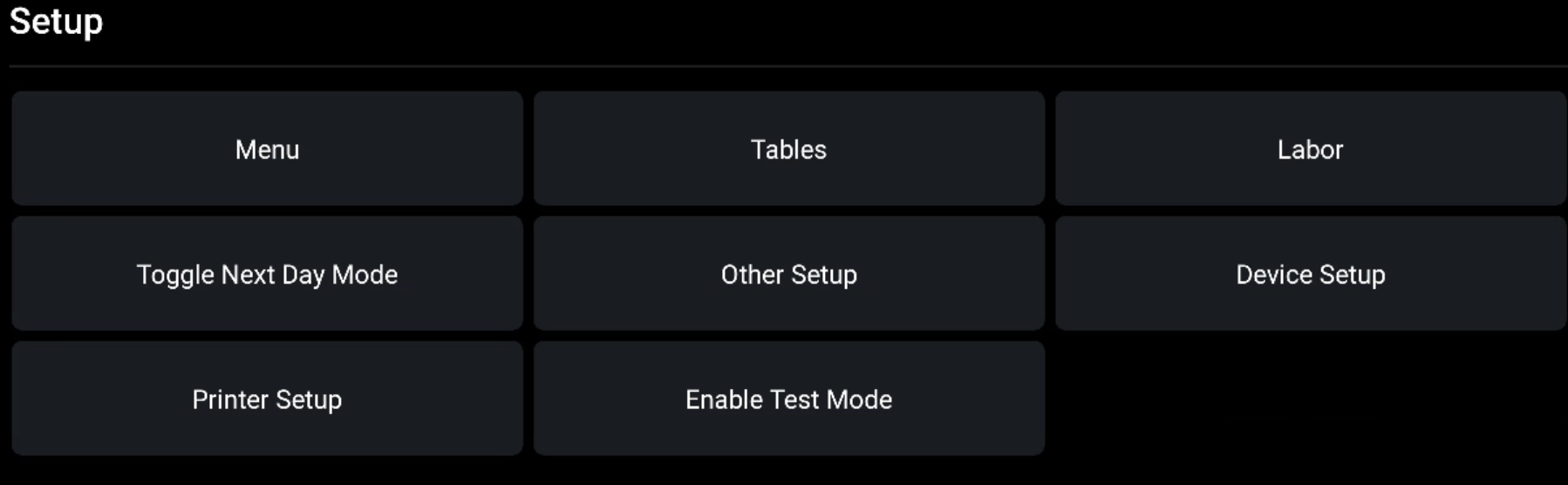
- You can enable Test Mode from the main menu on your POS by navigating to the Setup section and selecting Enable Test Mode.
- Once selected, you'll be asked to confirm that you are enabling or disabling Test Mode. In the following example, we want to turn on Test Mode so we're going to select Enable Test Mode to confirm the change.
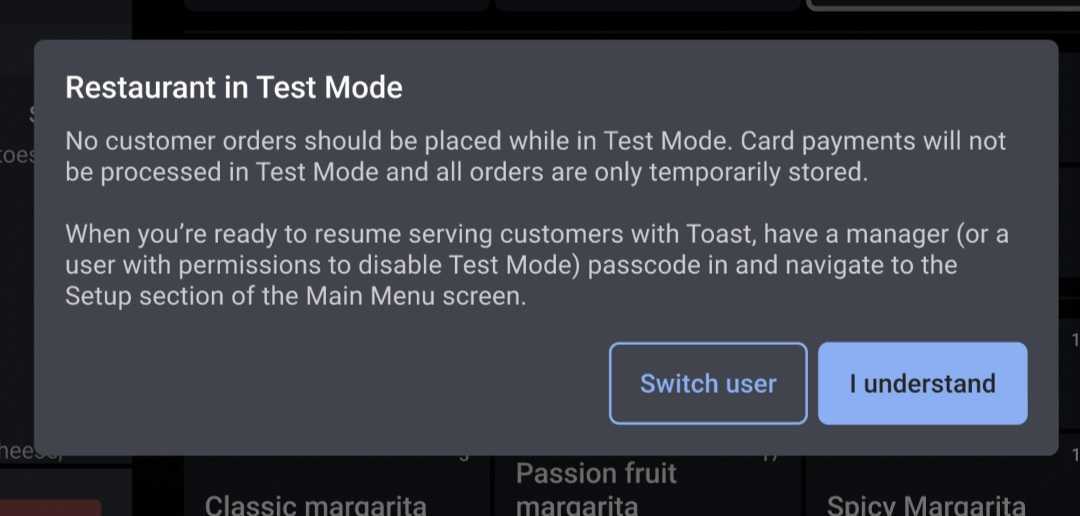
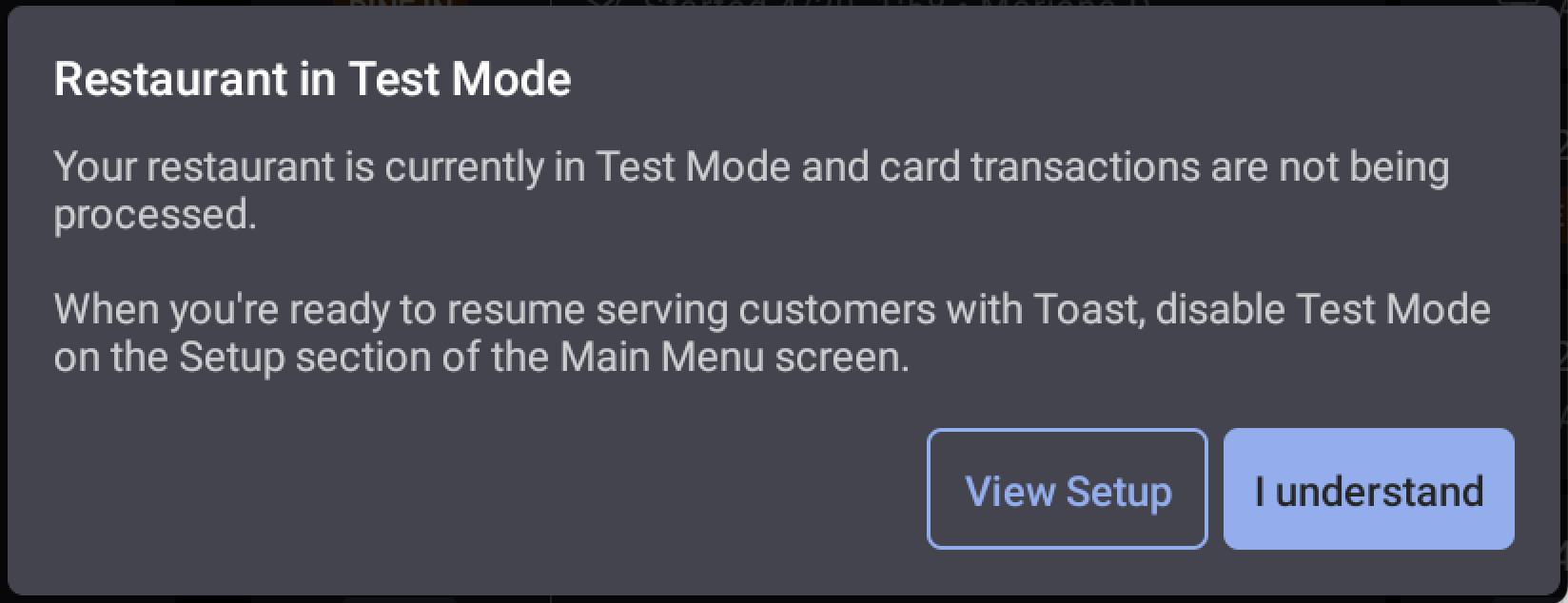
- After you clock in with Test Mode, you'll see a pop-up informing you that any payment taken in this mode will not be processed (to make it very clear that you are in Test Mode). This will appear on both the terminal and Toast Go® handheld.
- When you select I understand, the dialog will close. If you select Switch user, you'll be brought to the passcode screen.
Disable Test Mode
Video walkthrough of enabling and disabling Test Mode on Toast Go® handhelds, Toast Flex, and Toast Kiosk.
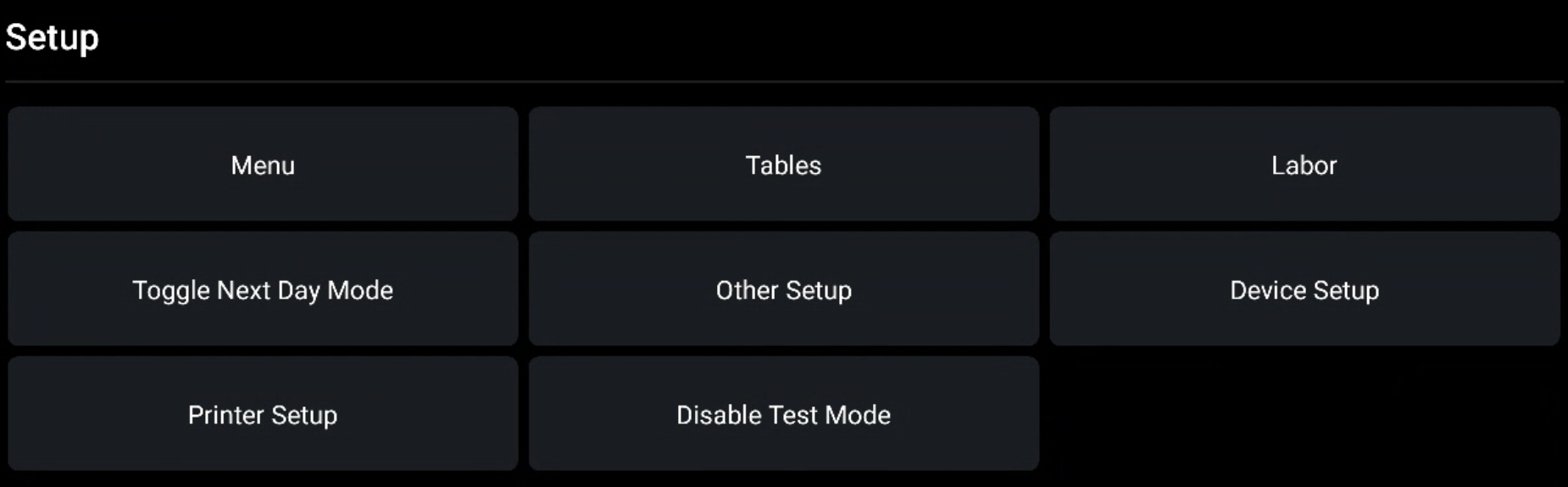
- You can disable Test Mode from the main menu on your POS by navigating to the Setup section and selecting Disable Test Mode.
- You'll then be asked to confirm that you are disabling Test Mode. Select Disable Test Mode to confirm the change.
Please note, test mode CANNOT be disabled during a service disruption or offline event.
If you need further assistance disabling Test Mode and returning to live mode, please start a chat with our Customer Support team in Toast Web by clicking the blue button on the bottom right corner of any page or by selecting the Support icon at the bottom of the screen in the Toast Now App. Don’t have the app yet? Download it today on Apple App Store or on the Google Play Store.
How Do I Know If My Restaurant is in Test Mode?
Test Mode on Toast POS
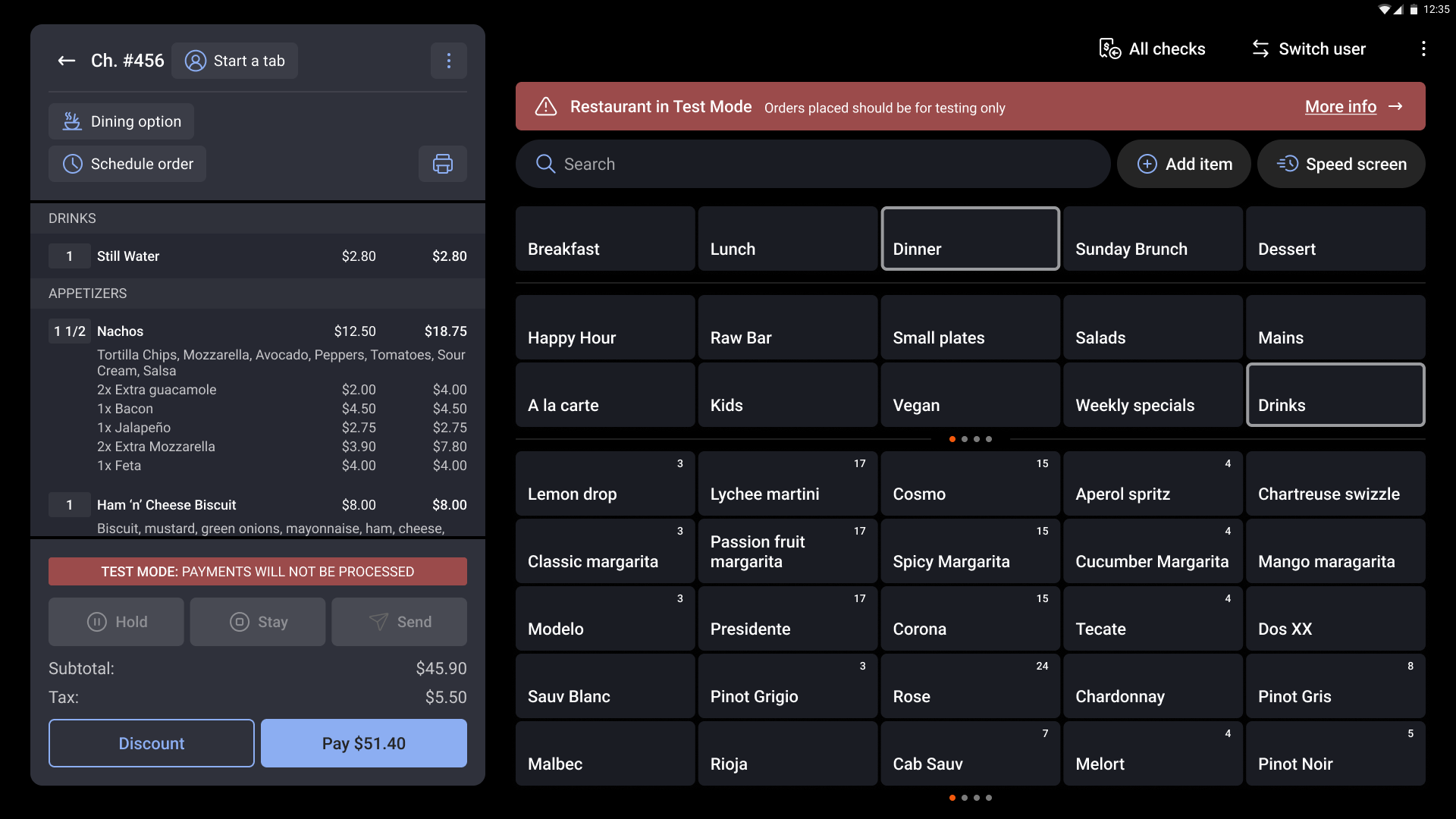
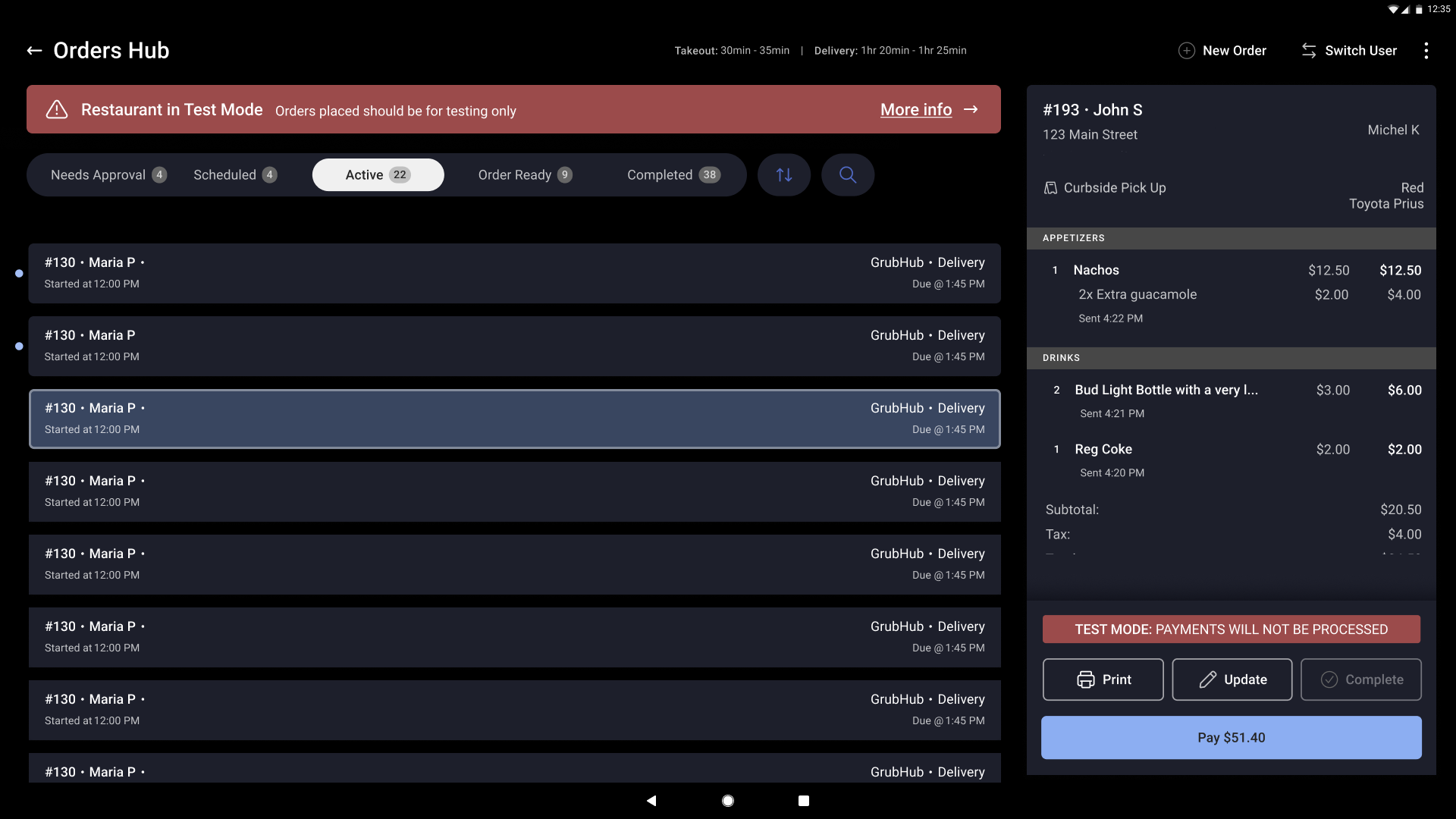
Test Mode will be indicated on your POS by the words "TEST MODE: PAYMENTS WILL NOT BE PROCESSED" displayed in the check details. The top of the screen will also show a persistent red banner reading "Restaurant in Test Mode. Orders placed should be for testing only". A modal will appear when you tap on the red test mode banner if you want to learn more.
If you use Orders Hub, this is what your TEST MODE screen will look like:
Printed kitchen tickets will also have TEST MODE displayed at the top of the ticket.
Test Mode on Toast Web
Test Mode will be indicated by a yellow banner displayed at the top of your Toast Web homepage, similar to the banner shown below.

Frequently Asked Questions
Can I put a single terminal or handheld in Test Mode for training?
Test Mode cannot be isolated to a single terminal or handheld. It is a restaurant-level setting, so enabling it from any device puts your entire restaurant in Test Mode. There is no separate per-device training mode.
If you are training new hires at a live restaurant, plan around that:
- Schedule training outside of your service hours. Toast strongly discourages enabling Test Mode during service, when you risk losing orders and payment data.
- Temporarily disable Online Ordering so guests cannot place and pay for orders during training. See Check Online Ordering Status.
- Disable Test Mode as soon as training is finished.
Also asked as:
- Can I test on just one terminal?
- How do I train staff without putting the whole restaurant in Test Mode?
- Is there a training mode for one handheld?
Does Test Mode disable Online Ordering automatically?
Test Mode does not disable Online Ordering automatically. Guests can still place and pay for orders online while your restaurant is in Test Mode.
Disable Online Ordering temporarily before you begin. See Check Online Ordering Status.
Also asked as:
- Does Test Mode turn off online orders?
- Can guests still order online in Test Mode?
What happens to orders and payments taken in Test Mode?
Orders placed and payments taken in Test Mode are removed and voided when you disable Test Mode. Nothing recorded in Test Mode reaches your sales data.
If you are open for business, leave Test Mode, and then re-enter it, any test payments applied to live orders during Test Mode are removed when you return to live mode.
Also asked as:
- Do test payments show up in my sales?
- Will Test Mode orders affect my reports?
Can I use cash management features while in Test Mode?
Cash management features are disabled while your restaurant is in Test Mode. You cannot close a drawer or start a new drawer until you disable Test Mode.
Inventory and item stock counts are also unaffected by activity in Test Mode.
Also asked as:
- Why can't I close my drawer in Test Mode?
- Does Test Mode change my inventory counts?