Guest Experience for Toast Mobile Order & Pay®
Last updated: Sep 17, 2026, 1:39 PM
| Now in beta, Hybrid Tabs allow staff to start a tab on the POS or Toast Go® 2, print a QR code from the receipt printer, and hand it to the guest as their personal digital tab. Guests can use it to reorder and/or pay the check directly from their phone. For more information and to sign up for the beta, please reach out to orderandpay-support@toasttab.com |
Guest Experience for Toast Mobile Order & Pay®
Tabs and Pre-Authorization
Tabs allow guests to place orders continuously and pay when they are done. Pre-authorization ensures guests add payment information before opening a tab so that you have payment details on file in case guests forget to close out. See Set Up Tabs & Pre-Authorization for more details on restaurant configuration.
Guest Experience
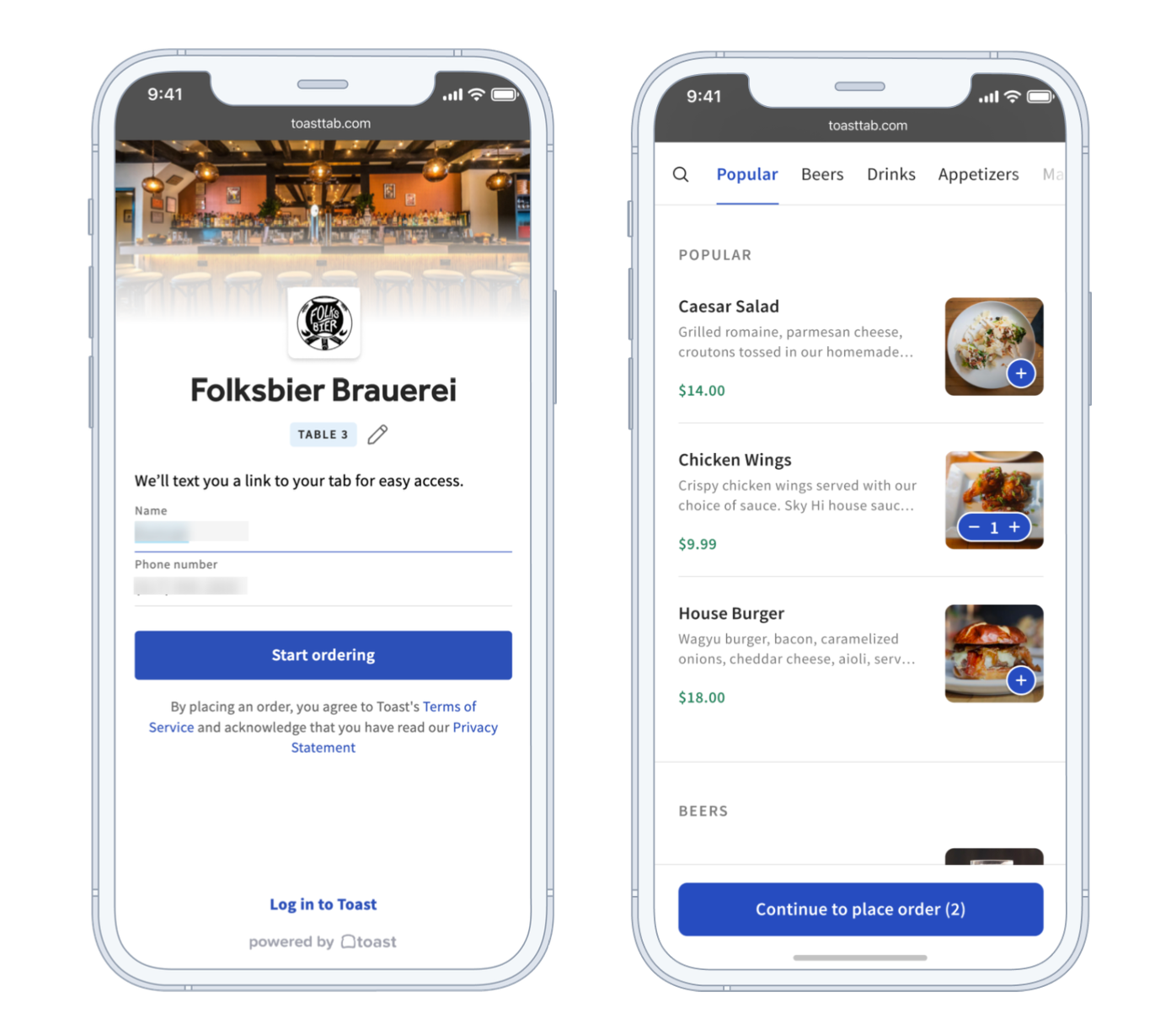
- Provide a name and phone number. Toast will text guests a link to their tab, and restaurants can send order ready text messages from the Kitchen Display Screen (KDS) See Order & Pay Text Fulfillment.
- Browse the menu and add an item to the order.
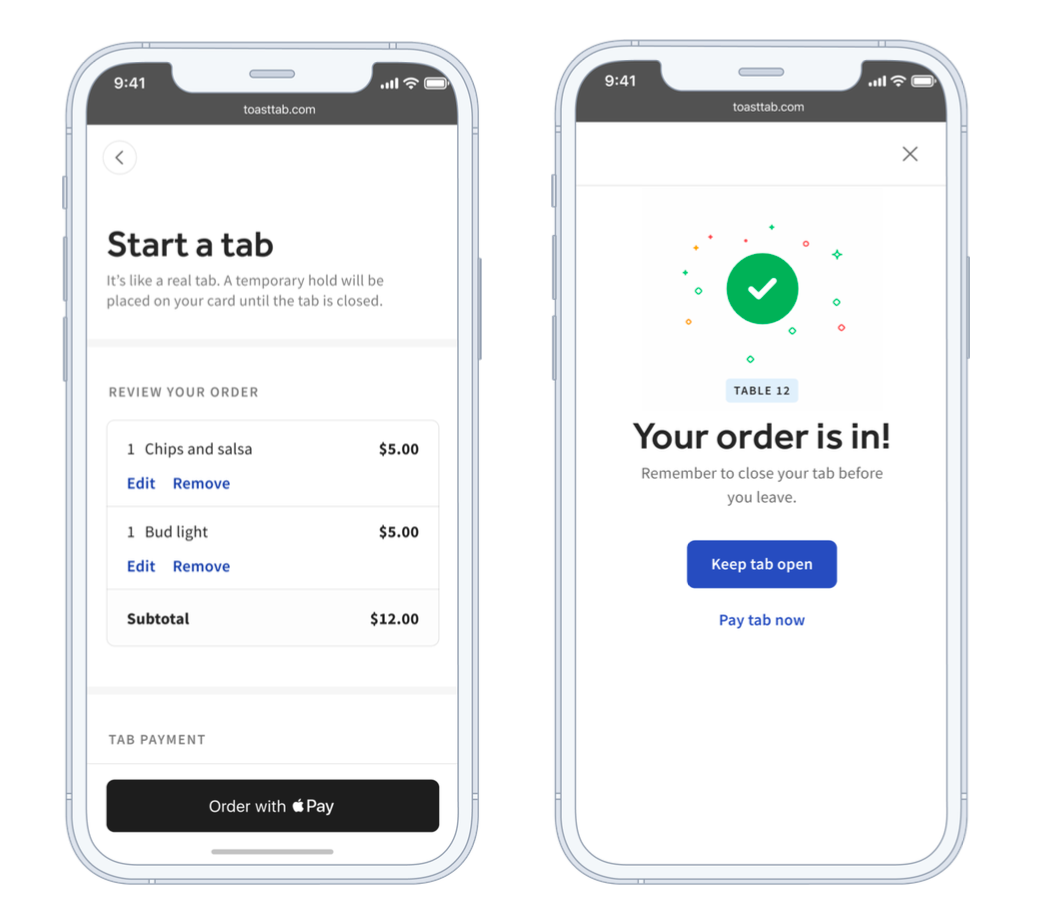
- Start a tab by pre-authorizing a credit card (Apple Pay™ is available)
After guests add items to their cart, they may proceed to start a tab. Once the card is successfully pre-authorized and the tab is opened, the order will fire to the kitchen. A temporary $0.01 charge will be placed on the card. When the check is paid and closed, the card will be charged the full amount, and the pending charge will go away. See Setting up Tabs & Pre-Authorization for more information.
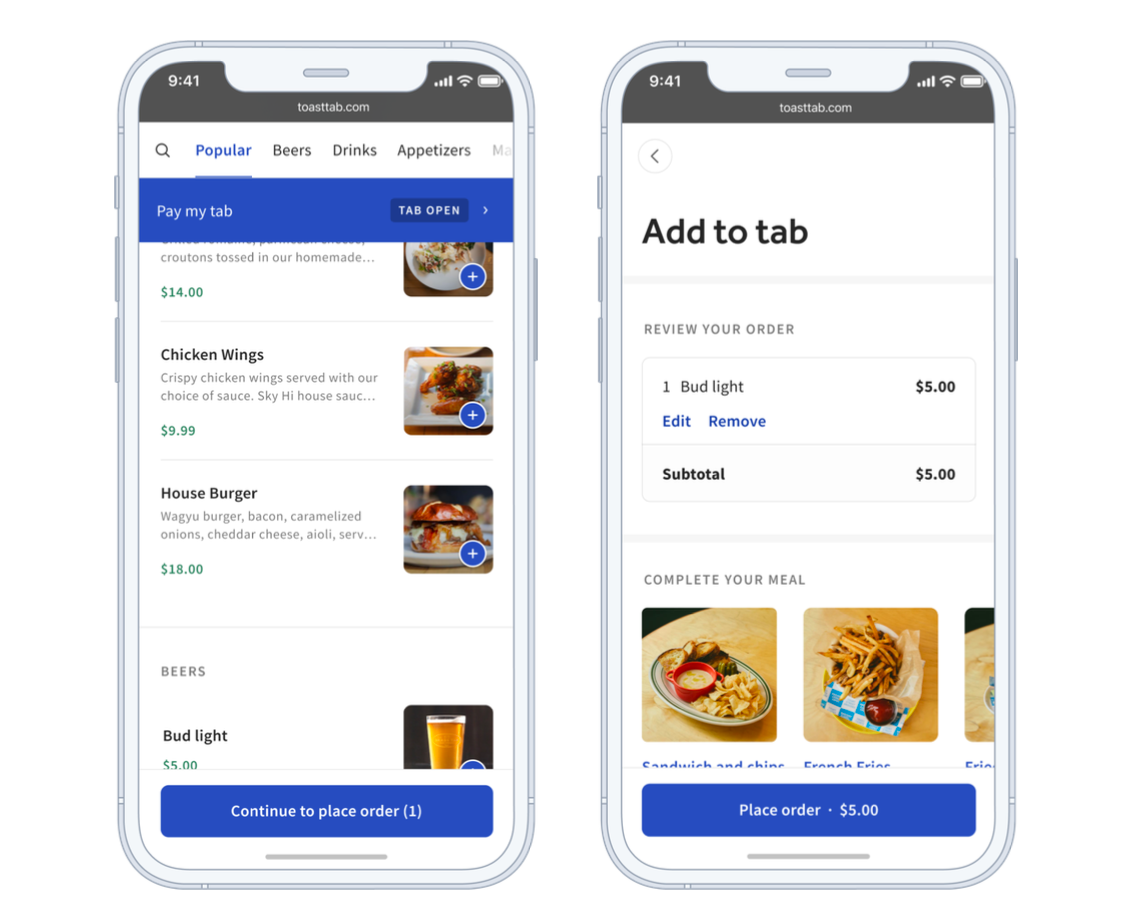
- Add items to the tab.
Once a tab has been started, guests can continue ordering more on their tab. Alternatively, if they're done dining after their first order, they can pay the final tab by tapping the Pay my tab banner presented on the menu page.
- Add a tip and close out.
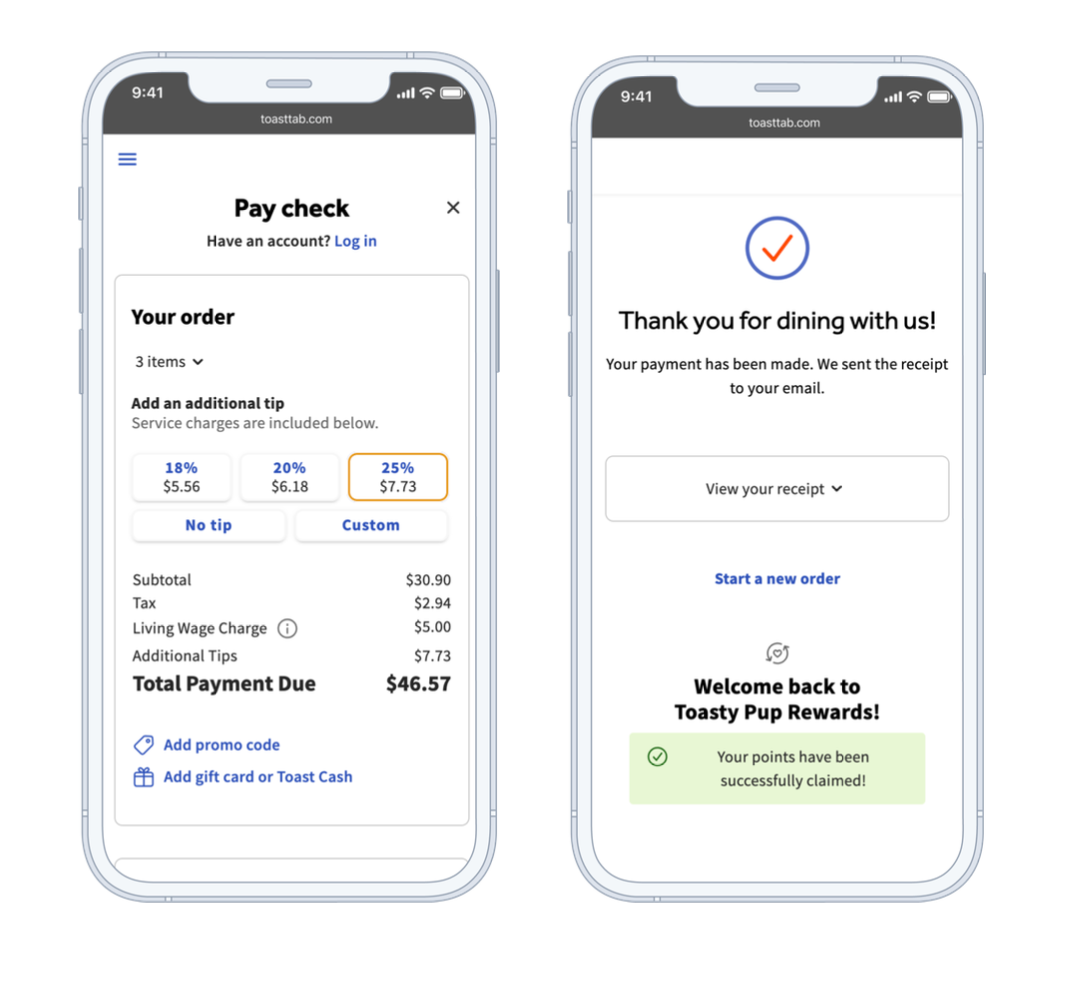
Group Ordering
Group Ordering allows multiple guests to join a single tab from their own device and then submit orders to the kitchen all at once on the same ticket.
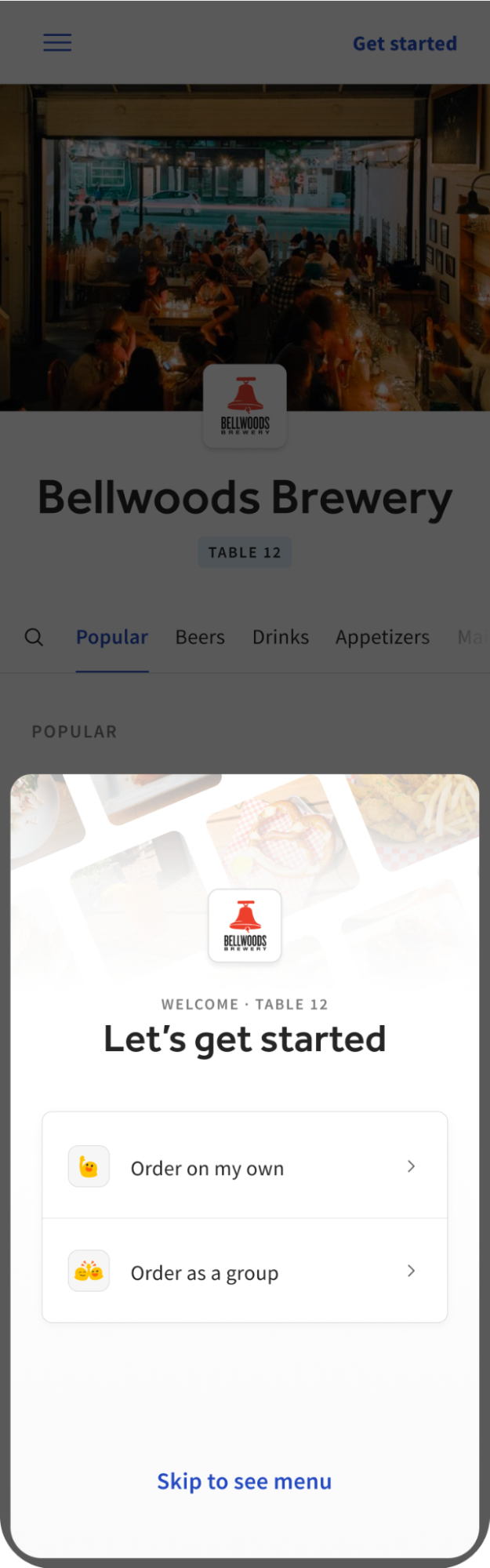
- Guests will first choose how to order, either Order on my own or Order as a group.
- For guests that select Order on my own, the guest will order and pay for their own tab. The guest will not share a cart or payment with any other guests. This is ideal for guests who want to pay for themselves.
- Guests who select Order as a group will order and pay as a group. This is ideal for guests who want to pay on one card (guests will still have the option to split the bill) or for guests who want their orders to be sent to the kitchen at the same time.
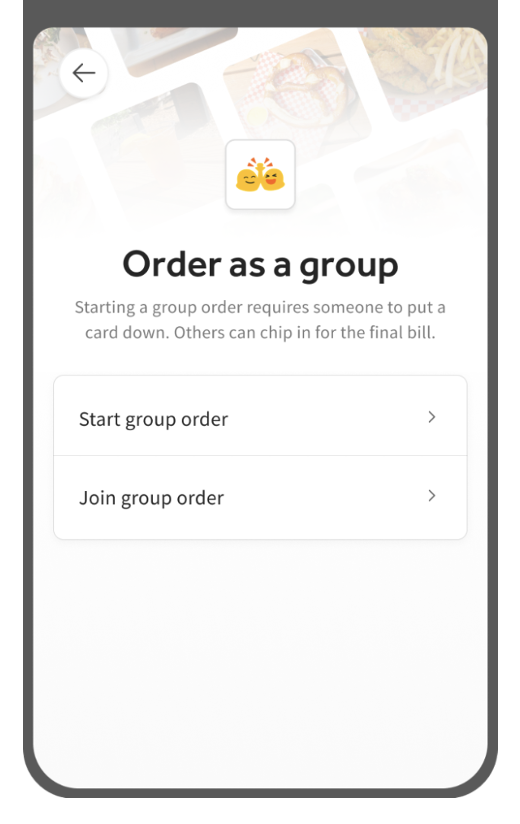
Once guests select Order as a group, they must choose to either Start group order or Join group order. The person who starts the group order usually pays for the group.
Note: The following steps are only relevant for guests who Order as a group.
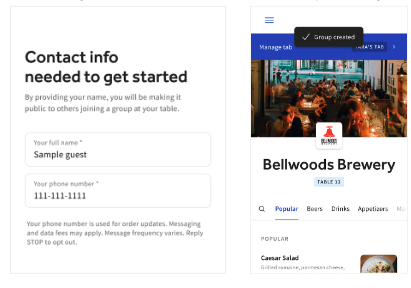
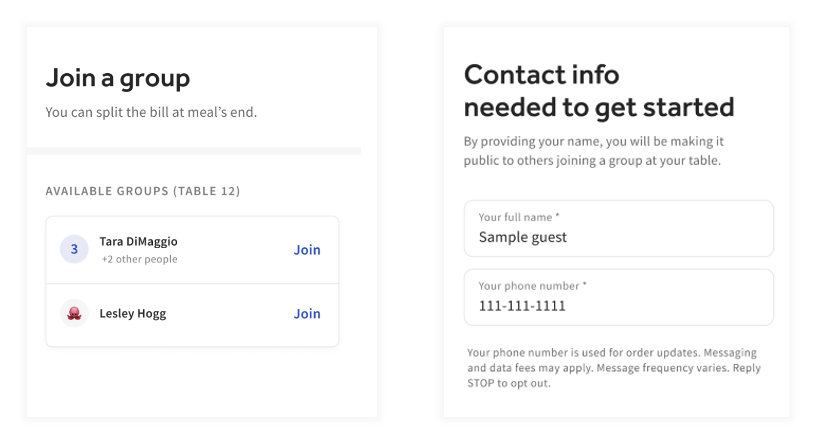
- To Start a group order, guests provide their contact information, and their group is created. Now, other guests at the same table can join their group.
- Guests will then be able to Join group order. Guests will see a list of active groups at their table. Once they click “Join,” they will order and pay with the other group members.
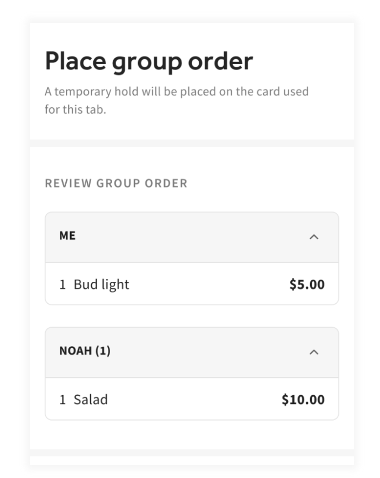
- When Order as a group, guests will share the same cart so that their orders are sent to the kitchen together. Only one member of the group needs to put down a card and place the order for everyone’s items to fire to the kitchen. This member will be responsible for any unpaid balance.
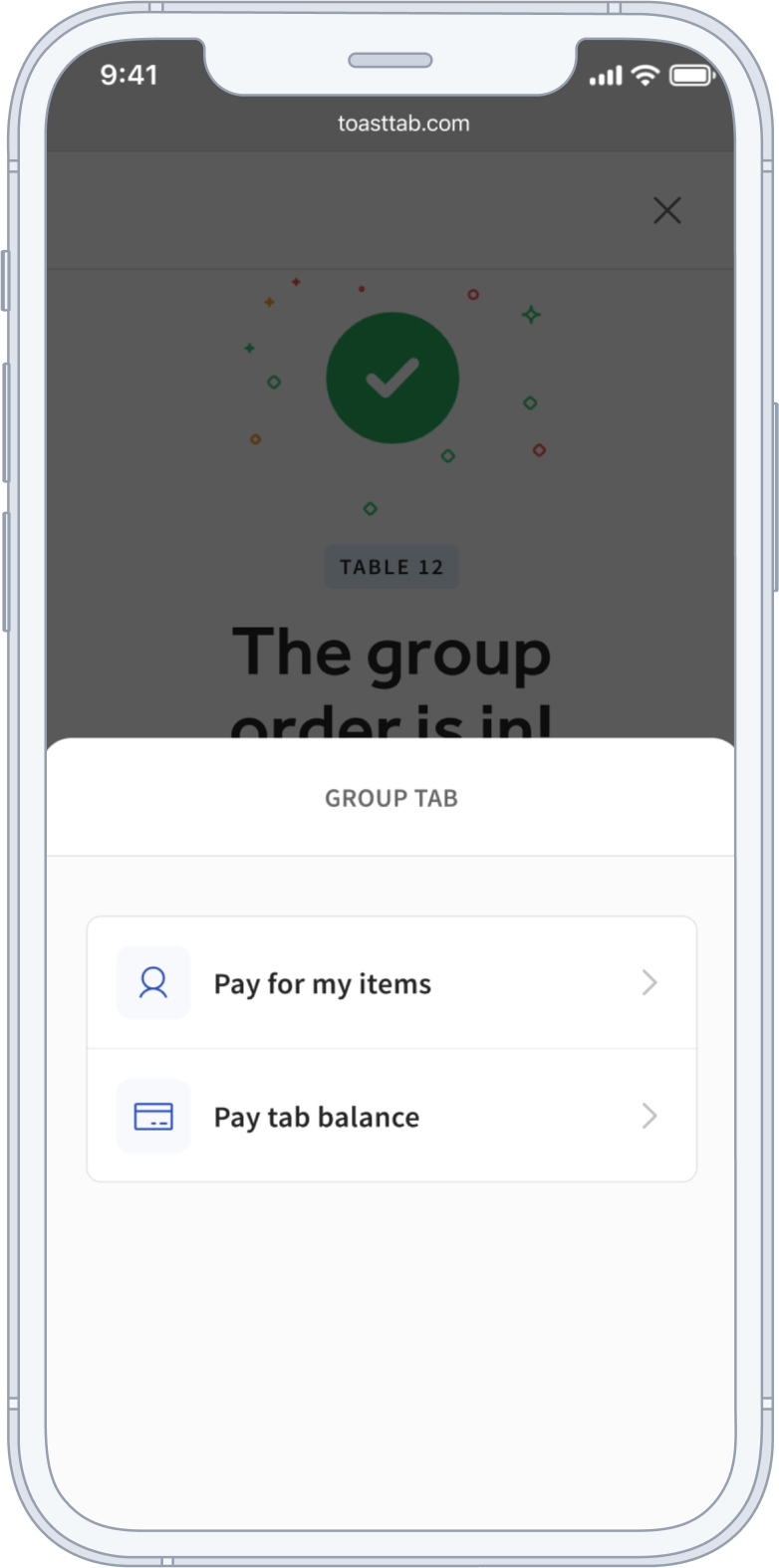
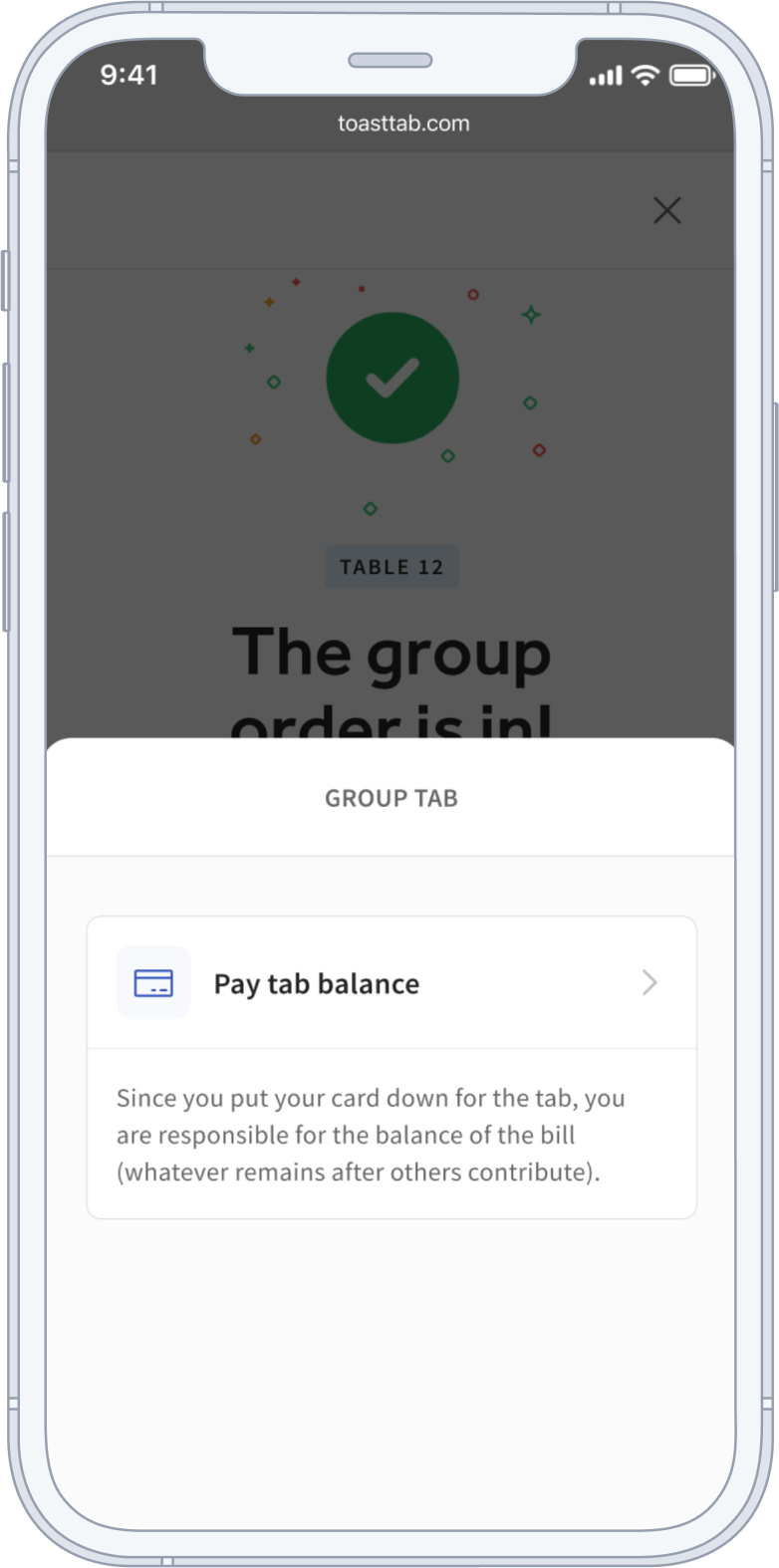
- Paying as a group: Select how you want to split the bill. Guests can either pay for their own items or pay for the group. As referenced in step 3, the individual who places the initial group order is effectively putting down their card on behalf of the group. As such, this member is responsible for the bill and will only have the Pay tab balance option (see image below - right). To split the bill, all other group members must pay for their items before the tab owner pays the remaining tab balance.
If the group forgets to close their tab, the restaurant can use the pre-authorized card to close the check at the end of the day. See Card Pre-Authorization Configuration & Device Setup for more information.
Toast Accounts and Saved Cards
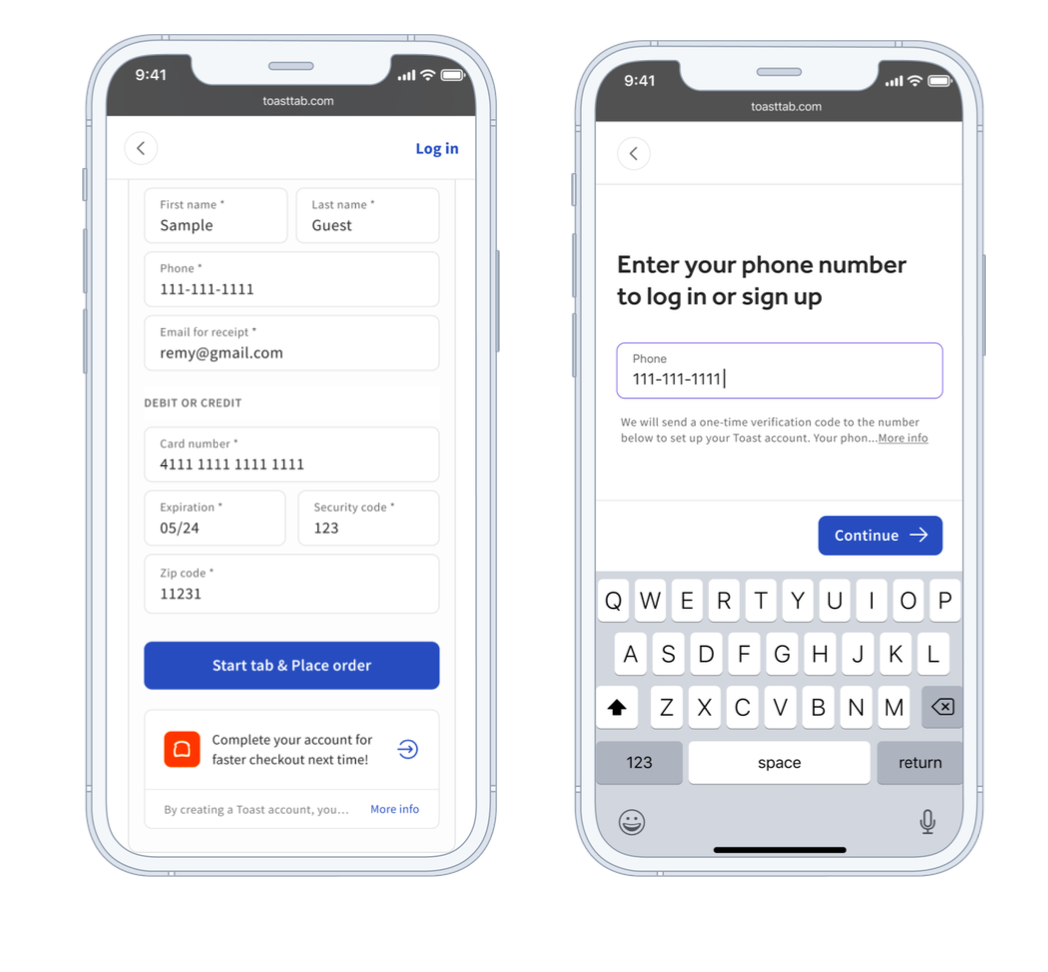
Guests can now create Toast Accounts with just a phone number, save their payment information, and use saved payment information for faster preauthorization and checkout in the future.
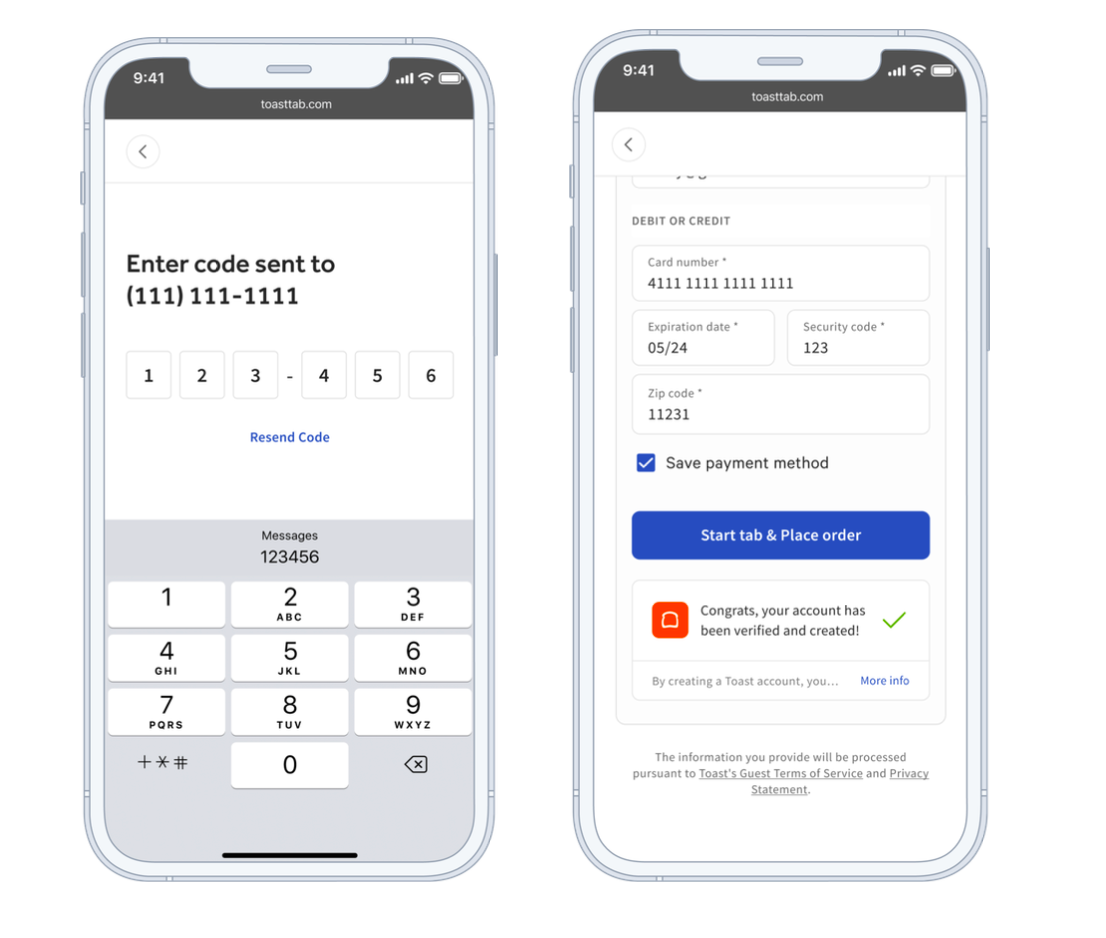
- Create an account by selecting Complete your account for faster checkout next time! on the Start a tab (Pre-Authorization) or Checkout pages.
- Provide a phone number to create an account or log into an existing account.
- Enter the one-time passcode sent to the provided phone number. The Toast Account will be created, and payment information will be saved for faster payment next time.
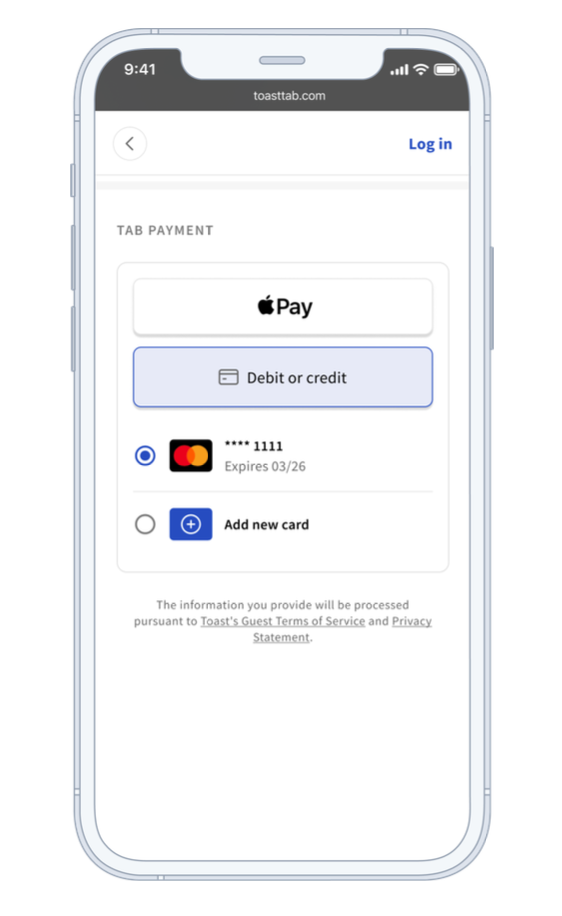
- Returning guests can select Log in to access their saved payment information, which can be used to pre-authorize and checkout without manually entering a credit card.
Order History Page
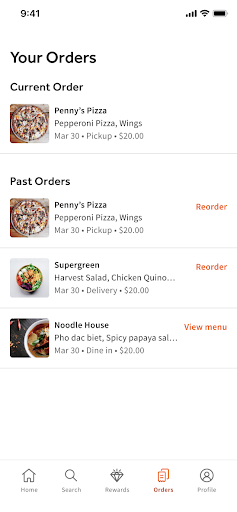
This page shows guests their authenticated Toast Mobile Order & Pay® transactions within their order history, with convenient links to reorder past favorites.