Get Started With Contests and Targets in Toast
Last updated: Oct 15, 2026, 4:06 PM
Learn how to use contests and targets across front-of-house and menu-based metrics, with leaderboards, optional rewards, and live updates in Toast Web and the My Toast app.
- Contests and Targets
- Contests Basics
- Contest Considerations
- Set Up a Contest
- Edit a Contest
- View the Live Leaderboard
- When a Contest Ends
- Targets Basics
- Targets Considerations
- Set Up a Target
- Contests and Targets FAQ
- Can the same employee count twice on the leaderboard if they have multiple jobs?
- Why is an archived employee showing up in my employee list?
- Why didn't my menu contest upsell appear on the handheld?
- Why are my employees saying the contest isn't tracking correctly?
- Can I change the metric in the middle of a contest?
- How often does the leaderboard update?
- Does a same-day contest start at the time I create it?
- Can I set up a company-wide contest rather than a contest for a single location?
Contests and Targets
Note: This module is part of the Team Management Pro suite, but it can also be purchased a la carte. Visit the Toast Shop for more details.
Contests and targets are both part of the same product, but they work slightly differently. When you set up a contest, it ranks each eligible employee against one another in a metric of your choosing. With a target, each employee aims to reach the target goal that you set and they either work collectively (team targets) or without any external competition (individual targets), but all (team targets) or many (individual targets) employees can hit a target goal (anyone who reached the target wins). Both are set up using multiple different pre-loaded metrics and both can optionally award a prize at the end. Review the Contests Basics and the Target Basics sections to learn more about each feature.
To set up or manage a contest or target, a user needs permissions 4.1 Sales Reports, 4.2 Menu Reports, and 4.3 Labor Reports. To see data on the Team Overview page (where contests and targets are visible), the user also needs permissions 4.9 Employee Info and 4.10 Employee Jobs & Wages.
Contests Basics
Use contests in Toast Web to run friendly competitions for your staff and motivate them to drive specific business outcomes, such as to sell more steaks, increase check averages, or push a featured cocktail. Contests are essentially a micro report that displays your selected data and you can run more than one contest at a time. In Toast, no changes or actions happen as the result of a contest.
Before beginning your first contest:
- You must have a completed menu if you're running a menu-based contest.
- You must have hired employees into Toast. If you'd like them to view the contest details in the MyToast app, create accounts for employees to allow access to MyToast.
- You must have some sales and labor data; contests rely on a live and active business.
There are two types of contests you can run: menu-based and FOH-based (front-of-house). An example scenario is included for each metric.
- Menu-based contests can be run in four different ways. Menu-based contests reward the individual that sells the most of the menu/group/item you select, depending on the metric you choose. If more than one menu/group/item is chosen, the combined totals contribute to the contest leaderboard.
- Menu item sales: Sales of a specific menu item or items.
- Who can sell the most ribeyes.
- Menu group sales: Sales from a specific menu group.
- Who can sell the most Specials.
- Menu sales: Sales from a specific menu.
- Who can sell the most Bar Drinks.
- Gift card sales: Sales of the company's gift cards.
- Who can sell the highest total value of gift cards.
- Learn the difference between menus, menu groups, and menu items in Create and Manage Menus, Menu Groups, and Subgroups.
- Menu item sales: Sales of a specific menu item or items.
- FOH-based contests can be run in ten different ways, but these depend on your staff using the POS system in the same way (for instance, recording guest counts, discounts, or tips the same way). The contests will record differently based on your selection (for instance, Average turn time and Discount amount/count reward the individual with the lowest number).
- Net sales: Gross sales minus discounts and refunds. Excludes deferred items (ex. Gift cards, house account payments).
- Who rings up the most in sales — rewards your top overall seller.
- Discount amt: Total value of discounts on non-deferred items.
- Lowest discount dollars — encourages full-price selling.
- Discounts: Total quantity of discounts on non-deferred items and service charges. Excludes discounts on deferred items.
- Fewest discounts applied — encourages sticking to the menu price.
- Orders: Total quantity of non-voided orders. Includes orders that have no checks, no items, or only includes voided items.
- Most orders taken — rewards speed and hustle.
- Guests: The number of guests on the orders.
- Who serves the most guests — rewards speed and hustle.
- Avg order value: Average net sales per order. Calculated as net sales divided by order count.
- Highest average order — rewards maximizing every order with upselling.
- Avg check value: Average net sales per check. Calculated as net sales divided by check count.
- Biggest average check — rewards maximizing every check with upselling.
- Note: The difference between Avg order value and Avg check value is orders can be split into multiple checks.
- Avg turn time: Average time guests are served (typically dine-in only). Calculated from the time a check is opened until the check is paid down to a $0 balance.
- Who has the quickest overall turn time — rewards efficient service.
- Avg net sales / guest: Net sales divided by guest count. Shows the average revenue per guest after discounts and refunds.
- Most net sales per guest — normalizes for party size, so a server with two-tops competes fairly with one serving large parties.
- Non-cash tips: Total value of non-cash tips received, minus refunds.
- Most card tips earned — rewards service that guests notice.
- Non-cash tip %: Non-Cash tips as a percentage of total payments, minus refunds.
- Highest tip percentage — rewards service quality regardless of how busy your section is.
- Net sales: Gross sales minus discounts and refunds. Excludes deferred items (ex. Gift cards, house account payments).
Contest Considerations
- Contests only apply to the location they're created in.
- If employees use shared cash drawers (typically cashiers or bartenders), those sales will all be collected by the generic employee that the cash drawer is assigned to rather than the individual staff members running the drawer. This could skew contest reporting and leaderboards.
- If the Show leaderboard to my employees on the MyToast app selection is enabled, employees will have visibility into the metric you select. If you choose a tips or sales metric, employees can view each participant's tips or sales in the MyToast app for the duration of the contest.
- At this time, menu modifiers cannot be included in menu-based contests.
- If two or more employees tie at the end of a contest, the leaderboard will show them all as winning the contest.
- When you enter a contest reward in Toast, it is text only. Your business decides on, manages, and gives out any reward.
Set Up a Contest
Note: You must have permissions 4.1 Sales reports, 4.2 Menu reports, and 4.3 Labor reports to create a contest.
- In Toast Web, navigate to Team > Contests.
- Select Create new. This will begin a step-by-step walkthrough to help you set up your first contest.
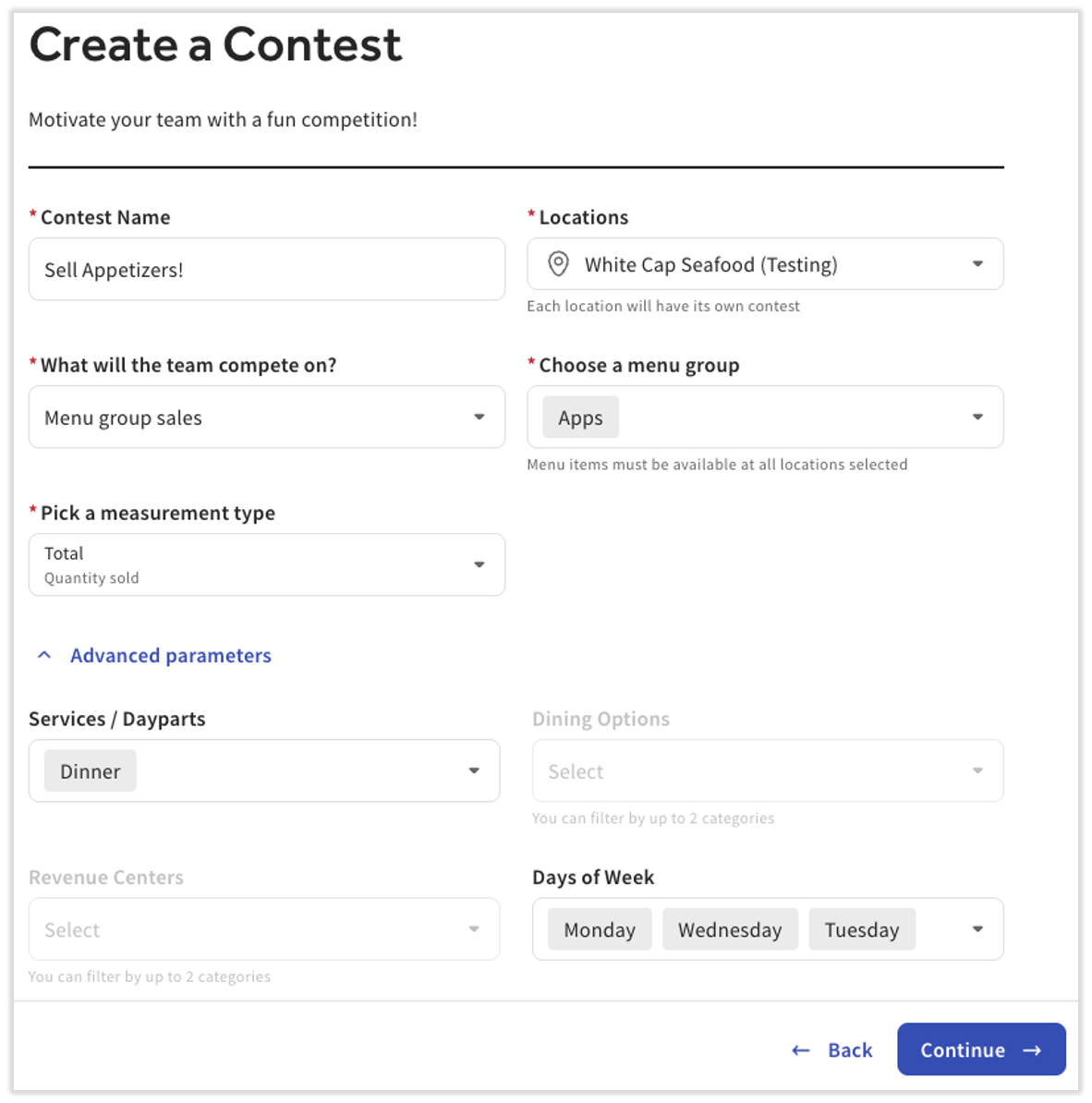
- First, name your contest.
- You can set the location a contest will take place at. If you use the Multilocation Management (MLM) features of Toast, feel free to select more than one location if you'd like to run multiple duplicate contests with separate leaderboards, statistics, and rewards. Note: When more than one location is selected, a contest will be created for each individual location. In other words, each leaderboard and set of statistics will only be based on a single location. At this time, a contest cannot be combined and run across multiple locations.
- Next, for What will the team compete on?, choose either a FOH-based metric or a menu-based metric. Select the best option for the type of contest you’re running. See the description of each metric above.
- For menu-based contests:
- Choose menu item: Add the part of your menu you're tracking.
- If you select a menu item, make sure you're selecting the item from all applicable menus that are part of this contest. Be aware of happy hour menus, lunch/dinner menus, and seasonal menus that might contain this menu item.
- If you might run out of a specific menu item you're trying to push, it may be a better idea to choose multiple menu items or the menu group the item lives in. This is because once the item sells out, the contest is effectively over since you cannot change the metric mid-contest.
- Pick a measurement type:
- Total dollar amount sold
- Dollar amount sold per hour worked
- Dollar amount sold per order taken
- Dollar amount sold as a % of total sales
- Total quantity sold
- Quantity sold per hour worked
- Quantity sold per order taken
- Quantity sold per $100 of total sales
- Per hour worked, per order taken, and as a % of total sales/per $100 of total sales metrics can help normalize the score so employees who aren’t working as many hours/days can still be competitive. When total is selected, employees who work the most hours/days will be more likely to win the contest.
- Promote contest with upsell reminders?: This option will display notifications on the POS during the contest, reminding employees to compete. An image on the right side of the page previews this. If you decide to enable upsell reminders, don't forget to publish them alongside your contest. Learn more below.
- Choose menu item: Add the part of your menu you're tracking.
- For FOH-based contests:
- These fields will vary depending on the metric you select.
- For menu-based contests:
- After filling out the above details, you can optionally select Apply parameters to be more specific about when/where this contest applies. There are four different parameters built into contests: Services/Dayparts, Dining Options, Revenue Centers, and Days Of Week. You can select a maximum of two parameters
- Select Continue to advance to the second step.
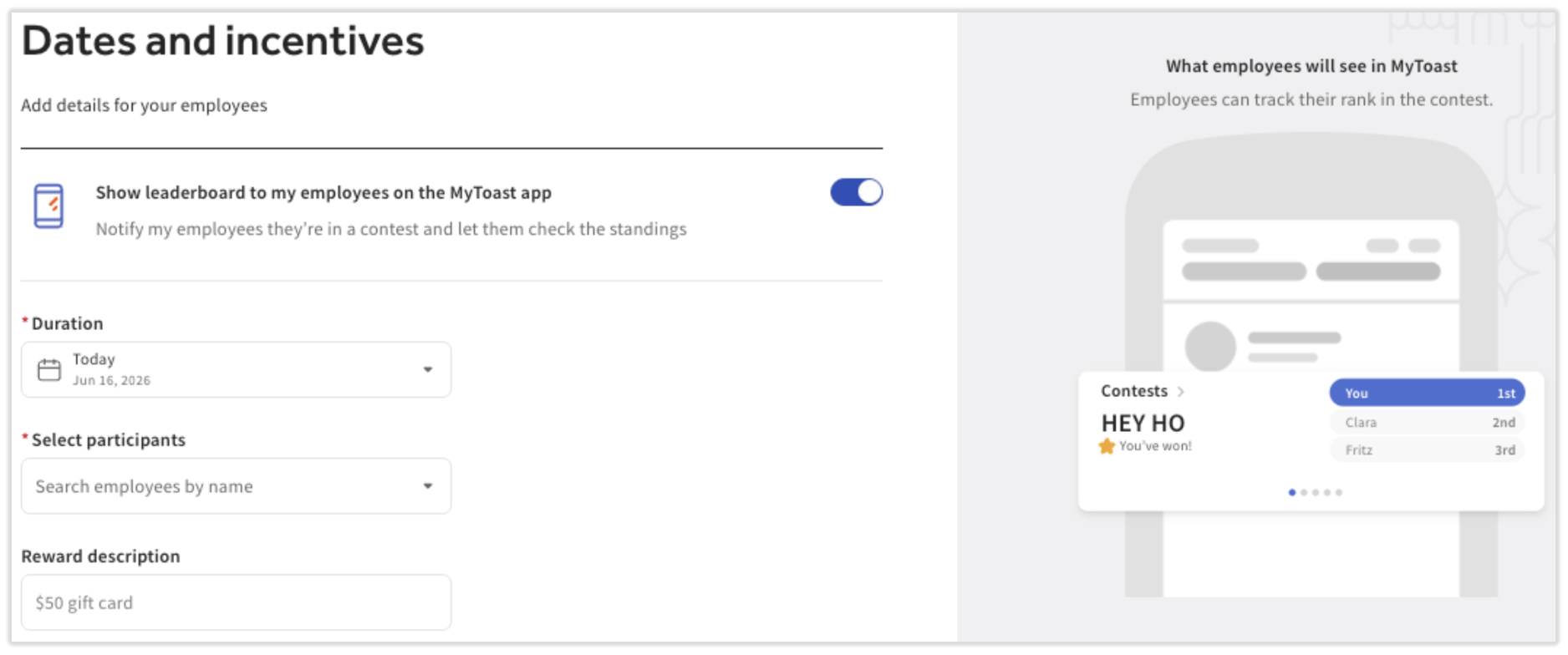
- You can optionally toggle Show leaderboard to my employees on the MyToast app to surface the leaderboard inside the My Toast employee app (see below to view the employee experience in My Toast).
- Set the Contest duration (the start and end dates for the contest). The leaderboard will track sales during that timeframe.
- Contests use full day data for the range selected. For same day contests, the contest will calculate the full day, even if the contest was created mid-day.
- Select the participants to include in the contest. Employees are organized by job, so you can quickly add everyone in a job (for example, all servers) at once.
- Employees with multiple jobs (for example, a server who also bartends) appear multiple times in the employee dropdown to make it easier to bulk-select by job, but they are only counted once on the leaderboard.
- Employees are listed by their chosen name. If you can't find an employee, try searching by last name.
- Archived employees may still appear if they are archived at your location, but still active at another location in your restaurant group.
- Optionally, add a Reward description. Rewards are text-based and shown to participants alongside the leaderboard. Reward creation and distribution are managed by your business and not Toast.
- Select Create Contest to save and start tracking. If you chose to promote the contest with upsells, remember to enable them by navigating to Menus > Upsells > Menu Upsells.
Add Your Contest to My Toast
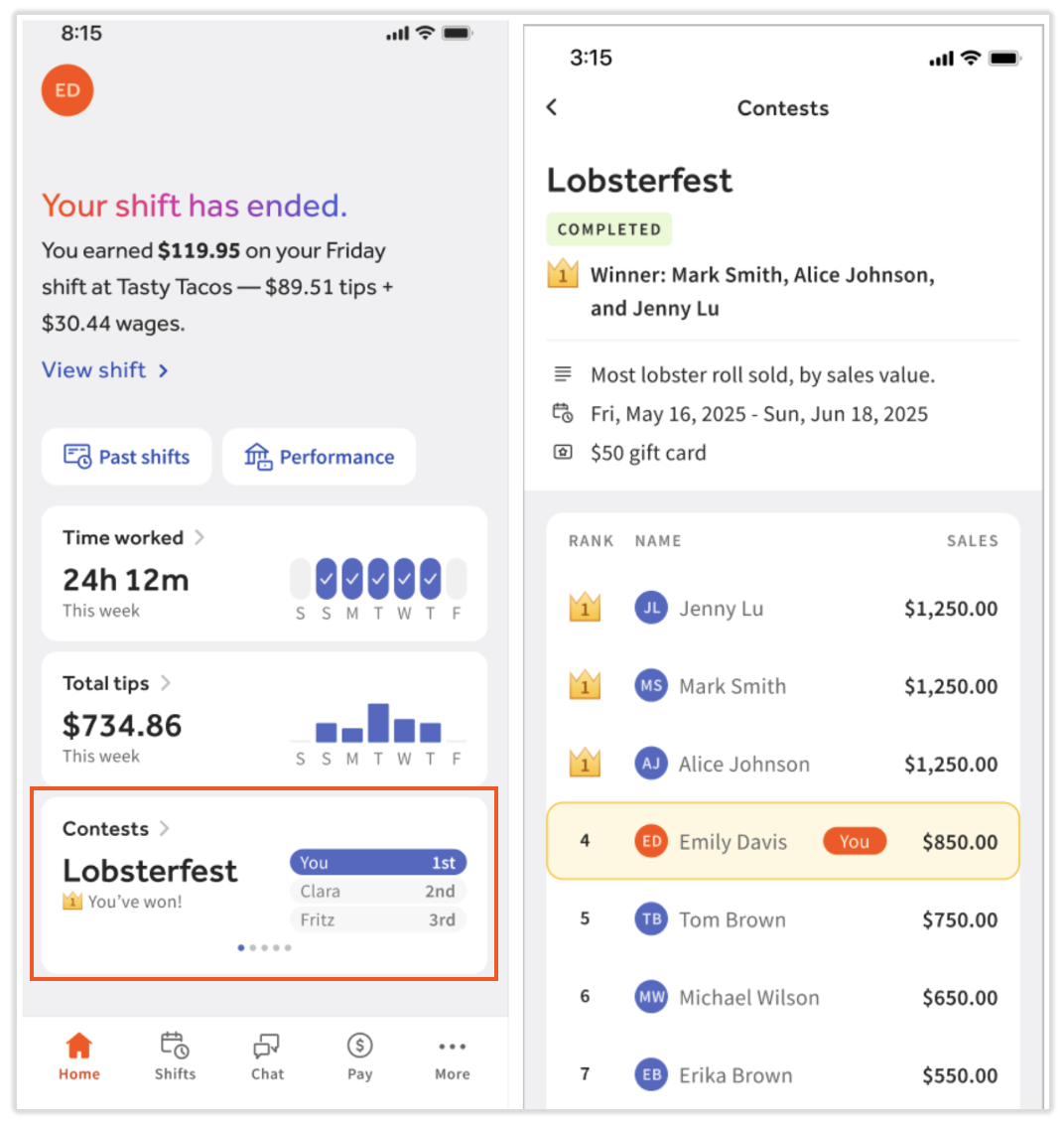
Adding a contest to My Toast is a great way to keep competition top-of-mind throughout a shift. If your employees use the My Toast app, toggle on Show leaderboard to my employees on the MyToast app on the second screen of creating a contest. Employees included in the contest will see the live leaderboard in the app, including their own rank, the reward, and the contest end date.
Remember, the contest leaderboard refreshes every hour, but you can refresh the contest to show employees the latest results. In Toast Web, navigate to Team > Contests, select the caret icon for a contest, and select the refresh button on the contest to force a live pull.
Boost Your Contest with Upsells
When you create a menu-based contest, you can choose to automatically generate menu upsells for each contest item. This is a great way to put contest menus, groups, and/or items in front of your servers/cashiers without anyone having to remember to push them.
When you enable upsells:
- They are created as standalone recommendations, so they appear on their own and don't need to be paired with a driving item.
- They appear on Toast Go handhelds during the contest period.
- The start and archive dates match the contest dates exactly.
- They are managed in Menus > Upsells > Menu Upsells.
Note: Menu upsells must be manually published on the Menu Upsells page before they go live on your handhelds. Be sure to publish before your contest starts. For more information on menu upsells, see Get Started With Menu Upsells On The POS.
Use Toast IQ to Create a Contest
Did you know you can use Toast IQ to create a new contest, re-run a contest, or suggest a contest for you to run? When you begin asking about contests, you'll chat with Toast IQ the same way you'd chat with a coworker or a Care agent. It will ask you questions to help nail down the parameters and ensure your contest is set up how you'd like it. This includes dates, employees, rewards, and more. You can ask it your own questions and you can even publish the contest directly from Toast IQ. Once the contest is live and has some data, try asking Toast IQ for a snapshot of the contest details or be more specific and ask it who is winning or when the contest ends.
Select the Toast IQ icon in the upper-right most corner of Toast Web to begin.
Examples:
- Help me create a sales contest for my servers for next week.
- Can you re-run last month's contest?
- What menu item do you recommend for an upsell type of contest?
- Now that my contest is three days in, can you give me an overview of the details and who's winning?
- Compare the net sales from the week before my contest to the week of my contest.
Edit a Contest
There are restrictions on how you can edit a contest, but you can edit certain pieces, even for a completed contest. To edit a contest:
- In Toast Web, navigate to Team > Contests.
- Select the caret icon for the contest you’d like to edit.
- Select the edit pencil icon on the top right of the leaderboard.
- What you can edit on an active contest: the participants, reward, Show leaderboard to my employees on the MyToast app toggle, and the end date (you can extend the contest, but you cannot change the start date).
- What you cannot edit on an active contest: the metric and the start date.
- What you can edit on a completed contest: the participants included and the reward.
- What you can edit on an active contest: the participants, reward, Show leaderboard to my employees on the MyToast app toggle, and the end date (you can extend the contest, but you cannot change the start date).
View the Live Leaderboard
Once a contest is active, the leaderboard updates automatically every hour on the hour. If you want to see the latest results between updates, navigate to Team > Contests, select the caret icon for a contest, and select the refresh button on the contest to force a live pull. This works on a per-contest basis. You can also select the printer icon to print the leaderboard and share it with your team.
When a Contest Ends
After a contest ends, check the Past contests & targets section of the Contests page. This shows impact metrics that compare contest-period sales to a matching prior period.
Specifically, sales of the contest items during the contest are compared to the same days of the week from the prior period. For example, a Tuesday to Wednesday steak contest is compared against the previous Tuesday to Wednesday's steak sales. It includes a percentage change so you can see whether the contest moved the needle.
Targets Basics
Targets let you set a time-bound goal for your employees and track their collective or individual progress toward it. For example, you might challenge your staff to sell 50 bottles of wine this week, or set a higher average check value goal for experienced servers than for new servers. Targets are essentially a micro report that displays your selected data and you can run more than one target at a time. In Toast, no changes or actions happen as the result of a target. Note: At this time, there is no MyToast experience for employees like there is for contests.
Before beginning your first target:
- You must have a completed menu if you're running a menu-based target.
- You must have hired employees into Toast.
- You must have some sales and labor data; targets rely on a live and active business.
There are two types of targets you can run: menu-based and FOH-based (front-of-house). An example scenario is included for each metric.
- Menu-based targets can be run in four different ways. Menu-based targets reward the individuals (or the team collectively if you create a team target) who sells or exceeds the target amount of the menu/group/item you select, depending on the metric you choose. If more than one menu/group/item is chosen, the combined totals contribute to the target goal.
- Menu item sales: Sales of a specific menu item or items.
- Who can sell enough ribeyes to meet the target goal? Or can the team collectively hit this number?
- Menu group sales: Sales from a specific menu group.
- Who can sell enough Specials to meet the target goal? Or can the team collectively hit this number?
- Menu sales: Sales from a specific menu.
- Who can sell enough Bar Drinks to meet the target goal? Or can the team collectively hit this number?
- Gift card sales: Sales of the company's gift cards.
- Who can sell enough gift cards to meet the target goal? Or can the team collectively hit this number?
- Learn the difference between menus, menu groups, and menu items in Create and Manage Menus, Menu Groups, and Subgroups.
- Menu item sales: Sales of a specific menu item or items.
- FOH-based targets can be run in ten different ways, but these depend on your staff using the POS system in the same way (for instance, recording guest counts, discounts, or tips the same way). The targets will display differently based on your selection (for instance, Average turn time and Discount amount/count reward individuals with the lowest number).
- Net sales: Gross sales minus discounts and refunds. Excludes deferred items (ex. Gift cards, house account payments).
- Who can ring up enough sales to meet the target goal? Or can the team collectively hit this number?
- Discount amt: Total value of discounts on non-deferred items.
- Who can prevent discount amounts from reaching the target goal? Or can the team collectively hit this number?
- Discounts: Total quantity of discounts on non-deferred items and service charges. Excludes discounts on deferred items.
- Who can prevent the number of discounts from reaching the target goal? Or can the team collectively hit this number?
- Orders: Total quantity of non-voided orders. Includes orders that have no checks, no items, or only includes voided items.
- Who can reach the target number of orders taken? Or can the team collectively hit this number?
- Guests: The number of guests on the orders.
- Who can reach the target number of guests? Or can the team collectively hit this number?
- Avg order value: Average net sales per order. Calculated as net sales divided by order count.
- Who can average their order's net sales at or above the target order value? Or can the team collectively hit this number?
- Avg check value: Average net sales per check. Calculated as net sales divided by check count.
- Who can average their check's net sales at or above the target order value? Or can the team collectively hit this number?
- Note: The difference between Avg order value and Avg check value is orders can be split into multiple checks.
- Avg turn time: Average time guests are served (typically dine-in only). Calculated from the time a check is opened until the time a check is paid to a $0 balance.
- Whose turn time average meets the target goal? Or can the team collectively hit this number?
- Avg net sales / guest: Net sales divided by guest count. Shows the average revenue per guest after discounts and refunds.
- Whose average net sales per guest meets the target goal? Or can the team collectively hit this number?
- Non-cash tips: Total value of non-cash tips received, minus refunds.
- Who can meet or exceed the target goal of a non-cash tip amount? Or can the team collectively hit this number?
- Non-cash tip %: Non-Cash tips as a percentage of total payments, minus refunds.
- Who can meet or exceed the target goal of a non-cash tip percentage? Or can the team collectively hit this number?
- Net sales: Gross sales minus discounts and refunds. Excludes deferred items (ex. Gift cards, house account payments).
You can create two types of targets. Choose the one that matches how you want your employees to work toward the goal.
- Team target: Employees work together toward one shared goal. Employees must collectively reach the target in order to be rewarded. For example, your whole staff works toward selling 50 bottles of wine in a week together.
- Individual target: Each participating employee works toward the goal on their own. Every employee who reaches the goal meets the target. For example, each server works toward a $45 average check value this week.
Targets Considerations
- Targets only apply to the location they're created in. To set the same target at more than one location, create a target for each location.
- If employees use shared cash drawers (typically cashiers or bartenders), sales are credited to the generic employee assigned to the drawer rather than to each person using it. This can affect target progress.
- Menu modifiers can't be included in menu-based targets.
- Employees can't currently view targets in the MyToast app. Share target progress with your team directly.
- When you enter a target reward in Toast, it is text only. Your business decides on, manages, and gives out any reward.
Set Up a Target
Targets are created from the same page as contests and use the same metrics. To create a target:
- In Toast Web, navigate to Team > Contests.
- Select + Create new.
- Select Target and then select Continue.
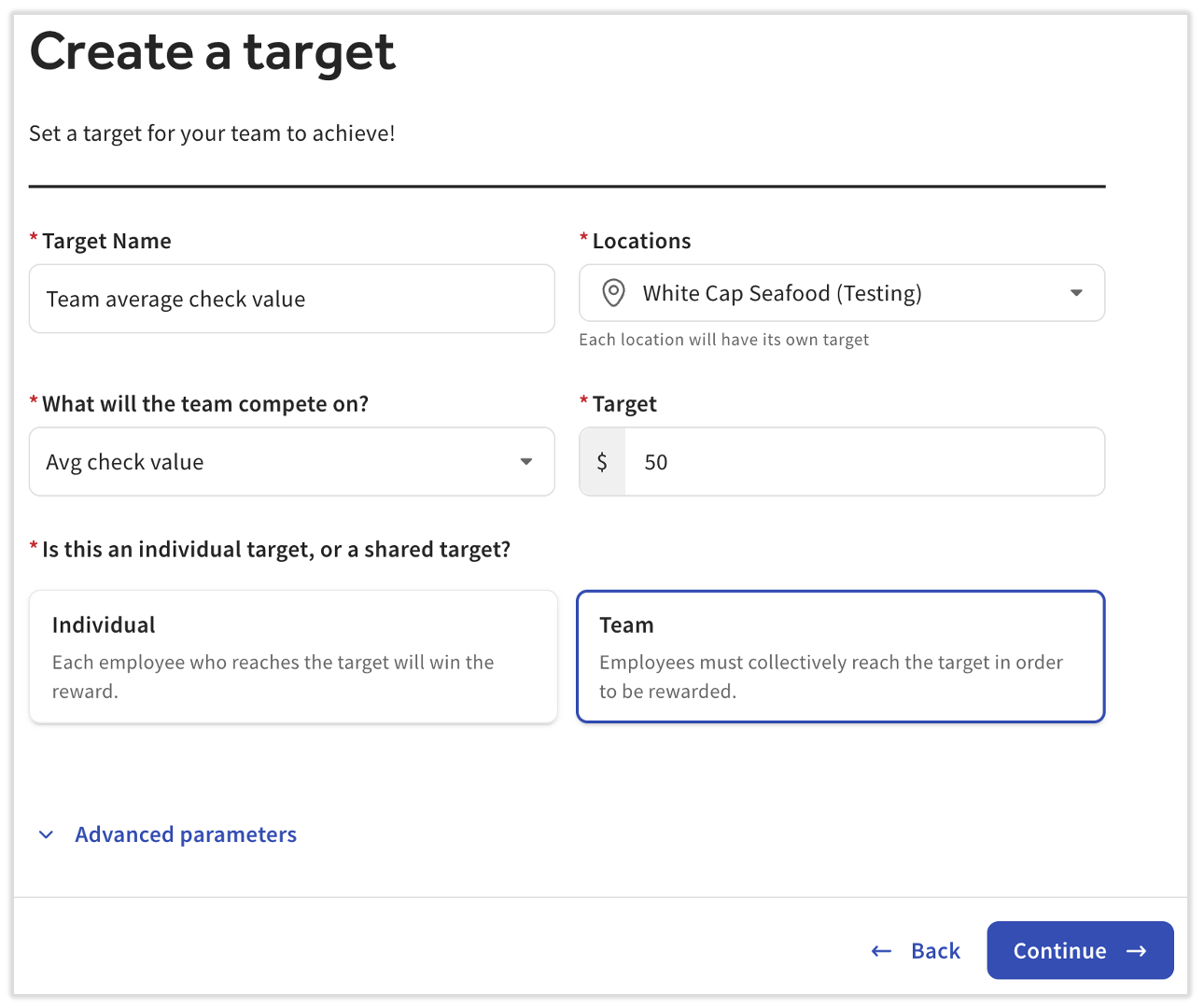
- First, add a Target Name.
- You can set the location a target will take place at. If you use the Multilocation Management (MLM) features of Toast, feel free to select more than one location if you'd like to run multiple duplicate targets with separate statistics and rewards. Note: When more than one location is selected, a target will be created for each individual location. In other words, each set of statistics will only be based on a single location. At this time, a target cannot be combined and run across multiple locations.
- Next, for What will the team compete on?, choose either a FOH-based metric or a menu-based metric. Select the best option for the type of target you’re running. See the description of each metric above.
- For menu-based targets:
- Choose menu item: Add the part of your menu you're tracking.
- If you select a menu item, make sure you're selecting the item from all applicable menus that are part of this target. Be aware of happy hour menus, lunch/dinner menus, and seasonal menus that might contain this menu item.
- If you might run out of a specific menu item you're trying to push, it may be a better idea to choose multiple menu items or the menu group the item lives in. This is because once the item sells out, the target contest is effectively over since you cannot change the metric mid-contest.
- Pick a measurement type:
- Total dollar amount sold
- Dollar amount sold per hour worked
- Dollar amount sold per order taken
- Dollar amount sold as a % of total sales
- Total quantity sold
- Quantity sold per hour worked
- Quantity sold per order taken
- Quantity sold per $100 of total sales
- Per hour worked, per order taken, and as a % of total sales/per $100 of total sales metrics can help normalize the score so employees who aren’t working as many hours/days can still be competitive. When total is selected, employees who work the most hours/days will be more likely to reach the target.
- Choose menu item: Add the part of your menu you're tracking.
- For menu-based targets:
- Enter the Target value your employees need to reach. For some metrics and measurement types, the Target field will include a % or min (minimum) distinction at the end to clarify how the target is reached.
- The last required setting here is to choose between an individual or team target. Individual will track each employee's progress towards the target separately, but when Team is selected, all employees you choose (on the next step) will contribute towards the selected metric together. In other words, if you chose a target of 50 shrimp scampi appetizers, every employee you choose will contribute to that goal and all those employees will achieve or miss the target together.
- Optionally, select Advanced parameters to limit the target to specific services or dayparts, dining options, revenue centers, or days of the week. What settings you see here is dependent on the metric and measurement type you selected previously.
- Select Continue.
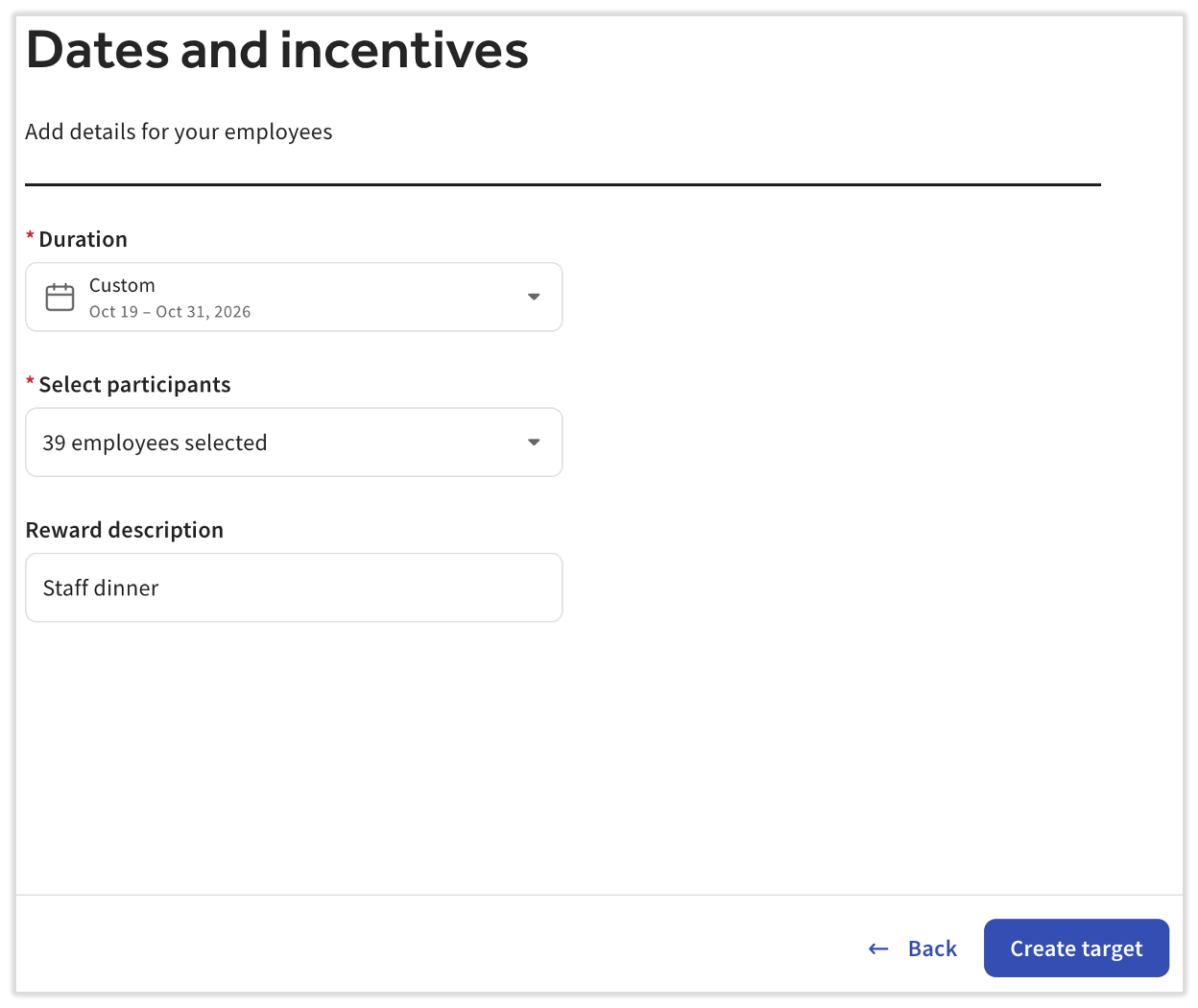
- For Duration, set the start and end dates for the target. Select Apply to save these dates.
- Select the participants. Try searching for individual employees or job roles. Employees are organized by job, so you can add everyone in a job at once.
- Optionally, add a reward description. Rewards are text-based and are shown with the target. Your business creates and gives out rewards, not Toast.
- Select Create target to save the target and start tracking.
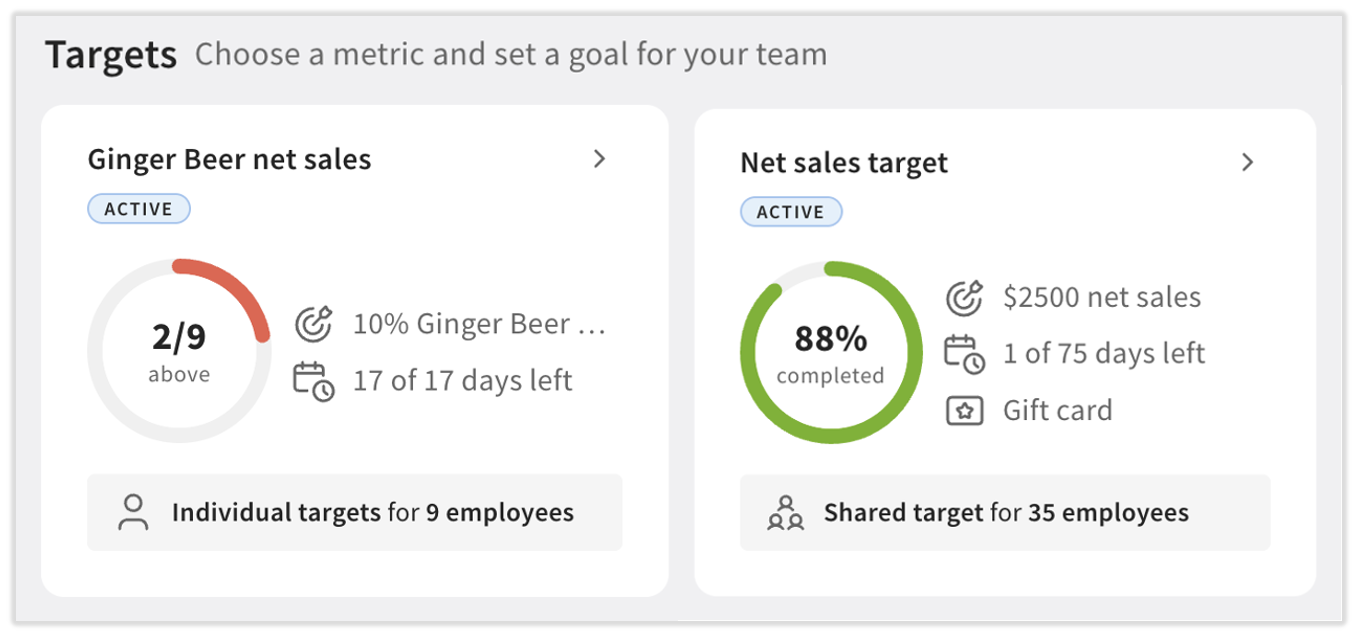
Expected outcome: Your target appears on the Contests page with a progress bar that shows how close your employees are to the goal.
Each target has a card on the Contests page that shows progress toward the goal. To check the progress of a target:
- In Toast Web, navigate to Team > Contests.
- Find the target card and review its progress bar. Select the > caret icon to view more details and see how all included employees are faring during the target.
- If the target timeline has passed, check the Past contests & targets section of the Contests page.
- You can see how close your team, or each participating employee, is to the target. An achievement icon appears on the card when a target is met.
Contests and Targets FAQ
Can the same employee count twice on a contest leaderboard if they have multiple jobs?
No. Even if an employee is selected under multiple jobs (for example, both Server and Bartender), they will only be ranked once on a contest leaderboard. Their stats between the two or more jobs will be combined.
Why is an archived employee showing up in my employee list?
The employee is likely archived at your location, but is still active at another location in your restaurant group.
Why didn't my menu contest upsell appear on the handheld?
Menu upsells must be manually published before they go live. In Toast Web, navigate to Menus > Upsells > Menu Upsells and publish your upsells before your contest starts (or during if the contest has already begun).
Why are my employees saying the contest isn't tracking correctly?
This typically occurs during menu item-based contests. If the contest does not include every instance of a menu item throughout your entire menu, then it will not record every time the item is sold. Since you cannot edit the metric on an active contest, the fix for this would be to restart the contest or track the item's sales manually by using menu reports.
Can I change the metric in the middle of a contest or target?
No. To change the metric, create a new contest or target. To cancel an existing contest or target, open Toast Web and navigate to Team > Contests, select the caret icon for a contest or target, and select the trash can icon before selecting Cancel contest/target. The contest will not appear in the Past contests & targets section.
How often does a contest's leaderboard update?
A contest's leaderboard updates every hour on the hour. You can also force a live refresh at any time using the refresh button on the contest. In Toast Web, navigate to Team > Contests, select the caret icon for a contest, and select the refresh button on the contest to force a live pull.
Does a same-day contest or target start at the time I create it?
No. A same-day contest or target tracks sales for the full business day, starting from when your day opened, not from the moment you created the contest or target.
Can I set up a company-wide contest/target rather than one for a single location?
No, contests and targets are location-specific. If you would like a contest or target at every location in your company, you'll need to set up a new one at each applicable location.