Enroll Guests in Toast Loyalty
Last updated: Sep 17, 2026, 7:34 PM
- Before You Begin
- Ways Guests Can Sign Up for Toast Loyalty
- Sign Up at Checkout on the POS or Toast Go®
- Sign Up on a Guest-Facing Display
- Sign Up on a Closed Check After Checkout
- Sign Up Through Toast Online Ordering
- Sign Up on a Kiosk
- Sign Up Through Mobile Payments
- Sign Up Through the Online Rewards Page
- Sign Up Through Digital Receipts
- Sign Up Through Local by Toast
- Welcome Message for Loyalty
- Digital Loyalty Card
- Linked Credit Cards on a Rewards Account
- Frequently Asked Questions
- Related Articles
This article walks through every way your guests can sign up for Toast Loyalty — at checkout, online, on a kiosk, on a guest-facing display, through Local by Toast, on digital receipts, or through your online rewards link. It also covers what happens after sign-up: the welcome message, the digital loyalty card, and how linked credit cards are handled.
Before You Begin
Applies to: Toast POS, Toast Web, Toast Online Ordering, Local by Toast, Toast Kiosk, Toast Go®, Toast Flex, guest-facing displays.
Permissions needed:
- Marketing Setup (to configure loyalty sign-up settings in Toast Web)
What you'll accomplish: You'll be able to add a loyalty member through any of Toast's enrollment surfaces and know what your guest receives after signing up.
Ways Guests Can Sign Up for Toast Loyalty
Guests can sign up for your loyalty program at the point of purchase, online, on a kiosk, on a guest-facing display, or through a sign-up link you share. The sign-up method — email or phone number — is set in Toast Web > Marketing > Loyalty > Settings. For first-time program setup, see Get Started With Toast Loyalty.
Guests need either an email address or a phone number to sign up — only one is required, not both. If a loyalty account already exists for the email or phone number entered, the guest earns reward points toward that existing account. If no account exists, a new one is created.
Note: Guests must sign up for rewards themselves. A restaurant cannot consent on behalf of a guest. Any guest signing up must be made aware of the program's terms and conditions and privacy statement.
Sign Up at Checkout on the POS or Toast Go®
Your dine-in and quick-service guests can sign up for your loyalty program by entering their email address or phone number at checkout.
- At checkout, a prompt appears asking the guest to join the program with email or phone number, depending on your settings. Staff members can also enter this information on the guest's behalf at the guest's request.
- The guest enters their information and selects Claim rewards.
- The guest receives a welcome email or text confirming sign-up.
- During sign-up at checkout, guests may also see a separate opt-in for SMS marketing messages, apart from joining the loyalty program. Guests can choose this opt-in independently of enrolling in loyalty.
Expected outcome: The loyalty account is created (or points are added to the guest's existing account), and the guest receives the welcome message.
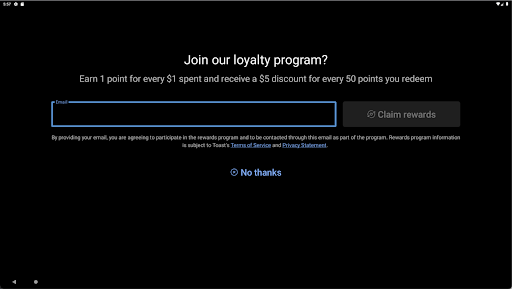
If you do not see this prompt during checkout, the sign-up setting may not be enabled. See Enable Toast Loyalty Sign Up Upon Taking Payments.
Sign Up on a Guest-Facing Display
If your restaurant uses a guest-facing display, guests can sign up before or after their order is placed.
For the full guest-facing display sign-up and check-in flow, see Toast Loyalty Usage With a Guest-Facing Display.
Sign Up on a Closed Check After Checkout
Staff can also add a loyalty member after the check has closed. This workflow is common at full-service restaurants when a guest forgot to sign up at checkout.
- Have the guest write their email address or phone number on the printed receipt.
- On the POS, navigate to the guest's closed check.
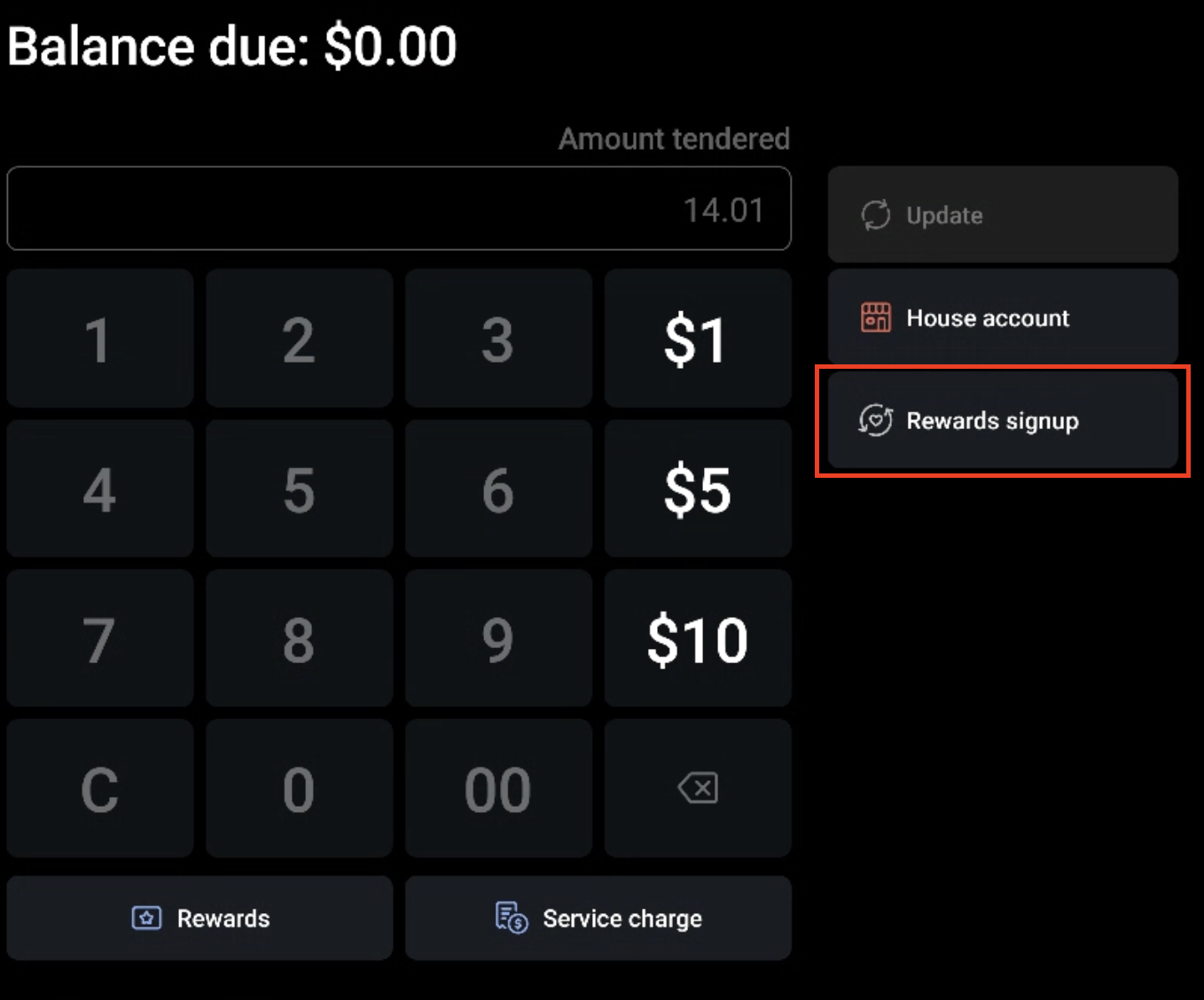
- Select Update.
- Select Pay, then select Rewards signup.
- Enter the guest's email address or phone number when prompted.
Expected outcome: The loyalty account is created (or points are added to the guest's existing account), and the guest receives the welcome message.
Note: You can only add a loyalty member this way if the check is already closed.
Sign Up Through Toast Online Ordering
Guests can sign up for your loyalty program through Toast Online Ordering in two ways.
After completing an online order:
- If the guest is not signed into a Toast Online Ordering account, they receive a prompt to sign up for both an online ordering account and a loyalty account using the email they entered at checkout.
- If the guest is already signed into a Toast Online Ordering account but is not enrolled in loyalty, they are prompted to join the loyalty program.
Expected outcome: The guest earns points for this visit (plus any sign-up bonuses you offer) and receives the welcome message.
Before placing an online order, guests can also sign up by selecting the Loyalty Signup Card at the top of your online ordering page. To disable this card, navigate to Toast Web > Marketing > Loyalty > Settings, select Settings, select Channels, and deselect the check box under the signup column next to digital ordering.
Sign Up on a Kiosk
If you have Toast Loyalty configured, guests are prompted to enter their phone number (or email address, depending on your settings) when they start an order on the kiosk. If the guest does not have a loyalty account, entering their information enrolls them.
Expected outcome: The guest's loyalty account is created and they begin accruing points on their order.
For the full kiosk ordering experience, see Kiosk: Place Orders and Make Payments.
Sign Up Through Mobile Payments
Full-service restaurants can streamline loyalty sign-up by using Toast mobile payments.
- After the guest checks out, they are prompted to sign up for the loyalty program.
- The guest enters their email address or phone number.
Expected outcome: The guest earns points for this visit (plus any sign-up bonuses you offer) and receives the welcome message.
To enable mobile payments at your restaurant, see Get Started With Mobile Payments and Digital Menus.
Sign Up Through the Online Rewards Page
Guests can sign up for loyalty without making a purchase by using your online sign-up link. Feature this link on your restaurant's website and social media pages.
- In Toast Web, navigate to Marketing > Loyalty > Settings.
- Select the Settings button at the top of the page.
- Scroll to the Promote your program section.
- Copy the sign-up link using the copy icon.
- Share the link on your website, social media, or wherever your guests can find it.
Expected outcome: Anyone who opens the link can enter their email address or phone number to create a loyalty account.
A Guest lookup link is also available on the same settings page, so guests who have lost their loyalty account information can have it sent to them.
You can also create a QR code that guests can scan to sign up. See Can I Create a QR Code for Toast Loyalty Sign-Up? for the QR code asset location.
Sign Up Through Digital Receipts
Guests can sign up for loyalty through a link at the bottom of digital receipts.
- The guest selects the sign-up link at the bottom of their digital receipt.
- The link opens your online sign-up page, where the guest enters their email address or phone number.
Expected outcome: A new loyalty account is created (or points are added to an existing account), and the guest receives the welcome message.
Sign Up Through Local by Toast
Guests can sign up for loyalty through Local by Toast at checkout.
- At checkout in the Local by Toast app, a check box for loyalty sign-up appears, pre-selected by default. Guests can deselect this check box if they do not want to enroll.
- If they keep the check box selected and complete checkout, they are enrolled in your loyalty program.
Expected outcome: The guest earns points for this visit (plus any sign-up bonuses you offer) and receives the welcome message.
Welcome Message for Loyalty
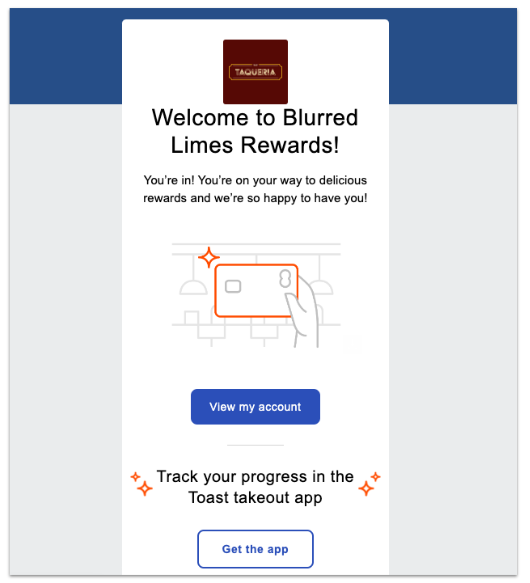
When a guest signs up, Toast sends a welcome email or text. The welcome message contains information about the loyalty program, a link to the guest's digital loyalty card, and a points balance summary. The exact channel — email or text — depends on the sign-up method configured for your program.
You can customize parts of the welcome message. For details, see Get Started With Toast Loyalty.
Digital Loyalty Card
Every enrolled guest receives a digital loyalty card. The card includes program information, the guest's current points balance, and their recent loyalty activity.
Guests can access their digital loyalty card directly from the Local by Toast app when viewing your restaurant.
Note: The guest's Local by Toast account must use the same email address or phone number as their loyalty account for the digital loyalty card to appear in the app.
The digital loyalty card includes:
- The guest's current points balance and any rewards ready to redeem
- A list of ways to earn points at your restaurant
- A list of ways to redeem points
- A list of credit cards linked to the account
- Recent loyalty activity
- A QR code the guest can scan at the POS or kiosk to earn or redeem points
The logo and background image come from the assets uploaded to the Restaurant info page in Toast Web. The program name and description can be customized in Toast Web > Marketing > Loyalty > Settings > Settings > Program description.
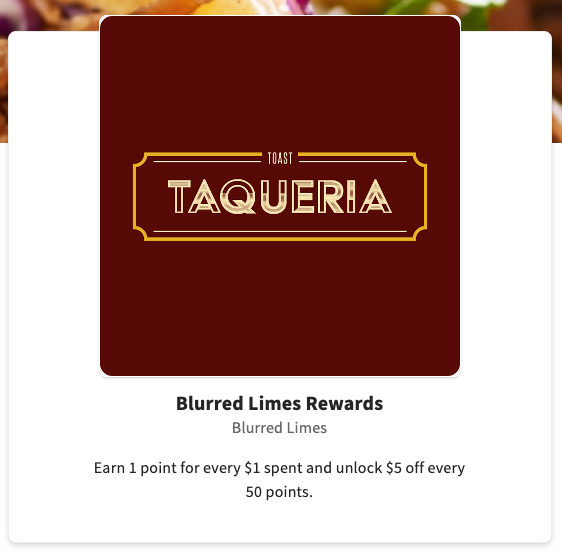
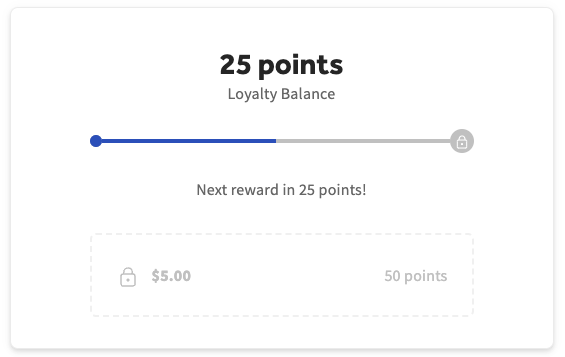
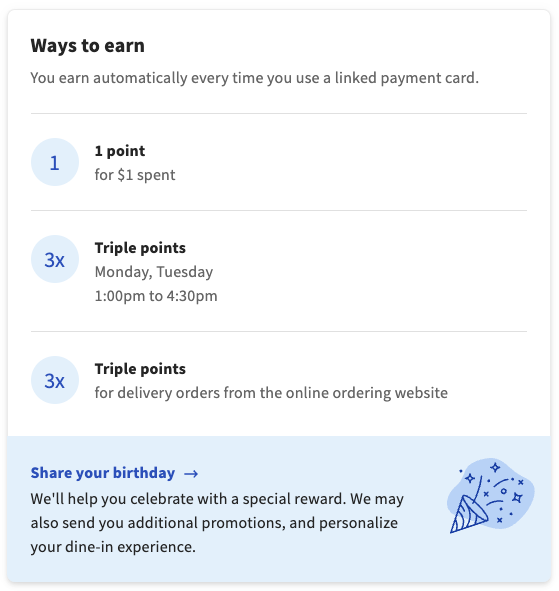
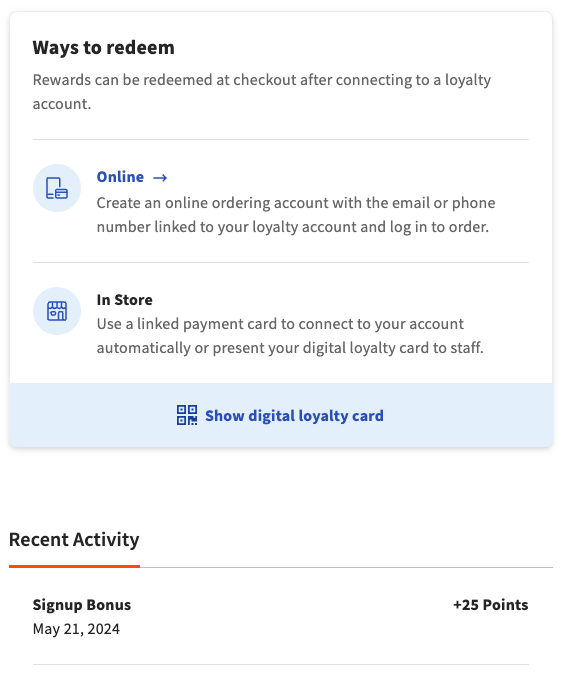
The recent activity tab lists transactions the guest made with their loyalty account at your restaurant, including how many points they earned and what they redeemed. Linked credit cards appear under a Linked Cards tab. From there, guests can verify or remove cards.
Linked Credit Cards on a Rewards Account
When a guest pays with a credit card and uses their rewards account in the same transaction, the credit card is automatically linked to that loyalty account. A guest cannot stop this from happening at checkout on the POS.
All linked credit cards appear in the guest's online rewards account, where the guest can verify or remove them. To prevent unintended rewards redemption, only the first card used is active by default. Any additional linked cards must be manually verified by the guest before they can be used for future rewards.
For details, see Manage Linked Credit Cards on A Loyalty Account.
Frequently Asked Questions
What information is required for a guest to sign up?
A guest needs either an email address or a phone number — only one is required, not both. The sign-up method (email or phone) is set in Toast Web > Marketing > Loyalty > Settings. A name is not required at sign-up. Guests can add additional profile information, including their name and birthday, later from their digital loyalty card.
Also asked as:
- What info do guests need to sign up for loyalty?
- Do guests need to enter their name to join the loyalty program?
- What fields are required for loyalty enrollment?
How do my customers sign up for the loyalty program?
Your customers can sign up for the loyalty program at checkout on the POS, on a guest-facing display, on a kiosk, through Toast Online Ordering, through Local by Toast, on digital receipts, through mobile payments, or by using the sign-up link you share on your website or social media. Each surface is covered in the sections above.
Also asked as:
- How can my customers sign up for loyalty?
- How do guests join my loyalty program?
- What are all the ways to sign up for loyalty?
Where is the loyalty sign-up link?
The loyalty sign-up link is in Toast Web under Marketing > Loyalty > Settings > Settings > Promote your program. Copy the link with the copy icon and share it on your website, social media, or wherever your guests can find it. You can also generate a QR code from the same Promote your program section — see Can I Create a QR Code for Toast Loyalty Sign-Up?.
Also asked as:
- Where do I find the loyalty signup link?
- How do I get the loyalty sign-up URL?
- Where is the rewards sign-up link?
Can I add a loyalty member manually?
Yes, you can add a loyalty member manually from a closed check on the POS. Navigate to the guest's closed check, select Update, select Pay, select Rewards signup, and enter the guest's email address or phone number. See the Sign Up on a Closed Check After Checkout section above for the full steps.
Also asked as:
- How do I manually add a customer to loyalty?
- How do I create a loyalty account for someone?
- Can I add a loyalty reward account manually?
Can Toast Customer Care add loyalty members for me in bulk?
If you are migrating from a previous loyalty provider and need to bulk-import existing members, Toast can help. See Import Guest Loyalty Information for the bulk import process, the file format required, and the consent disclosures involved. For day-to-day enrollment, use the sign-up surfaces described in this article.
Also asked as:
- Can I bulk add loyalty members?
- Can I import a list of loyalty members?
- How do I migrate my loyalty list to Toast?
Why am I being asked to enter loyalty information during checkout, and how do I turn it off?
The loyalty sign-up prompt at checkout appears because the sign-up setting is enabled for your program. To disable it, navigate to Toast Web > Marketing > Loyalty > Settings. For the full enable and disable steps, see Enable Toast Loyalty Sign Up Upon Taking Payments.
Also asked as:
- How do I turn off the loyalty prompt at checkout?
- How do I disable the loyalty sign-up screen?
- Can I remove the loyalty prompt from checkout?
Can a guest stop a credit card from being linked to their rewards account?
A guest cannot stop a credit card from being linked to their rewards account at checkout on the POS. When a guest uses both a rewards account and a credit card in the same transaction, the card is automatically linked. Guests can verify or remove linked cards later from their online rewards account. Only the first card used is active by default; any additional linked cards must be manually verified before they can be used for rewards.
Also asked as:
- How do I unlink a credit card from a loyalty account?
- Can I prevent a credit card from being added to my rewards account?
- Why is a credit card showing up on a guest's loyalty account?
Related Articles
- Get Started With Toast Loyalty
- Toast Loyalty FAQ
- Enable Toast Loyalty Sign Up Upon Taking Payments
- Toast Loyalty Usage With a Guest-Facing Display
- Import Guest Loyalty Information