Manage the Payroll Accounting Sync
Last updated: Jun 26, 2026, 3:32 PM
If you use Toast Payroll, review these different features of the payroll accounting sync from Toast to eligible accounting systems.
| Before using this article, you must complete the steps in Get Started With Payroll Accounting Sync. This integration is exclusively available to customers using both Toast Payroll and QuickBooks Online.
Looking for Sales Data Accounting Sync? See Manage Sales Data Accounting Sync. |
- Payroll Accounting Sync Navigation in Toast Web
- Initiate a Manual Sync in Toast Web
- Payroll Accounting Sync in xtraCHEF
- How the Payroll Accounting Sync Works in xtraCHEF or Toast Web
- Reconcile Toast Payroll Data in xtraCHEF or Toast Web
- Reconcile Your Payroll Accounting Sync Data in QuickBooks Online
- Additional Resources
Payroll Accounting Sync Navigation in Toast Web
In Toast Web, there are four pages for the Payroll Accounting Sync. Navigate to Finance > Accounting and select a page below:
- Activity
- Payroll assignments
- Connections
- Payroll settings
Activity Page
This video discusses the Accounting Activity calendar and how you can monitor the syncs to QuickBooks Online.
This page offers a calendar view which displays each syncing event, whether successful or unsuccessful. Use the drop-down menus in the upper-right corner to filter by pay group and location. You can view more than one pay group and location at once.
If an error exists which requires your attention, you'll see a banner at the top of this page with an action to take. This can occur when you have GL, mapping, connection, or sync issues. It's important to address these action items in order to successfully sync your Toast data to QuickBooks Online. Learn more about Payroll Accounting Sync errors by reading Get Help With Payroll Accounting Sync.
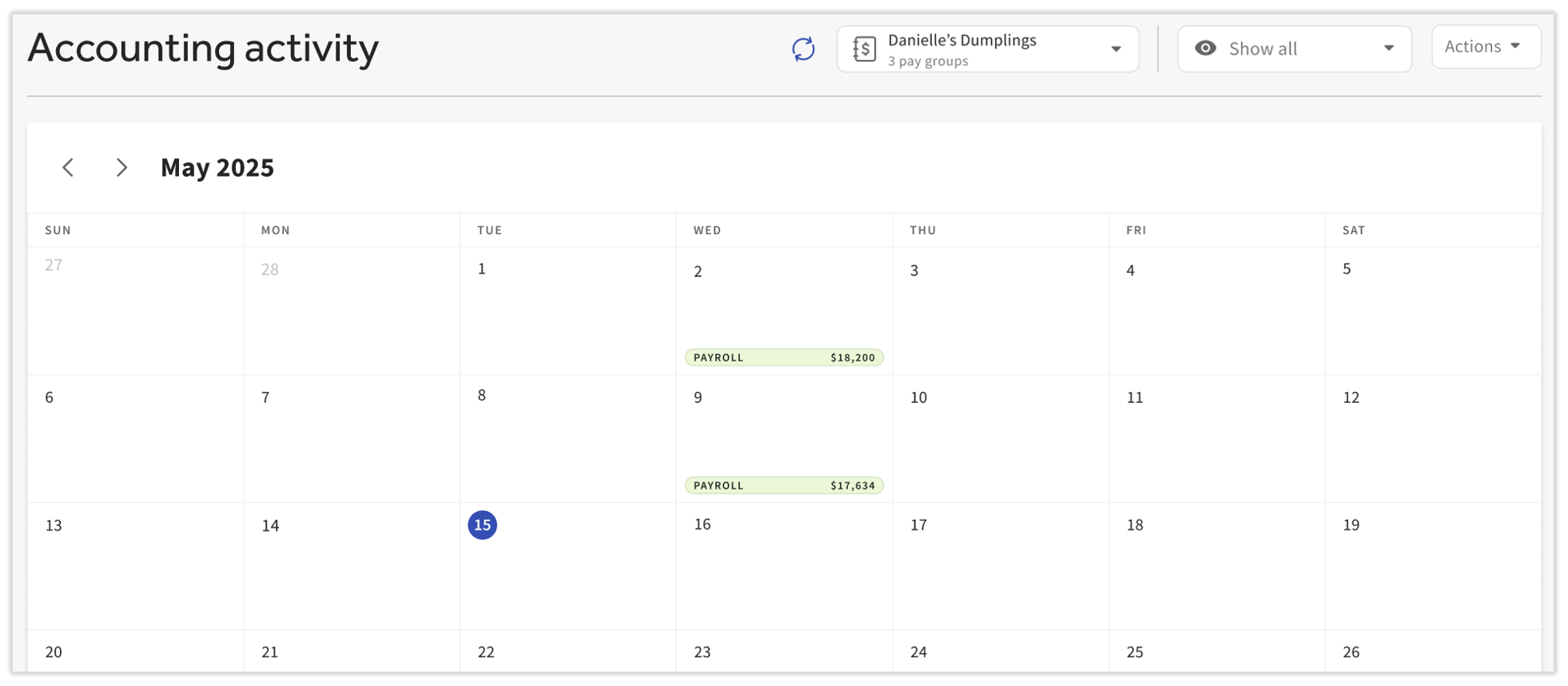
Select a date to open the details of all syncs that occurred on that day.
- When a payroll entry has synced to the connected QuickBooks Online account, it will appear in green on this calendar view.
- Unsuccessful syncs of payroll entries will appear in red and will display a red dot in the upper-right corner of that day on the calendar.
- When this happens, the financial contact(s) at your restaurant will receive an email with more details and a path to correcting the issue. For instance, a new line item may not have a GL code assigned, so the email will direct you to the GL mapping page.
Assign a GL Alert
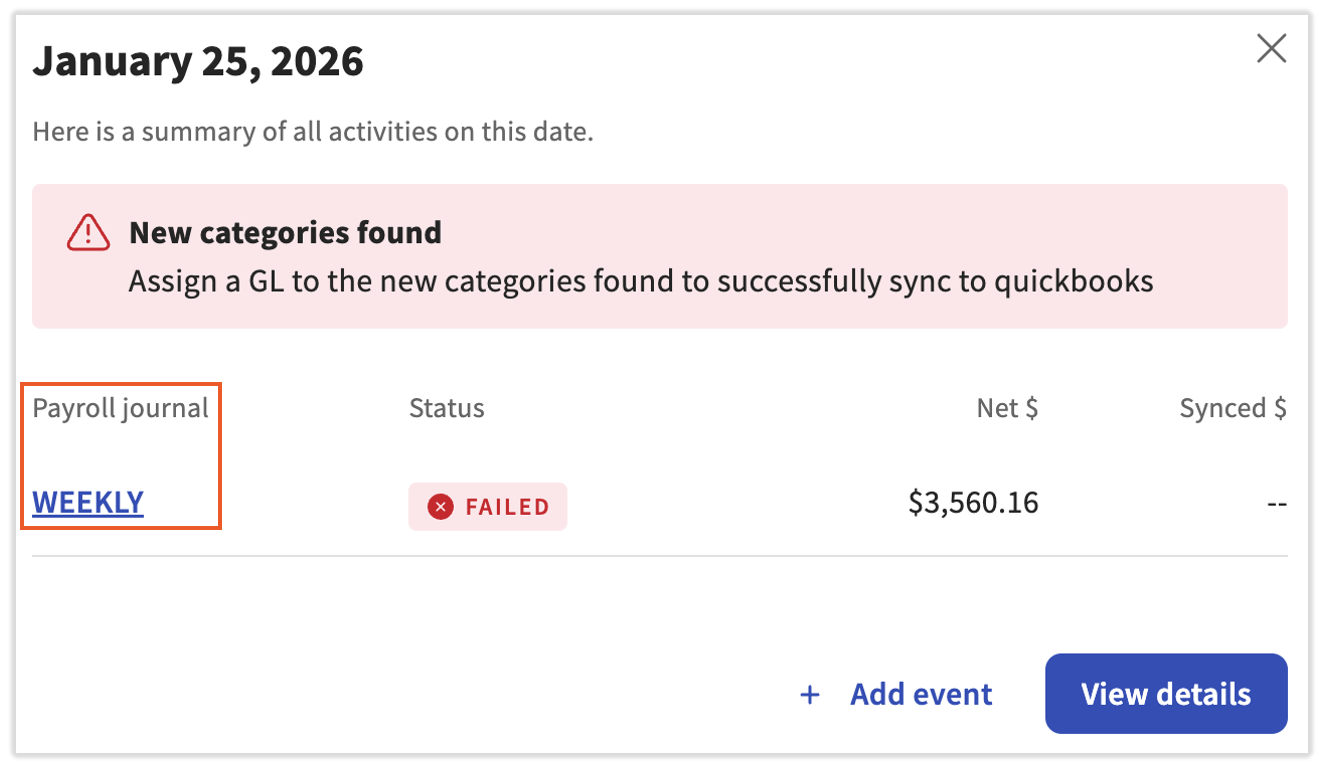
Occasionally, you might open a day and see a pink box stating "X payroll sync errors found." The system will ask you to assign a GL to the new categories found to successfully sync to QuickBooks Online. To do this:
- Select the hyperlink in the Payroll journal column for any syncs with a Failed status.
- This will open the payroll journal details for that day. In the pink box on this page, select the link to Assign a GL.
- You'll be taken to the Payroll assignments page for that pay group. Look for any missing GL code assignments here; they will have a blank drop-down menu next to the GL description. You can easily recognize how many assignments are necessary by checking the X incomplete note in each section.
- Select a GL code to match the payroll expense or liability. Select Save.
See more troubleshooting steps in Get Help With Payroll Accounting Sync.
Payroll Assignments Page
The features on this page are used during Payroll Accounting Sync onboarding to map your payroll expenses and liabilities to your QuickBooks Online GL accounts, but it's also referenced during new payroll expense/liability mapping and error troubleshooting. Use Match Toast Payroll Categories to Your Accounting System's GL Codes to see recommended mapping suggestions.
- Select a pay group from the drop-down menu in the upper-right corner to view the GL codes for that location.
- Select the gear icon to visit the Payroll settings page and update how your sync occurs.
If a line item does not have a GL code assigned, open the Select GL code drop-down menu and choose a code from your QuickBooks Online software. If you do not see the intended GL code in the suggested list, select View all GL types to open your full chart of accounts. You can also select + Add GL code to instantly create and add a new code into QuickBooks Online.
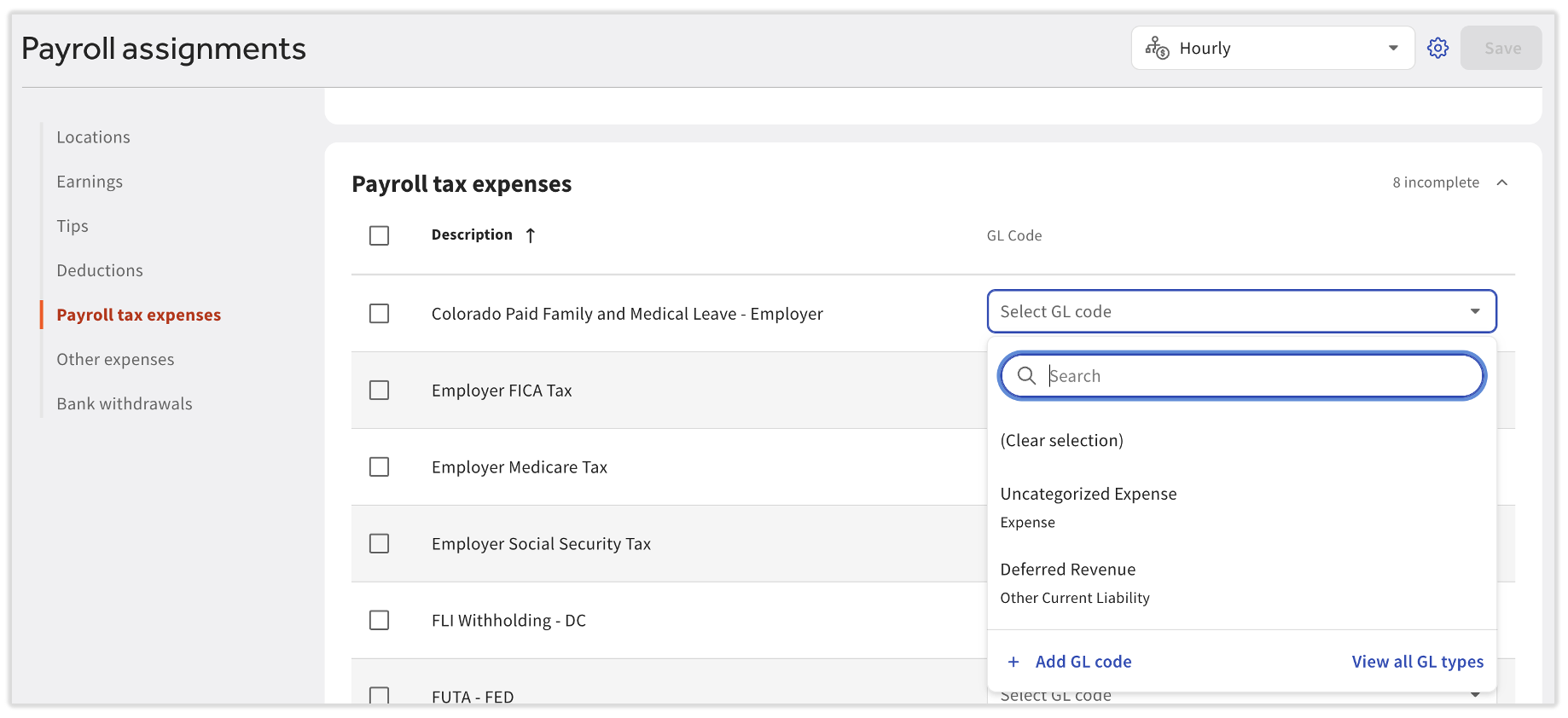
At the top of this page, there's a toggle to Breakout by location. This feature is useful for QuickBooks Online users who have classes enabled and have more than one location tied to each pay group.
If the page is empty, a payroll has not yet been posted from this pay group (or a manual sync still needs to take place).
Connections Page
Use this page to manage the connection between Toast and QuickBooks Online. Pay groups without a Toast Web location can still connect to QuickBooks Online. Note: If you're looking for the mapping relationships between payroll expenses/liabilities and QuickBooks Online GL accounts, navigate to the Payroll assignments page instead.
Regarding the relationship between QuickBooks Online and pay groups:
- The basic idea is that one QuickBooks Online account usually reflects one FEIN’s bank account.
- Some customers have multiple pay groups attached to the same bank account. Therefore, there might be several pay groups assigned to one QuickBooks Online account. Conversely, you might have separate bank accounts for each pay group, so you'll have many QuickBooks Online accounts.
There are three tabs on the page. Review each of them below.
Connected Accounts Tab
When a payroll has been submitted and synced to QuickBooks Online, you'll see entries here sorted by your QuickBooks Online account. Quickly view the connection status and the associated pay group(s) here.
- Take note of the QuickBooks connection status field here. It should read Connected.
- Select the edit pencil to connect or disconnect pay groups from this QuickBooks Online account.
- Select the three dots (overflow) menu to reconnect or re-establish the connection. You may need to do this when there is a lapse in billing, when some QuickBooks Online errors occur, or when you change your QuickBooks Online credentials (email and/or password).
If you would like to link a new QuickBooks Online account to Toast Payroll, navigate to Finance > Accounting > Connections and select Add QuickBooks Online account.
If this page is empty, a payroll has not yet been posted from this pay group (or a manual sync still needs to take place).
GL Codes Tab
If applicable, begin by selecting a QuickBooks account from the drop-down menu in the upper-left corner to find a list of GL codes in your QuickBooks Online account. Use the Show drop-down menu to view Active only, Inactive only, or All GL codes (the default is Active only). Then use the search bar to quickly locate the code or account type you need.
Each column here contains information imported from your QuickBooks Online account. You can select the edit pencil to update a GL code or its properties; this will also update the code in your QuickBooks Online account. Similarly, select +Add GL code to create a new line item in both Toast and QuickBooks Online. If you have new GL codes in your QuickBooks Online account, you can easily bring them into Toast by selecting Sync from QuickBooks Online.
Classes Tab
You might also see a third tab on this page if your business has classes configured in QuickBooks Online. This page uses the same functions as the GL codes tab, so you can easily pull up your classes and edit their properties. Any edits made to your classes in Toast Web will sync to your QuickBooks Online account.
Class tracking is an option for customers who use QuickBooks Online. Classes are different then GL codes and are typically used by customers with multiple locations. Visit Get started with class tracking (external link) for more details.
There is a potential issue if your QuickBooks Online account has classes set up by job instead of by location. The Payroll Accounting Sync defaults to syncing locations to classes, so the system may not be able to match things correctly. There are three options here:
- Reorganize your class tracking by location instead of jobs.
- Update your QuickBooks Online account to use location tracking instead of class tracking.
- Skip class tracking altogether. However, you assume the risk of errors with syncing.
Payroll Settings (Accounting Settings) Page
Select a pay group from the left side of the screen to view its configuration. Each tile here will be labeled by its Toast Payroll pay group. Any integration issue will be present on this page.
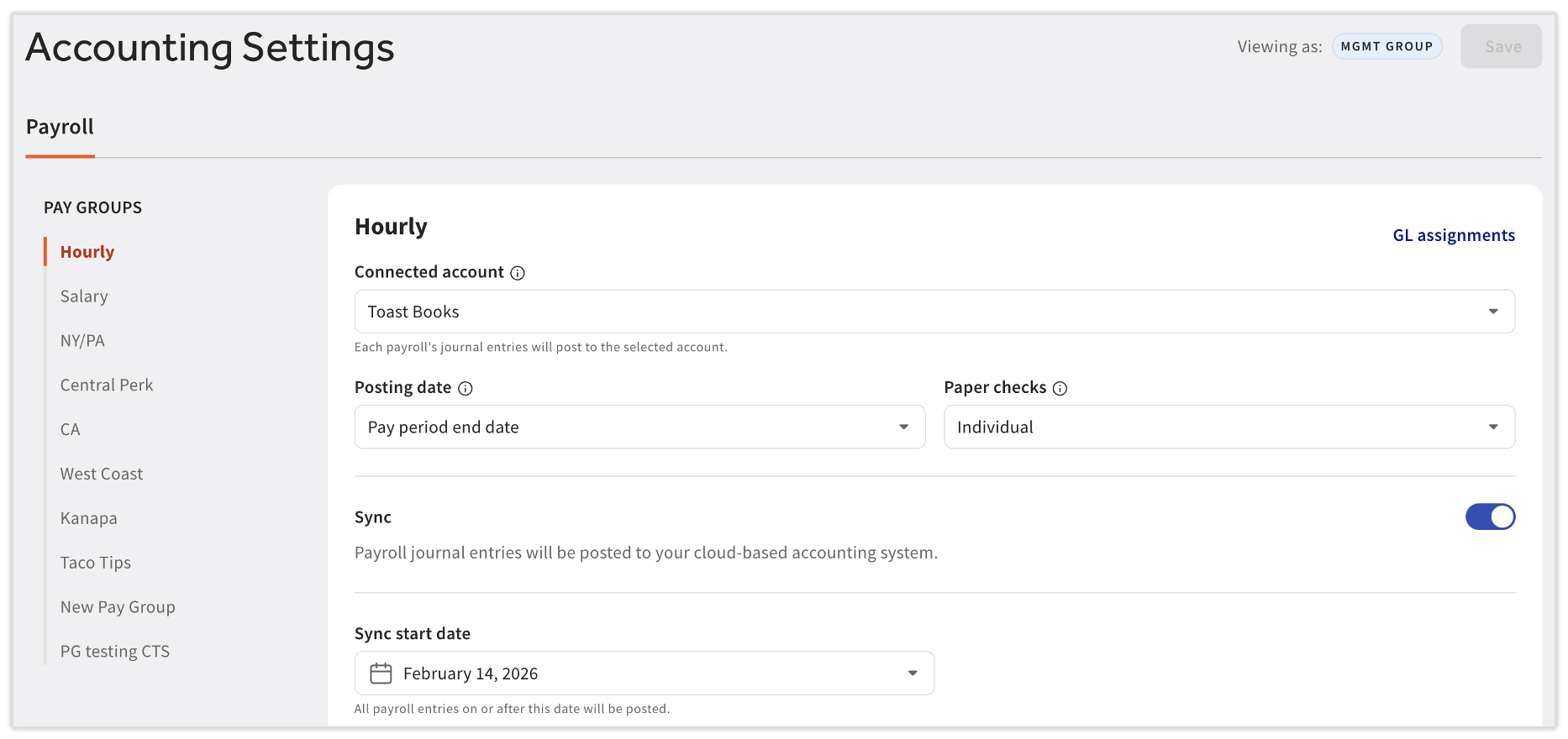
- Connected account: Select this drop-down menu to change the QuickBooks Online account the pay group is connected to. You can even connect to a new one that's not yet available by selecting the drop-down menu and choosing + Add QuickBooks Online account. This will initiate the Payroll Accounting Sync onboarding wizard.
- Posting date: This field lets you choose if your journal entries should post to QuickBooks Online on the Pay period end date or on the Check date. Often, customers will select Check date when they use cash-based accounting and they will select Pay period end date when they use accrual-based accounting.
- If this setting is updated at some point, it will only affect future entries and not historical entries.
- Paper checks: If you have a significant amount of employees receiving paper checks, you might select Individual so you can track each check (and check number) as it's cashed. On the other hand, if you have a minimal number of paper checks, you might select Summary to see all checks written in a lump sum.
- Sync: When this toggle is enabled, journal entries will automatically post to QuickBooks online.
- Set the Sync start date to choose when you'd like this automatic sync to begin working. You can disable this toggle and manually post journal entries, however.
Initiate a Manual Payroll Sync in Toast Web
One Payroll
To manually sync the data from a single submitted payroll to QuickBooks Online, use these directions:
- In Toast Web, navigate to Finance > Accounting > Activity.
- Select the day containing the failed payroll sync.
- Select View details.
- Select Sync to QuickBooks Online.
- If you submitted payroll for more than one pay group on that day, select the pay group on the left side of the page to locate the failed payroll data set(s).
Multiple Payrolls
Note: If you set a past date as your Start date during Payroll Accounting Sync configuration, this is an ideal way to "catch up" your QuickBooks Online account. However, syncing multiple payrolls at once can occasionally fail, especially when there is a large amount of data across multiple payrolls, so be sure to review the results afterwards.
To manually sync the data from multiple submitted payrolls to QuickBooks Online, follow these steps:
- In Toast Web, navigate to Finance > Accounting > Activity.
- In the upper-right corner, select the Actions drop-down menu and choose Sync from Toast Payroll.
- If you have locked your QuickBooks Online account, those journal entries will appear as failed during resyncing. If they have synced successfully before, this can be ignored.
Payroll Accounting Sync in xtraCHEF
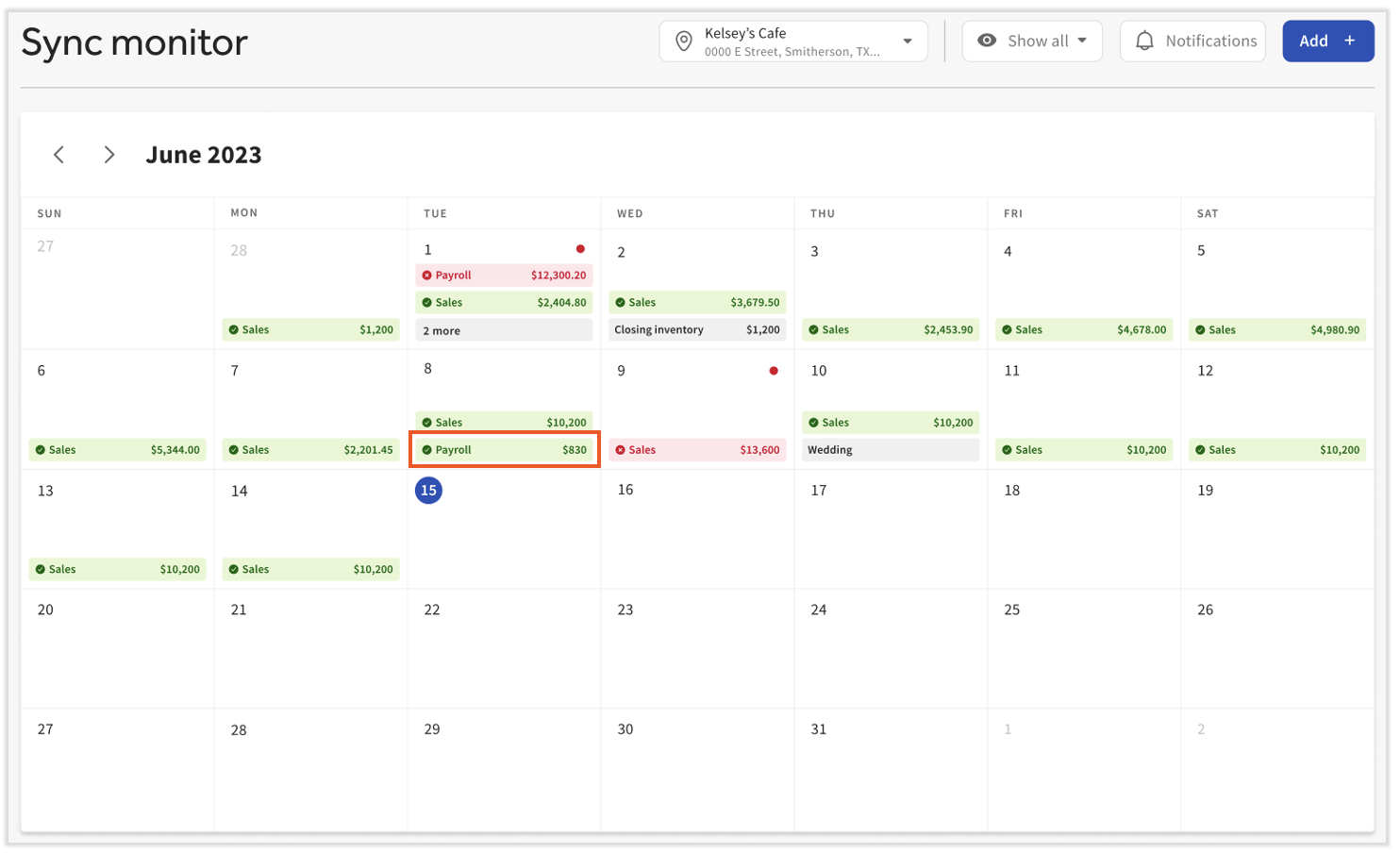
Once payroll setup and payroll mapping are complete, xtraCHEF will automatically sync Toast Payroll data and create payroll journal entries in QuickBooks Online (assuming you enabled Payroll sync during setup). You can monitor these journal entries and their syncs with your QuickBooks Online account via the Sync Monitor.
- Navigate to Sync Monitor and select a date with a Payroll tag.
- Any syncs marked in green were successful and journal entries can be seen in your QuickBooks Online account. If you see a sync marked as failed and shaded in red, review the error message in the pink box at the top of this page, then select the Payroll journal hyperlink to open the journal entry audit page.
- In order to successfully sync this information, fix the issues by following the links on the journal entry audit page. Use Get Help With Payroll Accounting Sync to find more help on correcting the issue here.
- Now select Actions > Sync to QuickBooks. If you return to the Sync Monitor, the payroll entry should now be color-coded green to indicate the sync is successful.
How the Payroll Accounting Sync Works in xtraCHEF or Toast Web
Once you submit a payroll in Toast Payroll and initiate a payroll accounting sync into QuickBooks Online, this is the "behind the scenes" of how the sync works and how the flow of money relates:
- You will see two or three separate withdrawals to your bank account. These are direct deposits, taxes, and physical checks (when applicable).
- These withdrawals will show up automatically in your QuickBooks Online Bank Feed.
- Toast will then send over a journal entry that breaks down those totals into the assigned GL accounts (wages, taxes, etc.).
- You can simply select Match in your QuickBooks Bank Feed. Because Toast sent the data, the bank's withdrawal amounts and the payroll numbers now line up perfectly.
Reconcile Toast Payroll Data in xtraCHEF or Toast Web
Explore how to reconcile your synced payroll data in xtraCHEF or Toast Web against your Toast Payroll data on a few different levels:
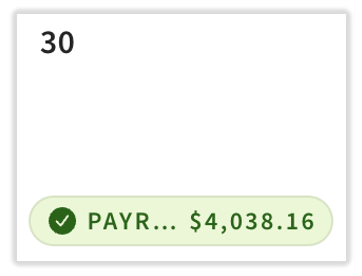
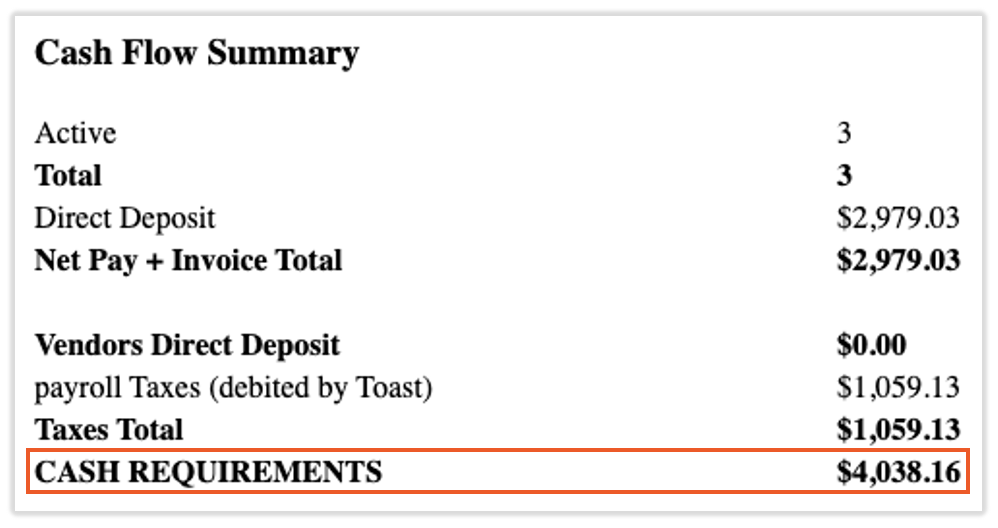
- To match the overall totals, compare your payroll total in the xtraCHEF Sync Monitor or the Toast Web Activity calendar to your Toast Payroll Summary report.
- In xtraCHEF, navigate to the Sync Monitor.
- In Toast Web, navigate to Finance > Accounting > Activity.
- Locate the Payroll Summary report in Toast Payroll by navigating to Payroll > Past Payrolls > View. The report is located near the bottom of the page. Find the Cash Requirements line in the Cash Flow Summary section.
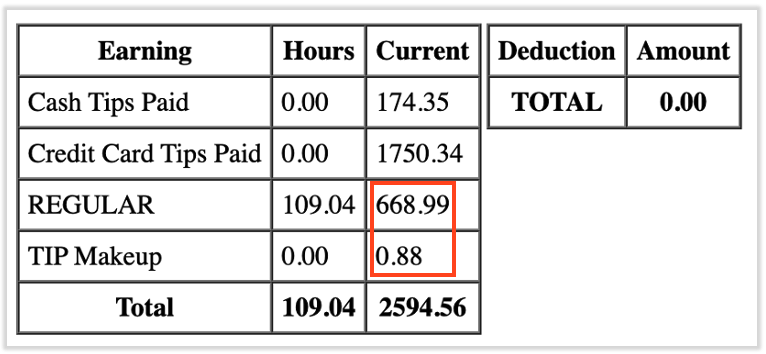
- To match earnings totals, compare earnings in the synced payroll details to your Labor distribution by job report in Toast Payroll.
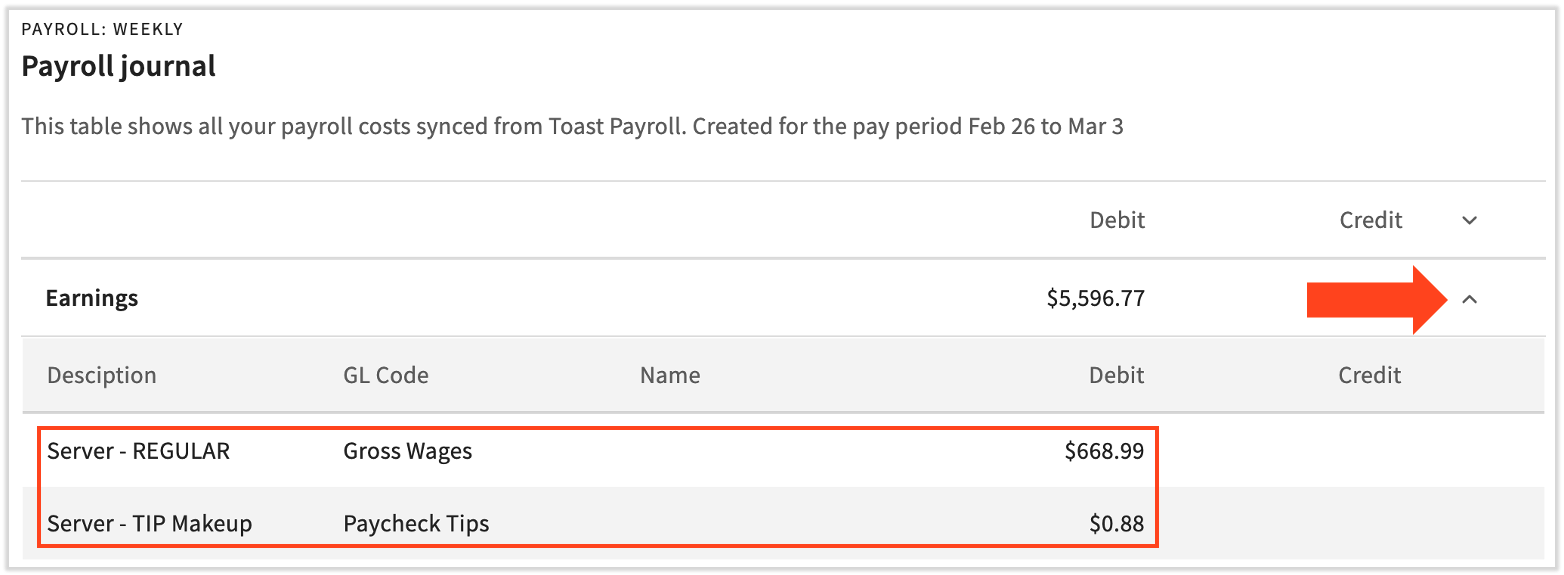
- In Toast Web, navigate to Finance > Accounting > Activity and select a date with a synced (green) payroll entry. Select the Payroll journal hyperlink to open your payroll journal details. Next, use the caret icon to expand the Earnings section and view your earnings details.
- In xtraCHEF, navigate to Sync monitor and select a date with a synced (green) payroll entry. Select the Payroll journal hyperlink to open your payroll journal details. Next, use the caret icon to expand the Earnings section and view your earnings details.
- In this example, we're noting the Server - REGULAR and Server - TIP Makeup amounts. Locate the Labor distribution by job report by navigating to Payroll > Past Payrolls > View. The Labor distribution by job report is located near the bottom of the page. Compare with the REGULAR (and other related earnings) line items in this report.
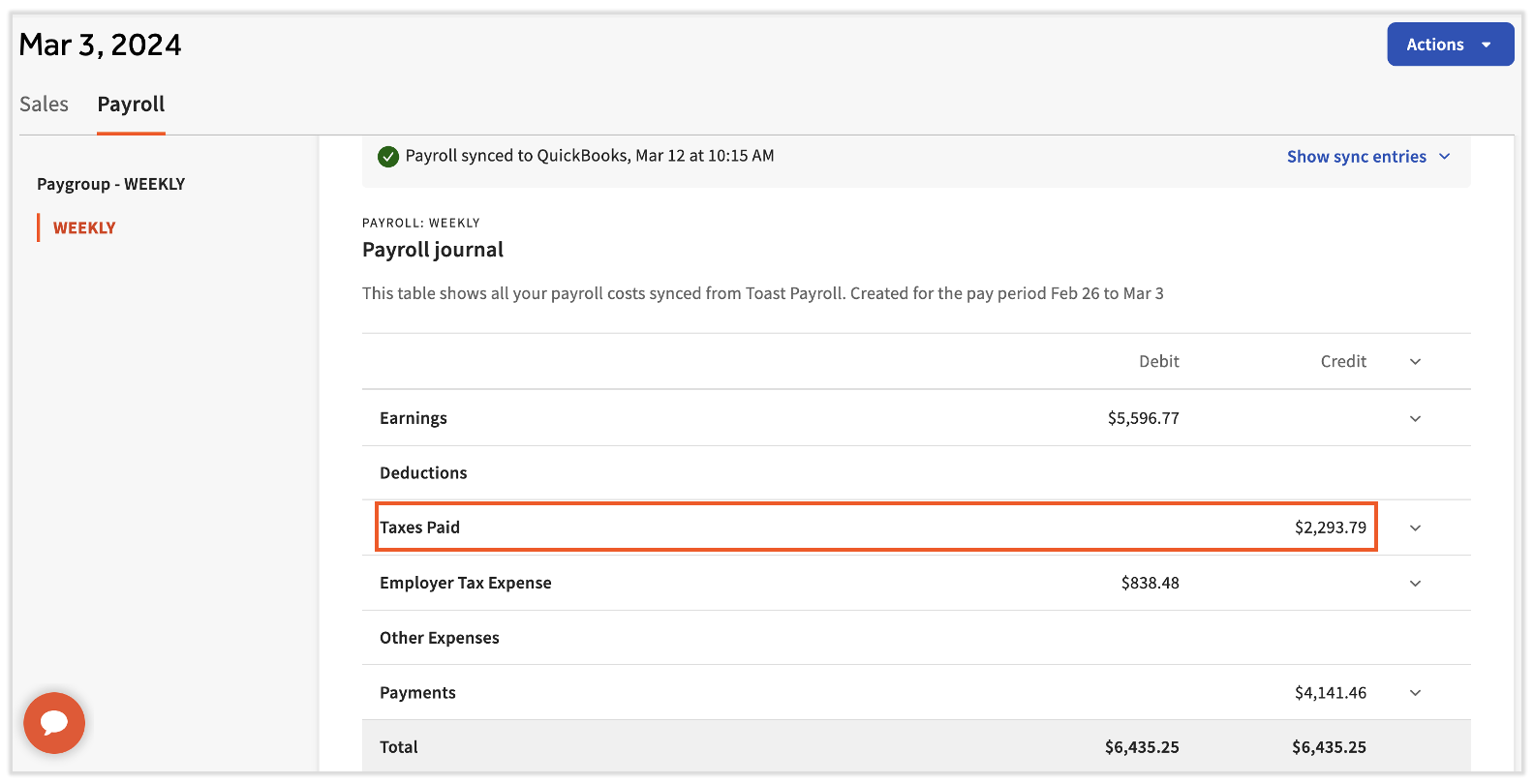
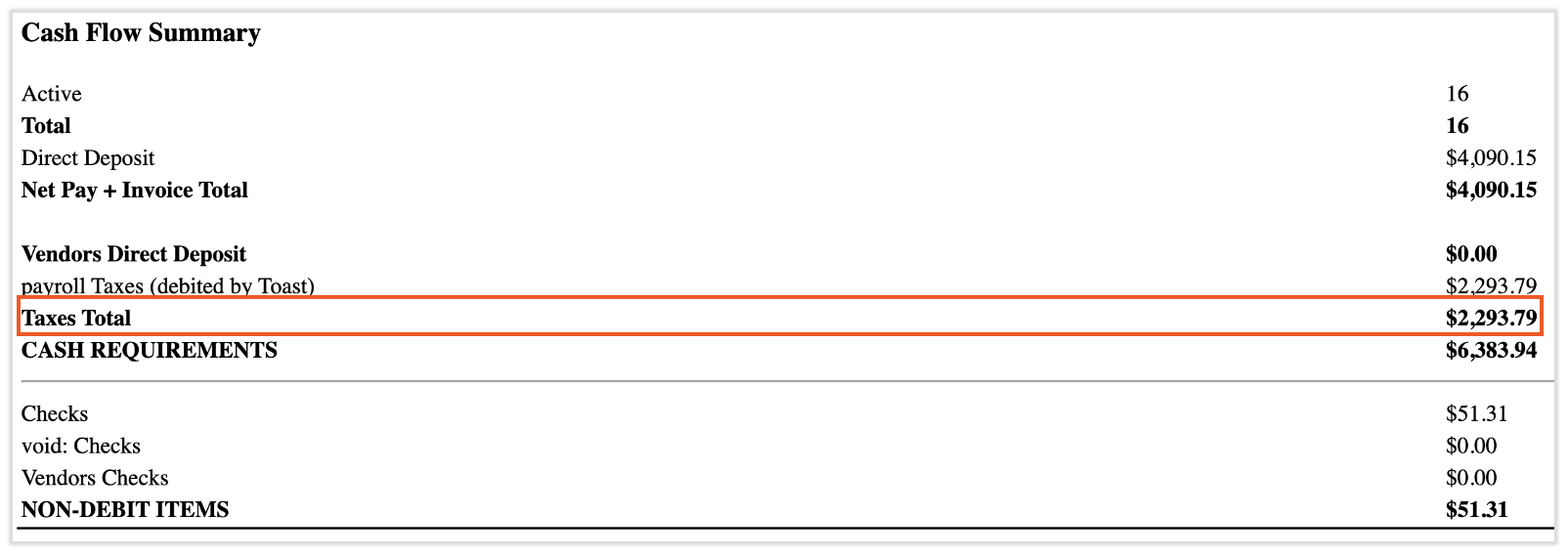
- To reconcile employee taxes, compare the tax amount in the synced payroll details to the Payroll Summary report in Toast Payroll.
- In Toast Web, navigate to Finance > Accounting > Activity and select a date with a synced (green) payroll entry. Select the Payroll journal hyperlink to open your payroll journal details. Select the caret icon next to Bank withdrawals and use the Payroll Taxes line item.
- In xtraCHEF, navigate to Sync monitor and select a date with a synced (green) payroll entry. Select the Payroll journal hyperlink to open your payroll journal details. Here, locate the Taxes Paid line item.
- Locate the Payroll Summary report in Toast Payroll by navigating to Payroll > Past Payrolls > View. The report is located near the bottom of the page. Compare with the Taxes Total line item.
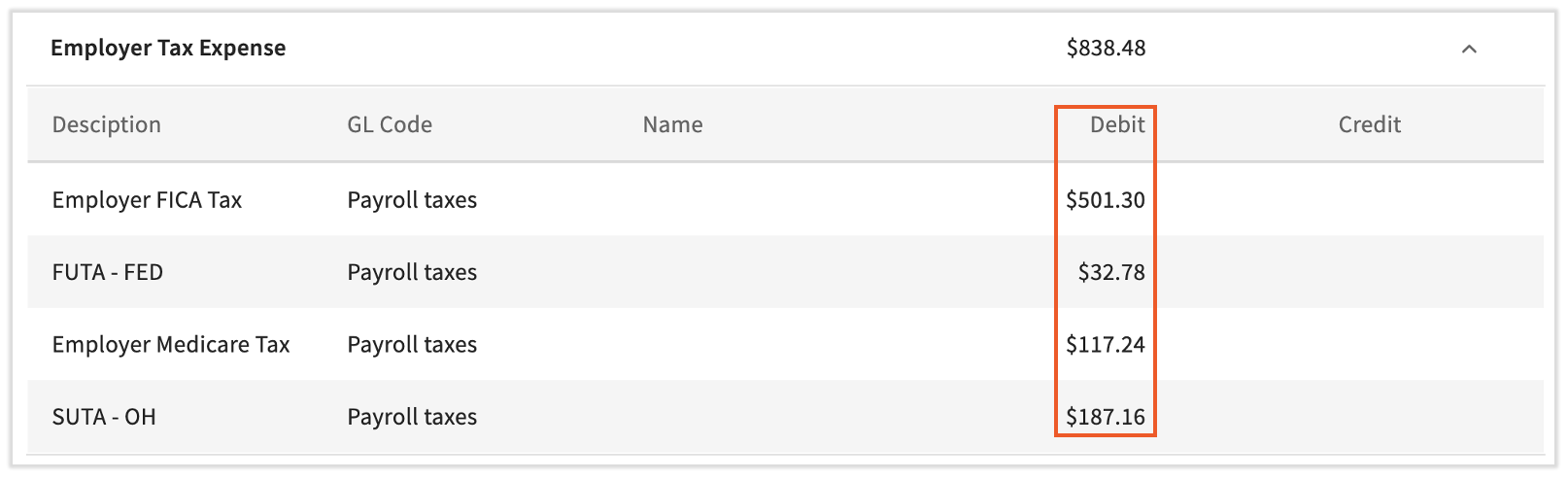
- Reconcile employer taxes by comparing the tax amount in the synced payroll details to the Payroll Summary report in Toast Payroll.
- In Toast Web, navigate to Finance > Accounting > Activity and select a date with a synced (green) payroll entry. Select the Payroll journal hyperlink to open your payroll journal details. Select the caret icon next to Bank withdrawals and use the Payroll Taxes line item. You can also select the caret icon to view each tax individually.
- In xtraCHEF, navigate to Sync monitor and select a date with a synced (green) payroll entry. Select the Payroll journal hyperlink to open your payroll journal details. Here, locate the Payroll Tax Expense line item. You can also select the caret icon to view each tax individually.
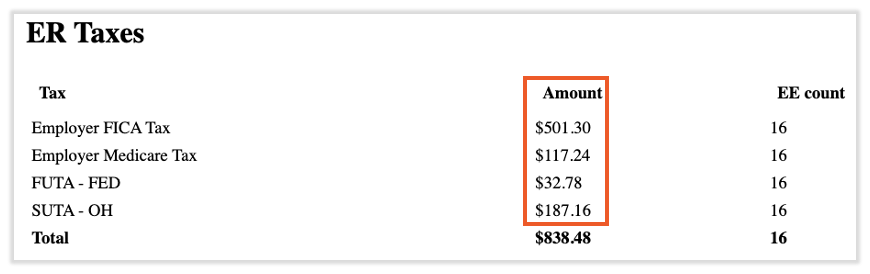
- Locate the Payroll Summary report in Toast Payroll by navigating to Payroll > Past Payrolls > View. The report is located near the bottom of the page. Compare with the Total amount in the ER Taxes section.
Reconcile Your Payroll Accounting Sync Data in QuickBooks Online
You can verify whether your Payroll Accounting Sync data has successfully synced to your QuickBooks Online account. In QuickBooks Online:
- Navigate to Reports > Standard Reports.
- In the search bar, search for Journal.
- If you're looking for a payroll that synced very recently, use the search bar to locate Recent transactions.
- Once it loads, filter by the sync date you see on the Activity calendar in the Toast Web Payroll Accounting Sync.
- You'll see the GL codes that have carried over during that time frame and the corresponding dollar amounts.
Additional Resources
- Get Started With Payroll Accounting Sync
- Match Toast Payroll Categories to Your Accounting System's GL Codes
- Get Help With Payroll Accounting Sync