Manager Log Overview
Last updated: Feb 13, 2026, 3:10 PM
- Manager Log Overview
- Use the Manager Log in Toast Web
- Use the Manager Log on Toast Now
- Send Notifications With Manager Log Notes
- Legacy Manager Log
Manager Log Overview
The manager log is designed to be an internal message board where managers can post messages about guests, shifts, maintenance, and more. It's available in both Toast Web and the Toast Now app.
Any team member who should have the ability to add and view entries must have the 3.26 Log Book permission selected on the job level or user level. To learn more about permissions, check out the Permissions Reference Guide.
Back to top
Use the Manager Log in Toast Web
In Toast Web, select Manager log on the left-hand navigation bar.
The manager log will default to today’s date, but you can open the Choose a date drop-down to select a different date if desired. At this time, you can only select a single date (not a date range) to view manager log entries. Any entries submitted for the selected date will be displayed on the page.
To add a new entry, select Add Entry. Each entry requires:
- A description
- A date
- A category
Currently, the following categories are available for manager log entries: accounting, call outs/late, guest, injuries, inventory, maintenance, operations, shift notes, and others. Categories cannot be further customized at this time. Select Save to add the new entry to the manager log. If you're having trouble viewing any of these entries, double-check the 3.26 Log Book permission as described above.
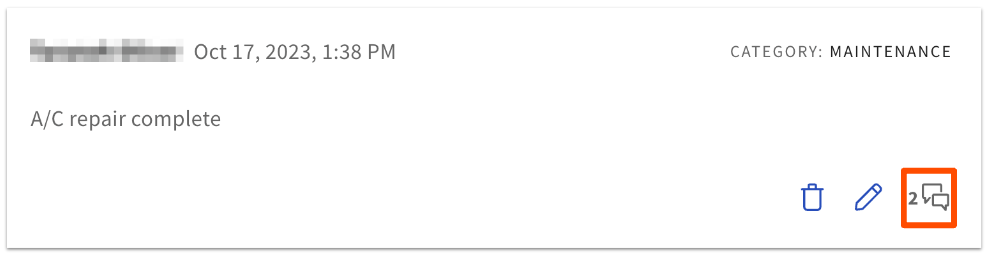
You can edit, reply, or delete any of your own manager log entries from this page. You can reply to entries that other users have made, but you won’t be able to edit or delete them. Categories can't be assigned to replies. The icon in the bottom right corner of a log entry will indicate the number of replies to that entry:
To search your manager log entries for a specific date, use Ctrl + F (or Command + F on a Mac) to search the text on the page. If you'd like to print a manager log page, you can select File > Print from your browser.
Manager log entries made in Toast Web will sync to the Toast Now app, so teams can view, post, and reply to posts from the app as well. At this time, the entry source (Toast Web or the Toast Now app) is not indicated for manager log entries.
Use the Manager Log on Toast Now
The Toast Now app offers a mobile option for viewing and using the manager log. On the homepage overview, below the sales and labor data cards, you’ll see the Manager log card if your user account has the required permissions for that restaurant location.
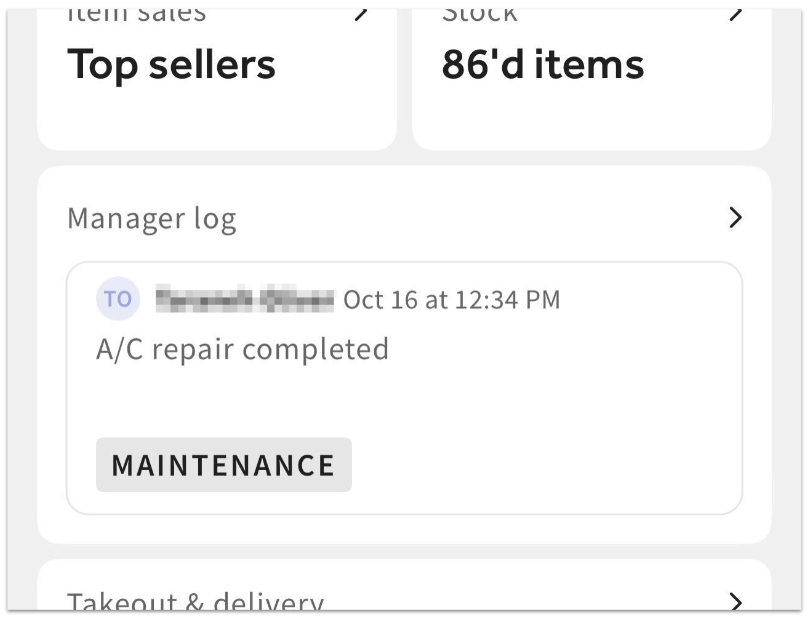
Entries are sorted by time (the most recent post will show first), and you can swipe to the side to cycle through any other entries from the selected date. Select a specific entry to open the thread and view or add replies.
Select the arrow in the top-right corner of the Manager log card to open the full mobile view of the manager log. Here you’ll see the full list of entries for the selected date. You can add a new entry from this screen, or you can edit, reply, or delete any of your own manager log entries. You can reply to entries that other users have made, but you won’t be able to edit or delete them.
Manager log entries made in Toast Now will also sync to Toast Web. You can pull down the manager log page to refresh any entries that have been added by other users.
To learn more about the app, check out Get Started with the Toast Now App.
Send Notifications With Manager Log Notes
Email Notifications
If you'd like your managers to receive notes from the manager log via email, add them to the Managers list or other custom contact list in your Contact Settings, then assign this list to receive the Daily Performance Summary: All Locations.
- Navigate to Toast account > Notifications & alerts > Contact settings (old).
- Check the Email list field for Daily Performance Summary: All Locations.
- If you already have a list selected there, some users are already receiving these emails. Locate this list in the Email Lists section further down the page. Select Add Users to include other people in this list or select the X icon next to their name to remove them from the list.
- If you do not have an Email List selected for Daily Performance Summary: All Locations, you can create a new one by selecting + Create Email List at the bottom of the page.
- Name your list and then select Add Users to include restaurant employees. Make sure the right email address is associated with that user! Select Done in the pop-up when you've chosen the intended users.
- You can also select Add External Email if you'd like you to add a person who doesn't have an employee account in Toast. Enter their email address and select OK.
- Once you have your email list completed, add this to Daily Performance Summary: All Locations.
- Save your changes.
Learn more about contact settings and email lists in Creating Email Lists & Setting Email Notifications for Restaurant Employees.
Note: Neither the Daily Performance Summary: Current Location or the Weekly Performance Summary: Current Location will include any notes from the manager log at this time.
Legacy Manager Log
The legacy manager log is available in Toast Web only (not the Toast Now app). You can still access old entries on the legacy manager log, but that version will no longer be supported.
- Any manager log entries made on Toast Web in the legacy manager log will be visible in the legacy manager log only.
- Any manager log entries made on Toast Web or the Toast Now app in the new manager log will be visible in the new manager log experience (described above).
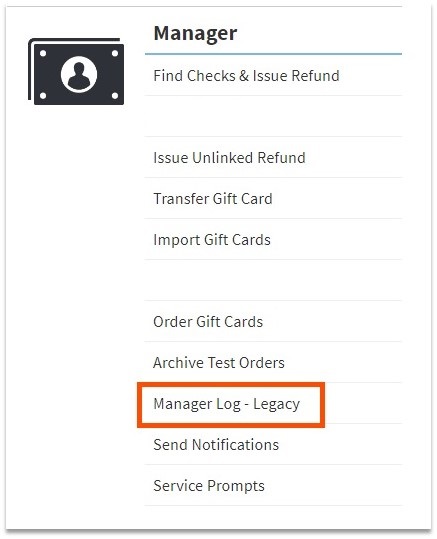
To access the legacy manager log page, scroll down to the bottom of the Toast Web homepage and navigate to the Manager section > select Manager Log - Legacy.