Create Email Lists and Configure Employee Notifications
Last updated: Sep 17, 2026, 1:33 PM
Email notifications can be sent to your administrative and management teams or other employees by configuring your Toast email contact settings. In this article, learn about the types of notifications available and how to set up your email lists.
- Types of Email Notifications
- Create Email Lists and Turn On/Off Notifications
- Required Permissions/Access to Receive Emails
- Troubleshoot Email Notifications
- Additional Resources
Types of Email Notifications
The following email notifications can be sent to your email:
Note: Performance emails, whether daily or weekly, will not be sent out when Test Mode is enabled.
Release Notes | Product updates, bug fixes, and new features will be consolidated into an email and sent each time there is a major product update. The Toast Monthly Update is a newsletter that highlights what's new and important for your business including community events, product updates, and more. These updates are especially useful for owners, managers, and anyone else who manages your Toast account to get the most out of the platform. |
Incoming Orders | Restaurants using online ordering can have users notified, via email, every time an online order is placed. This can act as a type of safeguard to ensure that orders are not overlooked or missed. |
Delivery Orders | Restaurants that use Toast for delivery orders can be notified, via email, anytime a delivery order is placed. |
Finance Emails | Includes invoices, unlinked refunds, Toast monthly statements (credit card deposits and monthly software fees), as well as any other direct, financially sensitive messages regarding processor outages or follow-ups. This information will be sent to only those who are listed as your restaurant's financial contact. For instructions on how to view or update your restaurant's finance contact, see Optimize Communication Preferences. |
Daily Performance Summary: All Locations | This daily summary provides sales-focused performance metrics from the previous business day for all locations in a single email, including:
Notes for multi-location groups:
|
Daily Performance Summary: Current Location | Looking to automatically send a sales summary to specific email addresses? This daily summary provides sales-focused performance metrics from the previous business day for a single location. If you have multiple locations, you'll receive a copy for each one. This allows you to view a snapshot of your previous day's performance, compare it to the same day last week (SDLW), and see the last 4 days' average performance, all without running any additional reports. It includes:
|
Weekly Performance Summary: Current Location | This weekly summary provides sales-focused performance metrics for your previous week for a single location. If you have multiple locations, you will receive a copy for each one. With a 7-day aggregated forecast for the coming week, you'll be able to view projected revenue for the upcoming week and can more confidently make decisions regarding labor and purchases. It includes:
|
Note: Toast's email notifications are limited to the fixed set of types listed above (Release Notes, Incoming Orders, Delivery Orders, Finance Emails, Daily/Weekly Performance Summaries). There is currently no option to create a custom email digest that answers your own saved or recurring questions to Toast AI. If this would be valuable to your business, share it as a feature request with your Customer Success contact.
Create Email Lists and Turning On/Off Notifications
To start sending email notifications to your restaurant staff, first, create an email list:
- In Toast Web, use the left-hand navigation bar to navigate to Toast account > Notifications & alerts > Contact settings (Manage who receives emails for performance summaries, orders, release notes, and finance updates).
- Select + Create Email List at the bottom of the page to start a new list.
- Name your list, and then select Add Users to select from the list of restaurant employees. Make sure the right email address is associated with that user! Select Done when finished.
- You can select Add External Email if you'd like you to add a person to the email list who doesn't have an employee account.
- Save your changes.
Then, once you have your email list, you can select which Email Type you'd like them to receive:
- Using the Email List drop-down next to your desired Email Type, select the name of the email list you created.
- Save your changes.
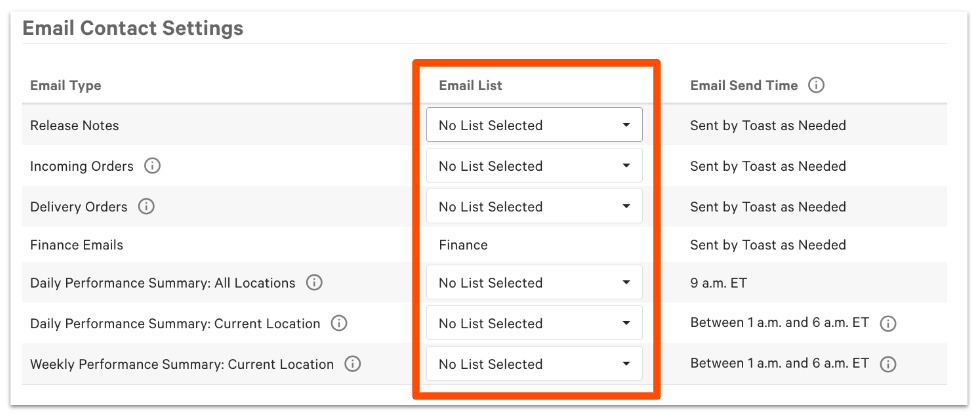
If you ever need to change the email address for any of the notifications (such as incoming online orders, for example), you can come back to this Contact Settings page and either select a different Email List for that Email Type, or update the email list itself.
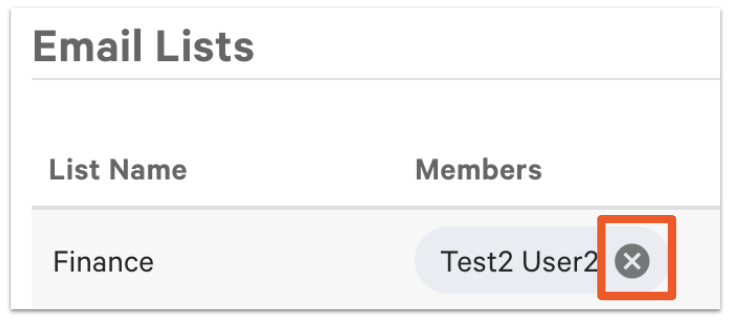
To delete a contact from an email list, select the X next to their name on the appropriate email list, as shown below.
Required Permissions/Access for Receiving Email(s)
In order for a Toast Web user to receive the nightly email, the user must have ALL three of the following attributes:
- Restaurant Access - The employee must be an active employee listed on the Employees page in Toast Web.
- Sales Report User Permissions - The employee must have this permission enabled on their user profile.
- Included in Email List - The employee must be listed in the Email Contact Settings group that receives the nightly email. To manage and/or update your email list for performance summaries, navigate to Toast account > Notifications & alerts > Contact settings. Under Email Lists, you will find your current recipient lists.
- To delete a contact from an existing email list, select the X icon next to their name on the appropriate email list.
- To add a new contact, select Add Users from the appropriate email list. Enter the name of the user, then select Done.
Once updated, you can select the type of email notifications that you'd like them to receive. Using the Email List dropdown next to your chosen Email Type, select the name of the email list. Then, save and publish your changes.
Troubleshoot Email Notifications
If someone is not receiving email notifications, and you've confirmed that they have all the required permissions as described above, follow these additional troubleshooting steps.
- Please ensure that the emails are not being filtered to "Spam" or another type of folder outside their primary inbox.
- Note: A best practice is to add no-reply@toasttab.com, the address that sends the emails, as a contact within the user's email account. This helps ensure it is not presumed to be a solicitation or spam email.
- Note: A best practice is to add no-reply@toasttab.com, the address that sends the emails, as a contact within the user's email account. This helps ensure it is not presumed to be a solicitation or spam email.
- Additionally, we recommend using Google Chrome when accessing Toast Web. If you're experiencing issues when downloading the email summary, please try using Google Chrome and clearing your cookies and cache.
Should you need further assistance, please contact Customer Care