Optimize Communication Preferences
Last updated: Oct 21, 2026, 1:52 PM
- Update Finance or Service & Maintenance Contacts
- Remove or Edit Existing Contacts
- Customer Contact Audit History
Update Finance or Service & Maintenance Contacts
On the Communication preferences page in Toast Web, you can view and manage the contacts assigned to different communication categories.
- Financial: Employees assigned as the finance contact will receive all communications related to billing activity for this location, including statements, invoices, upgrades, and renewals. The financial contact will also receive email notifications about chargebacks, so it is important to ensure the contact information remains up-to-date to avoid missed notifications. Chargeback notifications may also go to owners and general managers, who aren't listed on this page. To learn how to stop these, see Chargebacks FAQ.
- Service & Maintenance: Employees assigned as a service & maintenance contact will be notified in case of a service disruption or product maintenance needs for this location. Other email types may be included in the future.
To choose or change where Toast emails get sent, such as invoices, service notifications, statements, renewals, etc., navigate to Toast account > Notifications & alerts > Communication preferences. This is where you can add or edit a finance contact or a service & maintenance contact. You'll need the 8.2 User Permission permission to for this page.
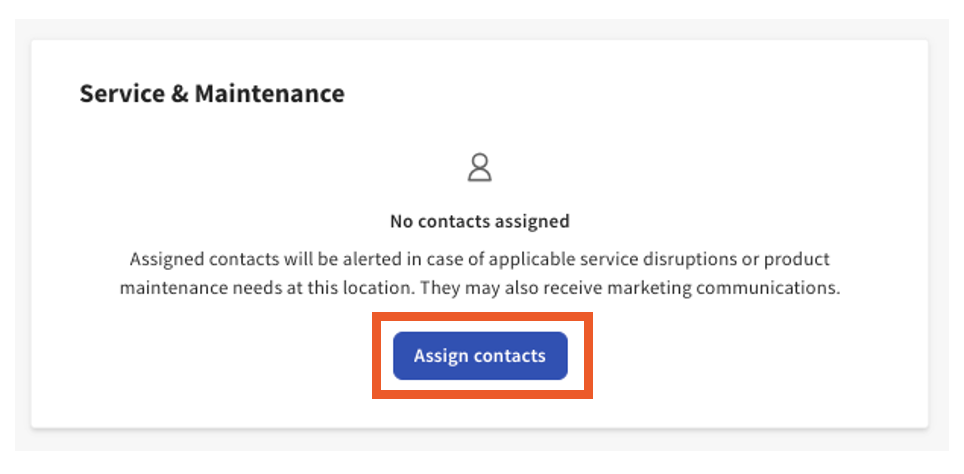
Here, a list of users with authenticated Toast Web accounts will populate. Since the users are authenticated, their contact information (email and phone number) has been verified. You can select or search for the contact(s) to whom you’d like to assign the role and select Assign contacts. You may assign more than one employee or group at a time.
Note: Only authenticated Toast Web users at your restaurant can be assigned to a communication category. To learn how to create a new Toast Web user account, see Log in Toast: Create an Account. You cannot add an external contact (a person without an authenticated Toast Web account) to a communication category.
If your restaurant uses a shared email or email alias for accounting or billing (e.g. billing@companyname.com), here are some guidelines to keep in mind:
- Any Toast Web account with sensitive financial permissions (8.1 Financial Accounts or 8.7 Instant Deposits) will be required to set up multi-factor authentication (MFA) as an additional security measure. Because of mandatory MFA, it is not advised to create a shared account that has these permissions assigned. Learn more about MFA here: Set Up Multi-Factor Authentication.
- The most secure option is to create a unique Toast Web account for each user who needs to log in to Toast Web, and assign permissions accordingly. You can add multiple users as the Financial Contact on the Communication preferences page. See Separate Your Shared Toast Web Accounts for step-by-step instructions.
- If you prefer to create a Toast Web account that uses a shared email or email alias, we recommend not assigning 8.1 or 8.7 permissions to this account.
Remove or Edit Existing Contacts
Once contacts are added, it’s very easy to edit or remove them from the contact list. This allows users to update contact info and remove non-applicable contacts. To edit or remove a contact, follow these steps:
- Navigate to the Communication preferences page in Toast Web and view the list of assigned contacts.
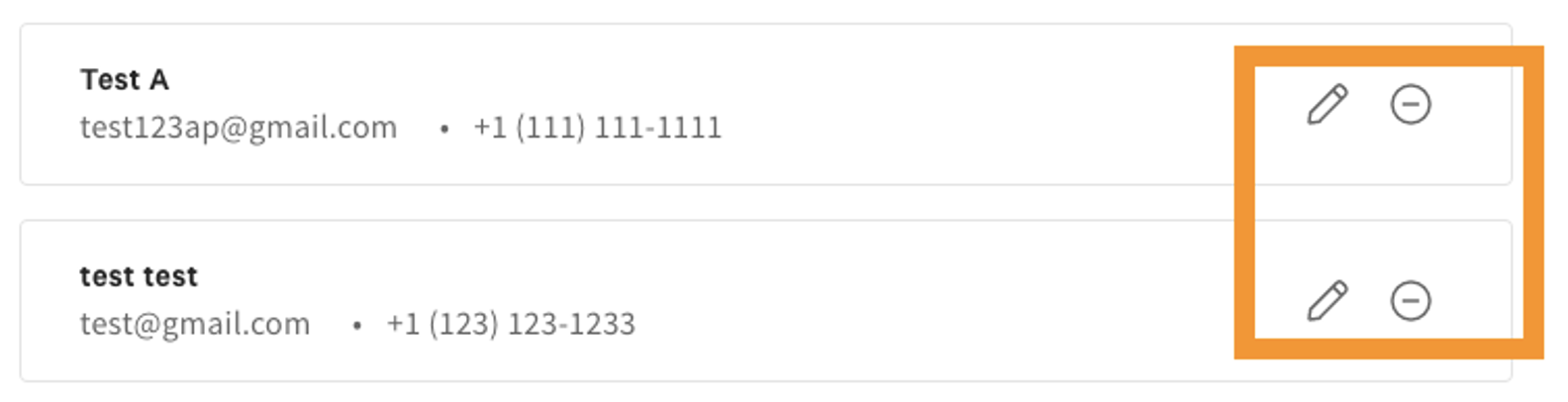
- Each employee's name will have a pencil and a minus icon next to their name. Use the pencil icon to edit contact information and use the minus icon to remove that employee from the contact list.
Customer Contact Audit History
To review any changes made to Financial or Service & Maintenance contacts, navigate to Audit history. The Audit history button is in the top right of the Communications preferences page.
Audit history will show a location-level view of the history of changes made in the customer contact platform. It will display:
- Users that made the change (email or Toast Internal)
- Action performed (created contact, assigned contact, edited contact, or removed contact)
- Time of the change
- For edits only: From (previous state) -> To (current state)
Note: Users will need the 8.2 User Permissions access permission active to make changes and view audit history. For more user information permissions, see the Permissions Reference Guide.