Configure Menus for Bars
Last updated: Oct 16, 2026, 9:22 AM
- Best Practices for Alcohol Menus
- Set Up Your Menu for Liquor
- Set Up Your Menu for Cocktails
- Set Up a Speed Screen
- Use Menu Reports to Track Bar Sales
Best Practices for Alcohol Menus
Use the setup recommendations below to set up your bar menu(s)
The steps outlined in this article are different based on a restaurant's needs and menus. For liquor, in particular, we will show you how to set up your Toast menu in two ways: to best use reporting to track sales and revenue and to best streamline the flow of ordering on both the POS and Digital Ordering Platforms.
Set Up Your Menu for Liquor
Option 1: Easiest Reporting with Toast
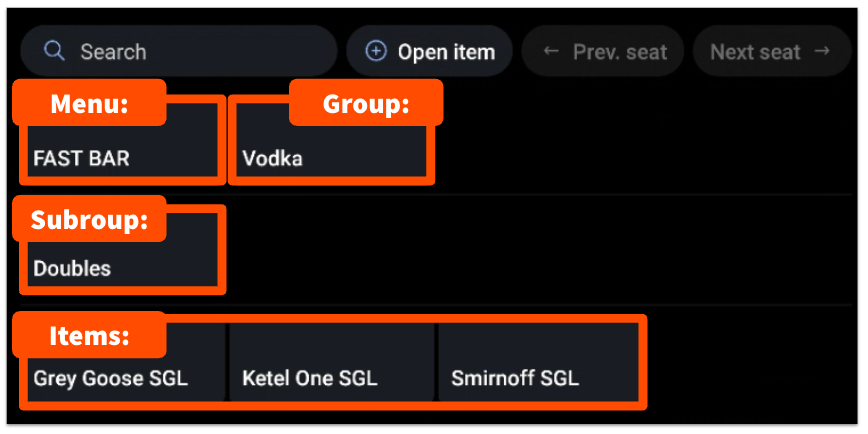
This option uses menu subgroups for doubles with the specific single items living within the larger group. In the example below, the menu group is named Vodka and the single items are within that group. Additionally, there is a subgroup within the Vodka group called Vodka Doubles with those items. Lastly, all items will have the size identifier after the brand name.
- Menu: Liquor
- Group: Vodka
- Item: Grey Goose Single
- Item: Ketel One Single
- Item: Smirnoff Single
- Subgroup: Doubles
- Item: Grey Goose Double
- Item: Ketel One Double
- Item: Smirnoff Double
- Group: Vodka
Option 2 - Quickest Ordering on the POS (Size Pricing)
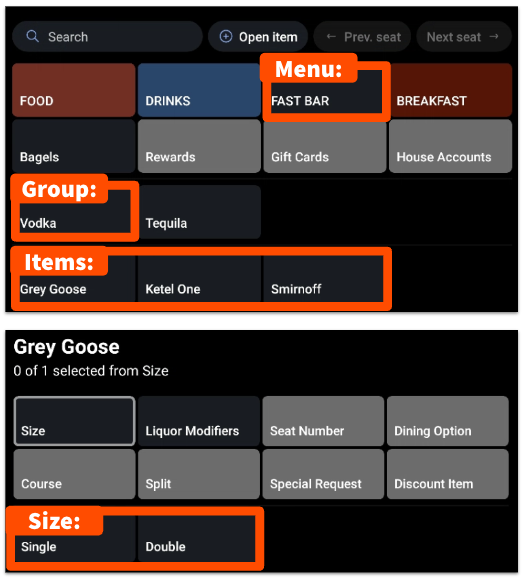
This option requires a restaurant or bar to use size pricing. Size pricing allows you to identify multiple size categories with specific pricing for each size for an Item. In the example below, the item is Grey Goose and the sizes are Single and Double. Each size then has its own price. You can also have different prices for each size for each item. For example, Grey Goose Double is more expensive than Tito's Double. For this option, you'll need to select Size Price for Pricing Strategy setting.
- Menu: Fast Bar
- Group: Vodka
- Item: Grey Goose
- Size Price: Single
- Size Price: Double
- Item: Grey Goose
- Group: Vodka
Size pricing is limited with reporting. The Product Mix and Top Menu Items reports will show the number of liquor sold, but would not break down how many of each size were sold. The Menu Breakdown report (found here), however, will show a clearer picture of how many of each size is sold broken down by size pricing.
If you choose the size pricing strategy for your bar menu, you will not be able to use menu-specific pricing for a happy hour menu, since an item can only have one pricing strategy at a time.
In either method, you will need to set the menu/size prices of a double pour manually. Toast does not have the capability to automatically increase the price of a double by a set amount or percentage of a single pour. This means that if you change the price of a single, you also need to update the price of its double. A pre-modifier with Multiply Price (for example, a 'Double' pre-modifier set to 2) multiplies only a modifier's price, not the menu item's base price, so it can't be used to double the price of a liquor item.
Set Up Your Menu for Cocktails
In addition to liquor, your restaurant or bar might have a cocktail menu. If that's the case, Toast recommends setting up your cocktail offerings on your menu as described below. If you don't have separate cocktail menus based on time of day or day of the week, you can easily set up the cocktails menu group within the Liquor menu. Or if you prefer to have cocktails separate from liquors, you can create a separate menu for it as well.
Option 1 - Cocktails as Modifiers
One way to configure cocktails on your menu is to add classic cocktails as modifiers for each liquor group. With this setup, the high impact ingredients (liquor) will be reported in your item sales, while low impact ingredients (mixers) will be captured in modifier sales.
- Menu: Liquor
- Group: Vodka
- Modifier group (applies to the entire Vodka group): Vodka Cocktails
- Modifier options: Vodka Martini (+ $2), Moscow Mule (+ $2), etc.
- Item: Grey Goose
- Item: Ketel One
- Modifier group (applies to the entire Vodka group): Vodka Cocktails
- Group: Vodka
Option 2 - Cocktails as Items
Another way you can configure cocktails is by creating separate modifier groups -- one for liquor upcharges based on the spirit (e.g. upcharge for Grey Goose vs. the rail vodka included in the Bloody Mary) and one for cocktail modifiers (e.g. soda, extra olive, no celery, etc.). This setup would be helpful if your restaurant uses xtraCHEF for inventory tracking.
- Menu: Cocktails
- Group: Brunch Cocktails
- Modifier group (group level, can apply to all items): Cocktail Modifiers
- Item: Bloody Mary
- Modifier group (item level, applies to Bloody Mary): Vodka Upcharges
- Group: Brunch Cocktails
Depending on your menu setup, if you have the spirits already built as items on your menu (as described in liquor menu option 1 above), you might choose to select New Modifier from Existing Item when adding the individual modifiers for the Vodka Upcharges modifier group. This would allow for easier inventory tracking/86ing in your menu. Keep in mind that this will also include any modifiers attached to the existing item, so it might not be idea if your liquor items have mixers set up as modifiers.
Note: In reports, these will appear as modifiers. To get an accurate/total count of how many were sold, restaurants would need to add together the single liquor item and the modifier.
If you offer happy hour specials, check out this Support Center article to learn how to configure your menu: Build Happy Hour Menus with Menu-Specific Pricing.
Set Up a Speed Screen
Toast recommends setting up a speed screen for your bar by creating a menu and menu group named Speed Screen. The group will not be visible on the POS, which will allow for easy server order entry. Then, using the Add Existing option, add the cocktails or spirits you'd like to be easily accessible for your bartenders. Lastly, add any relevant modifier groups to each individual item. Note that when using existing items, any changes made to the item will be carried over to the same item located in other groups or menus.
- Menu: Speed Screen
- Group: Speed Screen
- Modifier group (group level, can apply to all items): Cocktail Modifiers
- Item: Bloody Mary
- Modifier group (item level, applies to Bloody Mary): Vodka Upcharges
- Group: Speed Screen
Note: You can also set the Speed Screen menu visibility and make it available on certain terminals only. To learn more, check out this Support Center article: Configure Hidden Menus.
Use Menu Reports to Track Bar Sales
Menu reports are integral for the operations of any restaurant or bar. They not only provide operators with an understanding of what items are selling the most or the least, but they're also important when it comes to the daily operations of a location, especially when it comes to purchasing, inventory, and cost of goods sold.
If the menu for your location is built one of the ways outlined above, you'll be able to easily pull reports that will show you a detailed in-depth look into how your menu is performing.
To learn more about the specific reports available, check out this Support Center article: Menu Reports Overview.