Optimize Toast Catering Online Ordering
Last updated: Sep 17, 2026, 8:41 AM
- Catering Online Ordering Features
- Catering Online Ordering Menu Settings
- Configure Delivery Boundary and Zones
- Additional Resources
Catering Online Ordering Features
Branding and Customization for Catering Online Ordering
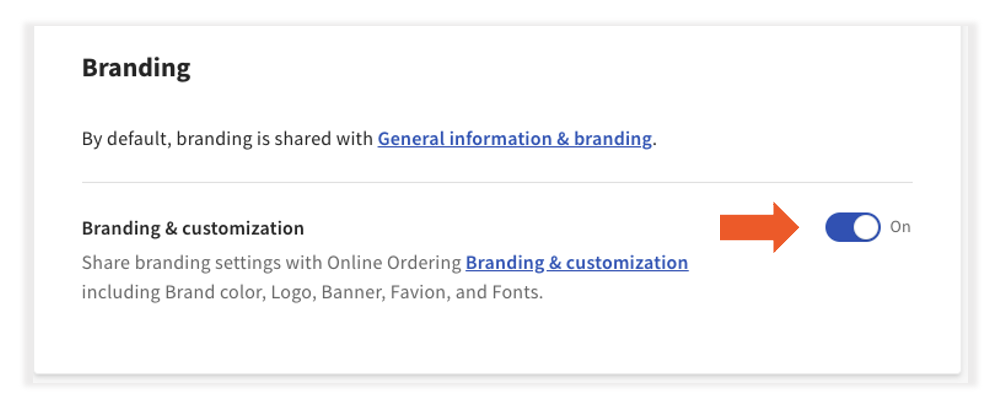
Brand and customize your Catering Online Ordering site by utilizing the branding & customization settings for Online Ordering. There are basic branding and customization options included within your Catering & Events product, however to access custom colors, fonts, etc., you will need to purchase Digital Storefront Pro. For these settings, see Customize Your Toast Online Ordering Page.
- To enable branding and customization, log in to Toast Web and navigate to Catering & events > Settings > Branding.
- Toggle Branding & customization to On.
Catering Online Ordering Menu Settings
Catering Online Ordering Menu Visibility
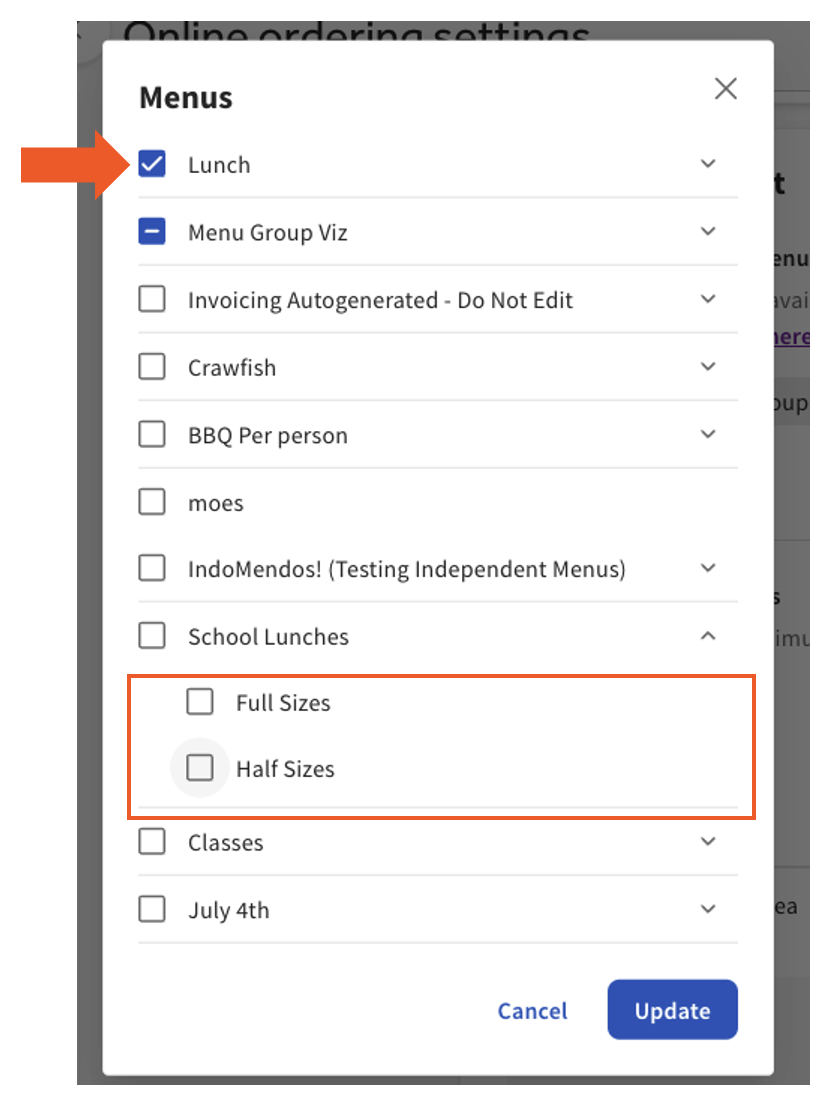
Turn Catering Online Ordering menu items off or on based on seasonality or special occasions, and we only supported whole menus.
- Log in to Toast Web and navigate to Catering & events > Online ordering > Menu management.
- You can select menu visibility from the drop-down menu of available menus or menu groups.
- Once all selections are made, select Update and publish your changes.
Looking for additional information on setting up independent catering menus? See Set Up Independent Catering Online Ordering Menus.
Catering Online Ordering Capacity
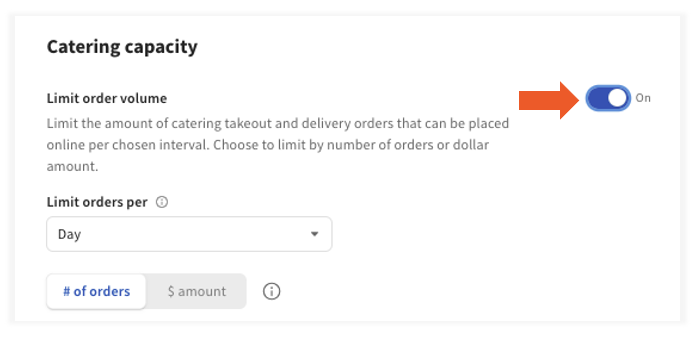
With catering capacity, limit the amount of catering takeout and delivery orders placed online per chosen interval. Choose to limit by number of orders or dollar amount.
- Log in to Toast Web and navigate to Catering & Events > Online ordering > Catering capacity. Here, you can toggle the feature On or Off.
The Limit orders per drop-down menu will automatically default to Day but can be updated to 15 minutes, 30 minutes, or an hour.
Depending on your type of business, you can also set the capacity by # of orders or $ amount by toggling to what works best for your business.
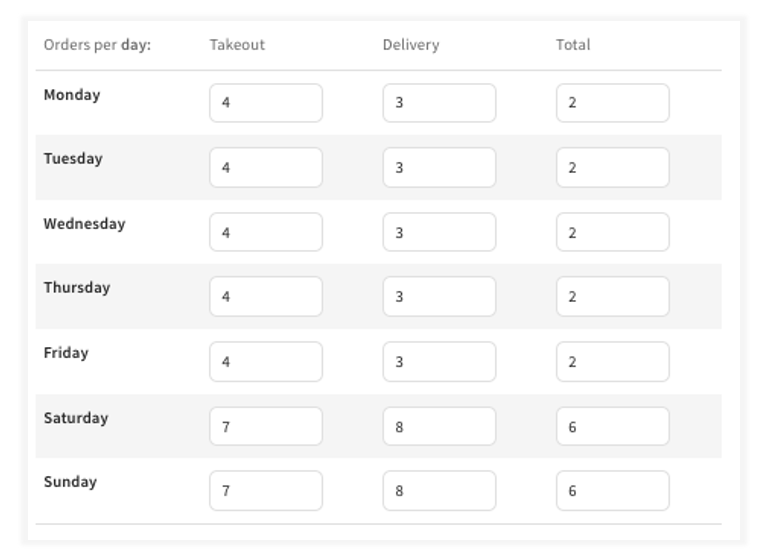
Note: The dollar amount reflects the total cost of all items, excluding any discounts or rewards. - Next, enter the maximum number of orders for Takeout and Delivery by day. Then, enter the total number of orders for the time frame selected under the Total column.
- Once all selections have been entered, select Save.
Direct Links to Catering Online Ordering Special Menus
To direct links to special menus, follow the steps below:
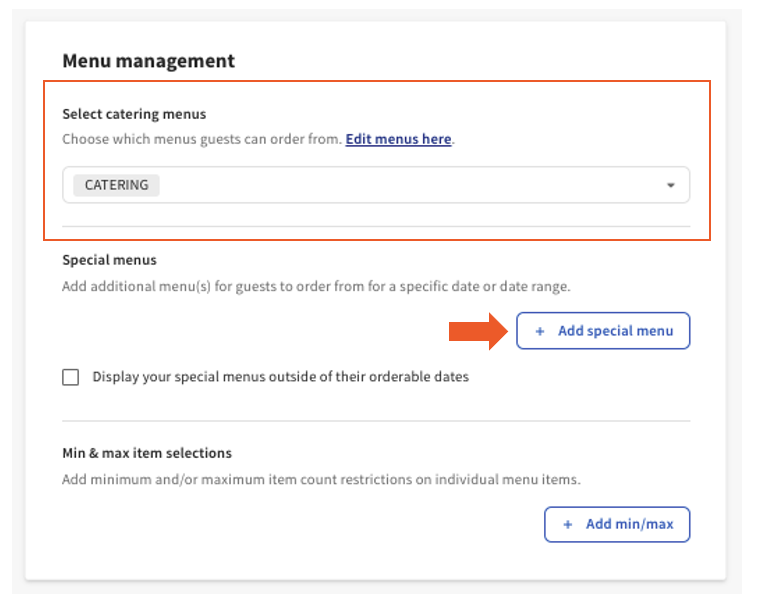
- Log in to Toast Web and navigate to Catering & Events > Online ordering > Menu management.
- Select which catering menus guests can order from, then select +Add special menu.
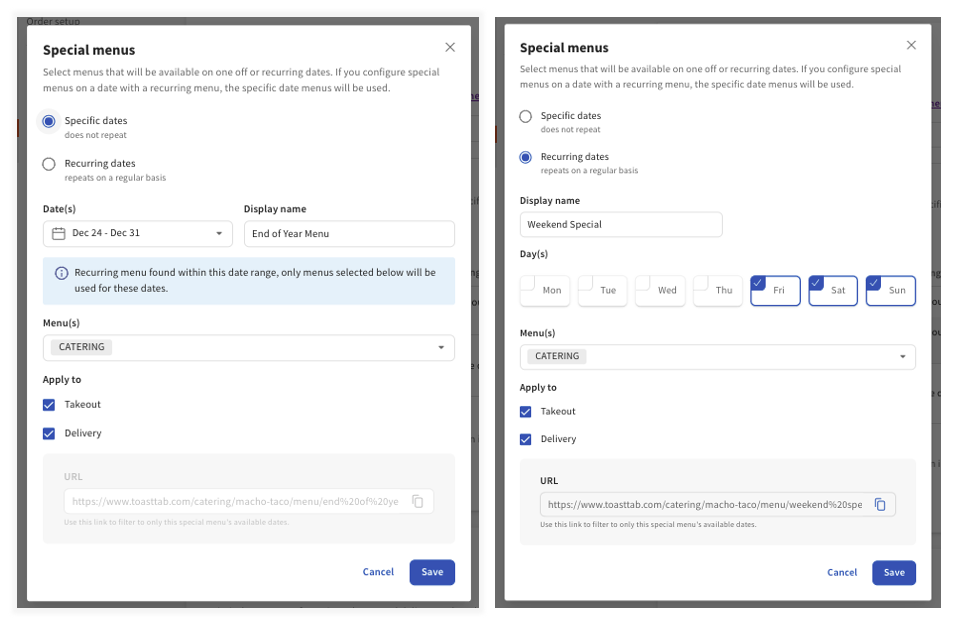
- You have two options to choose from:
- Specific dates: A one-time date range for the special menu
- Reoccurring dates: repeats regularly for the days selected.
Enter your specified date range or selected days, Display name (visible to guests), the selected menu(s), and if the menu(s) apply to both Takeout and/or Delivery.
- Select Save.
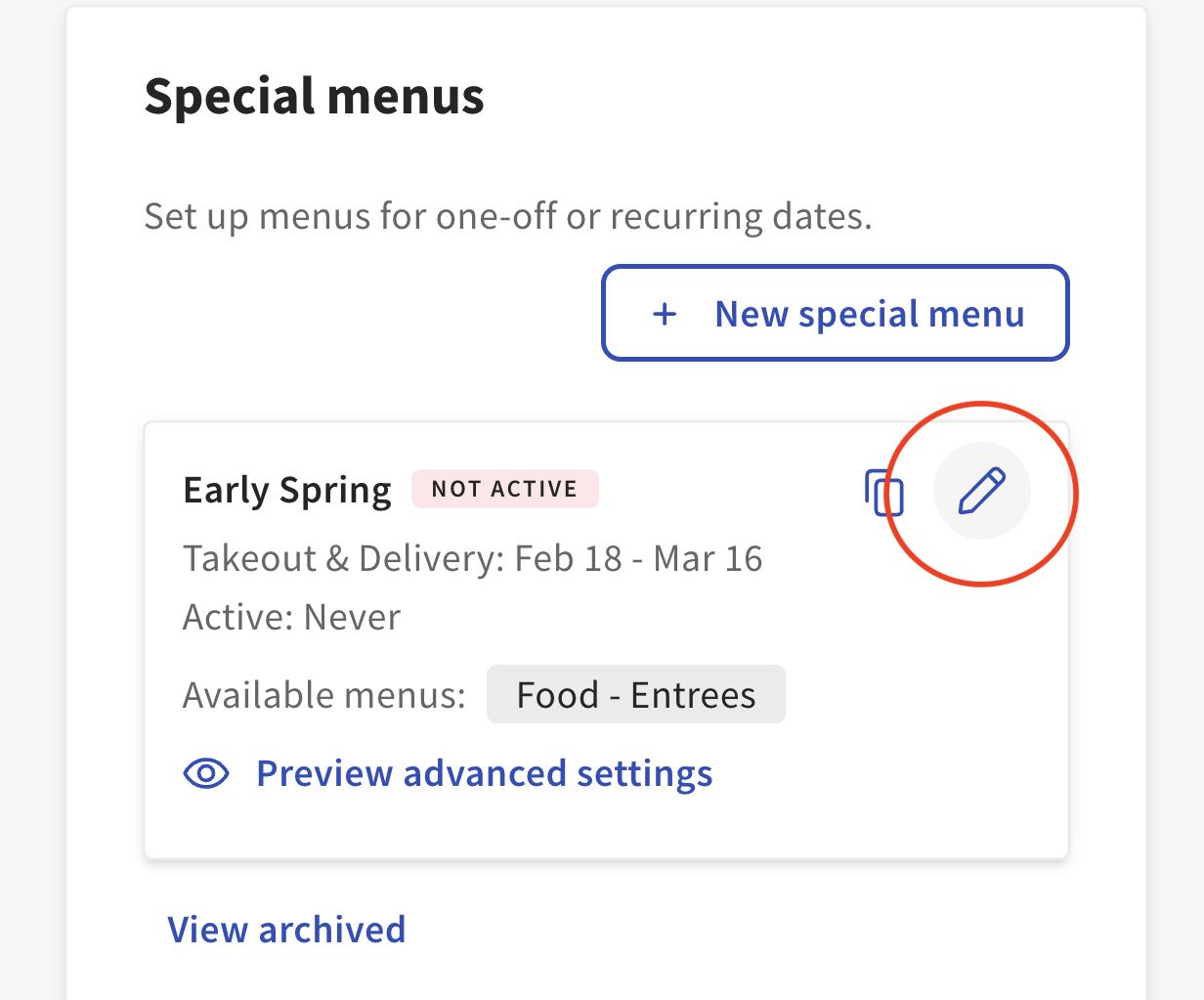
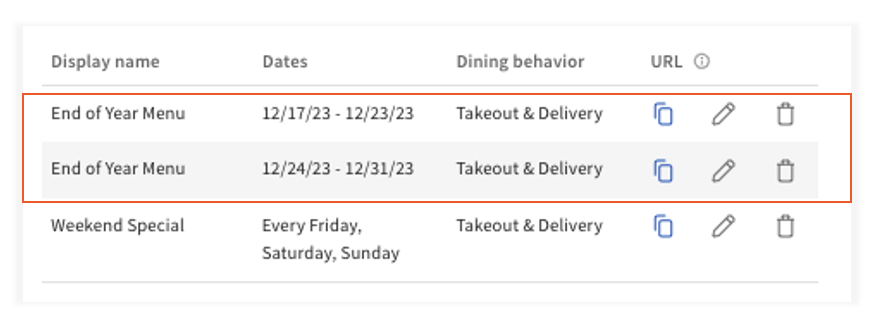
Once the special menus have been added, you can utilize the copy link icon to the left of each menu to copy the special menu URL to share on social media, your online ordering page, or marketing emails.
You have the option to make edits to your special menus with the pencil icon.
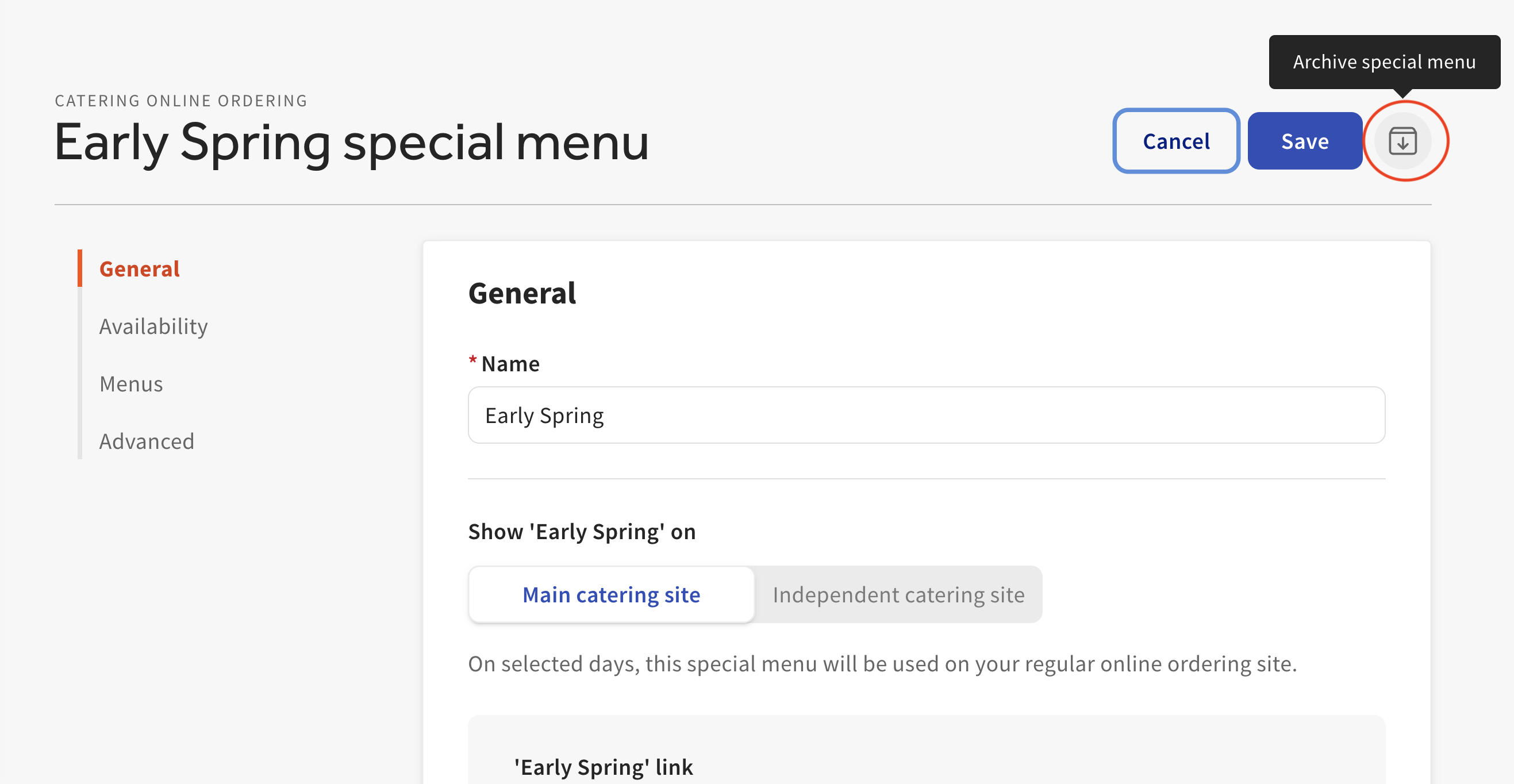
On the next page, you can update the settings for your special menu or archive your special menu by selecting the button circled in the picture below.
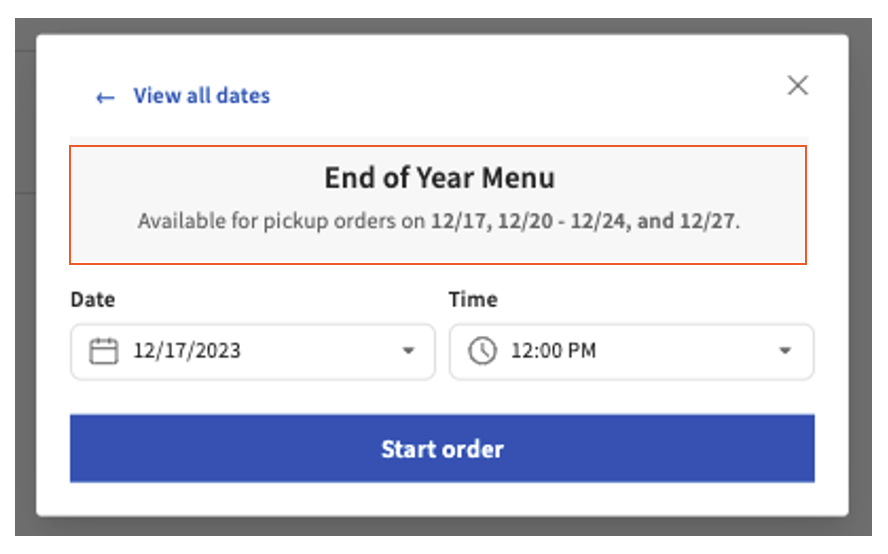
Lastly, if you have menus with the same Display name but different dates, your catering online order menus will display the available dates. We added an extra week for the End of Year special menu in the example images below. You will see both available date ranges displayed for online ordering.
- Once all selections are complete, Select Save, and your special menu for catering online ordering will be visible on your online ordering website.
Guest Catering Online Ordering Reorder Option
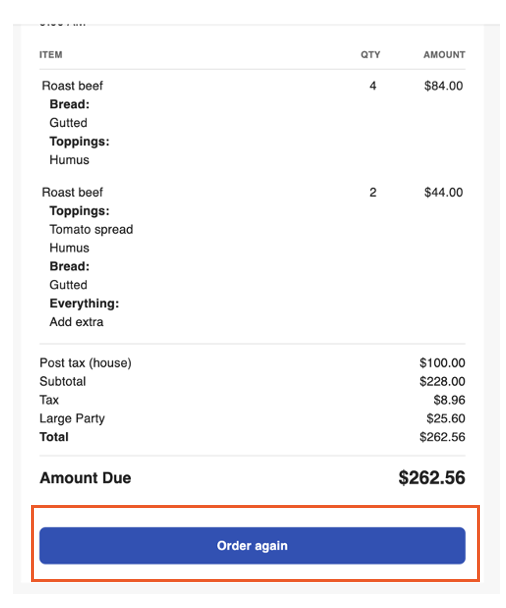
Once guests place an order, they will receive an email with their order confirmation. At the bottom of the email, they have the option to select Order again at the bottom of the email. Once the guest selects Order again:
- A browser opens to the restaurant’s URL with the date picker open. The date picker is defaulted to the next available time at least a week after the original order date at the same date and time.
- Once the guest chooses a date and selects Submit, the cart is loaded with everything from the previous order.
- If an item is unavailable, an error message informs the guest.
Note: Updated pricing and menu availability will reflect on the order.
Share Catering Online Ordering Cart Link
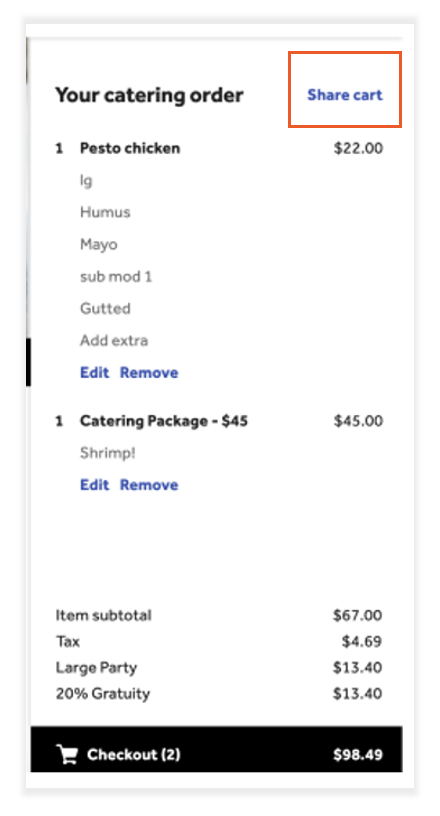
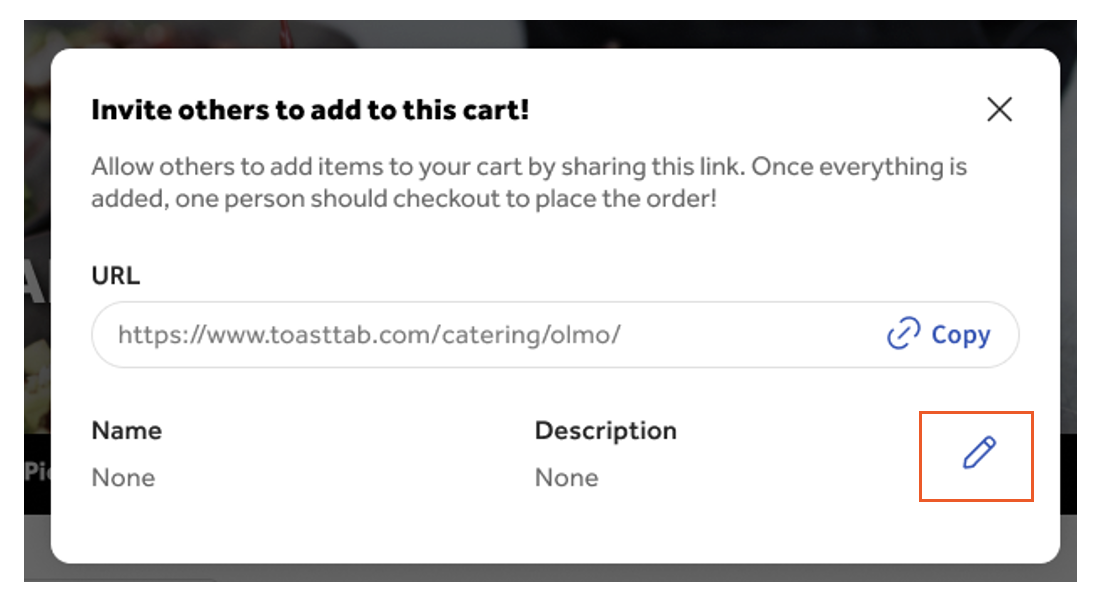
When using Catering Online Ordering, guests can use the Share cart button to reveal a shareable link so multiple people can add items to the cart.
- Select Share cart.
- Next, select the pencil icon to enter the Name and Description of the catering order.
- Save your changes and select Copy to get the link to share with others.
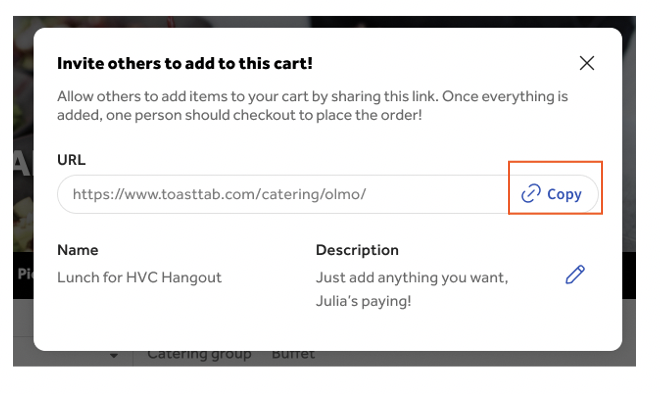
Note: Once all desired items are added, one person checks out. If someone tries to visit the link after checking out, they will be informed that the cart no longer exists.
Configure Delivery Boundary and Zones
- Order type
- Dining option
- Minimum lead time
- Prep time
- Min & max order amount
- Tipping
Next, set your Delivery boundary and Delivery zone by selecting +Add zone or Edit.
Catering Online Ordering Delivery Boundary
To configure the delivery boundary, follow the steps below:
- Delivery boundaries can be entered by Mile radius or drawn on the map.
- Save and Publish any changes
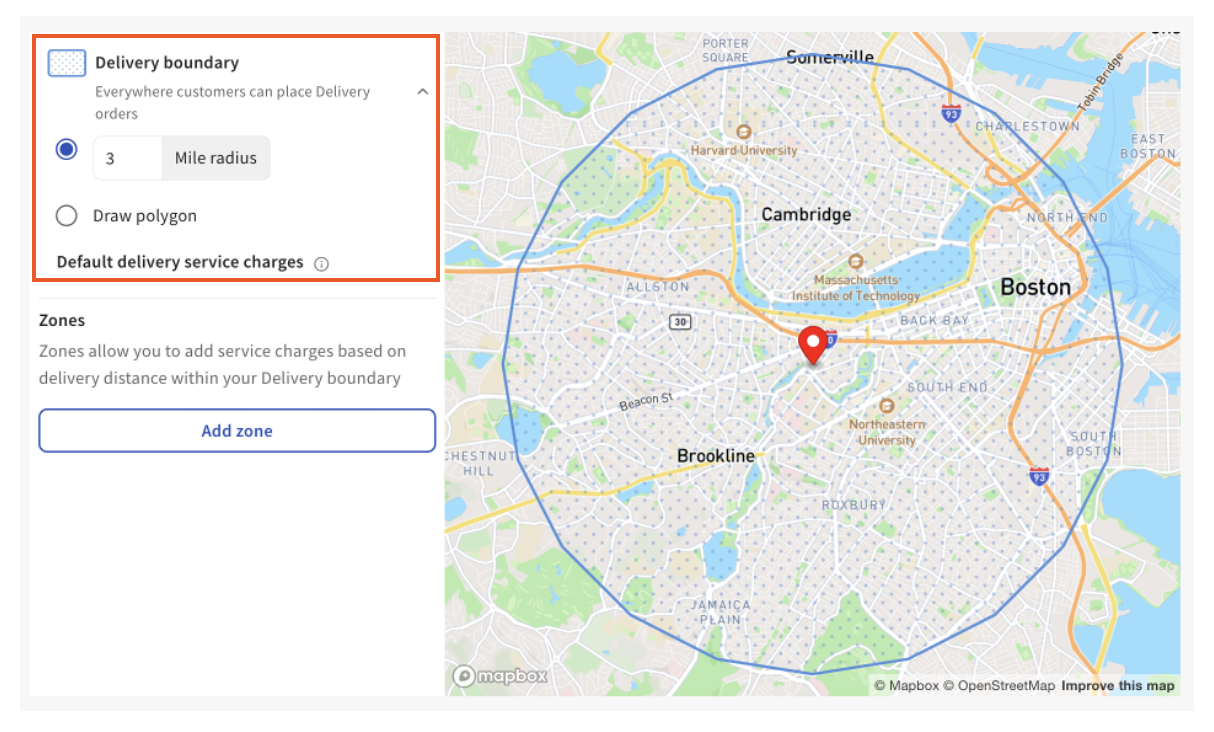
Note: Delivery boundaries will be set to default delivery service charge settings.
Catering Online Ordering Delivery Zones
To configure delivery zones, follow the steps below:
- Select Add zone and enter your mile radius for the selected zone.
- Select your applicable service charge from the drop-down menu. If you want to add multiple zones, select Add zone once more.
- Save and Publish changes.
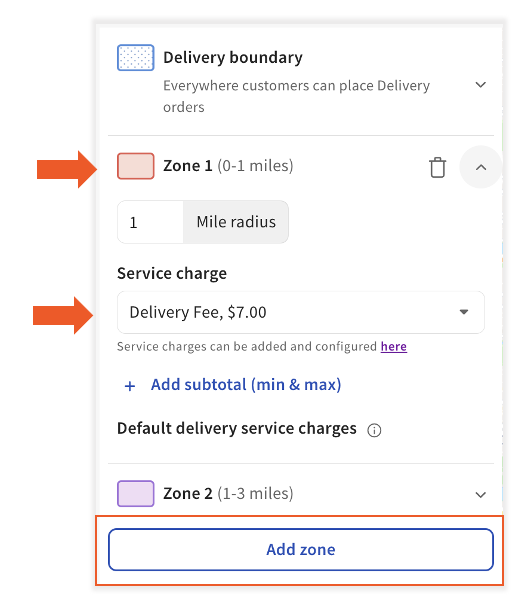
Note: The Service charge list is generated from your previously created service charges. Service charges can be updated by following Catering & events > Online Ordering > Service charges.
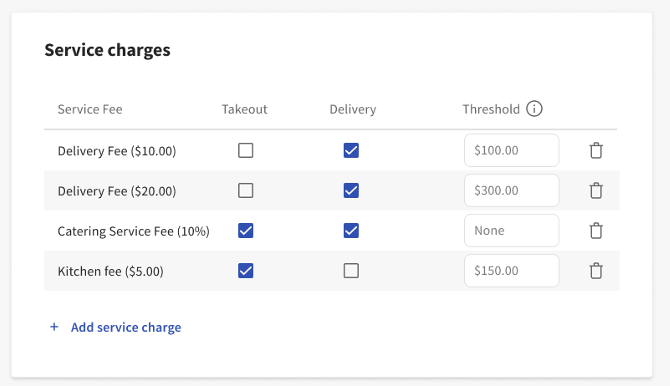
Note: Catering Online Ordering does not recognize Online Ordering delivery settings within service charges (Waive Threshold + Delivery Distance Threshold).