Use Order by Seat
Last updated: Sep 18, 2026, 10:53 AM
In this Article:
Configure Order by Seat
Order by seat is on by default, and seat numbers can be configured as either optional or required for both Quick Order and Table Service modes.
- In Toast Web, navigate to Front of house > Order screen setup.
- Scroll down to the Quick order section of the Front of house page, and for the Seat numbers setting, select Required, Optional, or Off for orders made in Quick Order mode.
- Then, scroll down to the Table service section of the Front of house page, and you'll see the same type of Seat numbers setting. Select Required, Optional, or Off for orders made in Table Service mode.
- Save and publish your changes.
- As long as the guest count is greater than one and the setting above is Required or Optional, you can assign menu items to a seat and move items to different seats, even after the order has been sent.

Remember that the Seat numbers setting appears in both the Quick order section and Table service section on the Front of house page in Toast Web. You can choose whether seat numbers are required, optional, or turned off for each type of ordering mode. If the Seat numbers setting is turned Off for both Quick Order and Table Service mode, you won't be able to use the order by seat feature.
Note:
- Enabling seat numbers in Toast Web will not change how seat numbers appear in the kitchen.
- If you need more information about arranging menu items to be printed to a prep station in a specified order, please refer to this article: Manage Item Sorting Priority for Kitchen Tickets
- If you need to change a seat number after an item is sent and would like to notify your kitchen, your POS will send a change notice to your KDS or ticket printer depending on your selected settings under Kitchen > Printers, tickets, & KDS devices > Kitchen > Print Ticket Changes. For more information, see Configure Order Changes and Voids to Auto Print to Kitchen.
- With seat numbers enabled, you will also have a share option available for dine-in orders. This is best used for items that will be shared by the table. The share feature can not be turned off at this time.
Order by Seat When Seats are Required
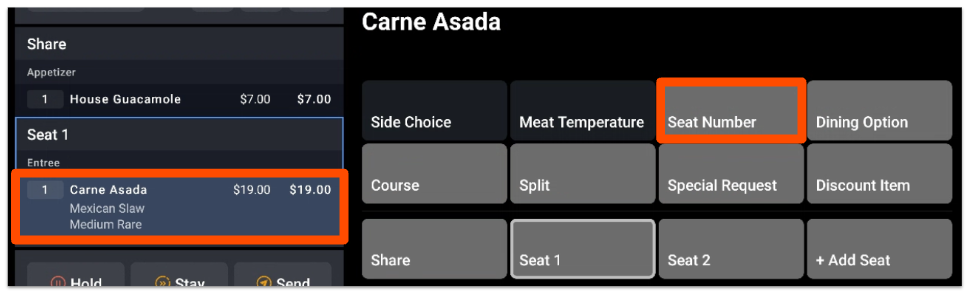
The check preview on the left side of the order screen will now have numbered seat headers based on the guest count entered when the server starts the table. A header for Share will appear at the top, and a button to add more seats will be below the last seat header. If a server adds more seats, the guest count will not automatically update to correspond with the number of seats. This is done for customers serving a table of guests where guests are sitting in seat numbers 1, 2, and 4, for example.
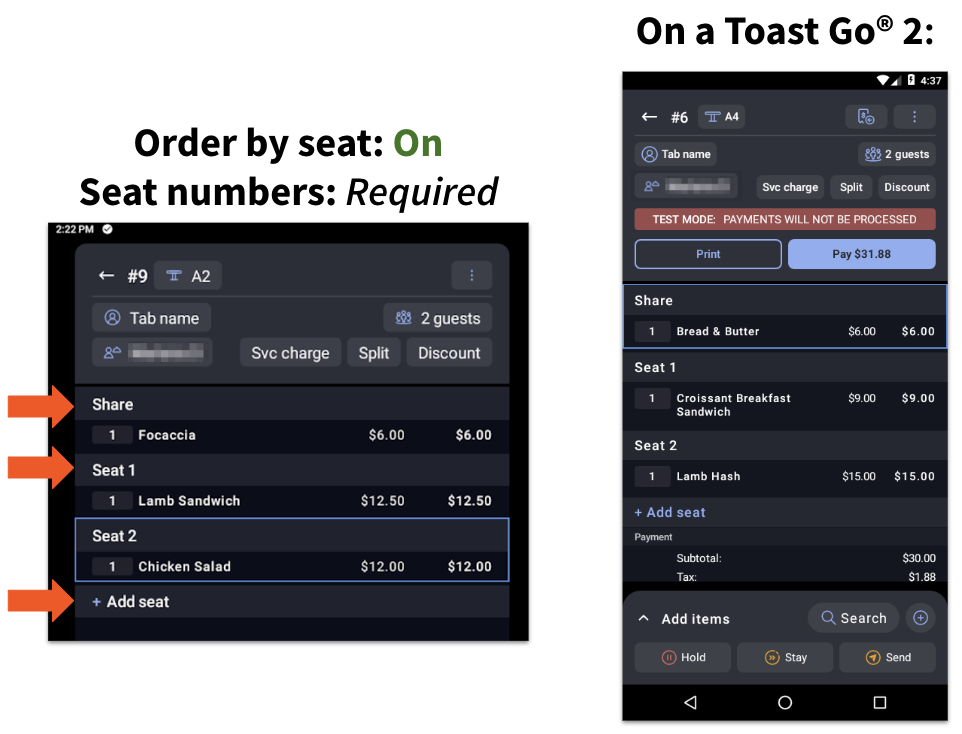
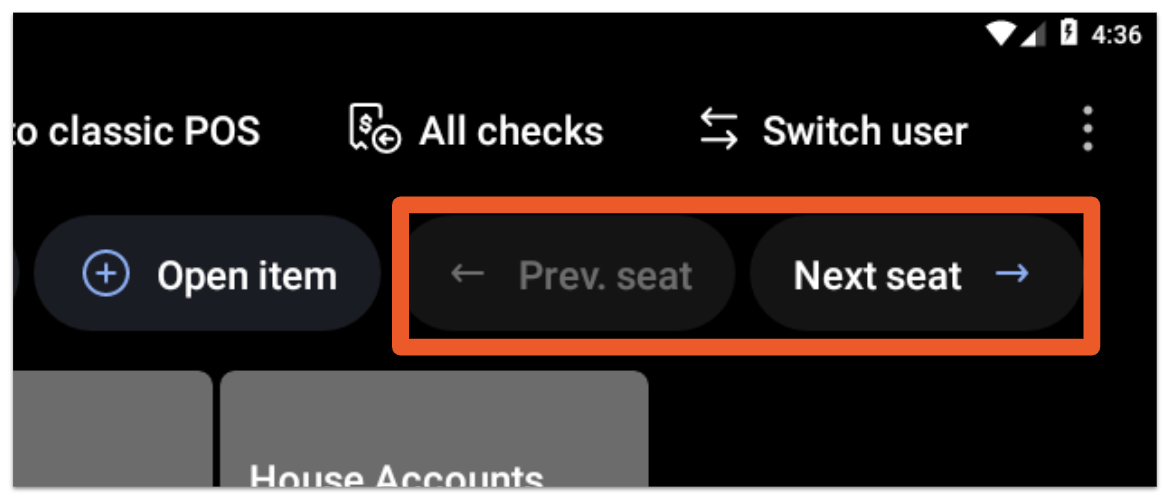
Servers can navigate between seats and the share header by tapping the seat header or selecting the Prev. seat and Next seat buttons in the top right of the order screen. When servers add items to a check, all items will be filed under the selected seat header, as shown above. Note: The open item button must be enabled on the POS to access this option.
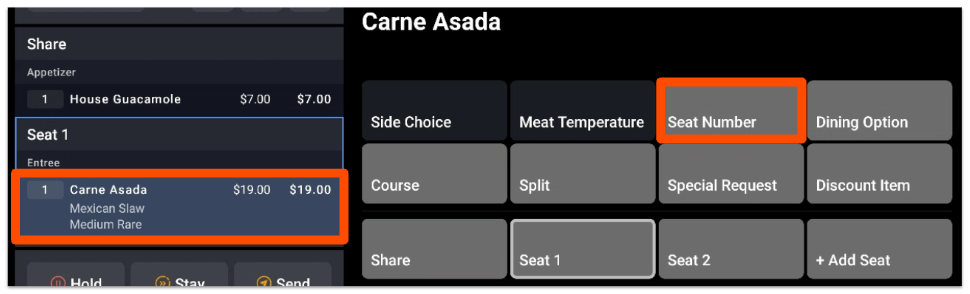
To change the seat number for an item, select that item and then select Seat Number from the menu.
Order by Seat When Seats are Optional
When order by seat is optional, the Share header and + Add seat button will appear in the check details and servers can either add everything to the Share header or can add seats.
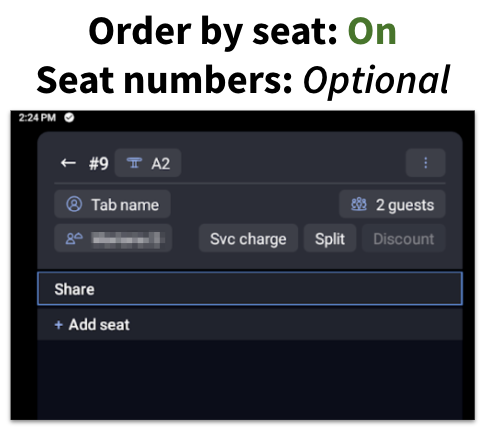
To change an item from one seat to another, select an item(s) from the check details, select Seat Number from the menu, and choose a new seat number.
For more information on the Toast POS, check out our Toast POS Resource Center.
Back to top
Disable Order by Seat
You can turn off the order by seat feature if you prefer to view items on the check grouped by course or time or prefer for your staff to be prompted to enter a seat number for every item.
- Navigate to Front of house > Order screen setup.
- Toggle Order by seat off.
- Save and publish your changes.
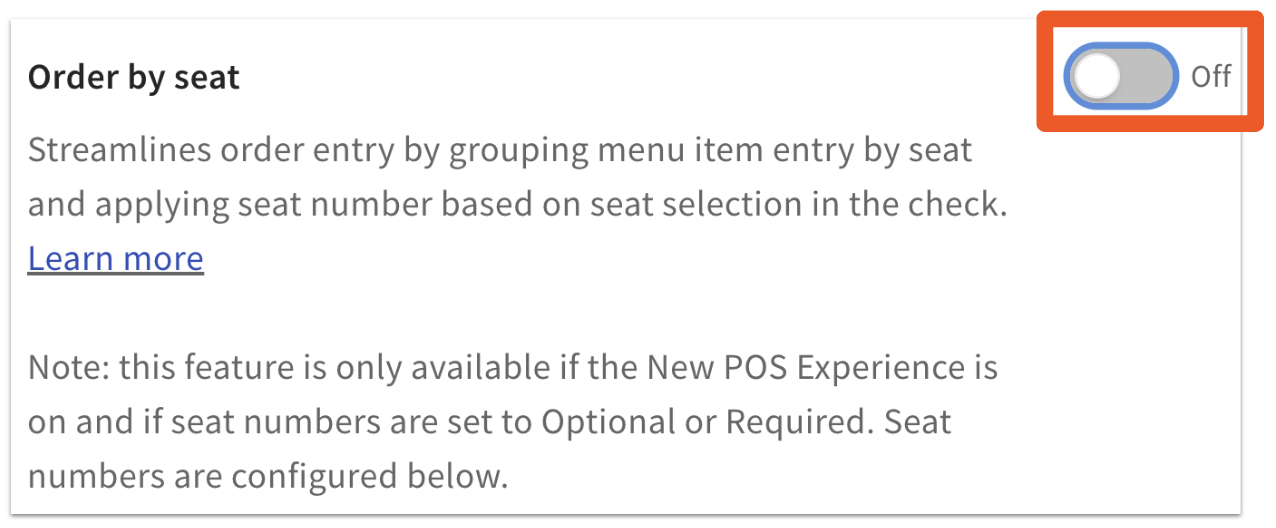
Disabling the order by seat setting means that your checks (in both Quick Order and Table Service mode) will not be separated by seat. If courses are set up, your items will be grouped by course.
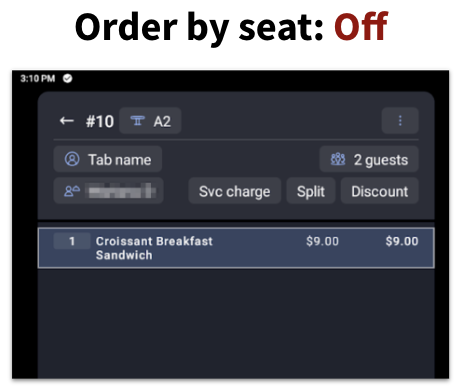
If you've still got seat numbers configured as Required or Optional (as described in the first section of this article), seats can be assigned via a modifier group and will be displayed as a modifier under items in the check. Learn more in this Support Center article, Enable Seat Numbers and Party Sizes for POS Orders.