Enable Seat Numbers and Party Sizes for POS Orders
Last updated: Sep 17, 2026, 10:32 AM
Enable and Assign Seat Numbers
Seat numbers can be assigned to different guests at a table when using either Table Service mode or Quick Order mode. With seat numbers enabled, you will also have a share option available. This is best used for items that will be shared by the table. The share feature can not be turned off at this time. If Share is causing confusion when splitting separate checks, toggling Order by Seat to On assigns items to individual seats, allowing checks to be split without relying on Share.
To enable seat numbers, follow the steps below:
- In Toast Web, navigate to Front of house.
- Scroll down to the Quick order section of the Front of house page, and for the Seat numbers setting, select Required, Optional, or Off for orders made in Quick Order mode.
- Then, scroll down to the Table service section of the Front of house page, and you'll see the same type of Seat numbers setting. Select Required, Optional, or Off for orders made in Table Service mode.
- Save and publish your changes.

Once the feature is enabled, you'll see it as an option on your POS when an item is highlighted. This feature will only be available to checks with two or more guests. If using this feature in Quick Order mode, you'll need to increase the number of guests on the check manually.
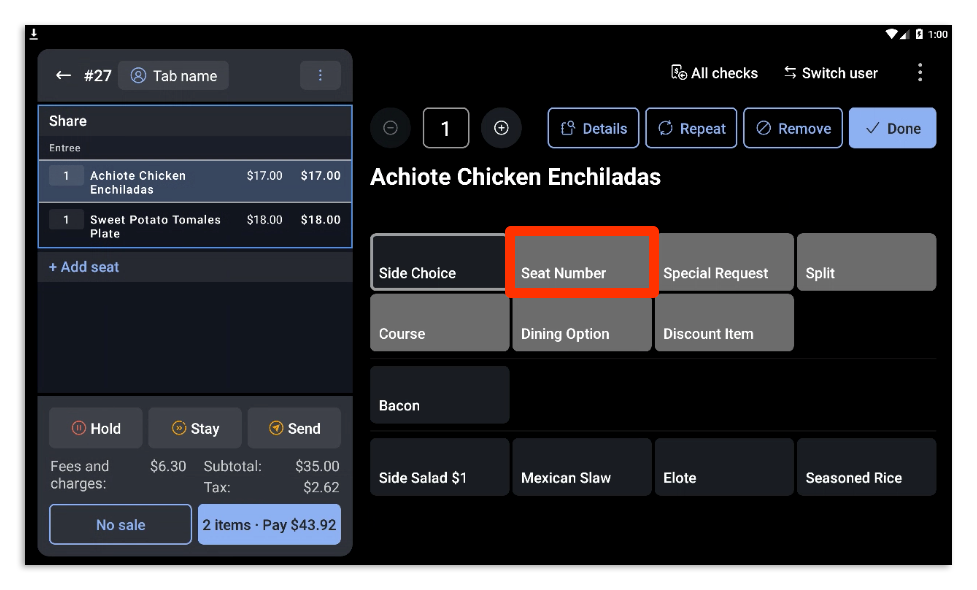
Note: The Seat numbers setting applies to every order in the mode it is set for — it cannot be applied conditionally based on what is on the check, so there is no way today to require a seat or table number only when food items are added. Because Quick order and Table service have separate Seat numbers settings, the closest available approach is to set Seat numbers to Optional (or Off) for Quick order, where drinks-only orders are typically rung in, and Required for Table service, where food orders need a valid seat reference for runners.
If you want to separate orders on your check by seat number, toggle Order by seat to the On position from the Front of house page. Learn more here: Use Order by Seat.
Enable Party Sizes in Table Service Mode
If you'll be assigning seat numbers to guests consistently, Toast recommends that you also enable the Party Size option. A party size will be prompted when a server uses Table Service mode and selects a table. Currently, this option is only available in Table Service Mode.
To enable it, please follow these steps:
- Navigate to Front of house > Order screen setup > UI options.
- Scroll down to the Service Areas Screen section.
- For the Party Size setting, select Always ask before creating a new order.
- Save and publish your changes.
Selecting Always ask before creating a new order will trigger a prompt that appears every time a server selects a table on the POS, asking the server to input the size of the party. This ensures the number of guests is always set and in turn, creates seat number buttons within the order screen regardless of whether or not seat numbers are enabled in Toast Web.
If you have Toast Tables™ and you wish to change an existing reservation's party size, select the table that you wish to update, then choose the Edit Reservation Details button. Then, enter the correct party size into the Number of guests field. Learn more here: Use Toast Tables.
Note: Bookings that are submitted online or through Reserve With Google cannot be updated through your Toast device. If a guest wishes to make changes to their reservation, they must cancel their existing reservation and book a new one.