Pre-Order Menu Workaround
Last updated: Sep 17, 2026, 7:23 PM
Learn some workarounds on how to configure your menu for pre-orders.
Use Menu Availability Workaround for Pre-Orders
You can create a holiday or special menu for a single day using this workflow. Remember to manually archive or hide the menu once you're no longer offering it to avoid any confusion.
- Locate the menu that you would like to set as pre-ordered in Toast Web.
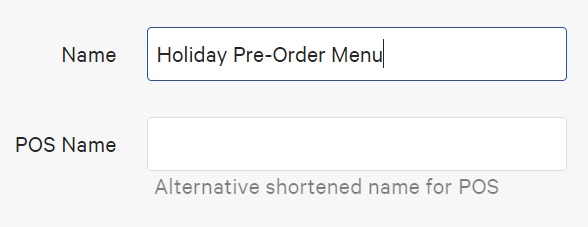
- Indicate in the menu name that it is a pre-order-only menu. We also suggest adding the dates that the menu is available for pre-order to help clarify for restaurant guests.
- Next, you will want to set the menu availability to reflect the available pick-up date(s). If the menu will be available to order every day, until you "turn off" the menu from the online ordering page, skip down to step 4.
- To do this, scroll down to the Availability section.
- Select No next to Available Every Day?
- Select the day(s) of the week that the items will be available to order. For example, say you configure your menu so that guests are only able to see this menu to order from on Fridays. If you offer scheduled ordering, someone scheduling an order for Friday would be able to see this menu.
- Notes:
- You can set the Available at all times of the day? to No if there are time restraints, in which someone can order from this menu as well.
- This setting is ONLY for days of the week, not specific dates. This means that if the menu never gets removed or hidden from online ordering, restaurant guests will be able to continue ordering from this menu. You must remember to toggle the visibility/archive the menu once the pre-order offering is complete.
- Set the item description to advise the guest of the specific menu rules for pre-order.
- We cannot set a minimum lead time for select menus, menu groups, or menu items. This means that guests could still order the items in the pre-order menu for ASAP pick up.
- Set the item description to state that the item is pre-order ONLY, how far ahead of time the restaurant needs in order to fulfill the order, and when you can set pick up dates.
- Ensure that you have enabled the future orders function via the Online Ordering Setup page. For more information, refer to Schedule Future Orders.
- When pre-order menus are available, we generally suggest that the window stay within a week or less, as this will decrease the chance that someone could order the "pre-order" items further out.
- Publish the changes and review the workflow on your online ordering site.
- Once done offering this menu to their guests, follow this article to no longer have the menu visible on your online ordering page: Manage Your Menu Visibility Settings
Use Modifiers for Pick-Up Times
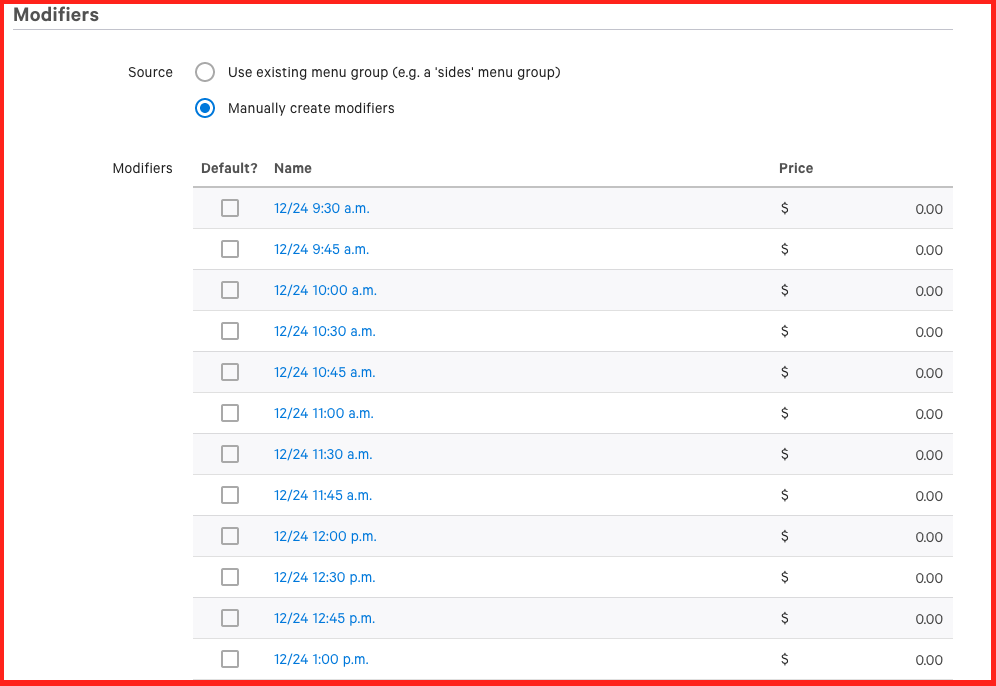
A secondary workaround for you, offering a pre-order menu, is to use a modifier group with different time options as the modifier options. This forces the guest to select a pick-up time, acknowledging that they will be picking it up on the specified date and time.
Note:
- The modifier selection will not change the pick-up/delivery time you select when starting the order (if future ordering is turned on)
- This workaround would require the guest to select a pick-up date/time per item ordered within the pre-order menu, with the pick-up modifier group attached. This could lead to several items having different pick-up times in one order.
- Navigate to the menu you would like to use as a pre-order, then select a menu group within the pre-order menu.
- In most cases, we would attach the pick-up modifier group to the menu group to apply it to multiple items at once
- Under the Modifier Groups section, create a group called Pick Up Time, set it to Required, and do NOT set it to Multi-select. Save your changes before moving on to the next step.
- Select the newly created modifier group. Scroll down to the Modifiers section. Create the dates and time slots you would like to offer for pick up.
- Navigate to the remaining menu groups within the pre-order menu, and using Add Existing, apply the modifier group to the menu group of items.
- Save and publish changes. Navigate to your online ordering page to verify the workaround.
Note: You can set inventory counts on the modifiers directly if you only want to offer a certain number of slots. However, please note that inventory counts must be updated manually, and do not reset automatically.
Pre-Orders Reporting
When using the above workarounds, it is very important to know how you can locate the checks for your pre-order menu. The report that will best assist you will depend on which workaround you use.
Locate Pre-Orders Made With Future Order Options
- Navigate to Reports > Sales > Order details.
- Set the report time period to the pre-order pick-up dates (this can be a future date) to see orders that have been placed for future pick-up.
Locate Pre-Order Checks Using the Modifier Date Selection
When using the modifier setup option, it is important to look across the large span of dates from the start of the pre-order menu becoming available to the last date of pick-up offered.
- Navigate to Reports > Menus > Modifier details.
- Select the appropriate date/time range.
- Select the Modifier column header to sort the report alphabetically and show all similar modifiers together.
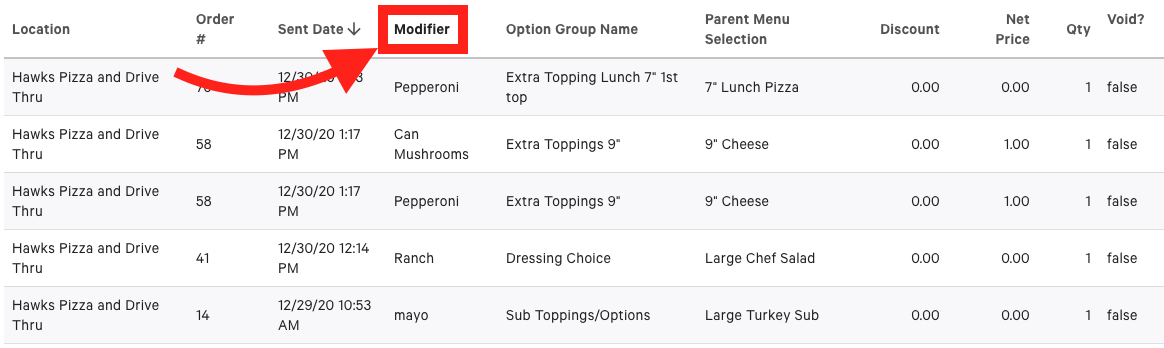
This will sort all of the orders to show grouped by the modifier. You can easily see all orders with the modifiers that were selected for the date and pick-up time on the pre-order menu.