Use the Price Editor Tool
Last updated: Sep 30, 2026, 3:15 PM
The Price Editor lets you change menu item prices in bulk from a single page in Toast Web, without opening each item one at a time. Use it to set a price, increase or decrease prices by a dollar amount, or change them by a percentage across many items at once. This article covers how to change a single price, how to change prices in bulk, and how to fix the most common reasons price changes do not save or do not appear.
- Before You Begin
- Open the Price Editor
- Change the Price of a Single Item
- Change Prices in Bulk
- Advanced Pricing Percent Increase and Rounding
- Why Your Price Changes Are Not Saving or Applying
- Frequently Asked Questions
- Can I change modifier prices with the Price Editor?
- Why does changing one item's price also change another item?
- Why won't my price changes save in the Price Editor?
- Can I decrease prices in bulk?
- Can I update time-specific or size prices with the Price Editor?
- Should I save my prices before a bulk percentage increase?
- Can I round my prices after a bulk percentage increase?
- Related Articles
Before You Begin
Applies to: Toast Web
Permissions needed: Menu edit permissions in Toast Web. Restaurants on Multi-Location Management (MLM) need restaurant group-level permissions to edit menus that are targeted at the group level.
What you'll accomplish: Update the prices of one or many menu items in bulk and publish those changes to your ordering channels.
Note: The Price Editor updates the prices of menu items only. It cannot update the prices of modifiers, modifier groups, or nested modifiers. To change a modifier price, open that modifier group's details page directly.
Open the Price Editor
The Price Editor lives under the Bulk management tab in Toast Web.
In Toast Web, navigate to Menus > Bulk management > Price editor. The page lists your full menu hierarchy — menus, groups, and items — in a single expandable view.
If you do not see Menus > Bulk management in your navigation, your user account most likely does not have menu edit permissions. Contact your account owner or Toast Customer Care to confirm your permission set.
Change the Price of a Single Item
- Use the caret (arrow) icons to expand your menu and any groups until your menu items are visible.
- Select the checkbox next to the item you want to update, then change the value in the Price field for that item.
- Select Save, then select Publish to apply your changes. Your updates are not applied until both buttons are selected.
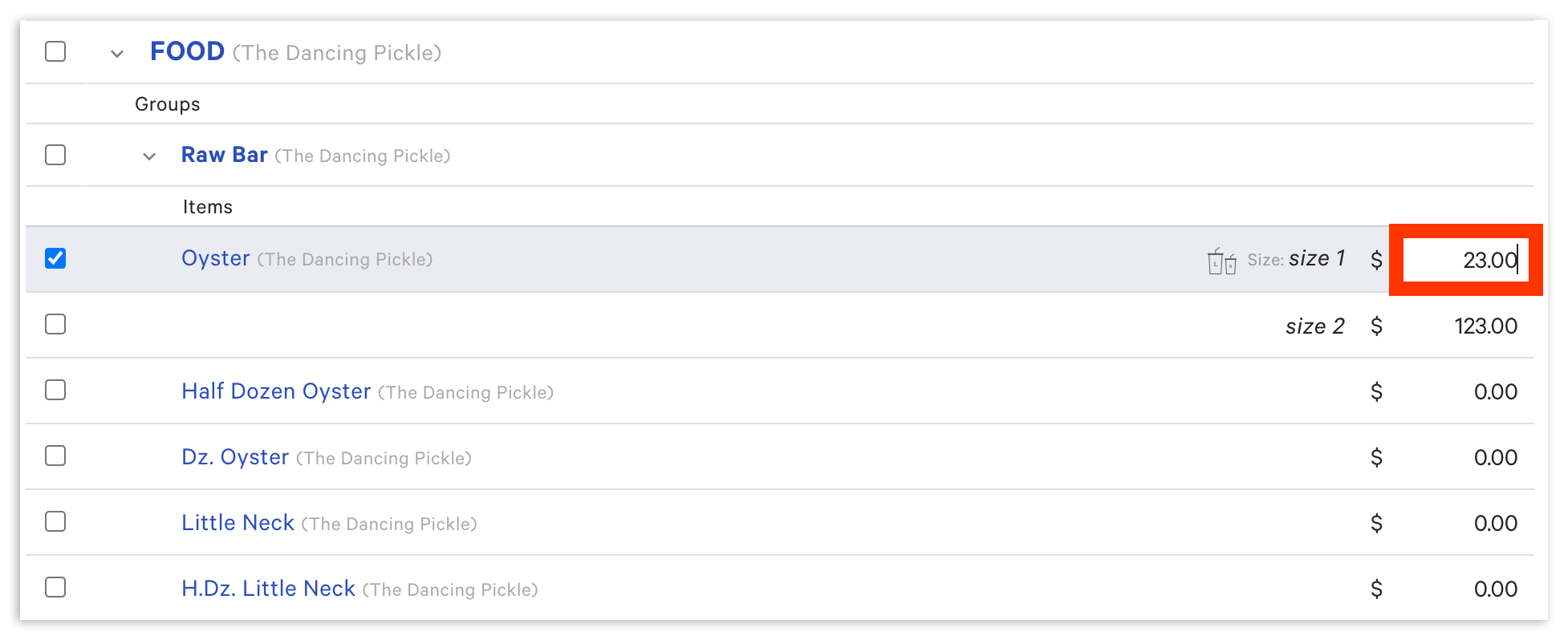
Note: Selecting an entire menu does not automatically select the groups and items inside it. If a price change will not save, expand each menu with the arrow icons and select the specific groups or items whose prices you want to update.
Change Prices in Bulk
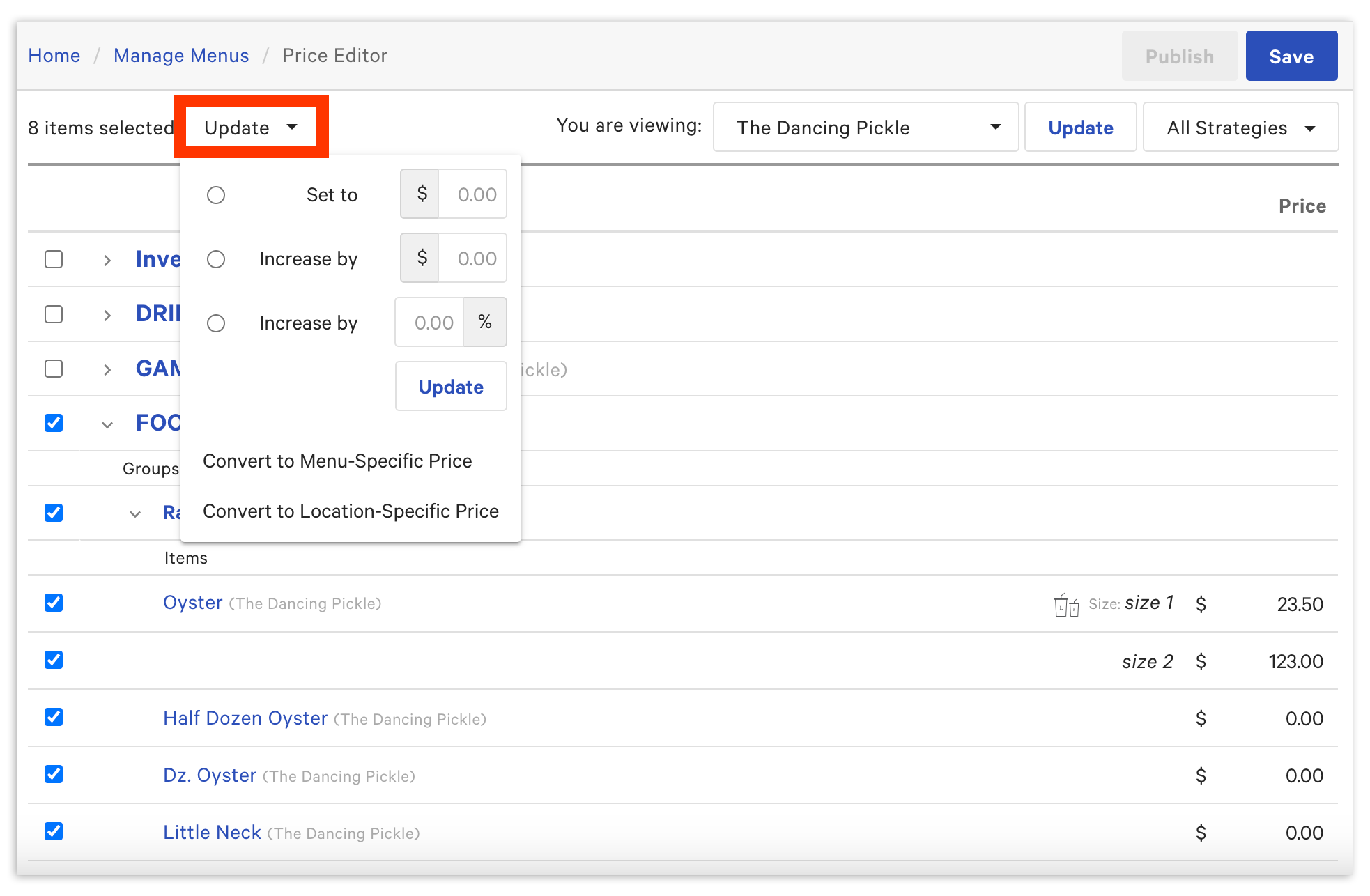
To change many prices at once, select your items first, then choose how you want to change them from the Update drop-down.
- Select the checkbox next to each menu, menu group, or menu item you want to update.
- Select the Update drop-down and choose a price change type:
- Set to dollar amount — Set the selected items or groups to a specific price. For example, set all appetizers to $10.00.
- Increase by dollar amount — Raise the selected items or groups by a set amount. For example, increase all non-alcoholic drinks by $0.50.
- Increase by percentage — Raise the selected items or groups by a percentage. For example, increase all bottles of wine by 5%.
- Decrease by dollar amount or percentage — Enter a minus sign ( - ) in front of the number in the dollar amount or percentage field.
- Enter the corresponding dollar amount or percentage, then select the Update button.
- Confirm the new prices appear on the Price Editor screen, then select Save and Publish to apply your changes.
Note: You cannot bulk-update the price of modifiers with the Price Editor. The Update drop-down applies to menu items only.
Advanced Pricing Percent Increase and Rounding
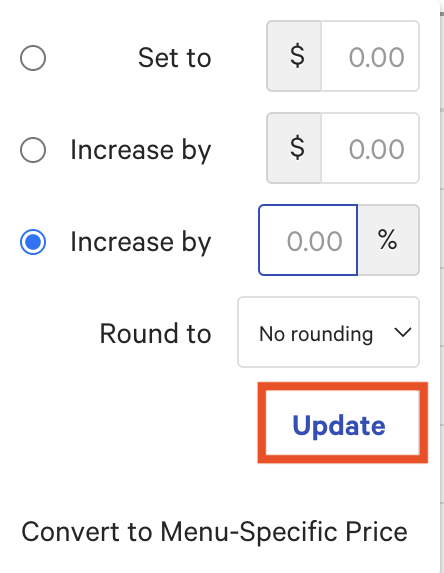
Rounding does not automatically round up a given price. You can choose to round your prices for groups, subgroups, or items after choosing a percentage increase. Rounding occurs after the percent increase, and there are three high-level options:
- Nearest .00/.25/.50 - This will round the price to the closest of these three options. For example, if a 10% increase is applied on an item listed at $9.50, the item will increase to $10.45, then round to $10.50 since .50 is the closest increment.
- Nearest .95 - This will round the price to the nearest dollar, then subtract 5 cents to get to the .95 increment. For example, if a 10% increase is applied on an item listed at $9.50, the item will increase to $10.45, but then round down to $10.00 and subtract 5 cents to finalize the listed price as $9.95.
- Nearest .99 - This will round the price to the nearest dollar, then subtract 1 cent to the .99 increment. Similarly, in that example, the 10% increase would be applied on an item listed at $9.50, so the item will again increase to $10.45, but then round down to $10.00 and subtract the 1 cent to finalize the listed price as $9.99.
To implement rounding:
- Navigate in Toast Web to Menus.
- Select Bulk management.
- Select Price editor.
- Select the group, subgroup, or item you want to adjust the price(s) on.
- Select the Update dropdown.
- Choose your Increase by percentage (you can choose none).
- Select the Round to dropdown to choose your rounding option.
- Select Update.
Your rounding has been applied! Make sure to Save and Publish your changes when you're finished.
Why Your Price Changes Are Not Saving or Applying
If you make a change in the Price Editor but it does not save, does not apply, or affects the wrong items, work through the causes below.
The whole menu was selected instead of the items. Selecting a menu's checkbox does not select the groups and items inside it. Expand each menu and group with the caret (arrow) icons and select the specific items you want to change, then Save and Publish.
You did not Save and Publish. Changes stay in draft until both are selected. After editing prices, select Save, then select Publish to push the update to the POS and your ordering channels.
One price change is affecting more than one item. If editing one item's price also changes another item, the two items most likely share a modifier group or a group pricing strategy, so they draw from the same price. To price them separately, set each item to its own base price, or use a menu-specific pricing strategy so the same item can carry a different price on each menu. See Set Your Menu Pricing Strategy in the Related Articles section.
You are trying to change a price that uses another pricing strategy. The Price Editor's bulk change feature works on items set to base price. If an item uses size pricing, open pricing, time-specific pricing, or location-specific pricing, the bulk change may not apply. Confirm the item's pricing strategy first. To convert items to menu-specific pricing, all items must be set to base price before converting. See Set Your Menu Pricing Strategy in the Related Articles section.
You are trying to change a modifier price. The Price Editor updates menu item prices only. To change the price of a modifier, modifier group, or nested modifier, open that modifier group's details page directly.
A large or scheduled update has not finished applying. A very large set of changes, or a scheduled publish, can take time to reach every location. If some locations have not updated, updating an item individually in the Price Editor applies faster than waiting on a large scheduled publish.
If prices are saved and published but still do not appear on the POS, see Toast Web Updates Not Appearing on POS in the Related Articles section. If the issue continues after working through these causes, contact Toast Customer Care.
Frequently Asked Questions
Can I change modifier prices with the Price Editor?
You cannot change modifier prices with the Price Editor. The tool updates the prices of menu items only. To change the price of a modifier, modifier group, or nested modifier, open that modifier group's details page directly.
Why does changing one item's price also change another item?
Changing one item's price also changes another item when the two items share a modifier group or a group pricing strategy, so they pull from the same price. To price the items separately, set each one to its own base price, or use a menu-specific pricing strategy to give the same item a different price on each menu. See Set Your Menu Pricing Strategy in the Related Articles section.
Why won't my price changes save in the Price Editor?
Price changes most often fail to save because the menu was selected without selecting the items inside it, or because Save and Publish were not both selected. Use the caret (arrow) icons to expand each menu and group, select the specific items you want to change, then select Save and Publish.
Can I decrease prices in bulk?
You can decrease prices in bulk by entering a minus sign ( - ) in front of the number in the dollar amount or percentage field of the Update drop-down. This works for both a dollar-amount decrease and a percentage decrease.
Can I update time-specific or size prices with the Price Editor?
You can update time-specific prices with the Price Editor only after the items have already been configured to use the time-specific pricing model. For setting up size pricing, time-specific pricing, and other strategies, see Set Your Menu Pricing Strategy in the Related Articles section.
Should I save my prices before a bulk percentage increase?
We recommend taking a screenshot of your prices before a bulk percentage increase. If you increase prices by a percentage and then try to decrease them by the same percentage, the prices will not match your original starting point, because the decrease applies to the new total rather than the original price. A screenshot lets you adjust your prices back to the original starting point, which has to be done manually.
Can I round my prices after a bulk percentage increase?
Yes. Rounding is optional and is applied after a percentage increase. You can round prices for groups, subgroups, or items using the Round to drop-down, choosing the nearest .00/.25/.50 increment or one of two "odd pricing" options, nearest .95 or nearest .99.
Related Articles
- Set Your Menu Pricing Strategy
- Use Advanced Properties to Edit Your Menu in Bulk
- Configure a Menu-Specific Pricing Strategy