Resolve Missing or Incorrect Employee Wages in Toast Web
Last updated: Jun 24, 2026, 11:03 AM
Troubleshoot missing pay rates, wage override errors, and incorrect wages for employees in Toast Web, including jobs without default wages and the "wage override updates were ignored" error.
- Overview steps
- The job has no default wage assigned
- You see "wage override updates were ignored"
- The wage is correct on the profile but missing from labor reports
- A pay rate changed in Toast Payroll but did not update in Toast Web
- Before you contact Customer Care
- FAQ
- Related articles
Overview steps
Before troubleshooting, confirm the following:
- You have access to Toast Web with permissions to edit employees
- You know which employee and job are affected
Follow these high-level steps to resolve most missing or incorrect wage issues:
- Confirm the employee has an active job assigned on the Jobs & pay tab of their profile in Toast Web.
- If the job has no wage filled in, add a wage override — see The job has no default wage assigned below.
- If you see the error "Changes saved successfully, but wage override updates were ignored," see You see "wage override updates were ignored" below.
- If the wage is set correctly on the employee's profile but does not appear in labor reports, see The wage is correct on the profile but missing from labor reports below.
- If you changed a pay rate in Toast Payroll and it did not update in Toast Web, see A pay rate changed in Toast Payroll but did not update in Toast Web below.
The job has no default wage assigned
Some jobs in Toast Web do not have a default wage (also called default pay). When you assign one of these jobs to an employee, the employee's pay rate for that job will be blank until you manually add a wage override.
A wage override is a pay rate set at the individual employee level that takes precedence over the job's default wage. If the job has no default wage, the wage override is the only way to assign a pay rate for that job.
To add a wage override:
- In Toast Web, navigate to Employees > Employee management > Employees.
- Select the pencil icon for the employee you want to edit.
- On the Jobs & pay tab, locate the job. It will have a check mark but no wage filled in.
- If you do not see wage amounts, enable the Show Wages toggle at the top of the page.
- Enter the pay rate in the Wage Override field for that job.
- Below the list of jobs, use the When should this take effect? field to set when the new wage takes effect.
- If you set a past date, labor reports will update retroactively. You can go back up to 35 days.
- If you set a future date, the wage will automatically take effect on that date.
- Select Save to apply your changes.
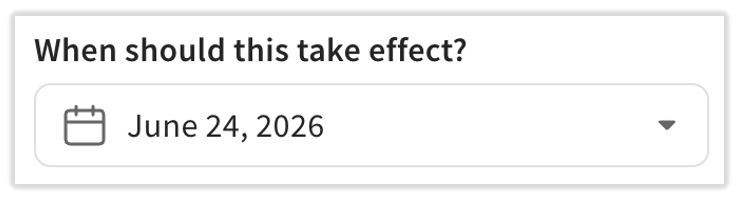
Expected outcome: The employee's Wage Override field displays the new rate, and labor reports reflect the updated wage from the effective date you selected.
You see "wage override updates were ignored"
If you update an employee's wage override and see the error message "Changes saved successfully, but wage override updates were ignored," the wage change did not take effect.
Gather the following information before contacting Customer Care:
- The employee's name and employee number
- The job title and location where you are attempting to set the wage override
- A screenshot of the error message
- Whether the employee has a pending Toast account
- Whether the employee uses Toast Payroll
The wage is correct on the profile but missing from labor reports
Is the job set to be excluded from reporting? Salaried jobs are commonly excluded from labor reporting because they are considered fixed costs. If the employee is a salaried manager, their wages may not appear in the labor summary. Whether or not the job will contribute to labor reporting is controlled by the Include in reports/exclude from reports setting on the job's details. To learn more, see Create and Edit Jobs (Roles) for Toast POS.
Did you set the wage retroactively? If you changed an employee's wage with a past effective date in Toast Web (controlled by the When should this take effect? setting), labor reports will update retroactively up to 35 days. However, if the pay change was made in Toast Payroll with a past effective date, it will not update past pay rates in Toast Web reports. The new rate only applies going forward. To learn more, see Toast Payroll: Retroactive Pay Change Not Reflected in Toast Web.
A pay rate changed in Toast Payroll but did not update in Toast Web
If you updated a pay rate in Toast Payroll and it did not sync to Toast Web, the most common cause is duplicate jobs on the employee's Toast Payroll profile. For step-by-step instructions to identify and resolve this issue, see Toast Payroll: Pay Change Did Not Sync To Toast Web.
Other causes of sync failures include unmapped or duplicate employee profiles between Toast Web and Toast Payroll. For a comprehensive sync guide, see Toast Payroll: Sync Information With Toast Web.
Before you contact Customer Care
If the steps above did not resolve your issue, gather the following before reaching out:
- The employee's name and employee number
- The job title and location affected
- A screenshot of any error messages
- The steps you have already tried
- Whether your restaurant uses Toast Payroll
- Whether the employee's Toast Web and Toast Payroll profiles are mapped
FAQ
What is the difference between default wage and wage override?
A Default Pay rate is set at the job level in Toast Web under Employees > Employee management > Jobs. Every employee assigned to that job automatically receives this wage unless they have an override.
A Wage Override is set at the individual employee level on the Jobs & pay tab of their profile. It overrides the default wage for that specific employee. Use a wage override when an employee's pay for a job differs from the job's standard rate.
If a job has no default wage, you must set a wage override for each employee assigned to that job (unless you use Toast Payroll). To set a default wage on a job, see Create and Edit Jobs (Roles) for Toast POS.
Can I set a wage for an employee without setting it on the job?
Yes. Use the Wage Override field on the employee's Jobs & pay tab of their profile. This sets a pay rate for that specific employee regardless of whether the job has a default wage. See the steps in The job has no default wage assigned above.
How do I check if all employees have the correct wage?
In Toast Web, navigate to Employees > Employee management > Employees. Select the pencil icon for each employee and review the Jobs & pay tab of their profile. Each assigned job should display either a default wage or a wage override.
For a bulk view, you can export the jobs list. Navigate to Employees > Employee management > Jobs and select the export icon (down arrow) to generate a .csv file with all job wages. Note that this export shows default wages per job, not individual employee wage overrides.
Where do I set default rates for jobs used in Toast Payroll?
Default rates for jobs are maintained in Toast Web, not Toast Payroll. Navigate to Employees > Employee management > Jobs in Toast Web, select a job, and update the Default Pay field. This change syncs to Toast Payroll instantly, but you may need to refresh the page or restart the process you were working on to see the synced change. To learn more, see Toast Payroll: Default Rates With Jobs.
Related articles
- Create and Edit Jobs (Roles) for Toast POS
- Toast Payroll: Pay Change Did Not Sync To Toast Web
- Toast Payroll: Default Rates With Jobs
- Toast Payroll: Retroactive Pay Change Not Reflected in Toast Web
- Can I edit a time entry report when an employee's wage changed?
- Toast Payroll: Sync Information With Toast Web