Send Messages to Employees on the POS Using Pre-Shift Notes
Last updated: Aug 20, 2026, 10:28 AM
Learn how to send pre-shift or staff notes to your employees on the POS and enable the stock module.
- Pre-Shift Notes Overview
- Create a Pre-Shift Note
- Edit a Pre-Shift Note
- Delete a Pre-Shift Note
- Enable Stock Notifications
- Additional Resources
Pre-Shift Notes Overview
Pre-shift notes provide you with a dedicated channel for you to communicate key announcements, reminders, and updates with your staff. Your employees are prompted to view the current shift’s notes after they clock in on a POS device and prepare to place an order, ensuring they are updated and ready to start their shifts.
With these pre-shift notes, you can easily communicate the following:
- Daily specials
- Out of stock menu items
- Staff reminders and shout-outs
- Coordinate reservations and events
Pre-shift notes appear once a server clocks in and accesses one of the primary modes of the POS such as quick order, table service, or payment terminal. These notes appear once per device, per day, per server and do not repeat daily. If an employee clocks in but does not use a primary POS mode, then they will not see the notes.
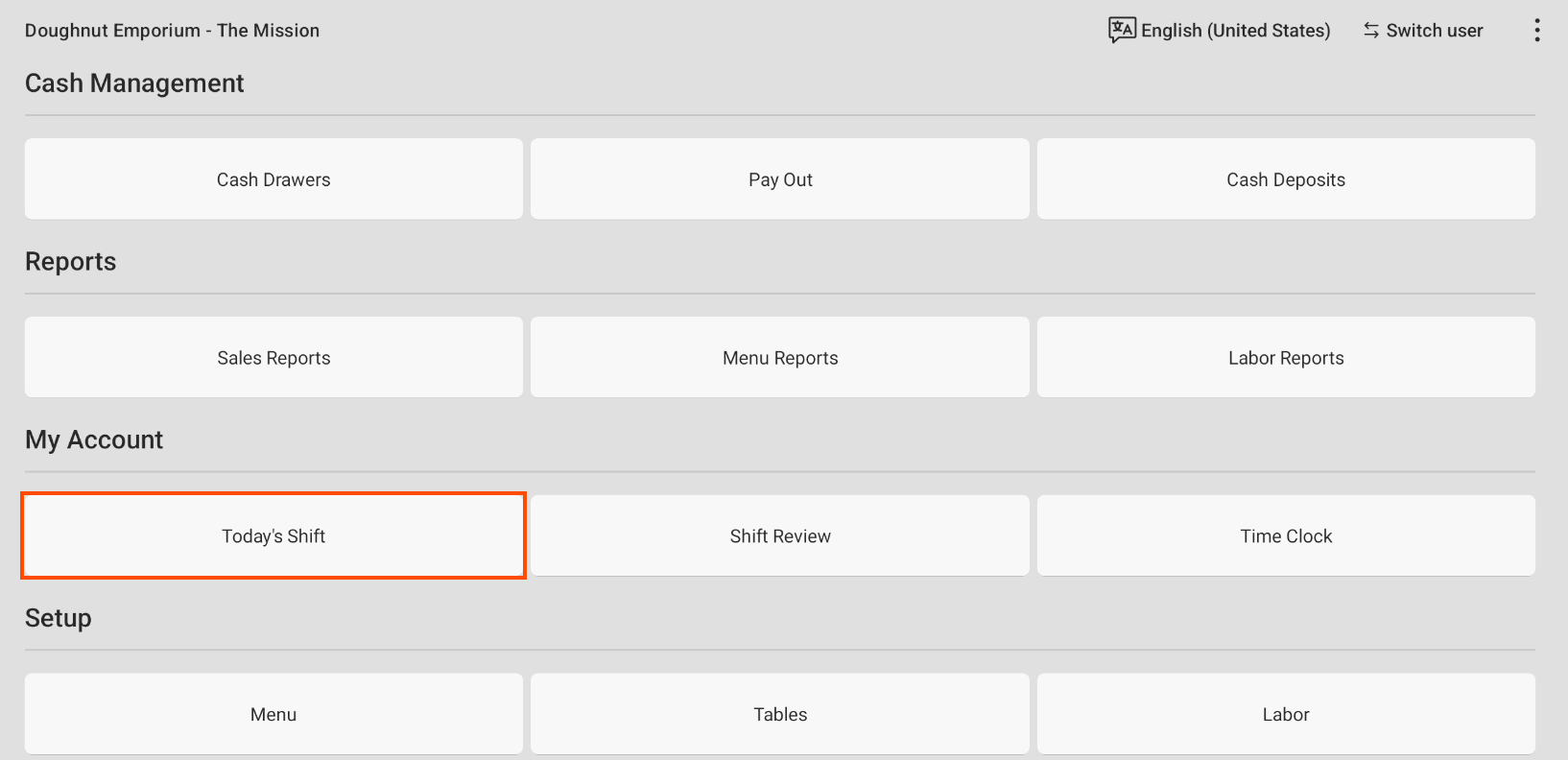
Your staff can always revisit pre-shift notes or stock information later in their shift by navigating to the main menu of the POS and selecting Today’s Shift under the My Account section as seen in the image below, or by selecting the overflow menu (three vertical dots) in the top right corner of any order screen and selecting Today’s Shift. They can also find this in the overflow menu in Payment Terminal and Orders Hub.
Create a Pre-Shift Note
To create a Pre-Shift Note:
- Navigate to the Toast Now app.
- Select the Overview tab.
- Select Pre-shift notes.
- Select the Notes box.
- Select + Add note at the bottom of the app.
- Create your note, and select Publish. You can also schedule this note by using the Schedule toggle, and selecting either next day, or a future date.
- Within the next window, selectBroadcast note to push this note to the POS screens, or Go back if you’d like to make edits to your note.
Edit a Pre-Shift Note
To edit a Pre-Shift Note:
- Navigate to the Toast Now app.
- Select the Overview tab.
- Select Pre-shift notes.
- Select Notes.
- Select the note you would like to edit. Select the pencil icon.
- Edit your note, and select Save.
Delete a Pre-Shift Note
You can also delete a published or scheduled note from the Notes screen. To do so:
- Select the note you would like to delete.
- Press and hold down on the note. This opens a dialog with options to edit or delete the note.
- Select the Delete note button to delete the note. Confirm if you would like to delete the note.
- Select the Delete button to delete the note.
Enable Stock Notifications
Stock notifications can also be activated and included in your pre-shift notes. To enable this setting:
- In Toast Web, navigate to Front of House > Pre-shift notes.
- Toggle the Menu item stock setting to the on position.
Note: Inventory and out-of-stock updates are reflected in real time. If your Today’s Shift page seems to be missing an item recently marked as low stock or out of stock, close out of Today’s Shift and reopen the page to refresh the accurate inventory. To set or update an item’s stock status and quantity, see Set Stock Status and Update Inventory Count in the Menu Builder.
You can update inventory on your POS using Quick Edit mode or the Toast Now app, or in Toast Web. See these articles for more information: