Set Up KDS Start Queue and Load Balancing
Last updated: Jul 16, 2026, 12:49 PM
Learn how to set up Start Queue and Load Balancing on your KDS.
| Load Balancing is dependent on the Start Queue workflow. To use Load Balancing, you must have Start Queue enabled. |
Start Queue and Load Balancing are two KDS features that work together to help your kitchen track what's being cooked and easily split work across identical prep stations. Start Queue separates tickets your team has started from tickets that are still waiting, and Load Balancing lets cooks claim tickets so orders are shared across multiple lines.
Both features are available with ToastMobile version 2.108 and only on devices set to the new KDS experience. To learn more, see New KDS Experience Overview.
- How Start Queue and Load Balancing work together
- Before you begin
- Set up Start Queue
- Set up Load Balancing
- Using Start Queue and Load Balancing on the KDS
- Frequently Asked Questions
- Related Articles
How Start Queue and Load Balancing work together
Start Queue gives each prep station a split-screen view that separates tickets into two columns:
- Unstarted - Tickets still waiting
- Cooking - Tickets your team has started
To move a ticket from Unstarted to Cooking, cooks will tap need to tap the ticket. Because tickets must be started before they can be fulfilled, orders aren't accidentally cleared before work begins, and the Expo screen always reflects the true status of each order.
When a kitchen runs two identical stations or lines that can make the same items, Load Balancing lets cooks claim the tickets they're ready to work on instead of having tickets auto-assigned. This keeps the workload flexible — if someone steps away, they simply stop claiming new tickets, and nothing is stranded at an inactive line. When a claiming device starts a ticket, it's claimed for every device in that load-balancing group, so the same item is never made twice.
Start Queue tracks what is being worked on, and Load Balancing decides who works on it.
Note: For the most efficient load-balanced line, use item tickets rather than order tickets. Item tickets let both groups work on the same order at the same time.
Before you begin
To use these features, confirm the following:
- Your devices are running ToastMobile version 2.108 or later. To learn how, see Find Your Toast App Version.
- The devices are set to the new KDS experience. To learn how, see New KDS Experience Overview.
- Start Queue is enabled. Load Balancing can not be configured without enabling Start Queue.
Set up Start Queue
In Toast Web, navigate to Kitchen > Kitchen Setup. Scroll to the Start Queue setting as seen in the image below.
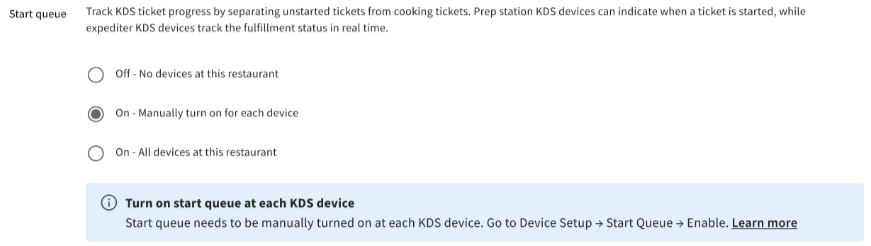
Once you have turned on Start Queue in Toast Web, you will next need to enable Start Queue on your individual KDS device(s):
- On the KDS device, open Device settings.
- Select Use Start Queue on this Device, then choose to enable it for that device.
If Start Queue is set to be enabled on all devices, the device setting shows that it is already on. If Start Queue is turned off, the device setting does not appear.
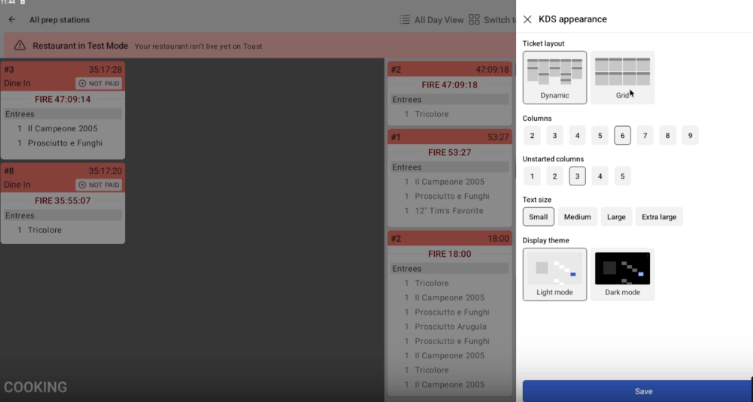
You can choose how many columns the Unstarted queue uses in the KDS appearance panel as seen in the image below. Give more space to Cooking tickets if your team manages many items at once, or more space to Unstarted tickets if your team prefers to look ahead and choose what to start next.
Set up Load Balancing
Note: Start Queue must be enabled before proceeding with the steps below. Load Balancing requires enabling Start Queue.
To configure load-balancing groups in Toast Web:
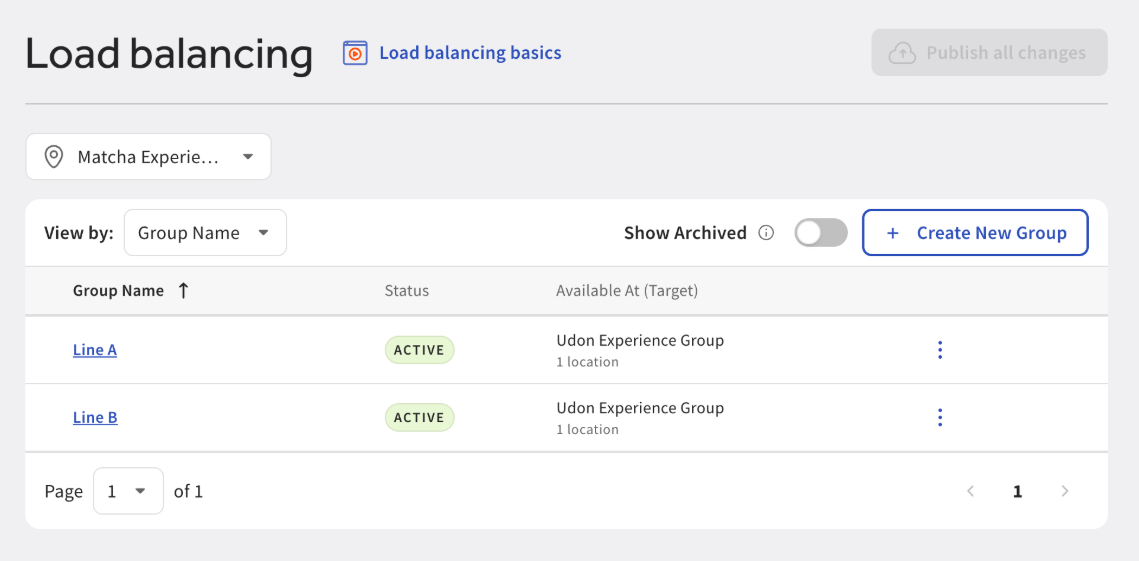
- Navigate to Kitchen > Kitchen stations > Load balancing.
- Define the two groups you want to balance between. Two default groups, A and B, are provided to help you get started.
- Keep group names short, since the group name is added to items on tickets on the Expo screen.
To set up the KDS devices in each group:
- On each prep station KDS, subscribe the device to the load-balancing group it belongs to.
- If a group has more than one KDS device, designate one or all of them as claiming devices. When a claiming device starts a ticket, it is claimed for all devices in the group.
Note: If you use Assembly Lines, set the first device in the assembly line as the claiming device. To learn more, see Use Assembly Lines With KDS.
Using Start Queue and Load Balancing on the KDS
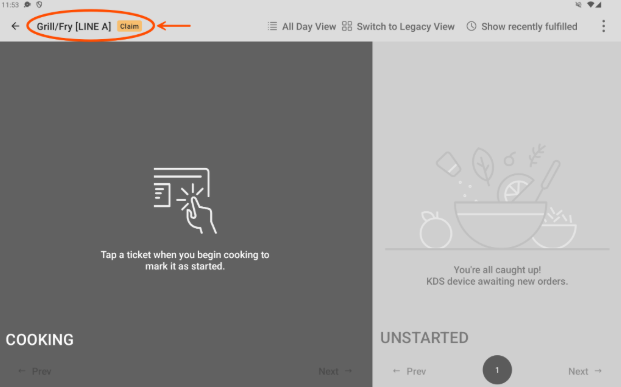
On a prep station with Start Queue, tickets appear in the Unstarted column until a cook taps to start them, at which point they move to the Cooking column. Note: A ticket must be started before it can be fulfilled.
On a claiming device, a claim tag appears at the top of the KDS along with the Start Queue view. Devices in the group that can't claim tickets see a claimed ticket as a fired ticket.
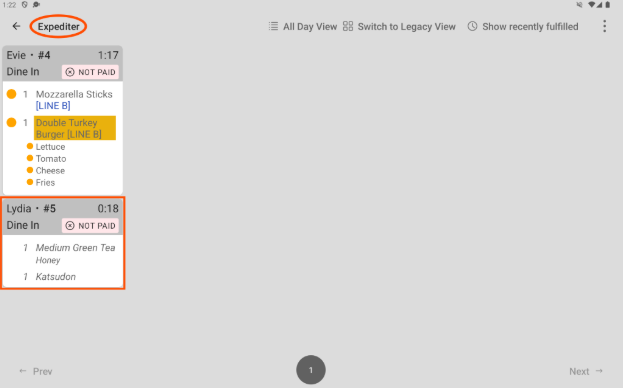
On the Expo screen, the line that claimed each item is shown next to the item name. Unstarted items appear in grey italics; once started, they become unitalicized and show the partial fulfillment indicator (an orange circle).
Frequently Asked Questions
Do I need Start Queue to use Load Balancing?
Yes, you need Start Queue to use Load Balancing. Load Balancing relies on the Start Queue workflow, so Start Queue must be enabled before Load Balancing will have any effect. If you mark a device as a claiming device but nothing changes, confirm Start Queue is enabled.
Why don't I see the Start Queue or Load Balancing settings on my device?
If you don't see the Start Queue or Load Balancing settings on your device, first confirm the device is running ToastMobile version 2.108 or later and is set to the new KDS experience. If the settings still don't appear after everything looks correct in Toast Web, contact Toast Customer Care.
Can cooks choose which tickets to work on?
Yes, cooks can choose which tickets to work on. With Load Balancing, staff claim the tickets they're ready to make rather than having tickets auto-assigned. Because claiming is manual, keep an eye on balance across lines so items aren't cherry-picked or skipped, which can hold up the rest of an order.
Should I use item tickets or order tickets?
For load balancing, item tickets work best. Item tickets let both load-balancing groups work on the same order at the same time, which keeps the line moving. Order tickets keep the whole order together on one line.
What's the difference between Load Balancing and Assembly Lines?
Load Balancing and Assembly Lines solve different problems. Load Balancing splits the same work across two identical stations or lines so orders are shared. Assembly Lines sequence an item through different prep stations in order, so each station completes its step before the item moves on. To learn more, see Use Assembly Lines With KDS.
Related Articles
- New KDS Experience Overview
- Use Assembly Lines With KDS
- Item and Order Fulfillment on KDS
- Customize the Appearance of KDS Tickets