Create a Prix Fixe Menu
Last updated: Sep 17, 2026, 4:34 PM
- Prix Fixe (Fixed Price) Menus Overview
- Set Up Your Menu
- Place an Item-Based Pricing Order
- Place a Modifier-Based Pricing Order
- Alternative Setup Options
Prix Fixe (Fixed Price) Menus Overview
Prix fixe or fixed price menus are typically full course meals consisting of an appetizer, entree, and dessert. Prix fixe menus are usually sold per person with a multi-course meal served to each individual. This may include two separate meals or a larger one meant to be shared. Some restaurants offer shared appetizers, sides, entrees, and dessert platters for the whole table at a fixed price per person.
A prix fixe menu is a great way to create a special experience for guests who are celebrating or help streamline the order process for employees. In addition, it allows guests to experiment and try unique offerings they might not have otherwise. This makes it a more memorable experience for guests who will want to come back to your restaurant.
| When building your prix fixe menus, please make sure to navigate to Kitchen > Kitchen and Ticket Setup and also review your Modifier Routing settings. If you are planning on setting up your prix fixe menu with modifiers functioning as items as demonstrated in the Modifier-Based Pricing section below, please ensure this setting is set to Print or show modifier(s) only. If you are planning on using Item-Based Pricing for your prix fixe menu, please ensure this setting is set to Print or show items with modifier(s). |
Set Up Your Prix Fixe Menu
There are two ways to create a prix fixe menu in Toast: item-based pricing and modifier-based pricing. When creating a prix fixe menu with item-based pricing, the cost is based on the guest's item selection. When creating a prix fixe menu with modifier-based pricing, the cost of the menu selection will be based on the modifier selection.
Limitations of Prix Fixe Menu Setups
- Item-based and modifier-based pricing: if the same item also exists on one of your à la carte menus, choosing it as a modifier within your prix fixe item will not be tracked as a separate item sale in your reporting — modifier sales roll up under the parent prix fixe item, not the à la carte item.
- Combo discount setup: if you use the Alternative Setup Options method (a combo discount applied to menu groups), you won't be able to apply any other discount to that check — combo discounts can't be combined with other discounts
Item-Based Pricing for Prix Fixe Menus
In this setup, each prix fixe menu will be its own menu item with its own price, and any choices that your guests will make will be entered as modifiers for each specific item.
- In Toast Web, navigate to Menus > Menu management > Menu manager.
- Scroll to the bottom of the page and select + Add menu to create a new menu.
- You'll see this button change to an editable field. Add your menu name here and select the checkmark to save it.
- Now select the name of your new menu to open the settings side panel. Here, select Advanced settings to open the details page.
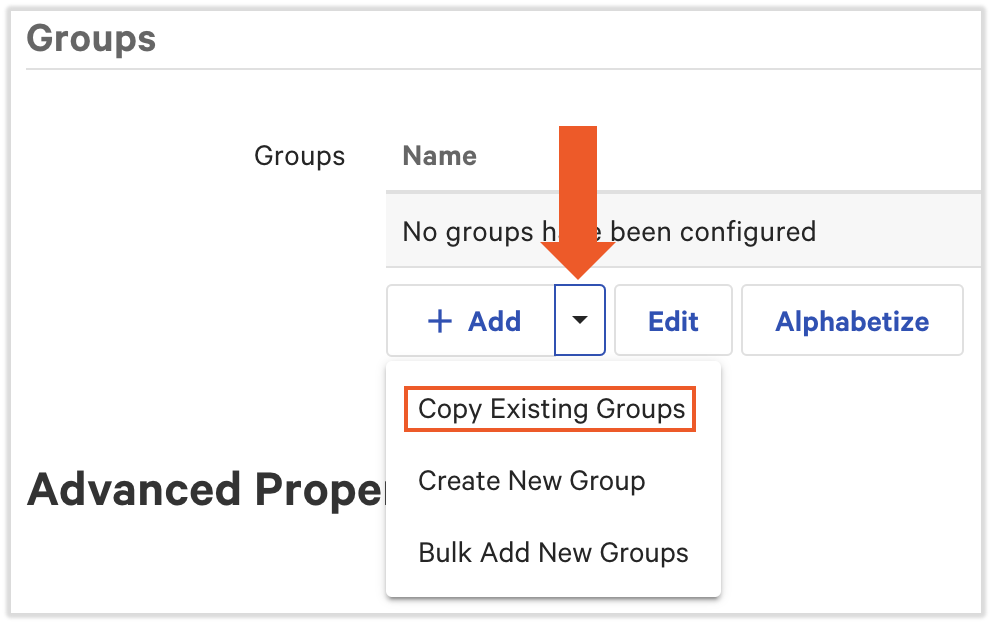
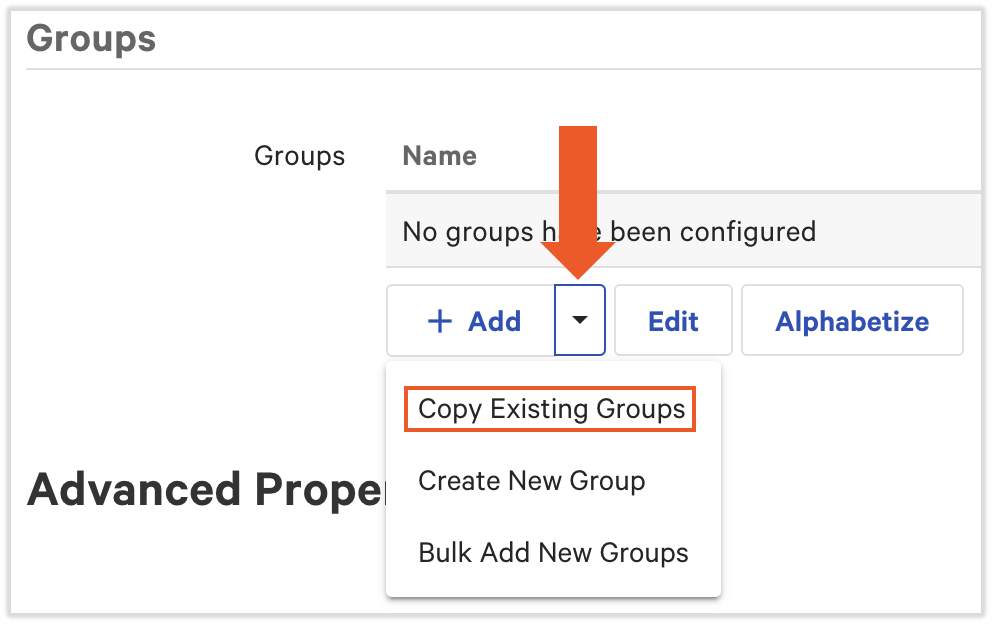
- Scroll down and add a menu group by selecting the arrow next to +Add and choosing Copy Existing Groups. You may have multiple menu groups.
- Using the pencil icon, you can edit the name of the copied group to remove the "(Copy)" text.
- If you need to create a new menu group, visit Create and Manage Menus, Menu Groups, and Subgroups.
- Once you've added your menu groups, select its name to open the group details page. Create your price-specific menu items in the Items section here, and assign their prices (e.g. Seasonal Prix Fixe, Holiday Prix Fixe).
- Once items are added, select an item to open the item details page. Within each item, you can create modifier groups with your menu selections for the set menu. Set each modifier group to Required. For example, you might create Appetizer, Entree, and Dessert modifier groups. You may have multiple modifier groups for each item.
- You may wish to go back to the item level, select the next item, and add more modifier groups.
- If you need to create a new modifier group or modifier option, visit Create Modifiers from Items.
- Once your prix fixe menu is fully built out, save and publish your changes.
Modifier-Based Pricing for Prix Fixe Menus
In this setup, each prix fixe menu would be a menu item with a price of $0. The choices that your guests will make (for example, for their appetizer) will be entered as modifiers for the item, which each have their own modifier-based price.
- In Toast Web, navigate to Menus > Menu management > Menu manager.
- Scroll to the bottom of the page and select + Add menu to create a new menu.
- You'll see this button change to an editable field. Add your menu name here and select the checkmark to save it.
- Now select the name of your new menu to open the settings side panel. Here, select Advanced settings to open the details page.
- Scroll down and add a menu group by selecting the arrow next to +Add and choosing Copy Existing Groups. You may have multiple menu groups.
- Using the pencil icon, you can edit the name of the copied group to remove the "(Copy)" text.
- If you need to create a new menu group, visit Manage Menus, Menu Groups, and Subgroups.
- Once you've added your menu group, select its name to open the group details. Create a menu item, leaving the price at $0.00.
- Once created, select the item to open the item details page. Now create your modifier groups. For example, you might create Appetizer, Entree, and Dessert modifier groups. Set each modifier group to Required. You may have multiple modifier groups.
- If you need to create a new modifier group or modifier option, visit Create Modifiers from Items.
- Select a modifier group to open the modifier group details page. Within each modifier group, a selection of modifiers can be created with specific price points. For example, if you created an Appetizer modifier group, here is where you'd add the different options for appetizer choices as individual modifiers.
- Repeat steps 7 and 8 for all modifier groups by navigating back to the modifier group level, selecting the next modifier group, and adding the appropriate modifier options.
- Once all modifier options have been added to each modifier group, save and publish all changes.
Place an Item-Based Pricing Order for Prix Fixe Menus
- On a Toast POS device, select your menu, menu group, and item. The price is set on the item, level, so you'll see the price on the check details once an item is selected.
- Next, choose the item's modifiers (for example, this is where you'd choose the appetizer, entree, and dessert as modifiers). The modifiers will not change the price per person.
- Additional items can be added or this order can be sent to the kitchen.
You may find that open view on the POS is well suited to taking orders for prix fixe menus. To learn more, check out this Support Center article: Get Started With Open View.
Back to top
Place a Modifier-Based Pricing Order for Pix Fixe Menus
- On a Toast POS device, select your menu, menu group, and item.
- Next, select your modifier options from each modifier group for example, this is where you'd choose the appetizer, entree, and dessert as modifiers). Once a modifier is selected from each modifier group, the cost associated with the modifier is added to the total.
- Additional items can be added or this order can be sent to the kitchen.
You may find that open view on the POS is well suited to taking orders for prix fixe menus. To learn more, check out this Support Center article: Get Started With Open View.
Back to top
Alternative Setup Options for Prix Fixe Menus
There are other ways you may wish to set up your prix fixe menu. Here is one example to consider that may be useful for simpler menus:
- Create a "Prix Fixe" menu and build each course as a menu group.
- Ensure that the prices of each item add up to more than the total for the prix fixe combo.
- Create a combo discount, and have it apply to the menu groups only (Create a Combo Discount).
This setup would allow the system to course your items while preventing servers from selecting items without a price.