TP200 Toast Printer Quick Start Guide
Last updated: May 21, 2026, 12:02 PM
TP200 Toast Printer Components
If you've ordered the TP200 Toast Printer, it'll come with the following:
- The TP200 Toast Printer
- Wall mounting bracket
- USB-C to USB-C cable (if your Toast Printer is being used alongside a Toast Flex terminal)
- Full roll of 80 mm thermal paper
- Power supply (if your Toast Printer will be alone or alongside an Elo terminal)
Check out the diagram below to get acquainted with your printer's buttons and lights.
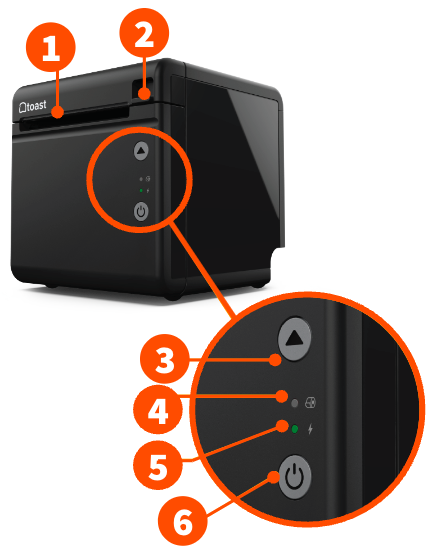
- Receipt cutting blade
- Latch to the thermal paper door
- Feed button for thermal paper
- Printer Error LED
- Printer Power LED
- Green light: Printer is on and ready
- Amber light: Printer is in sleep mode
- Printer power button
Install the TP200 Toast Printer
To install your TP200 Toast Printer, follow these steps:
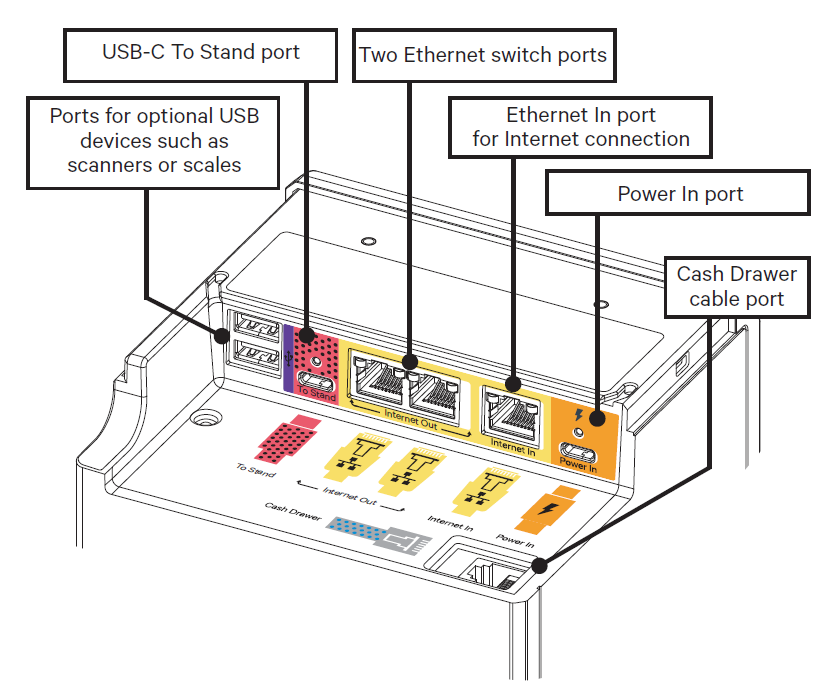
- Plug the orange USB-C connector of the power supply into the orange Power In port of the printer. Secure the power cable with the attached screw. Do not plug the power supply into the wall yet - this will be your last step. For now, place the plug near the wall for organizational purposes.
- If a cash drawer is being used, plug the cable connected to the drawer into the port labeled Cash Drawer. It will be separate from all other ports.
- Snap into place the yellow Ethernet cable from the router into the Internet In Ethernet port.
- Plug one end of the red USB-C connector into the red To Stand port of the printer and the other end into the bottom of the Toast terminal labeled USB-C. Note that if you are using a Toast printer with an Elo terminal, they will not connect with each other and have their own independent power supply and ethernet cable.
- Plug any peripherals, like scanners or scales, into the USB ports on the printer. There are no labels for these connectors.
- Plug the power supply into a wall outlet if using an Elo terminal with a Toast printer or using the printer by itself. The power light will turn amber, then change to green, showing the power is on.
How to Put a Paper Roll
- Pull the latch on the front of the Toast Printer and open the cover.
- Insert the full-size roll of 80 mm thermal paper. The paper should exit on the opposite side of the cover. Use the images below to help load in paper.
- Close the Toast Printer cover.
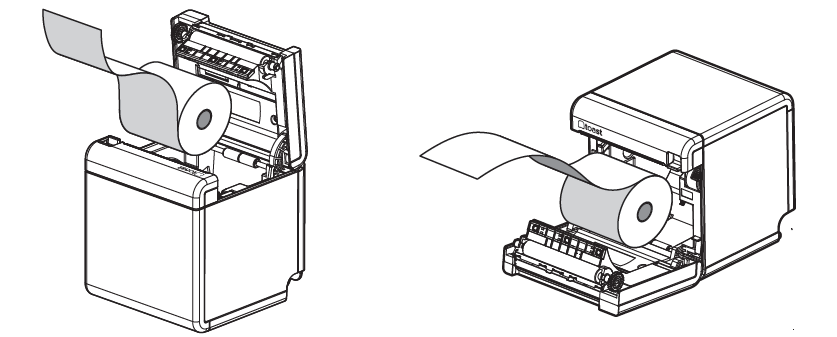
If the printer doesn't print after a test run, try reversing the placement of the paper roll.
Back to top
Configure Your IP Address
All new Toast Printers come configured with a DHCP IP address and won't need to be configured in Toast Web. Assigning a static IP address will cause unexpected print failures. After following the steps above, the printer will automatically connect to your network, and we encourage you to finish the setup on a POS device. For more information, check out Printer Setup Overview.
If you have a static IP address, a Toast Printer (purchased before June 2021), and you're trying to change its IP address, check out the Change Your TP200 Toast Printer's IP Address article.
Back to top
Set Up Your Toast Printer as a Language Printer
The TP200 Toast Printer (in addition to English) has the ability to print in Chinese (Simplified), Chinese (Traditional), Japanese, Korean, Vietnamese, and Thai. These are only available by special request when purchasing a new printer. Your new printer will be configured by our hardware team and shipped to you. Once it arrives, make sure to set it up as a language printer in Toast Web. Your Toast Printer will be able to print simultaneously in English and the additional language you've chosen to have it configured with.
- In Toast Web, navigate to Finance > Related > Settings > Printers & cash drawers.
- Select the Toast Printer you need to configure.
- Make sure the Model is set to Toast TP200/TP200W.
- Scroll down to the Character Set setting, and use the drop-down to select the language you'd like your tickets or receipts to print in. This will impact the currency displayed on printed tickets as well.
- Save and publish your changes.